


To set a trusted network to private in Windows 11, select Private network under Network profile type for your connected network. To change a network to private in Windows 11, open Settings > Network & internet, select Properties beside your connected network, and choose Private network under Network profile type. These steps use Windows 11 menus. Choose this profile only for a network you trust, because it makes your PC discoverable and permits sharing scenarios.
The short version
- Fastest route: Open your connected network’s Properties in Settings and select Private network.
- Choose carefully: Use a private profile only on a trusted network.
- Connection matters: Select the connected Wi-Fi or Ethernet network you intend to change.
- Sharing controls: Sharing permissions and firewall rules remain separate from the network profile.
| Method | Best use | What to know |
|---|---|---|
| Connected network Properties | Quick access from Settings | Works with Wi-Fi or Ethernet |
| Wi-Fi settings | Changing your connected wireless network | Select the current network |
| Ethernet settings | Changing your wired connection | Select the intended connection |
| Quick Settings | Opening Wi-Fi properties from the taskbar | The information icon opens Properties |
| Run shortcuts | Opening a network settings page directly | The shortcut does not change the profile |
| Windows PowerShell | Selecting a connection by its interface index | Administrator access required |
| Command Prompt | Invoking the PowerShell command | Same restrictions as PowerShell |
| Voice access | Operating Ethernet settings by speech | Must already be configured and listening |
| Group Policy for Unidentified Networks | Classifying unidentified networks collectively | Every affected network must be trusted |
| Group Policy for Identifying Networks | Applying a profile during identification | Unsuitable for devices encountering untrusted networks |
| Policy CSP for unidentified networks | Managing network classification across devices | Requires a supported edition and version |
| Policy CSP for identifying networks | Managing classification during identification | Does not permanently select a named network |
| Network List Manager API | Building administrative automation | Requires an elevated desktop program |
Set your connected Wi-Fi or Ethernet network to private
For Wi-Fi, open Start, select Settings, then open Network & internet > Wi-Fi. Select the Wi-Fi network you are connected to. Under Network profile type, select Private network.
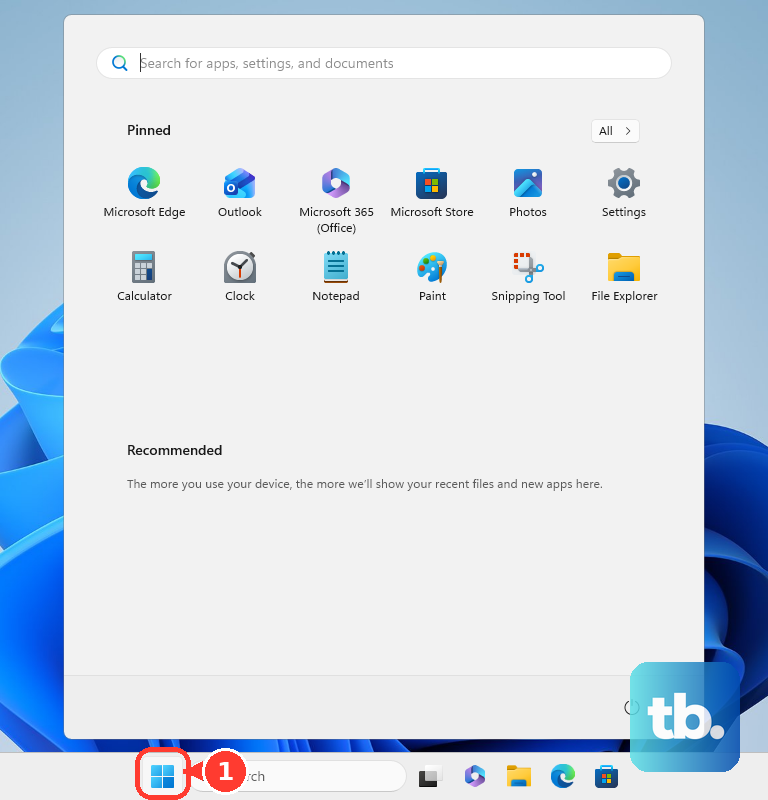
For a wired connection, open Start > Settings > Network & internet > Ethernet. When Windows lists individual connections, select the connected network you want to change. Under Network profile type, select Private network.
For either connection type, you can also open Settings > Network & internet and select Properties near the connected network. Choose Private network under Network profile type. Windows 11 defaults new networks to a public profile, so connecting to your home Wi-Fi does not automatically make it private.
Open Wi-Fi properties from the taskbar
Select the Network, Sound, or Battery icons on the taskbar to open Quick Settings. On the Wi-Fi quick setting, select Manage Wi-Fi connections. Beside the connected network, select Properties, represented by the information icon.
On the settings page that opens, find Network profile type and select Private network. This opens the same profile setting as the Wi-Fi route above, so you only need to complete one of them. If you cannot find the taskbar shortcut, open the connected network through Settings > Network & internet > Wi-Fi.
Jump to network settings with Run
Press Windows + R to open Run. To open the Wi-Fi settings page, enter the following command.
ms-settings:network-wifiSelect OK, then select your connected Wi-Fi network. Choose Private network under Network profile type. This shortcut requires a Wi-Fi adapter and opens the settings page without changing the profile automatically.
For a wired connection, press Windows + R. Enter the following command.
ms-settings:network-ethernetSelect OK, then open the connected network when individual connections are listed. Select Private network under Network profile type.
You can also open the main Network & internet page directly. Press Windows + R and enter the following command.
ms-settings:network-statusSelect OK, then select Properties near the connected network. Under Network profile type, select Private network.
Use PowerShell to select a specific connection
Windows PowerShell lets you identify the connection before changing its profile. Search Start for Windows PowerShell and select Run as administrator. If User Account Control requests consent, select Yes.
First, display the connection profiles so you can distinguish the trusted connection from any others. Run the following command.
Get-NetConnectionProfileFind the trusted connection and note its InterfaceIndex. Enter the following command, replacing N with that connection’s interface index.
Set-NetConnectionProfile -InterfaceIndex N -NetworkCategory PrivateCheck the same connection after making the change. Run the following command, again replacing N with its interface index.
Get-NetConnectionProfile -InterfaceIndex NThe connection’s NetworkCategory should read Private. If Windows refuses the change, confirm that you opened PowerShell with Run as administrator and used the correct interface index. Organization policy and domain authentication can also restrict changes.
Run the same change from Command Prompt
Command Prompt can invoke the same PowerShell commands to change the profile. Search Start for Command Prompt, select Run as administrator, and select Yes if User Account Control asks for consent.
Start by listing the connection profiles so you can identify the intended network. Run the following command.
powershell.exe -NoProfile -Command "Get-NetConnectionProfile"Identify the trusted connection and note its InterfaceIndex. Run the following command with N replaced by that index.
powershell.exe -NoProfile -Command "Set-NetConnectionProfile -InterfaceIndex N -NetworkCategory Private"Return to Settings > Network & internet and select the connected network’s Properties. Confirm that Private network is selected under Network profile type. Because this invokes the PowerShell operation, it has the same administrator, domain, and policy restrictions.
Operate Ethernet settings with Voice access
With Voice access already configured and listening, you can operate the Ethernet settings by speech. These commands assume an English interface and require Windows 11 version 22H2 or later.
Say Open Settings, then say Click Network & internet. Say Click Ethernet, then say Click Private network. If Windows lists individual connections, select the intended connected network before selecting its profile. These phrases operate the existing settings controls rather than invoking a dedicated network-profile voice command.
Classify networks through Group Policy
Use these administrative policies only when you intend to apply a classification broadly. They affect unidentified networks collectively or networks undergoing identification, rather than selecting one named connection. The built-in Local Group Policy Editor is available on Windows 11 Pro, Enterprise, and Education, but not Home.
As an administrator, open the Local Group Policy Editor. Press Windows + R and enter the following command.
gpedit.mscSelect OK, then open Computer Configuration > Windows Settings > Security Settings > Network List Manager Policies. To classify unidentified networks, open Unidentified Networks. Under Location type, select Private, then select OK. Apply this only when every affected unidentified network is trusted.
To apply a private profile while Windows identifies networks, open Identifying Networks in the same policy location. Under Location type, select Private, then select OK. This applies during identification and is unsuitable for a laptop that may encounter untrusted networks.
If you administer a domain, you can configure the corresponding settings in a domain GPO. If your PC is managed by an organization, ask its administrator to handle policy restrictions instead of treating these broad policies as a workaround for one connection.
Configure managed devices or administrative software
For managed devices, you can deploy the NetworkListManager Policy CSP through your organization’s device-management system. Microsoft supports these settings on Windows 11 Pro, Enterprise, Education, and IoT Enterprise, not Home. The documented version requirements include Windows 11 version 24H2 and later, plus Windows 11 version 22H2 with KB5053657 (build 22621.5126) or later.
To classify unidentified networks collectively, deploy the following device-scoped OMA-URI with integer value 1. Microsoft defines 1 as private and 0 as public, so apply the private classification only when every affected network is trusted.
./Device/Vendor/MSFT/Policy/Config/NetworkListManager/UnidentifiedNetworks_LocationTypeTo apply the private category while Windows identifies a network, deploy the following device-scoped OMA-URI with integer value 1. This has the same edition and version requirements and does not permanently select one named connection.
./Device/Vendor/MSFT/Policy/Config/NetworkListManager/IdentifyingNetworks_LocationTypeIf you are building administrative software, an elevated desktop program can enumerate connected networks through INetworkListManager::GetNetworks. Identify the intended network, then call INetwork::SetCategory(NLM_NETWORK_CATEGORY_PRIVATE). Microsoft requires callers to belong to the Administrators group and says the change takes effect immediately.
Check blocked changes and sharing settings
After making a change, open the connected network’s Properties and confirm that Private network is selected under Network profile type. If the choice is unavailable or a command fails, administrator credentials or organization policy may be involved. On a managed PC, contact your administrator when policy prevents the change.
A domain-authenticated connection also needs different handling. Windows assigns DomainAuthenticated through domain authentication, and you cannot manually select that category with Set-NetConnectionProfile. Domain-authenticated profiles can prevent a change to private.
If files or printers remain unavailable, check the relevant sharing permissions and firewall rules separately. Selecting Private network makes your PC discoverable and permits sharing scenarios, but it does not complete the sharing setup.
The Private network screen in Windows Security controls firewall behavior. Opening it does not reclassify your connection, and an app’s Private firewall checkbox does not change the active network’s profile either. Use the connected network’s profile setting to change its category.
Frequently Asked Questions
Can you change a network to private on Windows 11 Home?
Yes. The Settings methods work on Windows 11 Home as well as Pro, Enterprise, and Education, so you do not need to upgrade to Pro for this task.
Does the Ethernet method work with a USB adapter or dock?
Yes, the Ethernet instructions also apply to Ethernet adapters connected through USB or a dock. Select that adapter’s connected network when Windows lists individual connections.
Can PowerShell select a connection without its interface index?
Yes. Set-NetConnectionProfile also supports the -InterfaceAlias and -Name parameters as alternative selectors. Identify the intended connection before changing its category.
Do you need to download a tool to change the network profile?
No download is required for the consumer methods. Windows includes the Settings controls and command tools used to change the profile.