Need to scan to computer, but the scanner button, printer panel, or app is sending you in circles? Start with the computer's built-in scan tool, then move to the printer maker's app or a phone scan when the device needs another route. Here are the current paths that get the document onto your computer without using retired tools.
Scan from Windows first
Put the page on the scanner glass or in the document feeder.
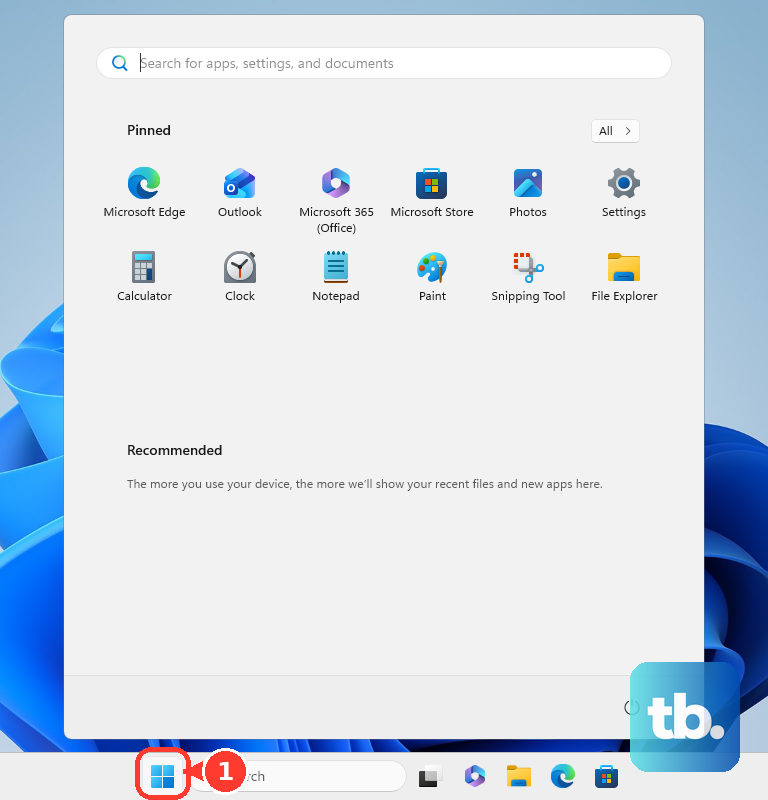
On Windows 11, open Start, Settings, Bluetooth & devices, and Printers & scanners. On Windows 10, open Start, Settings, Devices, and Printers & scanners.
Select Add device next to Add printer or scanner.
Choose Add device beside your scanner or multifunction printer.
When Windows does not find it, choose Add a new device manually next to The printer that I want isn't listed.
Right-click Start and choose Search.
Type Windows Scan.
Open Scan under Apps.
Choose the scanner, source, file type, and save location on the Scan page.
Select Scan.
Tip: When Windows Scan is missing, install it from Microsoft Store and scan from that app.
Reconnect a missing Windows scanner
The most common cause is a stale or missing printer or scanner entry in Windows.
On Windows 11, open Start, Settings, Bluetooth & devices, and Printers & scanners. On Windows 10, open Start, Settings, Devices, and Printers & scanners.
Select the printer or scanner.
Choose Remove.
Confirm with Yes.
Return to Printers & scanners.
Choose Add device or Refresh.
Choose Add device for your printer or scanner when it appears.
When it does not appear, select Add manually and add the device from there.
Scan on a Mac through System Settings
This fixes scanning when your printer or scanner already appears on your Mac.
Open the Apple menu.
Choose System Settings.
Select Printers & Scanners.
Click your printer or scanner in the Printers list.
Choose Open Scanner.
Set the options you need, including Use Document Feeder, Show Details, Scan Mode, Kind, Resolution, Duplex, and Size.
Click Scan.
For a Preview workflow, open Preview, choose File, then Import from Scanner.
Pick the scanner, set the scan options, and save the file.
For Image Capture, open Image Capture.
Select the scanner in the sidebar.
Choose the scan options and destination.
Click Scan.
Use your printer maker's scan app
Some all-in-one printers scan through their own desktop app when the scanner needs model-specific software.
For HP, install or open the HP app, add or select the printer, click a scan tile, choose a preset or scan settings, select Scan, then save or share the file. The HP app replaces HP Smart, which HP no longer offers for download, but it is not the same app: HP combines features from HP Smart and myHP into the one app on supported platforms.
For Brother, open Brother iPrint&Scan, choose Select your Machine when needed, select Scan, adjust the document size, color, resolution, brightness, or contrast, then choose Save to PC or Copy to Application.
For Epson, place the original, open Epson ScanSmart, choose the scan area when needed, select SCAN, review or edit the result, choose Next, then save, send, or print.
For Canon, open Start, Canon Utilities, and IJ Scan Utility, then choose Auto, Document, Photo, Custom, ScanGear, OCR, or E-mail.
When the brand app cannot see the scanner, install the driver or software package for your exact printer model and operating system. Then add the scanner again in Windows or macOS.
Send the scan from the printer panel
HP models with control-panel scan-to-computer support use the printer's Scan menu. After the required HP scan software is installed, choose Scan, Computer, pick the destination computer or job type, and start the scan.
Brother models can push a scan after Brother iPrint&Scan settings are configured. On Windows, push scanning is already enabled on compatible machines; on macOS, install the iPrint&Scan Push Scan Tool to scan with the machine's Scan button. On macOS 15 or later, if Brother iPrint&Scan cannot reach the machine over the network, allow it under System Settings, Privacy & Security, Local Network. In Brother iPrint&Scan, open Machine Scan Settings, choose a feature, set File, OCR, Image, or E-mail options, then use the machine's Scan button or scan menu to send it to the configured computer.
Epson all-in-ones that support scan to computer use Scan, Computer, a destination computer, and then Preview on Computer, Save as JPEG, or Save as PDF before Send. Epson requires Epson ScanSmart, Epson Scan 2, and Event Manager before scanning to a computer on supported models.
Canon models need the Canon utility set up for operation-panel scanning. In IJ Network Scanner Selector EX2, open Settings..., then Scan-from-Operation-Panel Settings, select the printer or scanner, and choose OK; on Mac, use IJ Scan Utility Lite, Settings (General Settings), and Scan-from-Operation-Panel Settings to enable operation-panel scans.
Scan through a browser or network folder
Use this when a network printer can scan without a desktop scan window, or when you want the file sent to a shared folder. These are home-office options for printer models that include browser scanning, network folder scanning, or FTP scanning.
For supported HP network printers, find the printer IP address.
Open that address in a browser.
Go to HP Embedded Web Server, Scan, and WebScan.
Set the source and scan settings.
Choose Start Scan.
Save the scan to the computer.
WebScan does not require additional software or drivers on supported HP printers. A printer administrator can enable WebScan when it is off.
On Brother models that support Scan to Network, pre-configure a profile in Web Based Management.
Load the document.
Choose Scan.
Pick the Scan to Network profile.
Start the scan.
On Epson models with Network Folder/FTP, create a shared folder and register it in Contacts, or enter it by keyboard from the product panel.
Use Scan, Network Folder/FTP, Contacts or Keyboard, then choose Network Folder (SMB) or FTP.
Enter the location and start the scan.
Use a phone or camera instead
When scanner setup is taking too long, these routes still get the document onto a computer.
- 1.On a Windows device with supported camera document mode, open Camera, select Document, place the paper in view, choose Take document, then use Open Folder or Export.
- 2.On iPhone or iPad, open Files, tap More, choose Scan Documents, capture with the Shutter button or a Volume button, then choose Keep Scan and Done, pick a location, and tap Save.
- 3.On a Mac with a nearby iPhone or iPad, Control-click the desktop, a Finder folder, note, or email, choose Insert from iPhone or iPad, select Scan Documents, then use Keep Scan and Save; these scans are not saved on the iPhone.
- 4.On Android, open OneDrive, use the scan or camera button, choose Whiteboard, Document, Business Card, or Photo, tap the white circle icon to scan, add pages when needed, and save to OneDrive.
- 5.For an Android 12 or higher phone or tablet and a Mopria-certified scanner or multifunction printer, open Mopria Scan, select the scanner, choose scan settings, scan, and save or share the file.
- 6.On a Chromebook, open Camera, select Scan, Document, capture the page, then choose Save as photo or Save as PDF; use Multi-page for more pages.
Scan on a Chromebook
On ChromeOS, scan from a supported Wi-Fi or wired-network printer or scanner through the built-in scan area. Select the time at the bottom right, open Settings, select Advanced at the bottom left, then under Printers and scanners choose Scan.
Choose the scanner and scan settings, then scan and save the file to the Chromebook. Bluetooth scanning is not supported on ChromeOS.
When you only need a camera scan, use the Chromebook Camera app with Scan and Document, then save the result as a photo or PDF.
Avoid retired scan tools
Older Windows instructions point to Windows Fax and Scan, but the current Windows scanner path is Windows Scan. Windows Fax and Scan is not available on Windows 10 or Windows 11 Arm-based PCs.
Microsoft Lens is retired. Microsoft ended support after February 9, 2026, and stopped new scans after March 9, 2026, so use OneDrive mobile scanning, the iPhone and iPad Files app, or the computer's built-in scan tool instead.
On a work or school Windows computer, the printer can be made available by device management instead of your own printer setup. When the printer is missing, ask your administrator to add it to your managed device.
If that does not solve it, scan from a personal Windows or Mac computer with the vendor app, or use the phone scanning options above to save the document where the computer can reach it.
Frequently Asked Questions
Can I scan to a computer without installing printer software?
Yes. Windows Scan, macOS Printers & Scanners, macOS Image Capture, and ChromeOS Scan work with supported scanners. Some HP network printers also support WebScan in a browser without extra software or drivers.
Why does my Chromebook not scan over Bluetooth?
Bluetooth scanning is not supported on ChromeOS. Use a Wi-Fi or wired-network printer or scanner, or scan the document with the Chromebook Camera app.
Is Windows Fax and Scan still the best Windows option?
No. It is a legacy utility and is not available on Windows 10 or Windows 11 Arm-based PCs. Use Windows Scan for the current consumer scan path.
Can I scan from an iPhone directly into a Mac?
Yes. Use Continuity Camera from the Mac with Insert from iPhone or iPad, then Scan Documents. Scans captured this way are not saved on the iPhone.