You have a paper document and need a clean digital copy without fighting the scanner software. The right path depends on whether you're using Windows, Mac, Chromebook, a printer brand app, Acrobat, or your phone. Start with the quickest option for your device, then use the brand app or scanner button when you need more control.
Get the scanner ready
Connect the scanner or multifunction printer by USB, Wi-Fi, or a wired network.
Place one page on the scanner glass when you want a flatbed scan.
Load the pages into the automatic document feeder when your scanner has an ADF.
Decide whether you want an image file, a PDF, or a page inserted into another app.
Choose Flatbed for scanner-glass scans, and choose Feeder, Document Feeder, or ADF for feeder scans.
Keep the page square against the guide marks before you scan.
Scan on Windows with Windows Scan
The most common Windows issue is that the scanner has not been added under Printers & scanners.
Go to Start > Settings > Bluetooth & devices > Printers & scanners, then confirm the scanner appears with scanner settings.
Open Start, select Search, type Windows Scan, and select Scan.
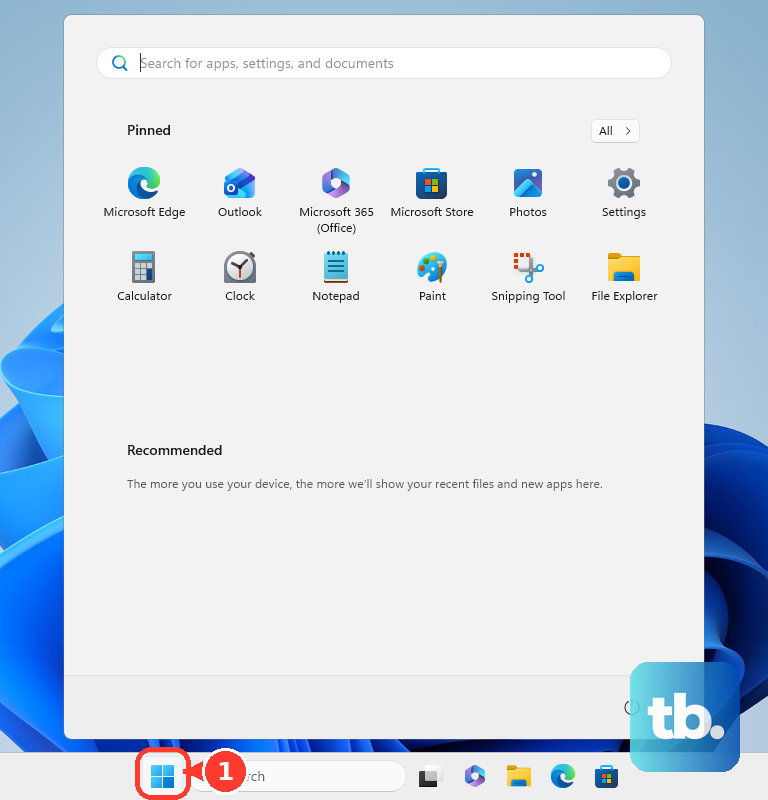
If Windows Scan is missing, install Windows Scan from the Microsoft Store, then launch it from Windows search.
In Scan, choose your scanner, set Source to Flatbed, Feeder, or Auto-configured, and set File type to JPEG, PNG, TIFF, or Bitmap.
Open Show more when you need a different save folder, choose Save file to, select Select Folder, then select Scan.
Scan on a Mac from System Settings
Apple's direct scanner path starts at Apple menu > System Settings > Printers & Scanners.
Select your printer or scanner, then choose Open Scanner.
For a feeder scan, place the pages in the document feeder, select Use Document Feeder, open Show Details when you need more controls, set Scan Mode, Kind, Resolution, Duplex, Scan To, Name, and Format, then click Scan.
For a flatbed scan, place the item on the glass, clear Use Document Feeder, set Scan To and Size, open Show Details when needed, then click Scan.
If this method fails, open Preview and use File > Import from Scanner > [scanner name], or use Edit > Insert > Page from Scanner to add the scan to an open document.
Scan on a Chromebook
On a Chromebook, use the built-in Scan app with a Wi-Fi or wired-network scanner. Bluetooth scanning is not supported.
Select the time at the bottom right, open Settings > Advanced, then choose Scan under Printers and scanners.
You can also open the Launcher, search for Scan, and open the app from there.
In Scan, choose your device from the Scan dropdown, adjust More settings such as color mode, page size, resolution, and scan options, then select Scan. Use Show file location to find the saved file.
Use the app from your scanner brand
Use the scanner maker's app when the built-in computer tool does not show the scan controls you need.
- 1.HP: install or open the HP app from hp.com/hp-app or 123.hp.com, add or select the printer, place the original on the scanner glass or ADF, choose Scan or Printer Scan, adjust settings, then save or share.
- 2.Canon: on Windows 11, select Start > All apps > Canon Utilities > IJ Scan Utility, or on Windows 10 select Start > Canon Utilities > IJ Scan Utility, choose the product, click Auto for automatic item detection or Document for a document scan, and use Settings... for scan and save settings.
- 3.Epson: load the original, then on Windows 11 select Start, search for Epson ScanSmart, and select it, on Windows 10 select Start > Epson Software > Epson ScanSmart, or on Mac open the Applications folder, open Epson Software, and select Epson ScanSmart, follow the scan flow, review or edit, then choose Save, Attach to Email, Send, or Print.
- 4.Brother: load the document, open Brother iPrint&Scan, choose Select your Machine when the model is not selected, click the Scan icon, set scan options, click Scan, then choose the save or sharing option and set File Name and File Type.
Make a searchable PDF in Acrobat
Adobe Acrobat desktop can scan from a connected scanner straight into a PDF.
Start from Create in the global toolbar, choose Scanner in the left rail, then pick your device from the Scanner dropdown.
Set Pages, Quality, Output, Recognize Text, Add Metadata, and Make PDF/A-1b compliant, then select Scan.
For a longer job, choose Scan More Pages, Scan Reverse Sides, or Scan Is Complete, then choose OK.
Use your phone when a scanner is not nearby
A camera-based scan fits when you do not have a physical scanner nearby. It also works when the finished file should go straight into Notes, Files, Drive, or Adobe cloud storage.
For iPhone or iPad, open Notes, open or create a note, tap the Attachment button, then choose Scan Documents.
Put the document in view, let Auto mode capture it or tap Shutter, adjust the corners, tap Keep Scan, then tap Done.
For Apple's file browser, open Files, tap More > Scan Documents, capture the page, tap Keep Scan, tap Done, choose a location, and tap Save.
With Android, open Google Drive, tap Camera, capture the document, use Crop & Rotate, Filter, Clean, Add, Retake, or Delete, then tap Done, choose .pdf or .jpg, and tap Save.
In Files by Google, tap Scan, photograph the document, adjust it, and save it as a PDF.
Adobe Scan on Android or iOS can scan with the camera or import an existing image, then save the result with Save PDF after Adobe cloud storage sync finishes.
Make the scanner button start the job
This fixes scans you want to start from the scanner or printer panel instead of the computer.
Load the original on the scanner glass or in the ADF.
On Epson models with Epson ScanSmart installed, press the physical Start or Scan button.
On HP printers with control-panel scanning, choose Scan or a scan destination on the printer panel.
Choose the destination and settings, then start the HP scan.
On Brother models with scan-to-PC buttons, set the destination first in Brother iPrint&Scan under Machine Settings > All Settings > Scan > Scan to PC.
Choose the scan type and PC Name, then select Submit.
Press the Brother machine's scan shortcut or SCAN key and choose Brother iPrint&Scan when prompted.
Skip old scan shortcuts
The most common dead-end is an old Windows 10-era or retired scanning app.
Use Windows Scan instead of Windows Fax and Scan or the old Paint scanner import path on current Windows setups.
Use Brother iPrint&Scan instead of Brother ControlCenter4 unless your Brother model's current support page specifically points you there.
Use Notes, Files, Google Drive, Files by Google, or Adobe Scan instead of Microsoft Lens, because Microsoft Lens can no longer create new scans after March 9, 2026.
Frequently Asked Questions
Can I scan a document as a PDF?
Yes. Adobe Acrobat desktop scans directly to PDF with OCR options. Google Drive on Android can save scans as .pdf or .jpg, Files by Google saves scans as PDF, and Adobe Scan saves with Save PDF.
Why will my Chromebook not scan over Bluetooth?
Chromebooks do not support Bluetooth scanning. Use a Wi-Fi or wired-network scanner, then open the built-in Scan app.
Can I scan two-sided pages from a feeder?
Yes, when your scanner and app support duplex feeder scanning. macOS scanner settings include Duplex, Canon IJ Scan Utility Lite has Scan both sides for supported duplex ADF models, and Acrobat includes Scan Reverse Sides.
Can I scan straight from my iPhone to my Mac?
Yes. In supported Mac apps, Control-click where the scan should appear and choose Scan Documents, or use Insert from iPhone or iPad > Scan Documents. Your Mac and iPhone or iPad must both be signed in to the same Apple Account using two-factor authentication, with Wi-Fi and Bluetooth turned on.