Windows troubleshooters are not all in the same old place anymore. On current Windows 11 PCs, the two paths that matter are Settings and the Get Help app, and newer releases route supported troubleshooters into Get Help.
Start with the main Settings list, then jump to the problem-specific route when Windows gives you one. Here are the current ways to open the right troubleshooter without chasing outdated Control Panel or MSDT instructions.
1. Open the main troubleshooter list in Settings
Use this first when you want the full Windows 11 troubleshooter hub. Select Start, open Settings, then select System.
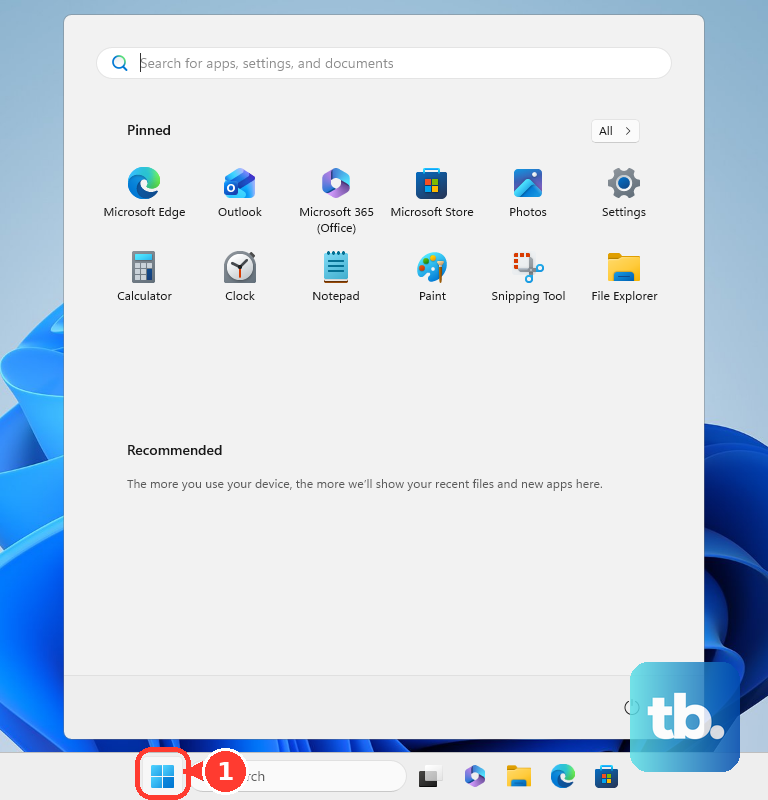
Select Troubleshoot, select Other troubleshooters, and find the troubleshooter that matches the problem. Then select Run.
On Windows 11 version 24H2, Windows Server 2025, and newer releases, supported troubleshooters in this area redirect to the newer Get Help flow where Microsoft provides one.
2. Search Get Help for the exact problem
- 1.Select Start.
- 2.Open Get Help.
- 3.Select the Search bar.
- 4.Enter the troubleshooter name you need.
- 5.Follow the prompts shown in Get Help.
Get Help is the current home for many Windows troubleshooters, so open it directly when you already know the problem category. Microsoft lists Get Help flows for Bluetooth troubleshooter, camera troubleshooter, printer troubleshooter, Video playback troubleshooter, Windows Media Player troubleshooter, windows update troubleshooter, and Run the Windows Program Compatibility troubleshooter. Browser Start buttons on Microsoft Support also open the related Get Help flow and require the app plus internet access for online diagnostics.
3. Run Windows Update troubleshooting
Windows Update gets its own entry in the Settings troubleshooter list, so go straight there when updates fail or get stuck. Select Start, open Settings, then select System.
Select Troubleshoot, select Other troubleshooters, and next to Windows Update, select Run. Continue in Get Help if Windows redirects you there.
You can also open Get Help, search for windows update troubleshooter, and follow the Windows Update prompts from there.
4. Fix sound from the Sound page
Select Start, open Settings, then select System. Select Sound, then select Troubleshoot common sound problems.
Choose Output devices for speaker, headphone, or display-audio trouble. Choose Input devices for microphone trouble, then follow the prompts.
Audio problems have a cleaner route than the general list. Use the Sound page when speakers, headphones, monitor audio, or the microphone is the issue.
5. Start printer troubleshooting in Get Help
For printer trouble, Microsoft routes users to the automated Printer troubleshooter in Get Help. Select Start, open Get Help, then select the Search bar.
Type printer troubleshooter. Follow the prompts to scan for printers and check your configuration.
Use the same search approach for Bluetooth troubleshooter, camera troubleshooter, Video playback troubleshooter, Windows Media Player troubleshooter, and windows update troubleshooter. For network problems, search connect to network and internet instead, then select Run network diagnostics.
6. Use Activation only after Windows flags it
Select Start, open Settings, then select System. Select Activation.
If it appears, select Troubleshoot. Follow the prompts, including the hardware-change flow when that option is shown.
The Activation troubleshooter does not sit in the same list as every other fix. The Troubleshoot option is available only if your copy of Windows is not activated, and you must be signed in as an administrator. Once Windows is activated, the option disappears.
7. Launch troubleshoot settings faster
For a quick Settings route, select Search on the taskbar, or open Start, type troubleshoot settings, select Troubleshoot settings, select Other troubleshooters, and then select Run beside the relevant troubleshooter.
For the Run shortcut, press Windows key + R, type ms-settings:troubleshoot, press Enter, then select Other troubleshooters. This opens the same Settings page; it is not a separate troubleshooting tool.
8. Update Get Help and avoid old routes
Open the Microsoft Store page for Get Help. Select Get or Open, open Get Help, then search for the troubleshooter again.
Get Help is built into Windows. If it is missing, damaged, or out of date, install or update it from Microsoft Store.
On a work or school PC, an organization can restrict or preconfigure recommended troubleshooting behavior. If a troubleshooter is blocked, use your IT support route.
Skip older Control Panel troubleshooting screens and MSDT command-line instructions on current Windows 11. Microsoft is retiring MSDT-based inbox troubleshooters, and the current consumer paths are Settings and Get Help.
Frequently Asked Questions
What should I type in Get Help to find Windows troubleshooters?
Type the exact problem phrase Microsoft uses, such as Bluetooth troubleshooter, camera troubleshooter, printer troubleshooter, windows update troubleshooter, or Run the Windows Program Compatibility troubleshooter.
Do Microsoft Support Start buttons run troubleshooters in the browser?
No. The Start buttons on Microsoft Support open the matching Get Help app flow for that troubleshooter.
Why is the Activation troubleshooter missing?
The Troubleshoot option is available only if your copy of Windows is not activated, and you must be signed in as an administrator. Once Windows is activated, the option disappears.
What is the fastest command to open Windows 11 troubleshoot settings?
Press Windows key + R, enter ms-settings:troubleshoot, and press Enter. Then open Other troubleshooters and select Run next to the tool you need.