

You click the Start menu, choose the gear icon, and nothing happens. Or the Settings window flashes open and instantly disappears before you can change a single option. When the Settings app refuses to launch, it pulls the rug out from under almost every fix you would normally reach for, from Wi-Fi to display to account changes. The good news is that this is a known, repairable problem on both Windows 11 and Windows 10, and you can work through it with built-in tools alone.
The seven core fixes below are ordered from the quickest and safest to the more involved repairs, with a final bonus section for when the deeper problem is getting signed in at all. Start at the top and stop as soon as Settings opens again. Most people get back in within the first two or three steps, but the later ones exist for the stubborn cases where system files or your user profile are the real culprit.
Restart the PC and Check for Pending Updates
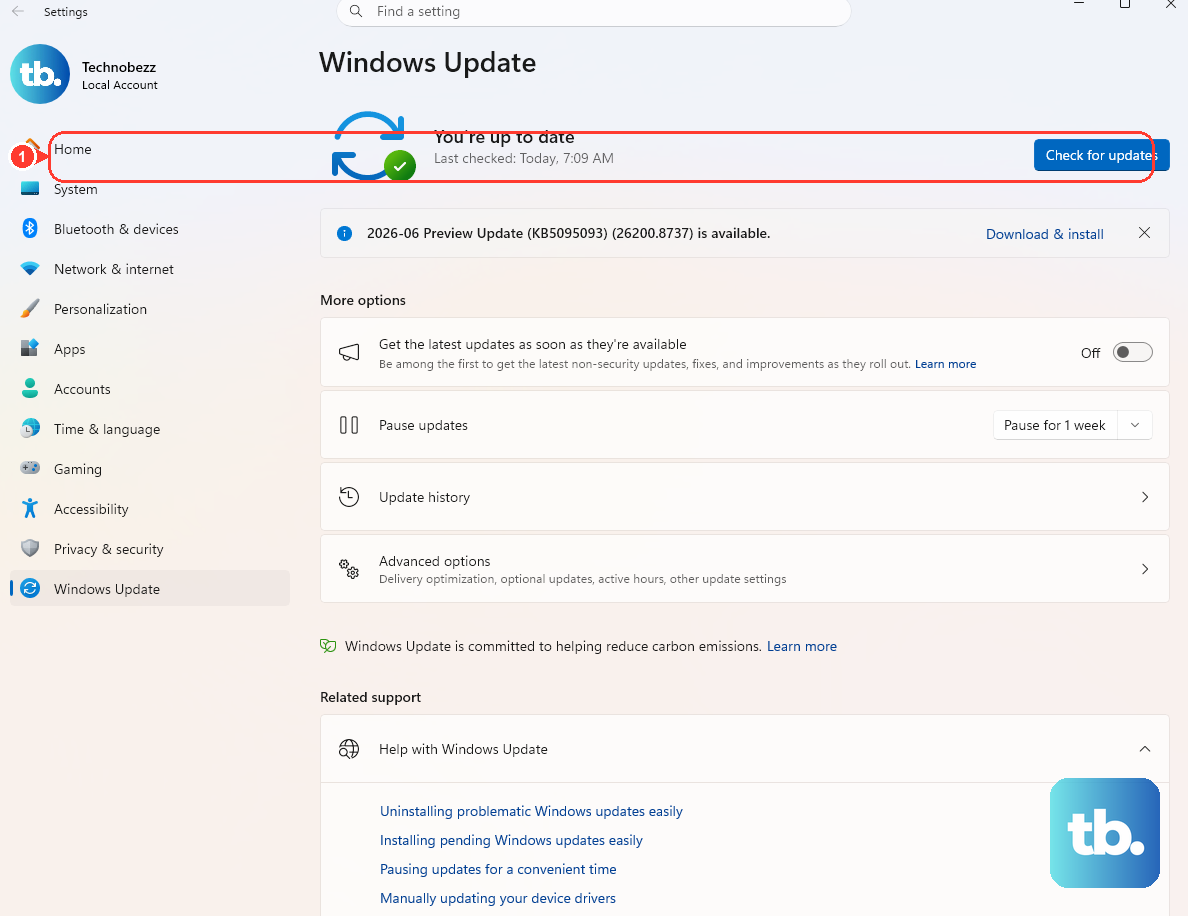
A full restart clears the temporary glitches that often stop modern apps like Settings from launching. Save your work, restart Windows, then try opening Settings again with the official shortcut Windows key + I, or by selecting Start and choosing Settings.
While you are at it, install anything Windows is waiting to apply, since pending updates can leave built-in apps in a half-broken state. If Settings opens at all, go to Start > Settings > Windows Update > Check for updates, install what is offered, and restart once more. If Settings still will not open after the reboot, move on to the next method.
Restart Windows Explorer From Task Manager
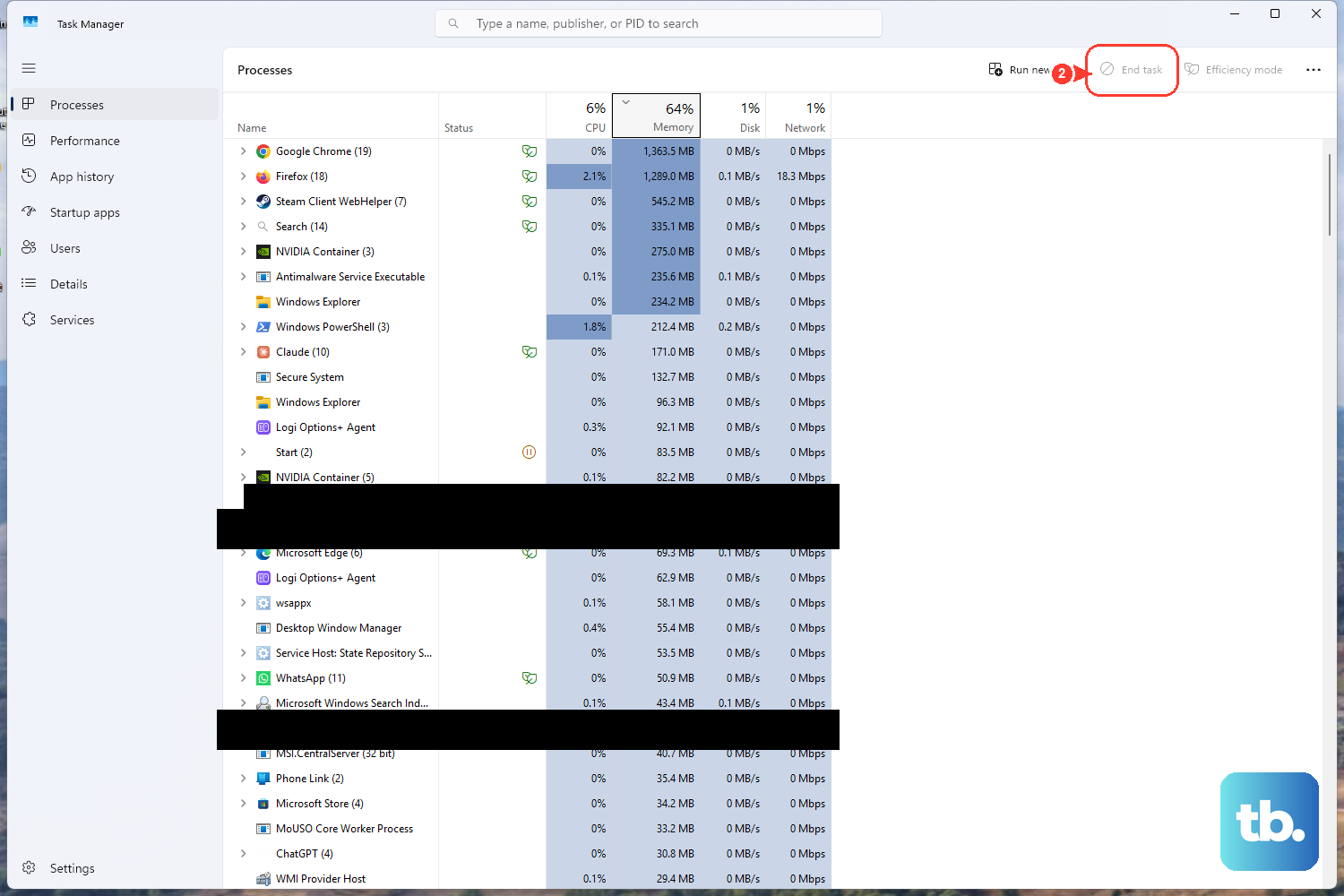
Windows Explorer runs more than just file windows; it powers the Start menu, the taskbar, and the surfaces that Settings launches from. When that shell process hangs, Settings can refuse to appear even though nothing is truly broken. Restarting Explorer reloads all of it without rebooting.
Press Ctrl + Shift + Esc to open Task Manager. This shortcut is documented by Microsoft and works even when the Start menu, taskbar, or Settings are unresponsive, which makes it ideal here. With Task Manager open, locate Windows Explorer in the list of running processes, select it, and restart it.
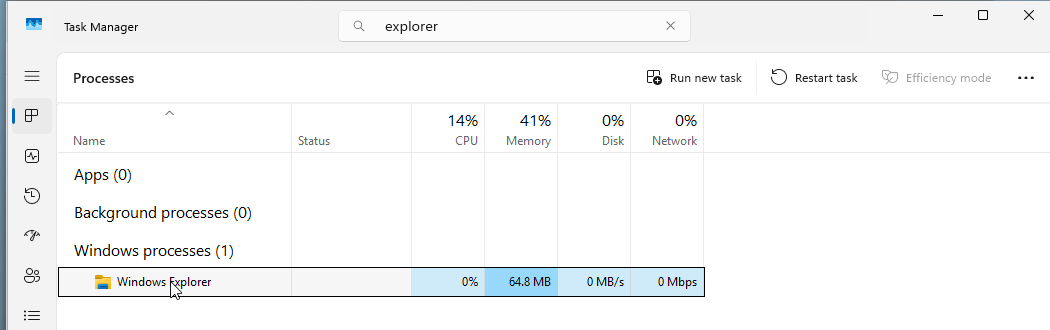
The taskbar will blink as the shell reloads. Once it returns, try opening Settings again with Windows key + I.
Run the Right Troubleshooter From the Get Help App
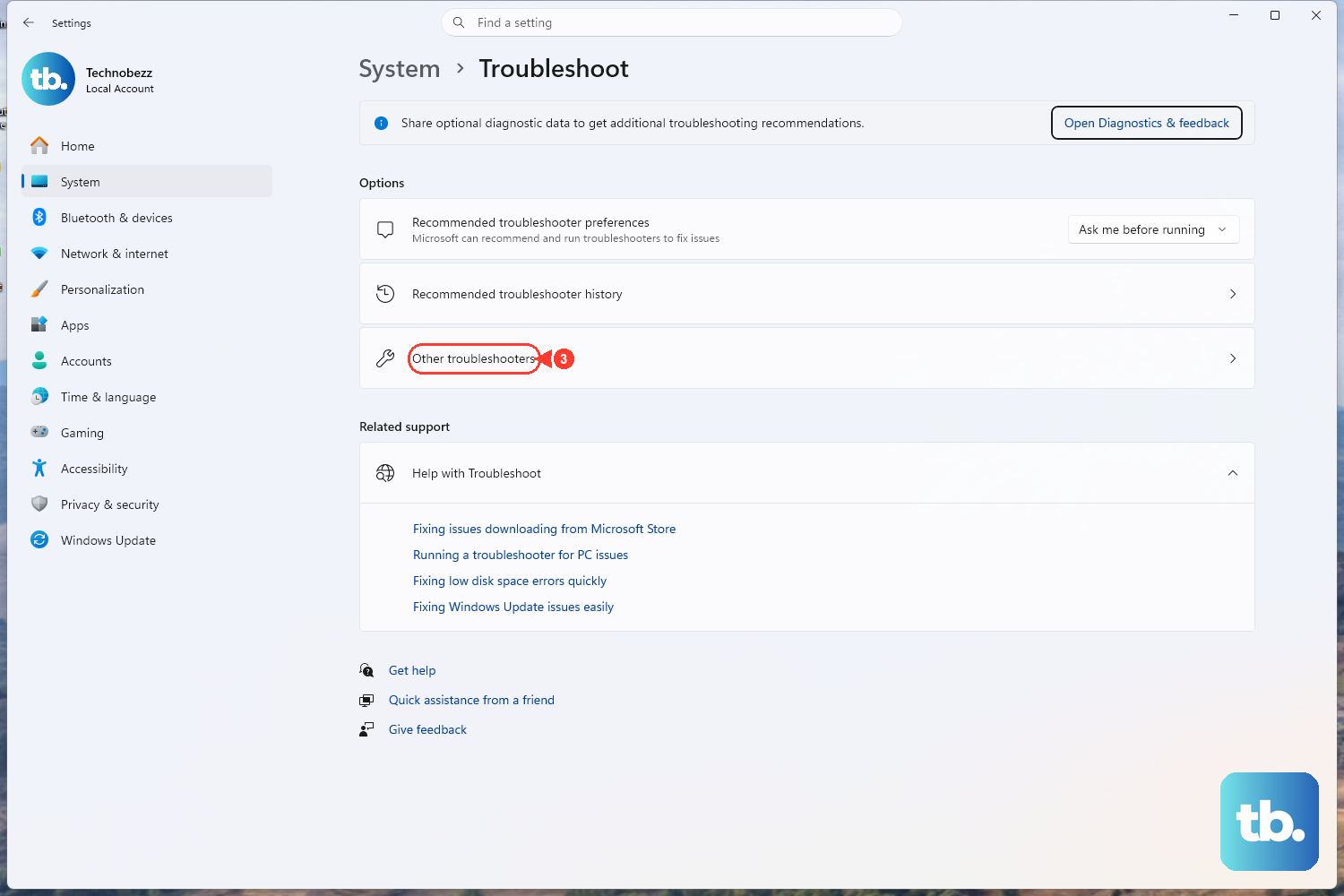
On current Windows 11, Settings still lists the built-in troubleshooters under System > Troubleshoot > Other troubleshooters, each with a Run button, and the guided fixes run in the Get Help app, which also replaced the older Microsoft Support and Recovery Assistant. That centralizes the guided fixes in one place you can reach even when Settings is uncooperative.
Open the Get Help app, type the name of the troubleshooter you need into the Search bar, and select Start to run it. Follow the on-screen prompts and let it apply any fixes it finds.
One important note for Windows 11 users on older builds and for Windows 10: there used to be a legacy "Windows Store Apps" troubleshooter reachable at Settings > Update & Security > Troubleshoot > Windows Store apps. Microsoft has put that tool on its removal list for newer Windows 11 builds, so on an up-to-date Windows 11 PC you should use the Get Help app instead.
Update the Microsoft Store and Built-In App Components
Outdated app components are a common reason a built-in app misbehaves, and Microsoft lists keeping things current as a standard fix. There are two places to refresh: Windows itself and the Store apps that share underlying components.
First, confirm Windows is current at Start > Settings > Windows Update > Check for updates, then install anything pending. Next, update your Store apps so their shared components are fresh.
- 1.Select Start, then open Microsoft Store.
- 2.Choose Library.
- 3.Select Get updates and let the queued updates install.
Restart once the updates finish, then test Settings again. If you reached Settings to run the Windows Update check, that alone is a good sign the worst has passed.
Repair the Settings App, Then Reset It if Needed
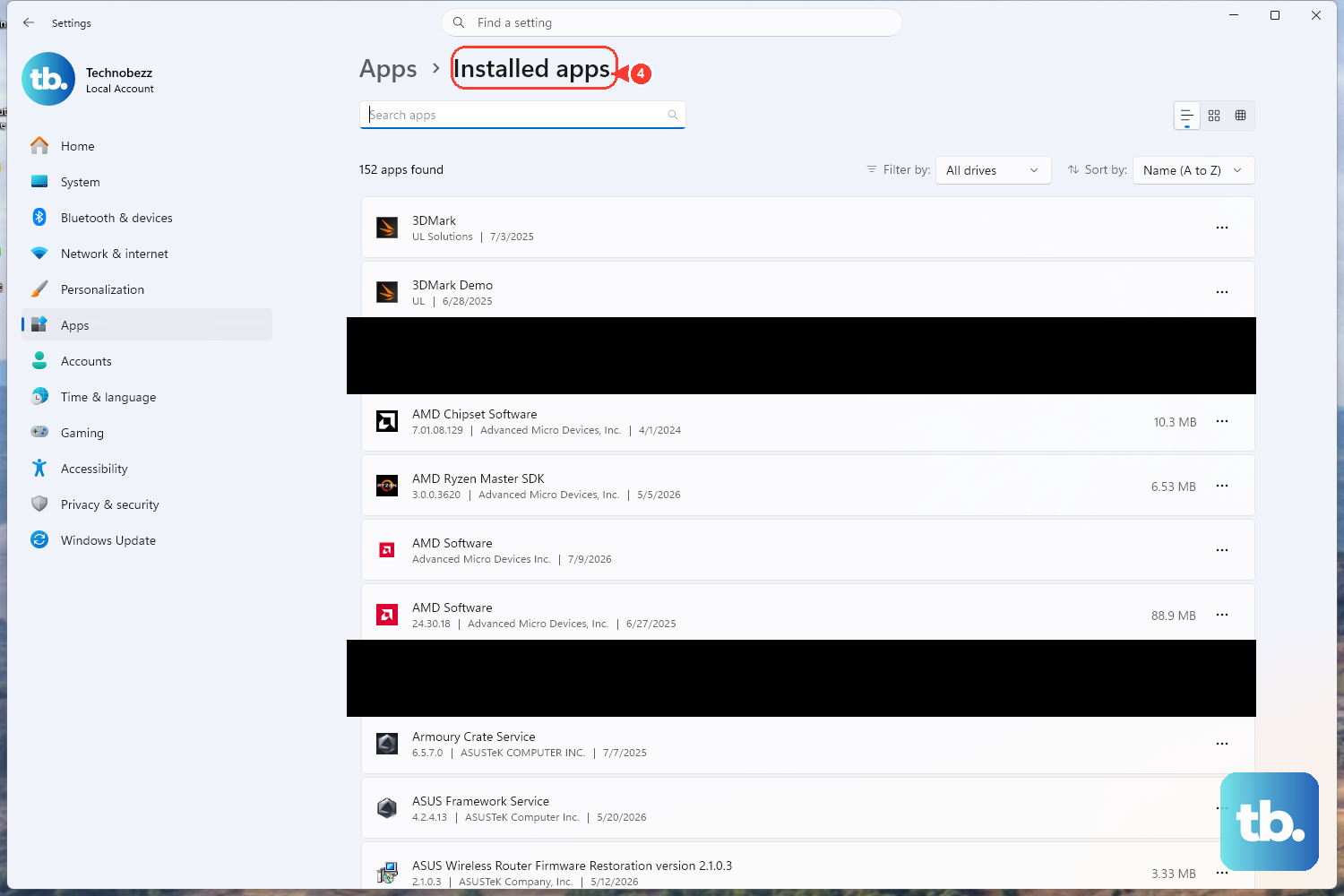
If you can still reach the Apps list, Windows lets you repair or reset an app without reinstalling anything. Repair tries to fix the app while keeping its data, so always try it first. Reset is the heavier option and clears the app's data, so save it for when Repair does not work.
On Windows 11, follow this path: Start > Settings > Apps > Installed apps > the More icon (three dots) next to the app > Advanced options > Repair. If Repair does not resolve it, return to the same Advanced options screen and choose Reset.
On Windows 10, the path is slightly different: Start > Settings > Apps > Apps & features > select the app > Advanced options > Repair, and then Reset if Repair fails. This is Microsoft's documented Repair and Reset flow for Store and built-in apps. Because it depends on the Apps list being reachable, run it after the Explorer-restart and troubleshooter steps above.
Repair Damaged System Files With DISM and SFC
Corrupted system files can stop built-in apps from launching no matter how many times you restart. Windows ships with two command-line tools that repair these files: DISM repairs the underlying component store, and SFC scans and fixes protected system files. Microsoft explicitly recommends running DISM first, then SFC.
Open Command Prompt as an administrator: type cmd in the Search box, right-click Command Prompt, and choose Run as administrator. Then run the commands in order, exactly as written, and do not close the window until each one finishes.
- 1.Run
DISM.exe /Online /Cleanup-image /Restorehealthand wait until you see the message "The operation completed successfully." - 2.Run
sfc /scannowand let it reach 100 percent. Do not close the window until verification is fully complete. - 3.Restart your PC, then try opening Settings again.
If your normal repair source is unavailable, Microsoft also documents an offline-source form of the first command: DISM.exe /Online /Cleanup-Image /RestoreHealth /Source:C:\RepairSource\Windows /LimitAccess. Use the standard command first; only reach for the offline form if your setup requires a specific repair source.
Create a New User Account to Rule Out a Broken Profile
If Settings refuses to open for no one, or only your own account is affected, a corrupted user profile may be the cause. Spinning up a fresh local account is a clean way to test that theory without touching your existing data. This step requires an admin account, so if you cannot open Settings at all, you may need a working admin profile or sign-in to complete it.
On Windows 11, create a new local account this way:
- 1.Go to Settings > Accounts > Other users > Add account.
- 2.When prompted, choose "I don't have this person's sign-in information."
- 3.Then select "Add a user without a Microsoft account."
Sign in to the new account and try opening Settings there. If it works in the new profile, your original profile is the problem, and you can begin migrating your files and apps over to the new account.
When the Real Problem Is Getting Signed In
Sometimes the issue underneath "Settings won't open" is that you cannot sign in at all because you have forgotten your Microsoft account password. In that case, the right move is Microsoft's official self-service reset rather than any workaround.
If your PC uses a Microsoft account and is online, you can select "I forgot my password" at the Windows sign-in screen and follow the prompts. Alternatively, from any browser on another device, go to account.live.com/ResetPassword.aspx, choose Reset password, and verify your identity with a security code. These official self-service paths are the legitimate routes back into a Microsoft account.
Frequently Asked Questions
What is the fastest way to open Settings if the Start menu icon does nothing?
Use the official keyboard shortcut Windows key + I, which opens the Settings app directly on both Windows 10 and Windows 11. If that does nothing either, restart Windows Explorer from Task Manager (open it with Ctrl + Shift + Esc) and try the shortcut again.
Will resetting the Settings app delete my files?
Reset clears that app's own data, which is why you should always try Repair first; Repair attempts to fix the app while keeping its data. On Windows 11 you reach both options at Settings > Apps > Installed apps > the More icon (three dots) > Advanced options. Your personal documents and photos stored elsewhere are not part of an app reset.
Do I really need to run DISM before SFC?
Yes. Microsoft recommends running DISM.exe /Online /Cleanup-image /Restorehealth first to repair the component store, then sfc /scannow to scan and repair protected system files. Running them in that order gives SFC healthy source files to draw from, and you should let each command finish completely before closing the window.
The "Windows Store Apps" troubleshooter is missing on my PC. Where did it go?
On current and newer Windows 11 builds, Microsoft has placed that legacy troubleshooter on its removal list, so it no longer appears under Settings > Update & Security > Troubleshoot. Instead, open the Get Help app, type the troubleshooter name into the Search bar, and select Start to run it.
Can I fix a broken profile without losing my settings?
The first step is to confirm the profile is the cause by creating a new local account at Settings > Accounts > Other users > Add account and testing whether Settings opens there. If it does, your original profile is the problem, and you can move your files into the new account. This step needs an admin account, so you may need a working admin sign-in to complete it.