An outdated or broken Intel graphics driver leaves Windows with flicker, blank screens, failed installs, display glitches, or update loops after Windows installs a different driver. Start with the supported update paths first, then use clean install, rollback, and Windows fallback steps when the driver itself is stuck. Everything below follows the verified Intel, Microsoft, Dell, Lenovo, and HP guidance provided for August 2026.
Start with Intel Driver and Support Assistant
This fixes old, missing, or Intel-supported graphics driver updates on a supported Windows PC.
Download Intel Driver & Support Assistant from Intel and run Intel Driver & Support Assistant Installer.exe. Agree to the license terms, then select Install.
Choose Launch and let the browser dashboard scan your PC. Open Available Updates.
Choose Download all and then Install all, or use the individual Download and Install buttons for the graphics driver only. Restart the PC when the installer asks for it.
Use your PC maker when the laptop is customized
Open the support app from your computer maker when you use a Dell, HP, Lenovo, or another branded laptop, because Intel recommends checking the computer manufacturer first for OEM-customized graphics drivers.
On a Dell PC, open SupportAssist and go to Home. Choose Update software, then select Start.
Open View updates. Choose Install, then restart when prompted.
On a Lenovo PC, open Lenovo Vantage and go to System Update. Select Check for Updates, then install all updates or the selected graphics update.
On an HP PC, open HP Support Assistant and go to My Dashboard. Choose your computer, then open Updates.
Wait while HP Support Assistant analyzes the system. Select the listed updates, download and install them, then restart if prompted.
For other brands, use the maker's support site for your exact model, service tag, or serial number, then download the model-specific Intel graphics driver and run its installer. Use the OEM path first on laptops when the Intel installer says a customized driver is already installed.
Download the driver directly from Intel
Intel Download Center is the manual route when Intel DSA does not offer the driver you need or you want a specific current package. Open Intel's Download Drivers & Software page, select Graphics, or use Search Drivers & Software to find the matching Intel graphics driver page.
Review the supported products and Windows version on the driver page, accept the Intel Software License Agreement, download the listed .exe, and run the installer. For Intel Arc B-Series, Intel Arc A-Series, and Intel Core Ultra processors with Intel Arc Graphics on Windows 11 or Windows 10 22H2, use the Intel Arc Graphics Windows download page.
For 11th through 14th Gen Intel Core processor graphics and Intel Iris Xe Dedicated Graphics on Windows 11 or Windows 10 22H2, use Intel's 11th to 14th Gen Processor Graphics Windows page; Intel lists those products on a legacy software support model, but the current driver page remains the supported Intel download path.
If this method fails, use the clean install steps below instead of third-party driver portals.
Check your processor number before choosing a driver
This method applies when you are not sure which Intel graphics package fits your PC. It also applies when you want to search Intel Download Center by the processor instead of using the display adapter name.
Press the Windows key and type System. Open System information, then note the processor number shown for your computer.
Go to Intel Download Center and enter the processor number in the search bar. Choose Drivers and Software under Filter By, then select the desired driver result.
Choose Download and open the downloaded .exe. Select Begin Installation and follow the prompts until the installer reports completion.
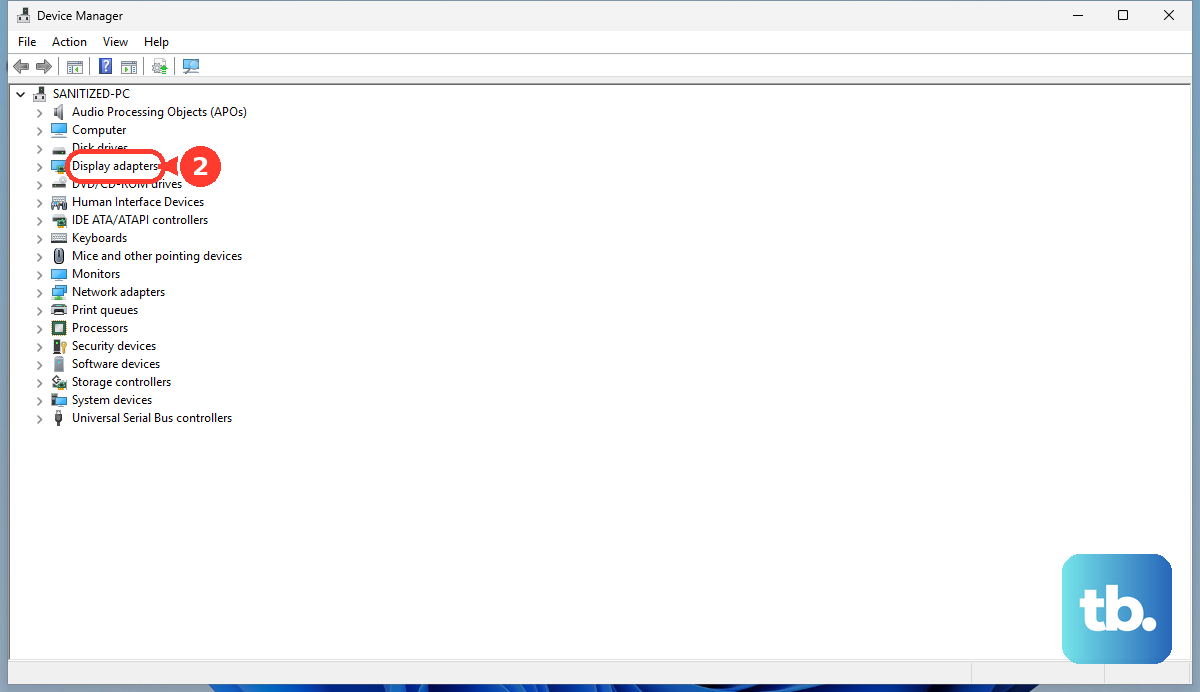
After installation, open Device Manager, expand Display Adapters, open the Intel graphics device, choose Driver, and confirm the driver version matches the one you downloaded.
Run a clean Intel graphics driver install
This fixes stubborn Intel graphics driver problems caused by older settings, failed installs, or driver conflicts.
Download the appropriate Intel graphics driver for your PC and open the downloaded .exe. Agree to the Intel Software License Agreement.
Select the checkbox to execute a clean installation when the installer shows it. Choose Start, then reboot when Windows or the Intel installer prompts you.
Remove the driver manually when clean install is unavailable
Use this when the Intel installer does not show a clean-install checkbox or a normal clean install did not clear the problem. This path removes the current driver instance before you install the current Intel or OEM driver again.
Disconnect the PC from the internet so Windows does not immediately replace the driver while you work. Right-click Start and open Device Manager. Expand Display Adapters.
Right-click the Intel graphics entry and choose Uninstall device. Check Delete the driver software for this device, then choose OK or Uninstall.
Restart the computer. Open Device Manager again and confirm the display adapter shows Microsoft Basic Display Adapter, Standard VGA Graphics Adapter, or a similar basic entry.
If the Intel driver remains, repeat the uninstall steps and reboot again. Install the current driver from Intel or your PC maker, then restart when prompted.
Fix Intel DSA scan errors in Chrome or Edge
Open the Intel Driver & Support Assistant page in Chrome or Edge. Click View Site Information at the left of the address bar, then turn on or allow Local Network Access. Refresh the page.
In Chrome, open Settings and go to Privacy and Security. Choose Site Settings, then open Additional Permissions.
Select Local Network Access and add intel.com under Customized Behaviors. Set intel.com to Allow.
In Edge, open Settings and go to Privacy, Search, and Services. Choose Site Permissions, then open All Permissions.
Select Local Network Access. Add intel.com under the allowed sites.
Once the scan works, open Available Updates and install the graphics driver shown by Intel DSA. Keep Intel DSA set to Automatic Downloads for fewer manual update steps later.
Roll back or reinstall after a bad update
Use the quickest recovery path that matches the bad update symptom.
- 1.For a frozen or blank display, press Windows + Ctrl + Shift + B, then listen for a beep or watch for the screen to flicker.
- 2.To roll back the driver, press Windows + X, open Device Manager, expand Display Adapters, double-click the Intel display device, open Driver, and choose Roll Back Driver.
- 3.When Roll Back Driver is grayed out, install a previous version from Intel Download Center or your computer manufacturer's site.
- 4.To let Windows rebuild a malfunctioning driver instance, open Device Manager, right-click the Intel display adapter, choose Uninstall device, select Uninstall, then restart from Shut down or sign out.
- 5.If Windows Update replaced a newer Intel driver with an older one, install the latest graphics driver over the Windows Update version and leave Execute a clean installation off during that repair install.
Use Windows Update and Device Manager as fallbacks
The most common reason these paths help is that Windows already has a compatible driver available for your PC.
On Windows 11, open Settings, go to Windows Update, choose Advanced options, turn Receive updates for other Microsoft products on, open Optional updates, select listed driver updates, then choose Download and install.
On Windows 10, open Settings, go to Update & Security, choose Windows Update, open Advanced options, turn Receive updates for other Microsoft products when you update Windows on, return to Windows Update, select Check for updates, then use View optional updates when it appears.
For Device Manager, right-click Start, open Device Manager, expand Display adapters, right-click the Intel display adapter, choose Update driver, then select Search automatically for updated driver software.
If Windows does not find a driver, select Search for updated drivers on Windows update, then close the window when the search is done.
If you already downloaded a driver from Intel or your PC maker, choose Browse my computer for drivers, select the downloaded driver folder, then continue with Next.
Managed work or school PCs use Windows Update policy to allow or block driver updates. Contact your IT administrator before changing a managed Intel or OEM graphics driver.
Older guides mention Intel Arc Control, Intel Graphics Command Center, or Intel Graphics Control Panel for driver work. Intel Driver & Support Assistant stays the general consumer route for driver downloads and support links.
Intel Graphics Software is the newer app, but Intel lists it for systems with Intel Xe Plus Graphics v11 or an Intel Arc dedicated graphics card on Windows 11 version 22H2 or Windows 10 version 22H2 with Intel graphics driver 32.0.101.6325 WHQL or later, and it installs with that driver package on 12th Gen Intel Core processors and Intel Arc Graphics.
On other Intel graphics systems, stay with Intel DSA, Intel Download Center, or your PC maker's support site. Intel says Arc Control is end of life, Intel Graphics Command Center receives only critical legacy fixes, and the old Graphics Control Panel is discontinued for newer systems.
Frequently Asked Questions
Is Intel Driver & Support Assistant better than Device Manager?
For supported Intel hardware, yes. Intel DSA scans for Intel-supported updates directly, while Device Manager depends on drivers available through Windows Update for that PC.
Should I use the Intel driver or my laptop maker's driver?
Start with your laptop maker's driver when your PC is from Dell, HP, Lenovo, or another OEM, especially on laptops with customized graphics drivers. Use Intel Download Center when you need Intel's current package or the OEM path does not solve the problem.
What should I do if the latest Intel graphics driver makes things worse?
Use Roll Back Driver in Device Manager when Windows still has the previous driver. If that button is unavailable, install a previous driver from Intel Download Center or your computer maker's support site.
Is Display Driver Uninstaller safe to use for Intel graphics problems?
Intel documents DDU as an option when normal clean install or uninstall steps do not resolve the issue. Run it in Windows safe mode for cleanup, then install the current Intel or OEM driver afterward.