

To turn off mobile data for WhatsApp on Android, select Wi-Fi only in its network settings on supported Samsung Galaxy phones, or deny its mobile-network permission on supported HONOR and vivo phones. A compatible firewall provides another way to block WhatsApp's cellular connection. Background restrictions and WhatsApp's download settings reduce usage but still allow some mobile-data activity.
The short version
- Block cellular access: Use your phone's per-app network permission to keep WhatsApp on Wi-Fi.
- Another blocking option: NetGuard can block WhatsApp's mobile connection on compatible Android devices, but it cannot run alongside another VPN-based app.
- Reduce background use: Background restrictions and Data Saver still let active apps use mobile data.
- Cut download traffic: Disable automatic media downloads and cellular backups inside WhatsApp.
| Method | What it controls | Main catch |
|---|---|---|
| Samsung app network setting | WhatsApp mobile access | Availability varies by carrier |
| HONOR network permission | WhatsApp mobile access | Requires these System Manager menus |
| vivo network permission | WhatsApp mobile access | Menus vary by device and region |
| NetGuard | WhatsApp mobile access | Cannot run alongside another VPN-based app |
| Samsung background restriction | WhatsApp background mobile data | Active use can continue |
| Motorola background restriction | WhatsApp background mobile data | Steps apply to Motorola signature on Android 17 |
| Pixel Data Saver | Background mobile data | Active apps and services can still use data |
| Samsung Data saver | Background mobile data | Exemption labels vary |
| Motorola Data Saver | Background mobile data | Steps apply to Motorola signature on Android 17 |
| HONOR Smart Data Saver | Background mobile data | Foreground use can continue |
| vivo Data-saving mode | Background data use | Requires these data-management menus |
| Media auto-download controls | Automatic media downloads | Manual downloads still use data |
| Call data setting | Data consumed by calls | Calls still need internet access |
| Cellular backup setting | Chat backup traffic | Does not restrict messaging |
| Pixel mobile-data switch | All cellular internet access | Affects other apps too |
| Motorola Quick Settings switch | All cellular internet access | Steps apply to Motorola signature on Android 17 |
Block WhatsApp mobile access in your phone settings
On a Samsung Galaxy phone with app network controls, open Settings > Connections > Data usage > Allowed networks for apps > WhatsApp. Select Wi-Fi only to prevent WhatsApp from using mobile data while retaining Wi-Fi access. Samsung says availability varies by carrier; if that menu is missing, use NetGuard on a compatible device for an app-specific block.
On a HONOR phone with these menus, open System Manager > Data usage > Network access. In the WhatsApp row, uncheck Mobile data. For an App Twin instance, open Settings > Apps > Apps, select the relevant WhatsApp instance, then open Data usage to restrict its access.
On vivo devices with these menus, open Settings > More connections > Data management > Network management > Data network. Set the access icon for WhatsApp to the denied state, leaving Wi-Fi access allowed if you want to keep using that connection. Alternatively, open iManager > Data management > Network management > Data network and change the same permission. Menu availability varies by device and region; if neither route is available, consider NetGuard if your device meets its requirements below.
Block WhatsApp mobile access with NetGuard
NetGuard can deny WhatsApp mobile access without root on compatible phones and tablets running Android 5.1 or later. It uses Android's VPN service, so it cannot run alongside another VPN-based app. Its developer excludes work-profile, Secure Folder, and cloned-app instances from support.
Get the current release through the distribution links on the official NetGuard product page. Open NetGuard and enable its firewall with the switch in the top action bar. When Android requests permission for the VPN connection, tap OK.
Find WhatsApp in NetGuard and set its mobile-network icon to the denied state. Leave its Wi-Fi icon allowed to keep WhatsApp connected over Wi-Fi. Do not configure a screen-on exception that permits mobile access, because that exception would allow the connection you want to block.
NetGuard blocks connections only while its firewall service is running, so it offers no protection during early boot-up. To cover restarts, turn off Wi-Fi and mobile data before rebooting, then turn them back on after the firewall service has started and NetGuard's key icon appears in the status bar.
If another VPN-based app needs to stay active, use your phone's per-app network control when available. The whole-phone mobile-data switch described below is another option, but it also cuts cellular internet access for other apps.
Restrict background mobile data
Use a background restriction when you want WhatsApp to consume less mobile data while you are not actively using it. Opening WhatsApp can still let it use mobile data, so choose a network-access restriction above when you need a full cellular block.
On Samsung Galaxy phones, open Settings > Connections > Data usage > Mobile data usage > WhatsApp. Turn off Allow background data usage. WhatsApp can still use mobile data while it is active.
On a Motorola signature running Android 17, open Settings and go to SIMs & mobile network. Tap your SIM name, tap the bar showing data used, then select WhatsApp and turn off Background data. Messages and notifications can be delayed until you open the app.
Keep WhatsApp outside Data Saver exemptions
Data-saving modes reduce background mobile use across apps. Keep WhatsApp's exemption switch off so the restriction applies to it. These modes do not provide a complete cellular block: active apps and services can still use mobile data.
On Pixel phones running Android 8.0 or later, open Settings > Network & internet > Data Saver and turn on Data Saver. Open Unrestricted data and leave the switch for WhatsApp off. Other manufacturers use different menus.
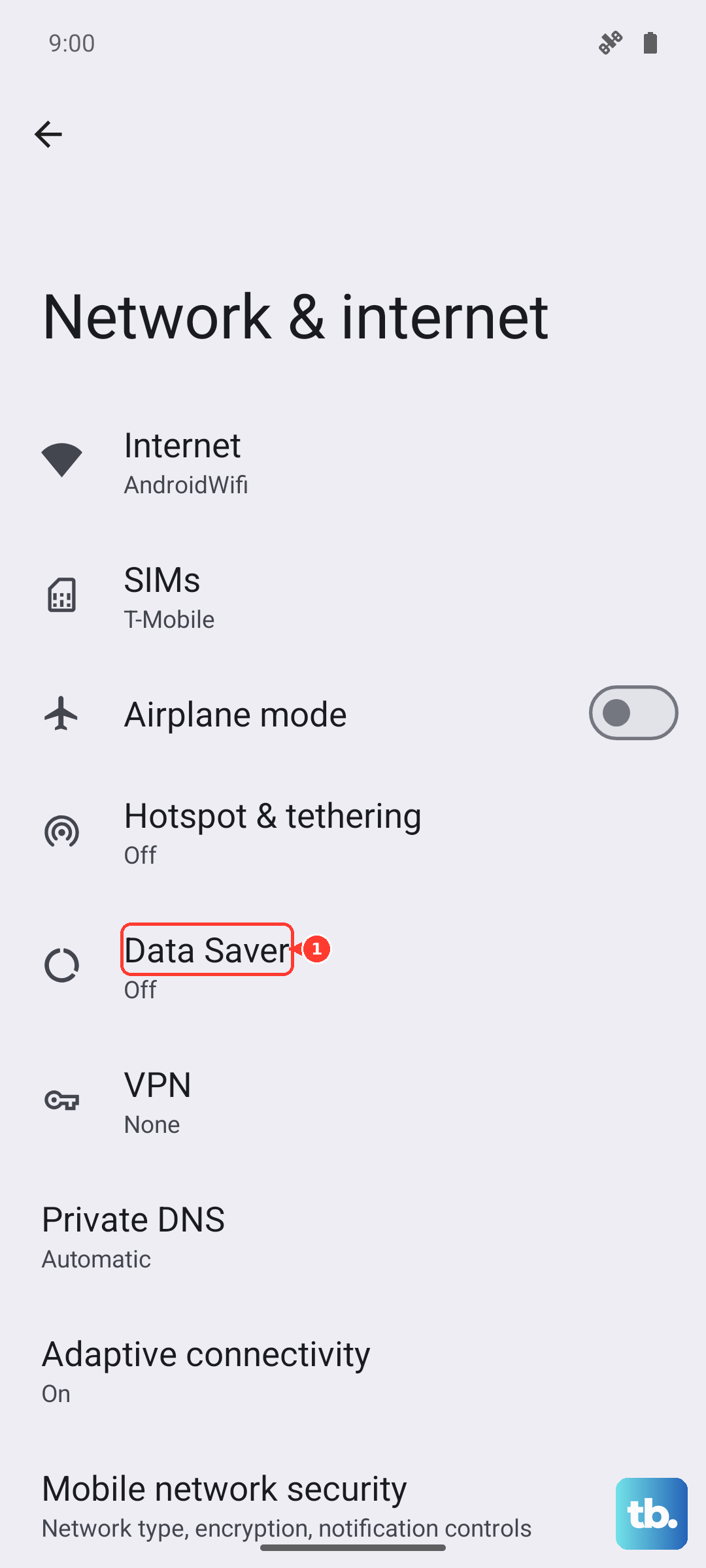
On Samsung Galaxy phones, open Settings > Connections > Data usage > Data saver, then enable Turn on now. Keep WhatsApp off under Apps that can always use data. If your interface shows Allowed to use data while Data saver is on instead, open that list and keep WhatsApp off there.
On a Motorola signature running Android 17, open Settings, go to Data Saver, and enable Use Data Saver. Select Unrestricted mobile data and leave WhatsApp off.
On HONOR phones with these menus, open System Manager > Data usage > Smart Data Saver and enable it. Leave the exemption switch for WhatsApp off to restrict its background mobile use. Foreground use can continue.
On vivo devices with these menus, open Settings > More connections > Data management > Data-saving mode and turn on the switch. Open App trustlist and leave WhatsApp off. This reduces background data use.
Stop automatic media downloads on mobile data
Inside WhatsApp, open the three-dot menu, then select Settings > Storage and data. Under Media auto-download, open When using mobile data and uncheck every selected media-type checkbox. Tap OK to save the change.
Repeat that process under When roaming to stop automatic media downloads there too. Configure When connected on Wi-Fi separately to choose how downloads behave on Wi-Fi. These controls affect automatic media downloads; messages, calls, and downloads you request manually can still use mobile data.
Reduce call data and stop cellular backups
To reduce the data consumed by WhatsApp calls, open the three-dot menu > Settings > Storage and data. Turn on Use less data for calls. Calls still need an internet connection, so this setting does not prevent them from using mobile data.
For WhatsApp chat backups to a Google Account, open the three-dot menu > Settings > Chats > Chat backup. Turn off Back up over mobile data to prevent backup traffic over mobile data. This setting controls backups separately from normal messaging.
Turn off mobile data for the whole phone
For an immediate cellular internet cutoff for every app, turn off the phone's mobile-data connection. On Pixel, open Settings > Network & internet > SIMs and turn off Mobile data. WhatsApp can still connect through Wi-Fi, but other apps also lose cellular internet access.
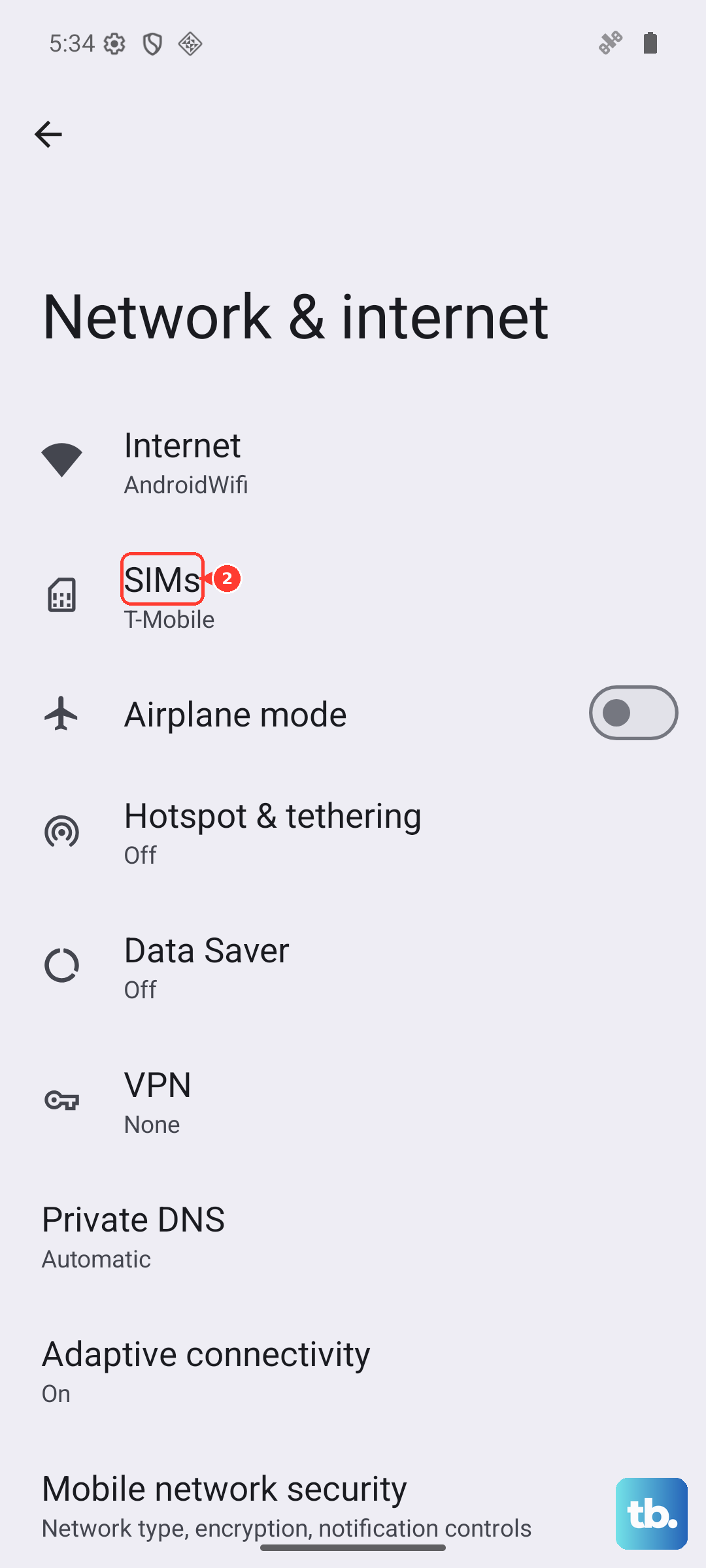
On a Motorola signature running Android 17, open Quick Settings and tap Mobile data to turn it off. Wi-Fi remains available. Choose a per-app network control instead when other apps need to keep using mobile data.
Frequently Asked Questions
Does force-stopping WhatsApp turn off its mobile-data permission?
Force-stopping WhatsApp stops the app rather than changing its mobile-data permission. On Pixel, open Settings > Apps > See all apps > WhatsApp > Force stop, then tap OK. Opening WhatsApp again resumes its operation.
Can a data limit automatically stop WhatsApp from using mobile data?
On Pixel, a data limit stops cellular data for the connection after the threshold, which also affects WhatsApp. Open Settings > Network & internet > SIMs > Data warning & limit, enable Set data limit, and tap Ok. Open Data limit, enter the allowance, and tap Set. This affects the whole connection and does not provide an immediate cutoff.
Will turning off roaming block WhatsApp on my home network?
Turning off roaming does not block ordinary home-network mobile data. On Pixel, open Settings > Network & internet > SIMs and turn off Roaming to restrict roaming instead. Roaming behavior also depends on your carrier.
Can I reduce data when sending a photo or video manually?
Yes, choose standard quality for the individual photo or video. Prepare the item in a WhatsApp chat, tap the HD media icon, select Standard quality, and send it. This reduces data use rather than restricting network access.