

To restore your Xbox One to factory settings, press Xbox, open Profile & system > Settings > System > Console info, select Reset console, then select Reset and remove everything. These steps apply to Xbox One, Xbox One S, Xbox One S All-Digital Edition, and Xbox One X running current retail system software.
For troubleshooting, Microsoft recommends trying the option that keeps installed games and apps first. When you cannot reach Settings, you can reset through the Xbox Startup Troubleshooter or use a USB drive with the factory-reset file.
The short version
- Full reset: Select Reset and remove everything in Settings to restore factory defaults.
- Keep installed games: For troubleshooting, select Reset and keep my games & apps first.
- Protect your saves: Connect to the Xbox network before resetting so your saves can synchronize.
- Menus will not open: Use the Xbox Startup Troubleshooter or prepare an NTFS USB drive of at least 4 GB.
| Option or preparation | When to use it | Result or requirement |
|---|---|---|
| Full reset through Settings | You can open console menus | Restores factory defaults and removes local data |
| Keep installed games through Settings | You are troubleshooting with working menus | Resets the operating system and retains installed games and apps |
| Full reset through Startup Troubleshooter | You cannot reach Settings | Restores factory defaults through recovery |
| Keep installed games through Startup Troubleshooter | You need recovery while retaining installations | Resets the operating system and keeps installed games and apps |
| USB factory reset | Settings is inaccessible | Performs a full factory reset from a prepared USB drive |
| Factory-reset download | You are preparing USB recovery | Supplies the official factory-reset ZIP file |
| USB formatting | Your recovery drive needs NTFS formatting | Prepares the drive and deletes its existing contents |
Protect your saves before resetting
Connect your console to the Xbox network before starting so your saves can synchronize. Factory restoration removes local accounts, saves, settings, and home Xbox associations, and unsynchronized data can be lost.
Keeping installed games and apps does not make a reset a complete backup. Choose that option when troubleshooting if you want to retain those installations, but still synchronize your saves before proceeding whenever you can.
Restore factory defaults through Settings
Press Xbox, then open Profile & system > Settings > System > Console info. Select Reset console to reach the Reset your console? screen, then select Reset and remove everything for a full factory restoration.
Reset while keeping installed games and apps
For a troubleshooting reset, press Xbox and open Profile & system > Settings > System > Console info. Select Reset console, then select Reset and keep my games & apps.
This resets the operating system while retaining installed games and apps. If you cannot reach these menus, you can choose the same type of reset through the Xbox Startup Troubleshooter.
Reset through the Xbox Startup Troubleshooter
When your console displays Something went wrong, select Troubleshoot to open the Xbox Startup Troubleshooter. You can also open recovery with the console buttons when you cannot reach Settings.
Power off your Xbox, unplug its power cable, and wait 30 seconds before reconnecting it. Hold Pair and Eject, then press the console’s Xbox button while continuing to hold the other two buttons.
On Xbox One S All-Digital Edition, hold only Pair while pressing the console’s Xbox button. For either button sequence, keep holding for 10 to 15 seconds and release after the second power-up tone.
In the Xbox Startup Troubleshooter, select Reset this Xbox. For a full restoration, select Remove everything; to reset the operating system while retaining installed games and apps, select Keep games and apps. After a full reset, complete console setup.
Prepare a USB factory reset drive
For a USB reset when Settings is inaccessible, you need an internet-connected Windows PC and an empty NTFS USB flash drive with at least 4 GB of capacity. Back up anything already on the drive before formatting it, because formatting deletes its existing contents.
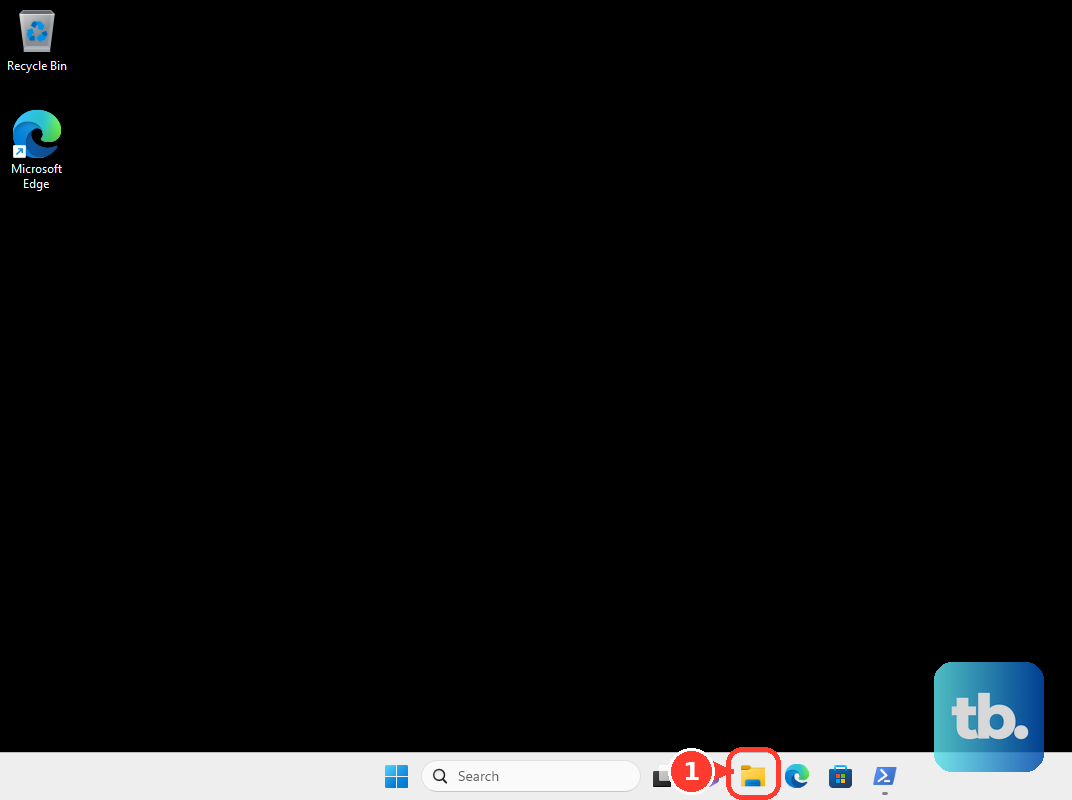
On a Windows 10 or Windows 11 PC, connect the USB drive and open File Explorer. Right-click the USB drive, select Format, choose NTFS under File system, then select Start.
Open Microsoft’s factory-reset download page and, under Reset using a USB flash drive, select Restore Factory Defaults. Download the factory-reset ZIP to your PC.
Right-click the downloaded ZIP and select Extract all. Copy the extracted $SystemUpdate folder to the USB drive’s root, meaning its top level rather than inside another folder, then safely eject the drive.
Run the factory reset from USB
Power off your Xbox, unplug its power cable, and disconnect Ethernet. Wait 30 seconds, reconnect power, and insert the prepared USB drive into the console.
Hold Pair and Eject, then press the console’s Xbox button. On Xbox One S All-Digital Edition, hold only Pair while pressing the console’s Xbox button.
Continue holding for 10 to 15 seconds, releasing after the second power-up tone. Missing power-up tones or power-down chirps indicate that the attempt failed, so retry the button sequence.
After your console finishes restarting, remove the USB drive and follow console setup. Reconnect Ethernet for setup if you disconnected it earlier.
Frequently Asked Questions
Does holding the Xbox power button factory reset the console?
Pressing the console’s Xbox button alone does not factory reset your Xbox One. Microsoft says power cycling preserves games and data.
Can you use OSU1 instead of the factory-reset download?
No, OSU1 and Offline System Update belong to a separate update procedure. For a USB factory reset, open the factory-reset download page and select Restore Factory Defaults.
Why do older instructions mention All Settings or Console info & updates?
All Settings and Console info & updates are older menu labels. On current retail system software, open Profile & system > Settings > System > Console info.
Does removing an Xbox from your Microsoft account erase the console?
Removing or unlinking your Xbox from your Microsoft account manages the device’s account association without erasing the console. Use a full console factory reset to remove its local data.