Sound can vanish, crackle, or fail inside one app even when Windows system sounds still work. Restarting the Windows Audio service refreshes the audio stack without changing your speakers, drivers, or app settings.
Start with the Services app, then use the command-line options only when you want a faster admin route. Every method below uses built-in Windows tools.
1. Restart Windows Audio in Services
This is the cleanest place to start. Microsoft’s Windows audio troubleshooting points directly to the Services app for restarting audio services.
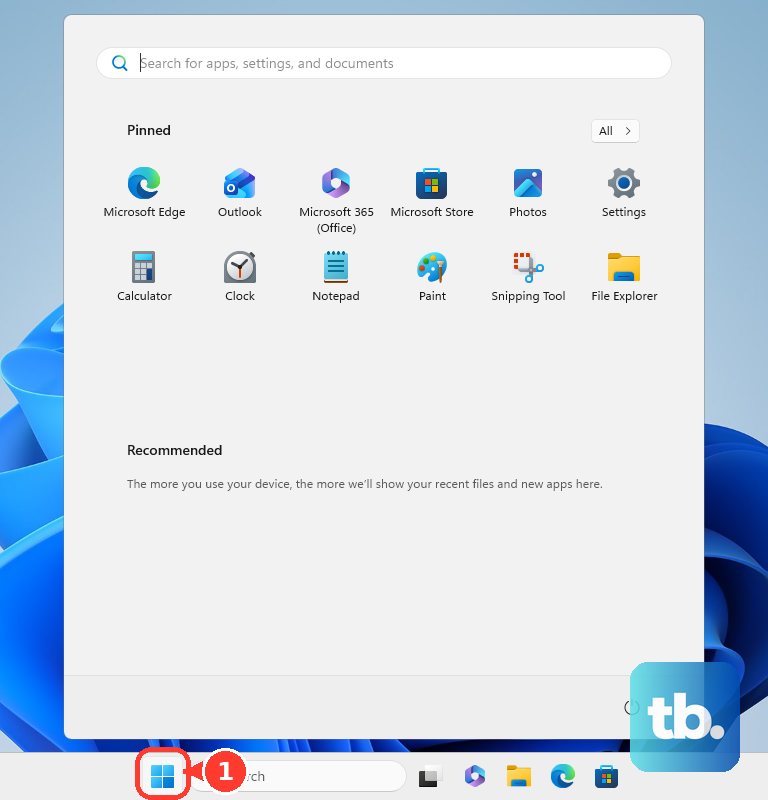
Select Search on the taskbar, type services, then select Services from the results. Find Windows Audio, right-click Windows Audio, and select Restart.
Select Yes if Windows asks for confirmation. Play audio again and check the app or output device that was failing.
You can open the same window another way: select Start, type services.msc, then press Enter.
2. Refresh the Endpoint Builder service
When Windows Audio restarts but sound still does not return, stay in Services. Find Windows Audio Endpoint Builder, right-click Windows Audio Endpoint Builder, and select Restart.
Test audio again. This refreshes the service that builds and manages audio endpoints.
Microsoft also includes Remote Procedure Call (RPC) in its audio service restart path. In Services, right-click Remote Procedure Call (RPC), select Restart, then select Yes when that Microsoft troubleshooting flow asks for it.
3. Use Task Manager for a quick restart
Task Manager works well when you already have it open while checking startup apps or system performance. Open Task Manager from Start search, or right-click Start, then select Task Manager.
Or press Ctrl+Shift+Esc. Select Services, find Audiosrv or Windows Audio, right-click the service, and select Restart.
If sound still fails, right-click AudioEndpointBuilder. Select Restart.
4. Run PowerShell as administrator
Open Windows Terminal or PowerShell as administrator. Run Restart-Service -Name Audiosrv.
Test your speakers, headphones, or the app that lost audio. If audio still fails, run Restart-Service -Name AudioEndpointBuilder, Audiosrv -Force.
PowerShell is the shortest command-line route when you have admin access. Administrator rights are required for protected services.
5. Stop and start audio from Command Prompt
Use this when you prefer classic Windows service commands. Open Command Prompt, Windows Terminal, or PowerShell as administrator first.
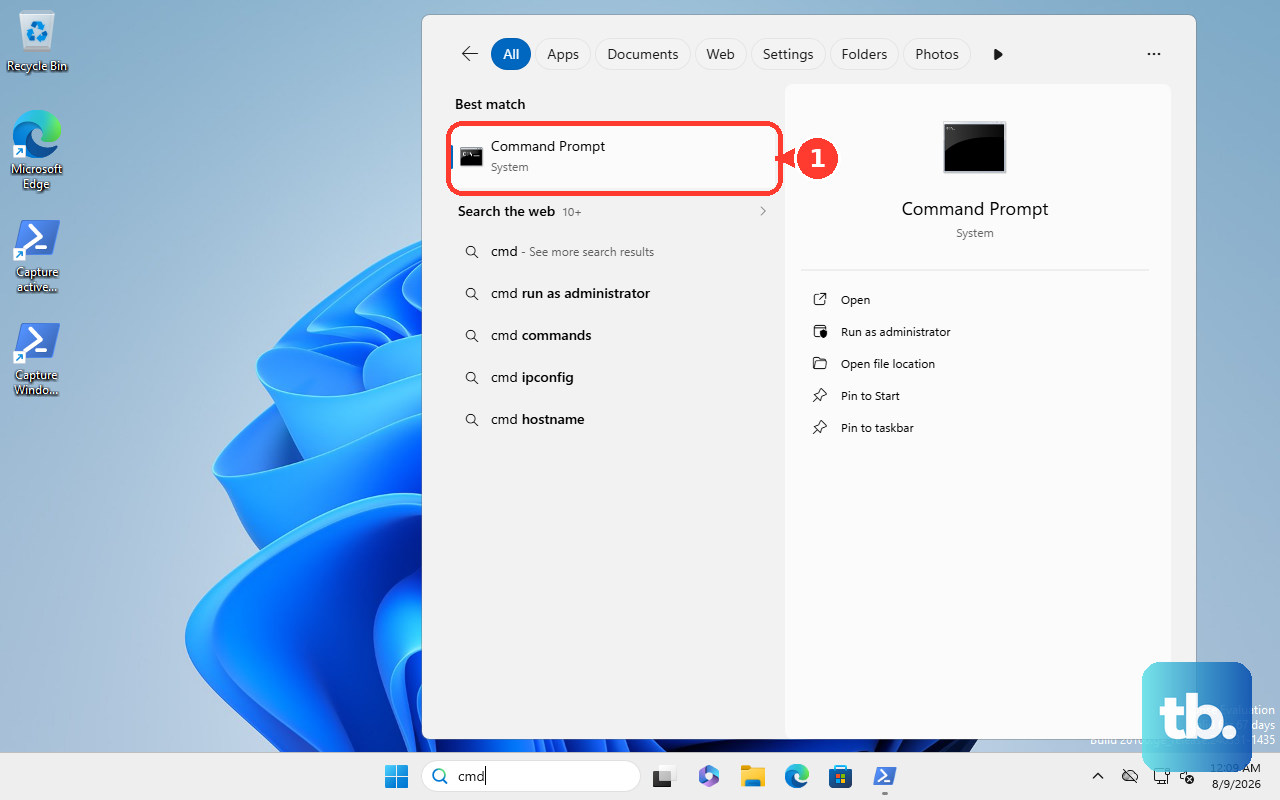
Run net stop Audiosrv, then run net start Audiosrv. If the endpoint service needs the same refresh, run net stop Audiosrv first, because Windows Audio depends on the endpoint service.
Run net stop AudioEndpointBuilder, and answer Y if Windows warns that Windows Audio stops with it. Next, run net start AudioEndpointBuilder, then run net start Audiosrv, because starting the endpoint service does not start Windows Audio again.
The Service Control command works too: run sc.exe stop Audiosrv, then run sc.exe start Audiosrv. To refresh the endpoint service too, stop Windows Audio again with sc.exe stop Audiosrv.
Windows refuses to stop a service while another running service depends on it. Run sc.exe stop AudioEndpointBuilder, run sc.exe start AudioEndpointBuilder, then run sc.exe start Audiosrv.
6. Open Computer Management for the full console
Select Search, type computer management, then select Computer Management. Expand Services and Applications, then select Services.
In the details pane, right-click Windows Audio and select Restart. Repeat the same action for Windows Audio Endpoint Builder.
This route lands in the same service controls through the Windows management console.
7. Restart the PC when audio still fails
A full Windows restart reloads Windows Audio during startup. It is less targeted than the service controls above, but it is a simple next move after a direct service restart fails.
Select Start, select Power, then select Restart. Sign back in and test audio again.
Use Restart for this step so Windows reloads services during the boot cycle.
8. Let Get Help check audio problems
Open Get Help, select the Search bar, then enter audio troubleshooter. Select Yes when Windows asks for consent to run diagnostics.
Let the scan finish. Follow the prompts shown in Get Help.
The Get Help app provides Microsoft’s automated audio troubleshooter. Use it after manual restarts when the problem continues.
This is an automated repair path, not a manual service restart control.
9. Avoid disabling Windows Audio
Do not disable Windows Audio or Windows Audio Endpoint Builder to fix sound. Microsoft documents that audio devices and effects do not work properly when Windows Audio is stopped, and dependent services fail to start when it is disabled.
Use Restart, or use Stop followed by Start from an administrator command-line window.
On work or school PCs, your account can be blocked from restarting services. Microsoft documents that administrators can start, stop, pause, resume, or restart a service by default, so contact your IT admin for Windows Audio and Windows Audio Endpoint Builder service access.
Frequently Asked Questions
What is the Windows Audio service name for commands?
Windows Audio uses the service name Audiosrv. Windows Audio Endpoint Builder uses AudioEndpointBuilder.
Can restarting Windows Audio fix app audio when system sounds still work?
Yes. Microsoft documents restarting Windows Audio and Windows Audio Endpoint Builder for cases where app audio does not work while system sounds still play.
Is Get Help the same as restarting Windows Audio manually?
No. Get Help runs Microsoft’s automated audio troubleshooting flow. It can help after manual service restarts, but it is not a guaranteed manual restart button.
Should Windows 10 users follow the same steps?
The same Windows tools exist on Windows 10, but Windows 10 support ended on October 14, 2025. Current consumer instructions should focus on Windows 11.