

Restart your rechargeable Apple TV remote by holding TV/Control Center + Volume Down for about five seconds, until the Apple TV light turns off and back on. Release the buttons, wait 5 to 10 seconds, then press any button and look for Remote Connected. If that message does not appear, pair the remote again.
These troubleshooting steps apply to compatible rechargeable Siri Remotes and Apple TV Remotes used with Apple TV HD or Apple TV 4K. Apple’s tvOS 27 guide for Apple TV 4K describes the same button combination as resetting and unpairing the remote, so be prepared to reconnect it afterward.
The short version
- Restart: Hold TV/Control Center + Volume Down for about five seconds, until the Apple TV light turns off and on.
- Reconnect: Point the remote at Apple TV from about three inches away and hold Back + Volume Up, or Menu + Volume Up on an older rechargeable remote, for five seconds.
- Charge: Give an unresponsive rechargeable remote 30 minutes on a USB wall charger before trying again.
- Pairing failure: Disconnect Apple TV from power for six seconds, reconnect it, then retry pairing.
| Method | When to use it | Main action |
|---|---|---|
| Restart the remote | Remote stops responding | Hold TV/Control Center + Volume Down for about five seconds |
| Pair the remote | Remote does not reconnect | Hold Back + Volume Up or Menu + Volume Up for five seconds |
| Use the tvOS 27 reset procedure | Following the Apple TV 4K user guide | Reset and unpair, then use its two-second pairing hold |
| Recharge the remote | Remote remains unresponsive | Charge for 30 minutes with a USB wall charger |
| Check battery and fully charge | You can access Apple TV menus | Inspect Battery Level; allow approximately three hours for a full charge |
| Power cycle Apple TV | Pairing fails | Disconnect power for six seconds, reconnect, then pair again |
| Check range and signal | Connection is unreliable | Move within 20 feet and clear obstructions |
| Connect an iPhone or iPad | You need another controller | Open Apple TV Remote in Control Center |
| Add the Remote control | The control is missing | Choose Add a Control in the current Control Center interface |
| Restore companion connectivity | The iPhone or iPad cannot connect | Check the network, update and restart both devices, then reconnect |
| Restart through Settings | You have another working controller | On Apple TV 4K, choose Settings > System > Restart |
| Restart with remote buttons | The physical remote still communicates | On Apple TV 4K, hold TV + Back or TV + Menu |
| Update Apple TV | Continuing troubleshooting on Apple TV 4K | Open Software Updates and choose Update Software |
| Restart for a volume problem | Navigation works but volume does not | Restart the remote, then wait 10 to 15 seconds for Remote Disconnected |
| Adjust or relearn volume control | Volume still fails after restarting | Choose another Volume Control setting or select Learn New Device |
Restart the rechargeable remote
Press and hold TV/Control Center + Volume Down together for about five seconds. Watch the light on the Apple TV box, and release the buttons when it turns off and back on. Wait 5 to 10 seconds, then press any button on the remote.
Look for Remote Connected on the television, then try using the remote. If the message does not appear, continue with pairing. Keep the button combinations separate: TV + Back restarts the Apple TV 4K box and requires a remote that can still communicate with it.
Pair the remote with Apple TV again
Point the remote toward Apple TV from about three inches away. Hold Back + Volume Up for five seconds; on an older rechargeable remote with a Menu button, hold Menu + Volume Up instead. If prompted, place the remote on top of Apple TV to complete pairing.
Apple’s tvOS 27 procedure for Apple TV 4K resets and unpairs the remote. For that procedure, hold Volume Down + TV for at least five seconds, then turn on Apple TV and point the remote toward its front from 3 to 4 inches away. Hold Volume Up + Back, or Volume Up + Menu, for two seconds and watch for the pairing message.
The two-second hold belongs to Apple’s tvOS 27 user-guide procedure; Apple’s general troubleshooting procedure uses five seconds. Start with the five-second troubleshooting procedure for a disconnected remote. If pairing fails, charge the remote and power cycle Apple TV before trying again.
Charge the remote and retry pairing
Connect the remote to a USB wall charger with the appropriate USB-C or Lightning cable, and let it charge for 30 minutes. The cable type depends on your remote model. After charging, try the restart and pairing steps again.
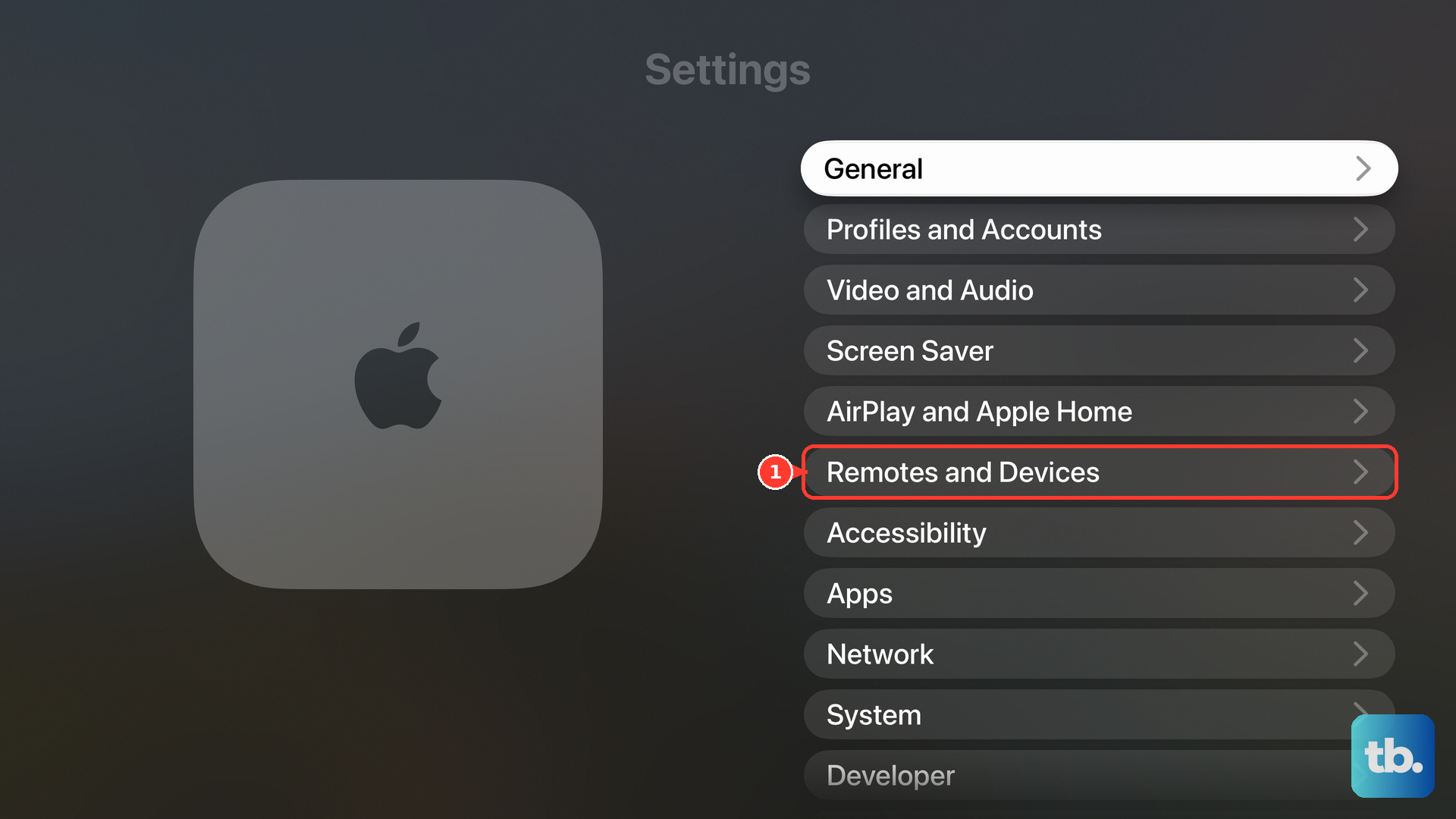
With a working controller, open Settings > Remotes and Devices > Remote and check Battery Level. For regular charging, connect the remote’s bottom charging port to a computer USB port or a compatible USB power adapter using the appropriate cable. A full charge takes approximately three hours.
If pairing continues to fail, disconnect Apple TV from power for six seconds, then reconnect it. Point the remote at the box from about three inches away and repeat the five-second pairing procedure. If prompted, place the remote on Apple TV.
Fix an unreliable remote connection
Move within 20 feet, or 6 meters, of Apple TV and clear obstructions between you and the box. Use the much shorter three-inch distance when pairing. Once paired, try using the remote again within the recommended range.
On tvOS 18.0 or later, open Settings > Remotes and Devices > Remote and check Bluetooth RSSI for signal strength. On earlier versions, use the positioning and obstruction checks. If you need another way to operate the menus, connect an iPhone or iPad as a controller.
Connect your iPhone or iPad as a remote
Open Control Center by swiping down from the upper-right corner of your iPhone or iPad. On an older iPhone with a Home button, swipe up from the bottom instead. Tap Apple TV Remote, choose your television, and enter the requested four-digit passcode on your iPhone or iPad.
If the control is missing in the current iOS or iPadOS interface, open Control Center, select Add Controls, then select Add a Control. Search for Remote in Search Controls, then tap Remote. Return to the connection setup and choose your television.
If the companion remote does not connect to Apple TV HD or Apple TV 4K, check Settings > Wi-Fi on your iPhone or iPad and Settings > Network on Apple TV. Both devices need to use the same network. Update and restart both devices, then repeat the connection setup.
Restart or update Apple TV with a working controller
With a working controller for Apple TV 4K, open Settings > System > Restart to restart the box. You can also hold TV + Back, or TV + Menu on an older rechargeable remote, until the status light flashes rapidly. Use the button method only when the physical remote can still communicate with Apple TV.
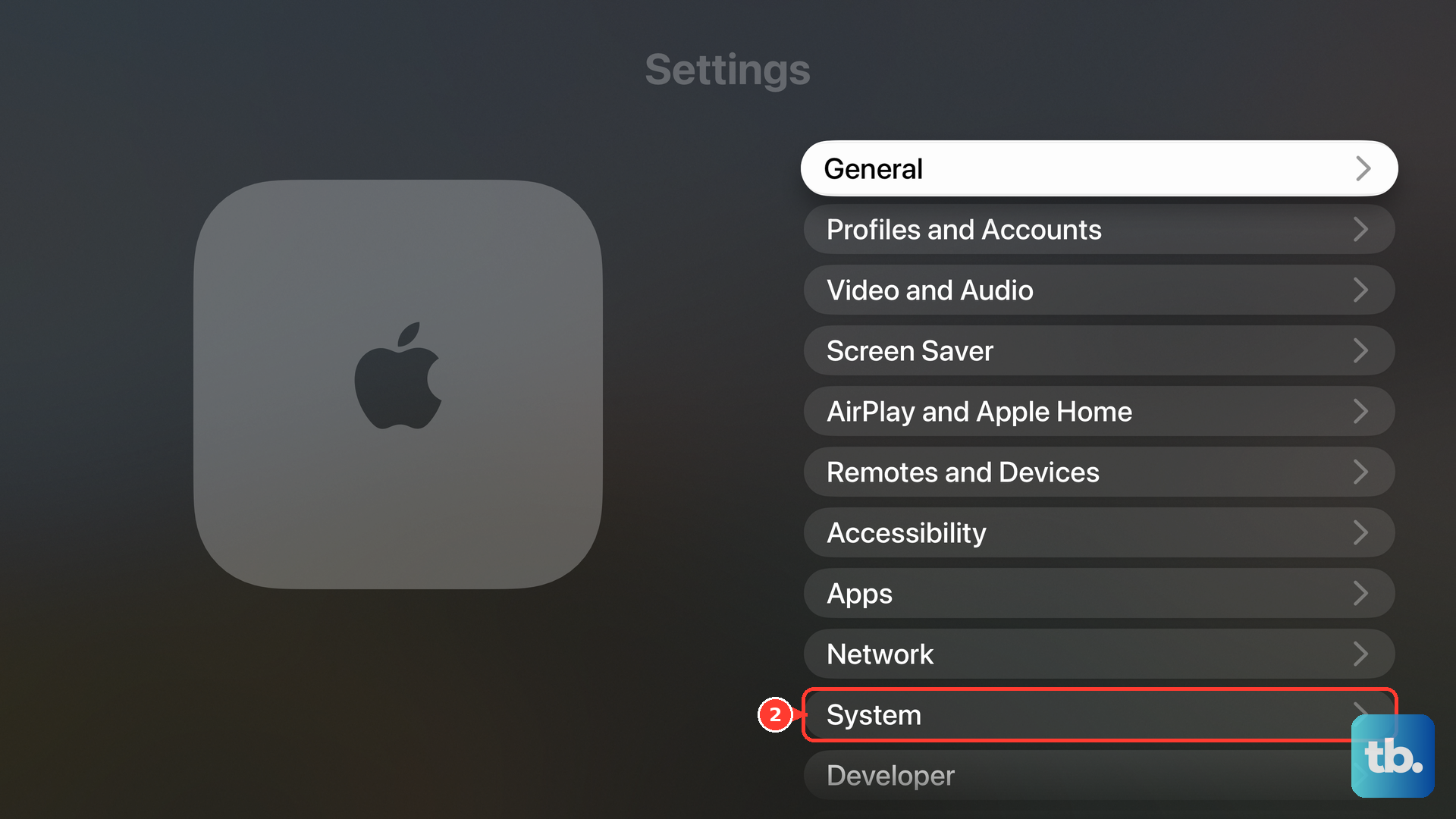
To update Apple TV 4K, open Settings > System > Software Updates > Update Software. If an update is offered, select Download and Install, and keep Apple TV connected to power during installation. For future updates, turn on Automatically Update under Software Updates.
Fix volume buttons when navigation still works
If you can move through Apple TV menus but cannot change the volume, hold TV/Control Center + Volume Down for about five seconds, until the Apple TV light turns off and on, then release. For this volume-specific procedure, Apple says to wait 10 to 15 seconds for Remote Disconnected. Press a button afterward and look for Remote Connected.
If volume still fails, open Settings > Remotes and Devices > Volume Control and choose another setting, such as TV via IR instead of Auto. Apple also recommends TV via IR for optical-audio arrangements. Infrared control requires suitable equipment and an unobstructed signal path.
On Apple TV 4K, the options include Auto, HDMI, Receiver via IR, and TV via IR. The HDMI option requires equipment with compatible HDMI-CEC volume control. If none works, select Learn New Device and follow the equipment-learning prompts. Selecting Off disables external-device volume control.
Frequently Asked Questions
What happens to the old remote when you pair a replacement?
Pairing a compatible replacement with Apple TV 4K automatically unpairs the previous physical Apple TV remote. Apple TV 4K supports one paired physical Apple TV remote at a time. To switch, pair the replacement using the close-range pairing procedure.
Can you reconnect an iPhone remote by forgetting its pairing?
Forgetting the device removes its companion remote pairing. On Apple TV 4K, open Settings > Remotes and Devices > Remote App and Devices, select the device, then select Forget This Device. Repeat that device’s remote setup to reconnect. This menu manages companion devices rather than the physical Siri Remote.
Can you open Apple TV Remote outside Control Center?
On iOS 27 or iPadOS 27, you can open the standalone Apple TV Remote app from the Home Screen or App Library to control Apple TV 4K. Use its touch area and buttons to navigate, including opening Apple TV’s restart settings.
Can an Apple Watch control Apple TV while the remote is disconnected?
You can use Apple Watch as a fallback controller for Apple TV 4K. Ensure its paired iPhone has joined Apple TV’s Wi-Fi network, then open Remote on the watch. Tap your Apple TV, or tap Add if it is absent, and enter the passcode shown on the watch as prompted. Once paired, swipe to navigate and tap to select.