A stuck print job can block every document behind it, even when the printer looks ready. The quickest fix is to restart the Windows Print Spooler from an elevated Command Prompt.
If the queue itself is damaged, a simple restart may not hold. Start with the command reset below, then clear the queue or spool folder only when the earlier step does not work.
Reset the Print Spooler from Command Prompt
Open Search, type cmd, right-click Command Prompt, and choose Run as administrator. Administrator rights are required because the Print Spooler is a Windows service.
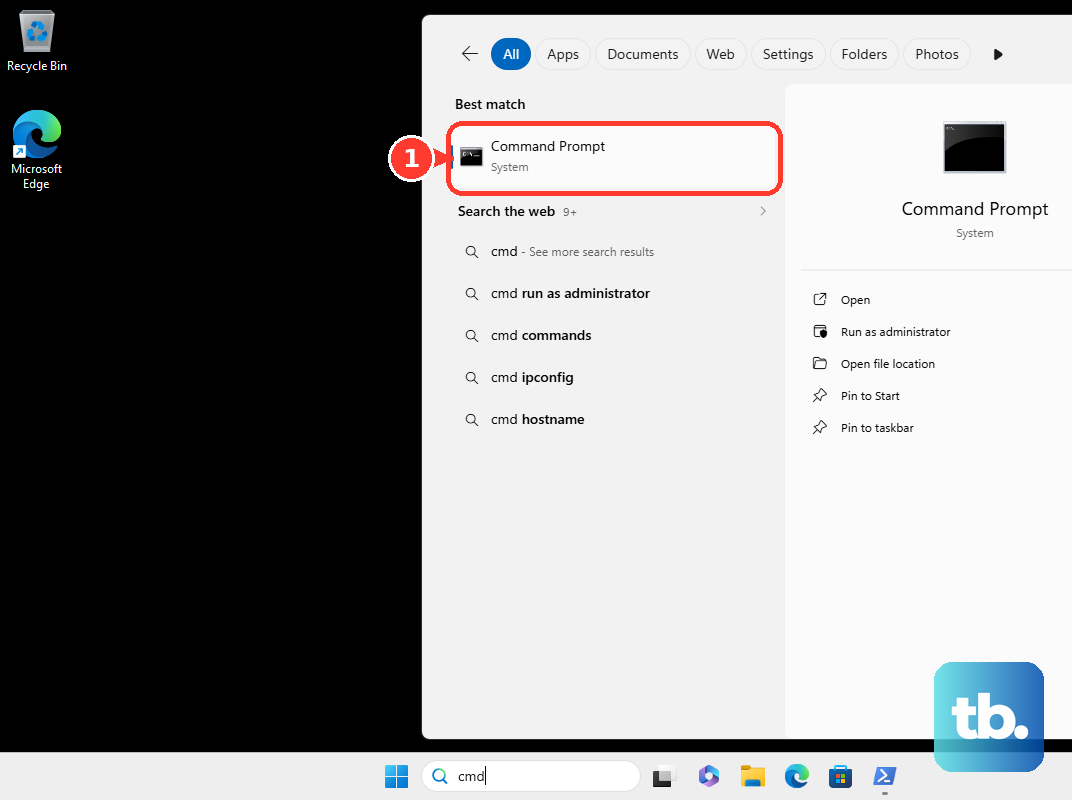
Type net stop spooler and press Enter. Wait until Windows reports that the service has stopped.
Type net start spooler and press Enter. Try printing again after the service starts.
Clear the stuck queue before you reset again
The most common cause is a stuck print job that stays in the queue after the printer stops responding.
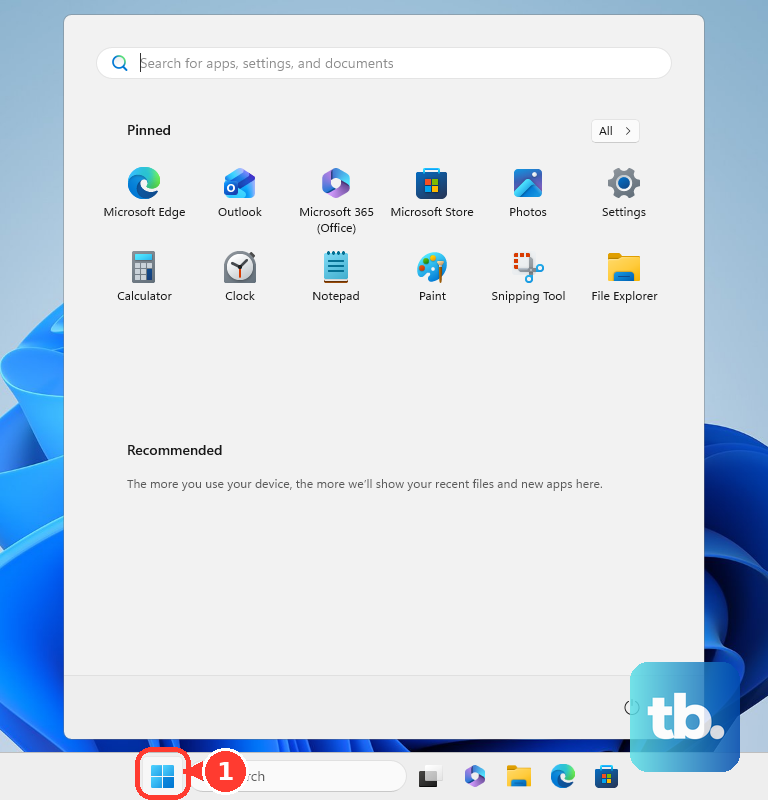
On Windows 11, open Start, then go to Settings > Bluetooth & devices > Printers & scanners. Select your printer and choose Open print queue. On Windows 10, go to Start > Settings > Devices > Printers & scanners, select your printer, and choose Open queue.
Right-click each print job and choose Cancel. When the queue is empty, run net stop spooler and then net start spooler again from administrator Command Prompt.
Delete spool files when jobs refuse to cancel
When a job will not cancel, stop the spooler first so Windows releases the queue files. Open administrator Command Prompt, type net stop spooler, and press Enter.
Open File Explorer and go to C:\Windows\System32\spool\PRINTERS. Delete the files in that folder, then return to administrator Command Prompt, type net start spooler, and press Enter.

If this method fails, turn off the printer, wait at least 60 seconds, turn it back on, then open Start > Power > Restart on the PC.
Use Services when you prefer a visual reset
Open Search, type services, and select Services. Find Print Spooler in the list.
Right-click Print Spooler and choose Restart. This restarts the same service without typing commands.
For the fuller Windows repair path, double-click Print Spooler, select Stop, delete the files in %WINDIR%\system32\spool\PRINTERS, then return to Print Spooler and select Start. Set Startup Type to Automatic and choose OK.
Run the PowerShell reset instead
Use PowerShell if you prefer its service command.
- 1.Open Search, type
powershell, right-click Windows PowerShell, and select Run as administrator. - 2.Type
Restart-Service -Name spoolerand press Enter. - 3.Wait for the command to finish.
- 4.Send a fresh test print.
Stop and start the service separately in PowerShell
Open Search, type powershell, right-click Windows PowerShell, and choose Run as administrator.
Type Stop-Service -Name spooler and press Enter.
Type Start-Service -Name spooler and press Enter.
Use this version when you want to stop the service, clear the queue, and then start the service again.
Keep the stop, cleanup, and start order intact whenever you delete spool files manually.
Avoid service deletion commands
Some command-line cleanup advice tells you to delete the spooler service. Do not use sc delete spooler to reset printing, because that command deletes service registry entries and Microsoft does not recommend using it to delete built-in operating system services.
The supported path is to restart the service with net stop spooler and net start spooler, or clear C:\Windows\System32\spool\PRINTERS only after the spooler has stopped.
If this method fails, use Services to confirm Print Spooler starts and Startup Type is set to Automatic.
Check managed PC and shared printer issues
This applies when the PC is managed by work or school, the reset commands do not stay fixed, or a shared printer reconnect keeps failing. A policy can stop or disable the Print Spooler service on managed Windows devices.
Ask your IT admin to confirm that no policy is stopping or disabling Print Spooler. For a shared printer, remove the printer from Printers & scanners, restart the PC, then add it again from Start > Settings > Bluetooth & devices > Printers & scanners > Add device on Windows 11, or from Start > Settings > Devices > Printers & scanners > Add a printer or scanner on Windows 10.
If Windows does not list the shared printer, choose Add manually on Windows 11 or The printer that I want isn't listed on Windows 10, select Select a shared printer by name, enter the shared printer path in the format \\ComputerName\PrinterShareName, and follow the on-screen instructions.
Frequently Asked Questions
What does net stop spooler do?
It stops the Windows Print Spooler service, which manages print jobs before they are sent to the printer.
Will resetting the Print Spooler delete my printer?
No. Restarting the spooler service does not remove the printer. Clearing C:\Windows\System32\spool\PRINTERS deletes queued spool files only.
Do I need administrator rights to reset the Print Spooler?
Yes. Command Prompt, PowerShell, and Services spooler controls require administrator rights.
Why does the printer queue get stuck again after I reset it?
A stuck queued job, a printer connection problem, or a managed-device policy can make the issue return. Cancel the queue first, clear the spool folder if needed, then restart the PC and printer.