Bluetooth stops connecting, drops a device, or disappears from the pairing list when Windows needs a fresh connection, pairing record, service restart, or driver refresh. Windows 11 does not include a supported button named Reset Bluetooth, so use the fixes below in order.
Start with the fastest Windows 11 controls, then move deeper only when your headphones, mouse, keyboard, speaker, or controller still will not reconnect.
Turn Bluetooth off and on first
This applies when Bluetooth still appears in Windows but a device will not connect, reconnect, or show normally.
Select Start, open Settings, then choose Bluetooth & devices.
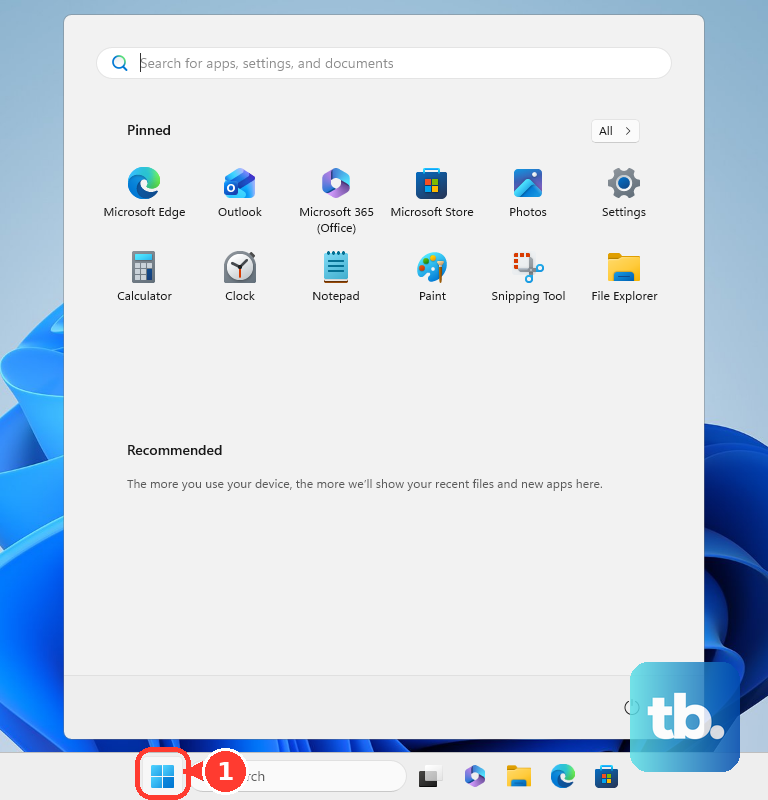
Turn Bluetooth off, wait a few seconds, then turn Bluetooth back on.
For the faster path, select the Network, Sound, or Battery icon next to the time and date.
Select the Bluetooth tile to switch Bluetooth off, wait a few seconds, then select Bluetooth again.
Rule out Airplane mode and hardware switches
Select the Network, Sound, or Battery icon on the right side of the taskbar.
Make sure Airplane mode is turned off.
On a laptop with a physical Bluetooth switch on the body, move the switch to the on position.
Tip: if Bluetooth immediately turns off again, use the driver and service fixes below.
Restart the Bluetooth accessory
The most common cause is the accessory holding onto an old connection instead of starting a fresh reconnect attempt.
Turn off the Bluetooth device itself.
Wait a few seconds.
Turn the Bluetooth device back on.
Connect it again from Windows.
If the accessory still refuses to connect, remove it from Windows and pair it again.
Remove the device and pair it again
When one accessory keeps failing but Bluetooth works for other devices, reset that device’s pairing record in Windows.
Select Start, open Settings, go to Bluetooth & devices, then select Devices.
In Devices, select More options for the Bluetooth device.
Choose Remove device, then confirm with Yes.
Put the accessory back into discoverable mode.
Select the Network, Sound, or Battery icon next to the time and date, select the Manage Bluetooth devices chevron on the Bluetooth quick setting, choose the device under New devices, follow any prompts, then select Done.
If the device does not appear after removal, change discovery to Advanced before pairing again.
Make hidden devices easier to find
Some devices stay out of the regular pairing list until Windows uses broader discovery.
Open Start, choose Settings, go to Bluetooth & devices, then open Devices.
Under Device settings, find Bluetooth devices discovery and choose Advanced from the drop-down list. Return to pairing and look again for the accessory.
For more Bluetooth options, stay on Start > Settings > Bluetooth & devices > Devices, then select More Bluetooth settings under Related settings.
Run the Bluetooth troubleshooter
This applies when toggling Bluetooth, restarting the accessory, and re-pairing do not fix the problem. It also fits a PC that fails to keep Bluetooth working consistently.
Select Start, open Settings, then go to System > Troubleshoot > Other troubleshooters.
Next to Bluetooth, select Run.
Follow the instructions on screen. On current Windows 11 releases, Run opens the Bluetooth troubleshooter in the Get Help app.
You can also reach that same troubleshooter by opening the Get Help app directly.
Type Bluetooth troubleshooter in the Search bar.
Follow the steps that Get Help provides.
Refresh the Bluetooth driver
This fixes missing Bluetooth, failed adapter behavior, and problems that started after a driver issue.
Select Start, open Settings, then go to Windows Update.
Select Check for updates.
Let Windows download and install any available updates.
Select Start, type Device Manager, and open Device Manager from the results.
Expand Bluetooth.
Right-click your Bluetooth adapter and select Update driver.
Choose Search automatically for drivers.
Follow the on-screen instructions.
Restart your PC after the update completes.
If Windows does not find a newer driver, go to your PC manufacturer’s support website.
Search by your exact device model number.
Download the latest Bluetooth driver for Windows 11, install it, and restart your PC.
Reinstall the Bluetooth adapter
The most common cause at this stage is a damaged or stuck adapter driver that Windows needs to remove and rebuild.
Open Device Manager.
Expand Bluetooth.
Right-click your Bluetooth adapter, then select Uninstall device.
Restart your PC.
Windows automatically reinstalls the Bluetooth driver after the restart.
If Bluetooth is missing and the adapter still appears in Device Manager, right-click the adapter and select Uninstall device.
Choose Uninstall.
Select Start > Power > Shut down.
Wait a few seconds after shutdown, then turn the PC back on.
If Windows does not reinstall the driver automatically, open Device Manager and select Action > Scan for hardware changes.
Fix disconnects with services and power settings
Frequent disconnects come from the Bluetooth service stalling or Windows turning off the device to save power.
Press Windows key + R, type services.msc, select Ok, scroll to Bluetooth Support Service, right-click it, and select Restart.
Open Device Manager, expand Bluetooth, right-click your Bluetooth device, select the Power Management tab, and uncheck Allow the computer to turn off this device to save power.
On a laptop, select the Battery icon from the taskbar and check whether Energy Saver Mode is enabled. Turn Energy Saver Mode off and test Bluetooth again.
On a work or school PC, Bluetooth controls and pairing can be blocked by management policy. If Bluetooth controls are missing or pairing is blocked by your organization, contact the person who manages the device.
Frequently Asked Questions
Is there a Reset Bluetooth button in Windows 11?
No. Windows 11 does not provide a single supported button named Reset Bluetooth. The practical reset is to toggle Bluetooth, restart the accessory, remove and re-pair the device, run the troubleshooter, or refresh the Bluetooth driver.
Will removing a Bluetooth device delete anything important?
It removes that device’s pairing record from Windows. Pair the device again afterward by putting the accessory back into discoverable or pairing mode.
What should I do if Bluetooth disappeared from Windows?
Check Windows Update first, then open Device Manager and update or uninstall the Bluetooth adapter driver. After a restart, Windows reinstalls the driver automatically. If it does not, use Device Manager’s Scan for hardware changes option.
Why does Bluetooth keep disconnecting on my Windows laptop?
Restart Bluetooth Support Service, disable the Bluetooth device power-saving option in Device Manager, and turn off Energy Saver Mode from the Battery icon on the taskbar.