An iPad reset can mean a quick restart, a settings reset, or a full factory erase. The right choice depends on whether the iPad is frozen, acting strange, locked, lost, or ready for someone else. Start with the lightest Apple-supported option below, then move deeper only when the problem needs it.
Restart the iPad first
The most common reset people need is a regular restart, because a temporary software hang does not require erasing the iPad.
On an iPad without a Home button, press and hold either volume button and the top button until the power off slider appears. Drag the power off slider, wait 30 seconds, then press and hold the top button until the Apple logo appears.
On an iPad with a Home button, press and hold the top button until the power off slider appears. Drag the power off slider, wait 30 seconds, then press and hold the top button until the Apple logo appears.
On iPadOS 18 or later, you can also restart from Control Center. Swipe down from the top-right corner, press and hold the Power button in the top-right corner, let go, drag the power off slider, wait 30 seconds, then press and hold the top button until the Apple logo appears.
Force restart a frozen iPad
Use a force restart when the iPad is stuck, the screen will not respond, or the normal power slider is not useful. It does not erase your content.
On an iPad with Face ID or Touch ID in the top button, press and quickly release the volume button nearest the top button. Press and quickly release the volume button farthest from the top button. Press and hold the top button, then release it when the Apple logo appears.
On an iPad with a Home button, press and hold the top button and the Home button at the same time. Release both buttons when the Apple logo appears.
Reset settings without deleting your data
When the iPad works but settings feel wrong, open Settings, tap General, tap Transfer or Reset iPad, then tap Reset. Choose Reset All Settings to return settings to defaults without erasing your content.
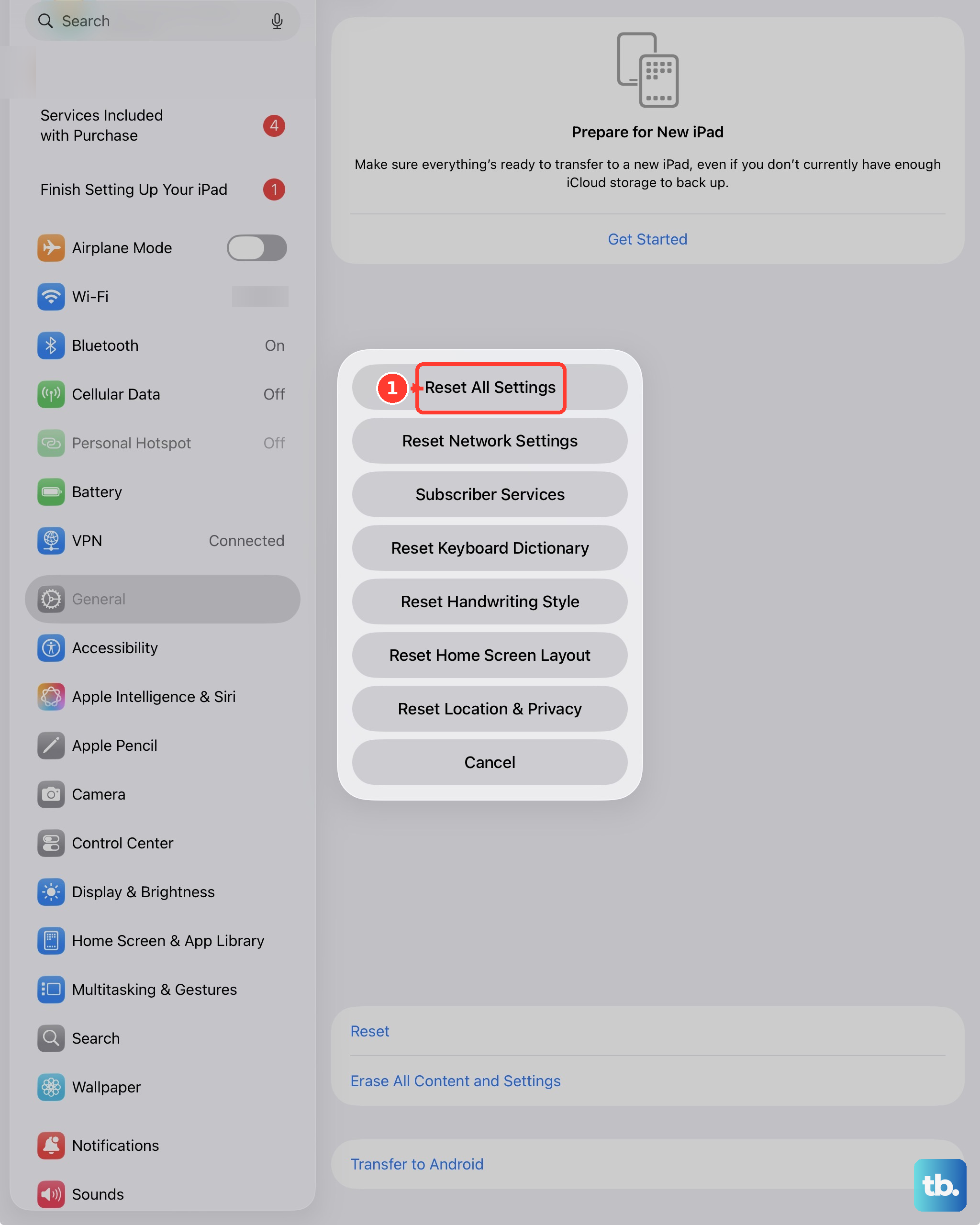
For Wi-Fi or cellular connection trouble, choose Reset Network Settings. This removes network settings, resets the device name to iPad, and changes manually trusted certificates to untrusted; VPN settings installed by a profile or MDM are not removed by this reset.
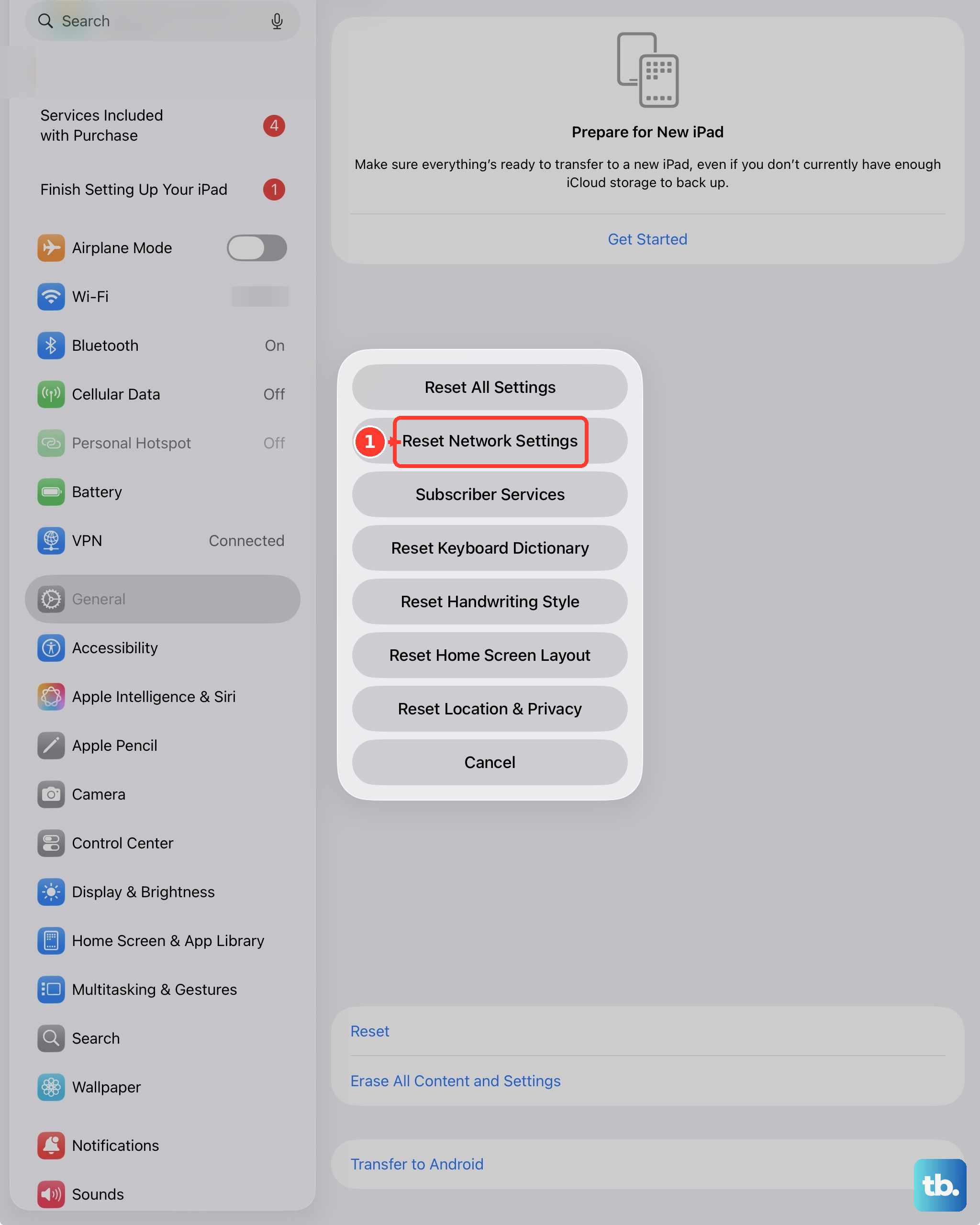
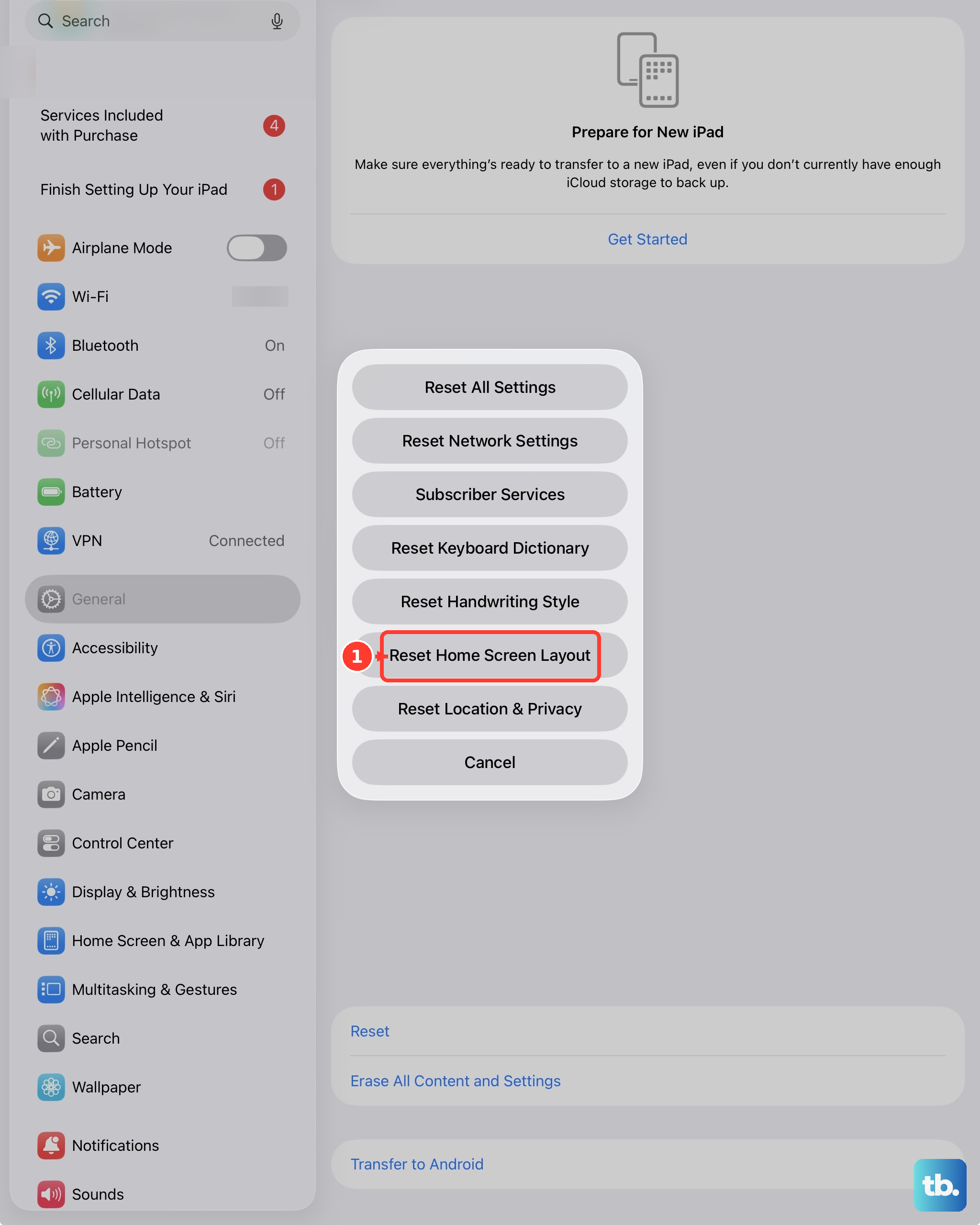
Use the other reset choices for narrower problems. Reset Keyboard Dictionary removes only words added by rejecting iPad suggestions, Reset Handwriting Style returns custom handwriting preferences to defaults, Reset Home Screen Layout restores built-in apps to their original Home Screen layout, and Reset Location & Privacy resets location services and privacy settings to defaults.
On a Wi-Fi + Cellular iPad with stored eSIMs, Delete All eSIMs removes those eSIMs. That only deletes the eSIMs stored on the iPad. It does not cancel anything, so contact your carrier separately to cancel a cellular plan, and expect to contact them again to get a new eSIM if you want the plan back on this iPad.
Erase all content and settings
Open Settings.
Tap General, then tap Transfer or Reset iPad.
Tap Erase All Content and Settings.
Enter your iPad passcode or Apple Account password when asked.
Tap Continue to confirm and let the iPad erase itself back to factory settings.
On eSIM iPads, choose whether to erase or keep the eSIM before the erase finishes.
Reset a locked iPad from the Lock Screen
The most common cause of a locked iPad reset is a forgotten passcode after too many failed attempts.
On iPadOS 17 or later, the iPad must be connected to cellular or Wi-Fi, signed in to your Apple Account, and have Find My turned on. From the Lock Screen, keep trying your passcode until the unavailable screen appears.
Tap Forgot Passcode?, then tap Start iPad Reset on the Security Lockout screen. Enter your Apple Account password, tap Erase iPad, then follow the onscreen setup after the restart and create a new passcode.
Use recovery mode with a computer
Use recovery mode when you forgot the passcode and the on-device reset method is not available.
- 1.Turn off the iPad, then connect it to a Mac or Windows PC with a USB cable.
- 2.On an iPad without a Home button, press and quickly release the volume button closest to the top button, press and quickly release the volume button farthest from the top button, then press and hold the top button.
- 3.On an iPad with a Home button, press and hold the Home button and the top or side button at the same time.
- 4.Keep holding until an image of a computer and cable appears on the iPad.
- 5.In Finder or the Apple Devices app, locate the iPad and choose Restore when you see Restore or Update.
- 6.Wait for the restore process to finish.
This deletes data and settings, including the passcode. On Windows, Apple lists the Apple Devices app as the Windows companion app used to update, back up, restore, manage, and sync an iPhone or iPad.
Restore an accessible iPad from a computer
Open Finder on a Mac with macOS Catalina 10.15 or later, or open the Apple Devices app on a Windows PC.
Use iTunes instead if the PC does not have the Apple Devices app or the Mac uses macOS Mojave or earlier.
Connect the iPad to the computer and follow the onscreen steps when asked for the passcode or Trust This Computer.
Select the device, click Restore iPad, then click Restore again to confirm.
Use this route when the iPad is accessible and you prefer restoring from a computer instead of erasing from Settings.
Erase a lost or unavailable iPad remotely
Find My can erase an iPad you cannot physically use when the device is connected to your Apple Account through Find My. From another Apple device, open Find My, tap Devices, choose the iPad, tap Erase This Device, tap Continue, enter a phone number or message when asked, then tap Erase and confirm with your Apple Account password.
You can also use iCloud on the web. Go to icloud.com/find, sign in to your Apple Account, select the iPad in the device list, choose Erase This Device, and follow the onscreen instructions.
If the iPad is offline, the erase starts when it next comes online. If the request has not happened yet, go back to icloud.com/find, select the device, choose Stop Erase Request, and enter your Apple Account password.
If this method fails, use recovery mode with a computer when you have the iPad, or erase it from Settings when you can still unlock it.
Remove work or school management
The most common reason a reset will not remove every setting is that the iPad is managed by a school, workplace, or installed profile.
For a removable profile, open Settings, tap General, tap VPN & Device Management, select the configuration profile, then tap Remove Profile. Apple says deleting a profile also deletes settings, apps, and data associated with that profile.
For user-removable management, open Settings, tap General, tap VPN & Device Management, select the management entry, then tap Remove Management. Some supervised or organization-owned iPads prevent user removal, so the organization handles the reset.
Frequently Asked Questions
Does resetting an iPad delete everything?
A restart, force restart, or Reset All Settings does not erase your content. Erase All Content and Settings, recovery mode restore, and remote erase delete data and settings.
What is the difference between restart and reset on iPad?
Restarting turns the iPad off and back on. Reset can mean resetting settings, erasing the whole iPad, or restoring it with a computer, so choose the method based on what you want removed.
Can I reset an iPad without the passcode?
Yes. On iPadOS 17 or later, use the Lock Screen reset path when the iPad is online, signed in to your Apple Account, and Find My is on. If that is not available, use recovery mode with a Mac or Windows PC.
Can I cancel a remote erase?
Only before it happens. If the iPad was offline and the erase request is still pending, use iCloud Find Devices, select the device, choose Stop Erase Request, and enter your Apple Account password.