

Your Wi-Fi drops, slows down, or refuses to let devices reconnect, and the word “reset” suddenly gets risky. A restart keeps your network settings, while a factory reset erases them and returns the router to defaults. Start with the safe reboot, then use the exact brand path only when you truly want a clean setup.
Restart the router first
Unplug the router’s power cable from the wall or from the back of the router.
Wait 10 to 30 seconds. On an Xfinity Gateway, wait one minute before plugging the power cable back in.
Plug the power cable back in and let the router fully start.
For a separate modem and router setup, follow the order from your router maker. NETGEAR says to bring the modem online first, then turn on the router. TP-Link directs its users to power on the router first, wait about two minutes, then power on the modem.
Use this restart before any factory reset because it does not erase your Wi-Fi name, password, or saved settings.
Reboot from an app or router page
Use these routes when the router is still reachable from your phone or browser.
For NETGEAR Nighthawk, open the Nighthawk app, tap Connect remotely, tap the home icon, tap REBOOT, then choose Reboot.
For NETGEAR web access, open www.routerlogin.net on a connected device, sign in, choose Advanced, then choose Reboot. On Nighthawk Pro Gaming routers, open the three-dot menu in the top right corner, then choose Reboot.
For Google Nest Wifi, Nest Wifi, or Google Wifi in Google Home, open Google Home, go to Home, Wifi, Network settings, then tap Restart entire network.
For eero, open the eero app, go to Settings, Advanced networking, tap the more options icon, choose Restart Network, then confirm.
For Linksys, open the Linksys app while connected to the router Wi-Fi, log in with Router Password on iOS or Use Router Password on Android, open the menu, choose Network Administration, then tap Restart Network and Restart.
For Xfinity Gateways, open the Xfinity app, tap the WiFi icon, choose Troubleshoot, then choose Restart your Gateway.
Use the power button on routers that have one
This applies to NETGEAR home routers with a rear Power On/Off button. It is a restart, so the Wi-Fi name, password, and saved settings stay in place.
Press Power On/Off to turn the router off.
Wait 30 seconds.
Press Power On/Off again to turn the router back on.
Wait for the router to finish starting before testing Wi-Fi.
Factory reset only when you need a clean start
A factory reset is the erase option. Use it when you are setting up the router again from scratch or intentionally returning it to factory defaults.
Restarting is the everyday troubleshooting move. Factory reset removes saved settings.
On Google Wifi and Nest Wifi devices, use the Google Home app reset because Google says it also removes app data, cloud data, and the Google Account association.
If this method fails, use the model-specific manual or the matching app or web reset method for that router brand.
Factory reset common home routers with the button
Keep the router powered on unless the brand’s reset process below says otherwise.
For NETGEAR, confirm the Power light is on, find Restore Factory Settings or Reset on the back, hold it with a paper clip for seven seconds, then release it. Some NETGEAR devices use 15 seconds, so follow the model manual when it gives a different time.
For TP-Link, hold Reset or WPS/Reset for more than 10 seconds, release when the SYS LED changes from slow flash to quick flash, then wait for reboot.
For Linksys, hold Reset for about 10 seconds, then release. Some Intelligent Mesh and Pinnacle models use about 20 seconds.
For ASUS, hold RESET for 5 to 10 seconds until the power LED starts to flash, then wait for the LEDs to turn on again.
For Xfinity XB2 or XB3 Gateways, use a paperclip or pin to hold the small rear Reset hole for 30 seconds, then release and let the gateway restart.
For Spectrum WiFi 6E Advanced Home WiFi routers SAX2V1S and SAX2V1R, hold Reset for more than 15 seconds to factory reset. Holding Reset for 4 to 14 seconds only reboots the router.
Reset Google Nest Wifi or Google Wifi
For Google Nest Wifi Pro, Nest Wifi, and Google Wifi devices set up in Google Home, use the app reset. It removes the network from the app, clears cloud data, and removes the Google Account association.
Open Google Home, go to Home, then All devices.
Touch and hold the device tile, open Settings, choose Factory reset network, then tap Factory Reset.
For a Google Nest Wifi or Google Wifi point, touch and hold the point tile in All devices, open Settings, choose Factory reset Wifi point, then tap Factory Reset.
Hardware reset is available too. Nest Wifi Pro uses the bottom reset button for 12 seconds until the light is solid yellow, Nest Wifi router uses the bottom factory reset button for 10 seconds until solid yellow, and Google Wifi point uses its factory reset button for 10 seconds until the light is solid blue.
If this method fails, reset through Google Home instead of the legacy Google Wifi app when the network has been migrated to Google Home.
Reset eero without guessing
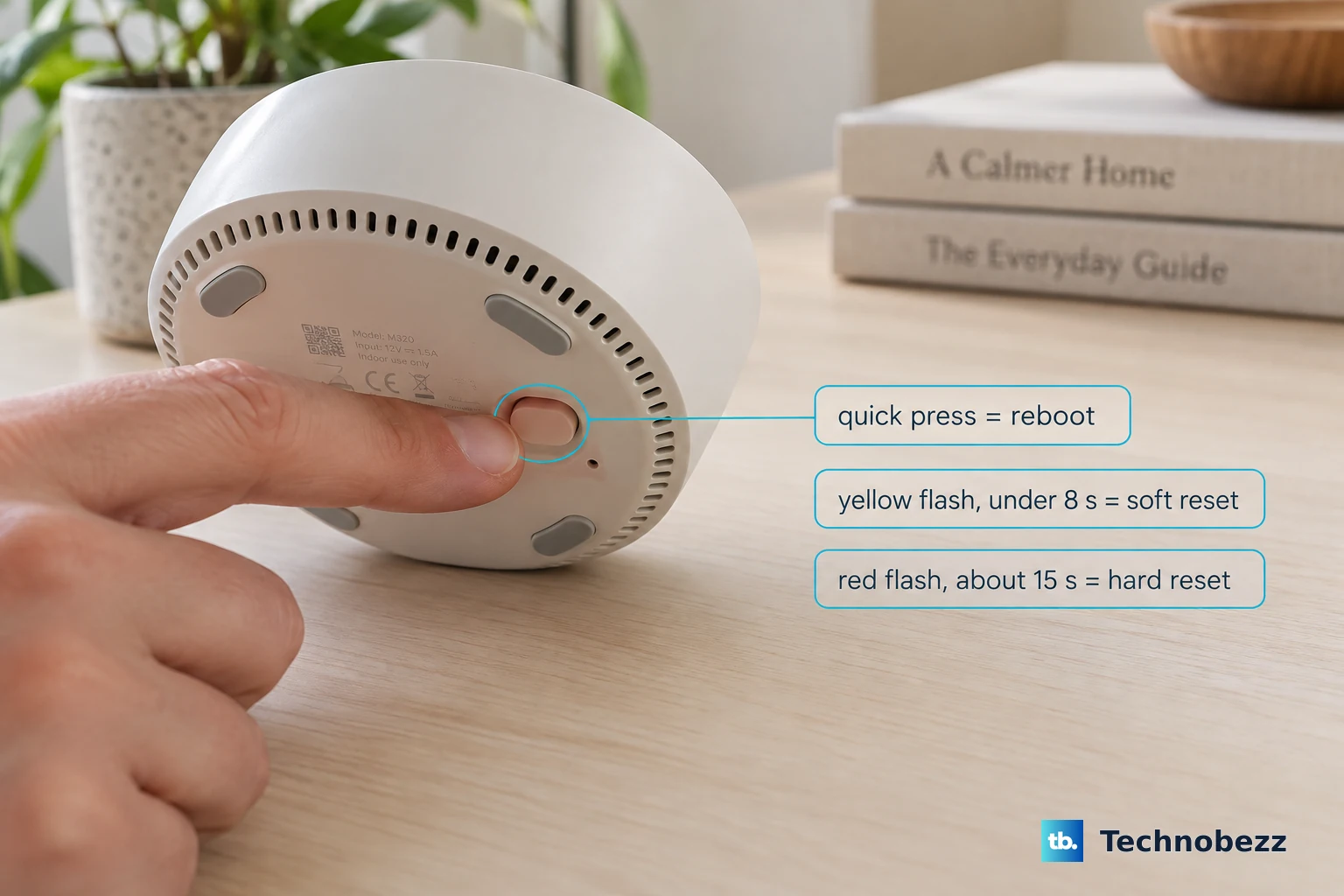
This applies when you have an eero with a reset button or an eero unit visible in the eero app. The timing decides whether you reboot, soft reset, or factory reset.
Push the reset button once to reboot an eero.
Hold the reset button until the LED flashes yellow, no longer than 8 seconds, then release for a soft reset.
Hold the reset button until the LED flashes red, about 15 seconds, then release for a hard reset or factory reset.
To factory reset a unit from the app, open the Home tab, tap the eero to remove, tap the more options icon in the top-right corner, choose Remove “[name]” eero, then tap Remove from Network. Only the network owner can remove an eero from the app, so use the physical reset button if you are not the owner.
Removing the gateway eero takes the network offline.
Reset from the router settings page
This fixes a router that still lets you sign in, but needs a factory reset without the physical button.
For TP-Link, open tplinkwifi.net or 192.168.0.1.
Enter the admin password.
Go to Advanced, then System or System Tools, then Backup and Restore, and choose Factory Restore.
For Linksys, sign in to the router web interface.
Open Troubleshooting, choose the Diagnostics tab, select Reset, then choose Yes.
For ASUS, open the router LAN IP address or http://www.asusrouter.com.
Sign in, go to Administration, then Restore/Save/Upload Setting, choose Restore, and confirm with OK.
For ASUS models covered by the hard factory reset process, turn the router off, hold WPS, turn the router on while still holding WPS, release WPS after the power light turns off, then reboot the router manually with the power button.
Fix a reset button that does nothing
The most common cause is using the wrong reset type or holding the button for the wrong amount of time.
Repeat the exact step for your brand and watch the light behavior named in the vendor instructions.
For TP-Link, look for the SYS LED changing to a quick flash.
For Google, look for the solid yellow or solid blue reset light required by your model.
For eero, use the yellow LED for soft reset and the red LED for hard reset.
Check whether the button is labeled Reset, WPS/Reset, or Restore Factory Settings.
For work, school, or ISP-managed equipment, stop after a normal restart and contact the organization or provider that manages the device.
Skip the old 30/30/30 reset advice; the current vendor-supported methods here use app, web, power, or hardware reset-button procedures with brand-specific timing.
Frequently Asked Questions
Is resetting a router the same as restarting it?
No. Restarting or rebooting turns the router off and back on without erasing settings. A factory reset returns the router to factory defaults.
How long should I unplug my router to reset it?
For a normal restart, unplug the router, wait 10 to 30 seconds, plug it back in, and wait for it to fully start. On an Xfinity Gateway, wait one minute before plugging the power cable back in.
Should I reset the modem or router first?
Follow the order your router maker specifies, because it varies by equipment. NETGEAR says to bring the modem online first, then turn on the router. TP-Link directs its users to power on the router first, wait about two minutes, then power on the modem.
Does a factory reset remove router settings?
Yes. A factory reset is the erase option and returns the router to factory defaults, so use it only when you want to set the router up again.