

A Windows 10 blue screen means Windows hit a stop error and had to restart. If the same crash keeps coming back, the fix depends on what happened right before it started: a new device, update, driver, app, or startup failure. Start with the quick checks, then move into recovery, repairs, restore, or reset.
1. Let Windows restart and capture the stop code
- 1.Let the automatic restart finish once. Microsoft says many one-time stop errors clear after that restart.
- 2.If the blue screen returns, write down the stop code at the bottom of the screen.
- 3.Look for codes such as PAGE_FAULT_IN_NONPAGED_AREA, MEMORY_MANAGEMENT, or IRQL_NOT_LESS_OR_EQUAL.
- 4.If the screen disappears too fast, enter Windows Recovery Environment.
- 5.Select Troubleshoot > Advanced options > Startup Settings > Restart.
- 6.Press 9 or F9 for Disable automatic restart on system failure.
2. Unplug recent hardware and extra devices
New hardware is the fastest thing to rule out. Shut down the PC, disconnect anything added before the blue screens began, then restart.
For crashes during an update or install, unplug nonessential devices too: headphones, printers, scanners, speakers, USB flash drives, and external hard drives. Keep only the display, keyboard, mouse, and power connected.
3. Open recovery when Windows will not load
From Settings: Open Start > Settings > Update & Security > Recovery. Under Advanced startup, select Restart now.
From the sign-in screen or Start menu: Hold Shift while selecting Power > Restart.
From a failed startup: Turn on the PC. When the Windows logo or manufacturer logo appears, hold the power button until it shuts down. Repeat once, then turn it on a third time and select Advanced options on the Automatic Repair screen.
From installation media: Boot from a Windows 10 USB, choose language options, select Next, then select Repair my PC.
Windows Recovery Environment gives you the repair tools when normal startup fails. Use the route that matches what you can still access. BitLocker-protected PCs require the BitLocker recovery key for some recovery tools.
4. Start Safe Mode or run Startup Repair
Use Safe Mode when Windows crashes after normal drivers and services load. Enter Windows Recovery Environment, then select Troubleshoot > Advanced options > Startup Settings > Restart.
On the Startup Settings screen, press 4 or F4 for Enable Safe Mode, 5 or F5 for Safe Mode with Networking when you need network access, or 6 or F6 for Safe Mode with Command Prompt.
If Windows still fails to start, go back to Windows Recovery Environment and select Troubleshoot > Advanced options > Startup Repair > Restart. Startup Repair handles startup problems such as damaged system files, boot configuration issues, incompatible drivers, and registry errors.
5. Update roll back or reinstall drivers
Driver repair belongs near the top when Device Manager shows a yellow exclamation point or the stop code points to a device.
Use Microsoft-delivered updates first: Open Start > Settings > Update & Security > Windows Update > Check for Windows updates.
For driver-focused errors, open Advanced options, turn Receive updates for other Microsoft products when you update Windows On, go back to Windows Update, select Check for updates, then install items under View optional updates when that option appears.
Update a driver: Right-click Start > Device Manager. Expand the category, right-click the device, select Update driver, then choose Search automatically for updated driver software.
Install the manufacturer driver: Download the correct driver from the hardware maker. In Device Manager, right-click the device and select Update driver > Browse my computer for drivers > Browse. Choose the driver folder, select OK, then select Next.
Roll back a driver: Sign in with an administrator account first. In Device Manager, right-click the device and select Properties > Driver > Roll Back Driver. Choose a reason, select Yes, then restart when prompted.
Reinstall a driver: Save your work. In Device Manager, right-click the device and select Uninstall device > Uninstall. Right-click Start > Shut down or sign out > Restart.
Disable a problem device: In Device Manager, right-click the marked device and try Update driver first. If the blue screen returns, select Disable device or Uninstall device, then restart.
Windows 10 version 22H2 is the final Windows 10 version. General Home and Pro support ended on October 14, 2025, so post-support security fixes through Windows Update require Consumer Extended Security Updates or another supported lifecycle path.
6. Remove updates apps and startup conflicts
When the blue screens started right after a change, undo that change first.
To remove a Windows update while Windows boots, open Start > Settings > Update & Security > Windows Update > View your update history > Uninstall updates. Select the update, then select Uninstall.
To remove an update from recovery, enter Windows Recovery Environment and select Troubleshoot > Advanced options > Uninstall Updates. Choose Uninstall latest quality update or Uninstall latest feature update.
To repair an app, open Start > Settings > Apps > Apps & features. Select the app, open Advanced options when it appears, then select Repair.
If the crash returns, select Reset. Not every app exposes these options; for a program without Advanced options, open Control Panel > Programs > Programs and Features, right-click the program, and select Repair or Change when offered.
To uninstall a program, open Start > Settings > Apps > Apps & features. Select the app, then select Uninstall.
For startup conflicts, clean boot Windows. Sign in as an administrator, search for msconfig, open System Configuration, select Services, check Hide all Microsoft services, select Disable all, then select Apply.
Open the Startup tab, select Open Task Manager, disable each enabled startup item, close Task Manager, select OK, and restart. If the crash stops, re-enable services and startup items in batches until the bad item is clear.
7. Repair files storage memory and malware issues
Free drive space: Open Start > Settings > System > Storage. Turn Storage Sense On or clean temporary files. Microsoft recommends keeping roughly 10% to 15% free space available.
Repair Windows files: Search for cmd, right-click Command Prompt, select Run as administrator, then approve the prompt. Run DISM.exe /Online /Cleanup-image /Restorehealth. When it finishes, run sfc /scannow and keep the window open until verification reaches 100%.
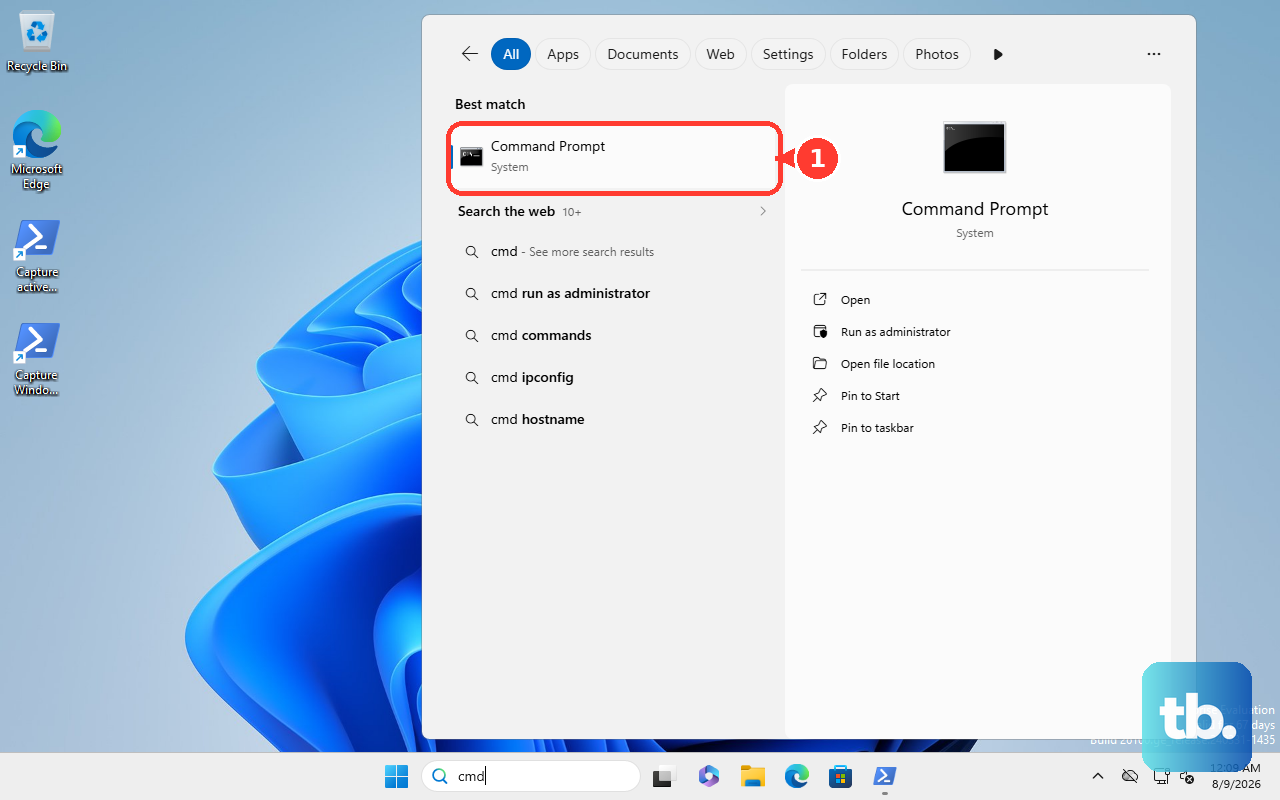
Check the drive: Search for command prompt, select Run as administrator, choose Yes, type chkdsk /f C:, then press Enter. Restart when prompted.
Test memory: Save your work and close apps. Right-click Start > Run, type mdsched, select OK, then choose Restart now and check for problems (recommended).
Scan offline for malware: Open Start > Settings > Update & Security > Windows Security > Virus & threat protection > Scan options. Select Microsoft Defender Antivirus (offline scan) > Scan now.
Use these checks when no single device, update, or app explains the crash. Windows Memory Diagnostic and Microsoft Defender Offline both restart the PC, so save open files before running them.
8. Restore reset or reinstall Windows
Use System Restore before a reset when restore points exist. From Windows, open Control Panel > Recovery > Open System Restore, select Next, choose a restore point, use Scan for affected programs when you want the app list, then select Next > Finish.
From Windows Recovery Environment, select Troubleshoot > Advanced options > System Restore.
Reset this PC reinstalls Windows. Open Start > Settings > Update & Security > Recovery. Under Reset this PC, select Get started.
Choose Keep my files to preserve personal files while removing apps and settings, or choose Remove everything to remove personal files, apps, and settings. Choose Cloud download when local Windows files are corrupt.
If the PC will not start and built-in recovery is unavailable, create Windows 10 installation media on a working PC. Go to Microsoft’s Windows 10 download page, select Download Now under Create Windows 10 Installation Media, run MediaCreationTool.exe, and use a blank USB flash drive with at least 8 GB.
Boot the problem PC from that USB, choose language options, select Next, then select Repair my PC. Use a clean installation only after backing up data.
Do not use legacy MSDT troubleshooters as a Windows 10 blue screen fix. Do not use the Fix problems using Windows Update reinstall path either; Microsoft documents that repair surface for Windows 11, not Windows 10.
Frequently Asked Questions
What should I do first after a Windows 10 blue screen?
Let the automatic restart finish once. If the same blue screen returns, write down the stop code and disconnect hardware or accessories added before the crashes began.
How do I get into recovery when Windows 10 will not start?
Turn the PC on, wait for the Windows or manufacturer logo, then hold the power button until it shuts down. Repeat once, turn it on a third time, and select Advanced options on the Automatic Repair screen.
Does Safe Mode fix blue screen errors?
Safe Mode starts Windows with fewer drivers and services. Use it to remove bad drivers, uninstall updates, repair Windows files, or isolate startup conflicts.
Will Reset this PC delete my files?
Keep my files preserves personal files but removes apps and settings. Remove everything deletes personal files, apps, and settings.
Should I use Windows 11 Fix problems using Windows Update on Windows 10?
No. Microsoft documents Fix problems using Windows Update as a Windows 11 repair option. For Windows 10, use Windows Recovery Environment, Reset this PC, System Restore, Startup Repair, or installation media.