

To renew your local IP address in Windows 11, open Command Prompt as administrator, run ipconfig /renew, and press Enter. This command applies to Ethernet and Wi-Fi connections configured for automatic address assignment through DHCP. The steps below use Windows 11 menus.
The short version
- Start with renewal: Run
ipconfig /renewin an administrator command window. - Release only when needed: Running
ipconfig /releasetemporarily interrupts connectivity. - Target one connection: Append the adapter name to renew only that adapter.
- Check automatic assignment: A manually configured connection needs DHCP enabled before you can renew its DHCP lease.
- Keep resets for later: Network reset is a last-resort repair, not a routine renewal step.
| Method or option | What it does | When it fits |
|---|---|---|
ipconfig renewal | Renews a DHCP IPv4 lease | Ordinary lease renewal |
| Adapter-specific renewal | Targets one named connection | PCs with multiple adapters |
| DHCPv6 renewal | Renews DHCPv6 configuration | Connections using DHCPv6 |
| Automatic assignment in Settings | Switches IP assignment to DHCP | Replacing manual configuration |
| Manual IP assignment | Sets a static address | Networks requiring specific values |
DHCP through netsh | Replaces static IPv4 configuration | Command alternative to Settings |
| DHCP through PowerShell | Enables DHCP on an interface | Administrative configuration |
| PowerShell CIM renewal | Renews DHCP-enabled adapter configurations | Scripted IPv4 renewal |
| PowerShell adapter restart | Disables and re-enables an adapter | Reconnection repair |
Adapter cycling through netsh | Disables and enables a named interface | Administrative reconnection alternative |
| Get Help troubleshooter | Runs network diagnostics and repairs | Persistent connection problems |
| Forget and reconnect to Wi-Fi | Reconnects using the network password | Wi-Fi connection repair |
| PC restart | Provides a broad reconnection step | Continued connection trouble |
| Modem and router restart | Restarts home network equipment | Home connection problems |
| Networking stack reset | Combines resets with lease renewal | Broader connection repair |
| Network reset in Settings | Resets adapters and their settings | Last-resort network repair |
| Network driver reinstall | Removes the driver for attempted reinstallation | Driver-related connection failures |
| Manufacturer driver download | Provides a model-specific network driver | Backup before driver removal |
Renew your IP address with Command Prompt
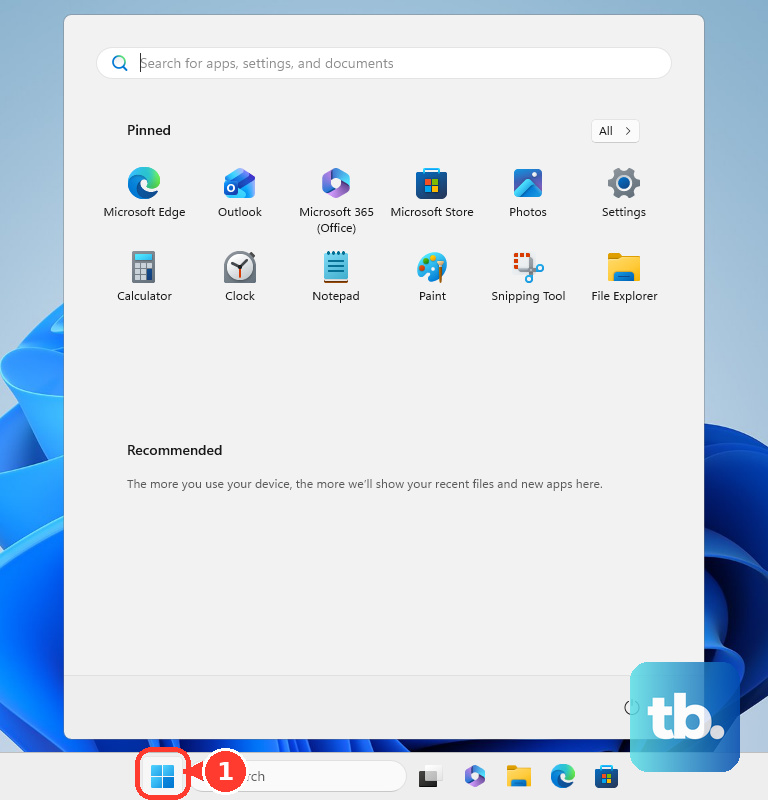
Search for Command Prompt, select Run as administrator, then select Yes. Type the following command and press Enter to renew the DHCP IPv4 lease:
ipconfig /renewYou can also discard the existing lease before requesting renewal. Releasing the lease temporarily interrupts connectivity. Run these commands in order, pressing Enter after each:
ipconfig /release
ipconfig /renew
Use these commands when your connection obtains its address through DHCP. If it uses a manually entered address, follow the automatic assignment steps below, unless your network requires a static address.
Renew one adapter or a DHCPv6 lease
On a PC with multiple connections, you can target one adapter by name. In the administrator command window, run the following command and press Enter to identify the adapter name:
ipconfigAppend the actual adapter name to the renewal command, keeping quotation marks around names containing spaces. For an adapter named Wi-Fi, enter the following command and press Enter:
ipconfig /renew "Wi-Fi"If you need to discard that adapter's lease first, use the pair below, substituting its actual name. Releasing the lease temporarily interrupts that connection. Run the commands in order, pressing Enter after each:
ipconfig /release "Wi-Fi"
ipconfig /renew "Wi-Fi"
For a connection using DHCPv6, use the separate DHCPv6 renewal command. Enter it in the administrator command window and press Enter:
ipconfig /renew6You can target one DHCPv6 connection by appending its adapter name in quotation marks. For an adapter named Wi-Fi, run this command:
ipconfig /renew6 "Wi-Fi"You can also release the DHCPv6 lease before renewing it. This discards the existing DHCPv6 lease. Run the following commands in order, appending the adapter name in quotation marks to both commands if you want to target one connection:
ipconfig /release6
ipconfig /renew6
Set automatic or manual IP assignment
Open Start > Settings > Network & internet. For a wireless connection, select Wi-Fi > Manage known networks, then select your network. For a wired connection, select Ethernet, then the connected network.
Switching to DHCP replaces the manually configured IP assignment with automatic assignment. Beside IP assignment, select Edit. Under Edit IP settings, select Automatic (DHCP), then select Save. Use ipconfig /renew afterward if you still need to renew the lease.
If your network requires a static address, obtain suitable values from your network administrator. Entering a new manual configuration replaces the current address settings. Beside IP assignment, select Edit, select Manual, then turn on IPv4.
Enter the supplied values in IP address, Subnet mask, and Gateway, configure DNS as required, then select Save. For a manual IPv6 configuration, turn on IPv6 and enter IP address, Subnet prefix length, and Gateway, then select Save. Manual assignment changes an address rather than renewing a DHCP lease.
Configure or renew DHCP with administrative commands
You can restore DHCP through netsh in the administrator command window, substituting your adapter's actual name. This removes previous static IPv4 addresses and gateways. Run the following command, then use ipconfig /renew if necessary:
netsh interface ipv4 set address name="Wi-Fi" source=dhcpAlternatively, use elevated Windows PowerShell with the NetTCPIP module to enable DHCP for an interface. Substitute the actual interface alias in the following command. This enables DHCP but is not a dedicated lease-renewal command:
Set-NetIPInterface -InterfaceAlias "Wi-Fi" -AddressFamily IPv4 -Dhcp EnabledFor scripted IPv4 renewal, you can use PowerShell CIM methods. In elevated PowerShell, first collect all DHCP-enabled adapter configurations with this command:
$adapters = Get-CimInstance Win32_NetworkAdapterConfiguration -Filter 'DHCPEnabled=True'The release operation affects all DHCP-enabled adapter configurations collected above and temporarily interrupts their connectivity. To release and renew them, run these commands in order. Omit the first command when you only need renewal:
$adapters | Invoke-CimMethod -MethodName ReleaseDHCPLease
$adapters | Invoke-CimMethod -MethodName RenewDHCPLease
Fix a connection that still will not work
If renewal does not resolve your connection problem, open Microsoft's Wi-Fi troubleshooting page and select Run the troubleshooter in Get Help. Follow the prompts for the detected problem. This runs automated diagnostics and repairs rather than a separately selectable DHCP renewal.
For persistent Wi-Fi trouble, forgetting the network removes its saved connection, so you will need its password to reconnect. Open Settings > Network & internet > Wi-Fi > Manage known networks, select the network, then select Forget. Reconnect using the password. This reconnects your PC but does not guarantee lease replacement.
A PC restart is another broad reconnection step, although it does not guarantee an address change. Save your work, then select Start > Power > Restart.
Restarting your home modem and router affects other people using that connection. Disconnect power from both devices and wait at least 30 seconds. Restore modem power and wait until it is ready, then restore router power and reconnect your PC.
Restart an adapter to repair its connection
In elevated Windows PowerShell with the NetAdapter module, you can restart a named adapter. The following command disables and re-enables that adapter. Substitute the actual adapter name and run:
Restart-NetAdapter -Name "Wi-Fi"You can also cycle an adapter through netsh in an administrator command window. The first command disables the named interface until the second enables it again. Substitute the actual interface name and run both commands in order:
netsh interface set interface name="Wi-Fi" admin=DISABLED
netsh interface set interface name="Wi-Fi" admin=ENABLED
Adapter cycling repairs a connection rather than explicitly releasing and renewing its DHCP lease. Your existing address may return, so use the renewal commands when lease renewal is your goal.
Reset the networking stack for broader problems
When connection trouble continues, a broader repair sequence combines networking resets with release and renewal. Search for Command Prompt, select Run as administrator, then select Yes.
The following sequence resets Winsock and IP settings, temporarily interrupts connectivity when it releases the lease, and clears the DNS cache. Run these commands in order, pressing Enter after each:
netsh winsock reset
netsh int ip reset
ipconfig /release
ipconfig /renew
ipconfig /flushdns
The lease-renewal step in that sequence is ipconfig /renew. Winsock reset and DNS flushing serve broader connection repair purposes; neither is itself an IP-renewal command.
Use Network reset as a last resort
Keep Network reset for connection problems that persist after simpler repairs. It resets adapters and their settings, and VPN software or virtual switches may need reconfiguration afterward. Open Settings > Network & internet > Advanced network settings > Network reset. Select Reset now, select Yes, then wait for the restart.
Reinstall a driver only for driver problems
Removing the network adapter driver is excessive for ordinary DHCP renewal. Reserve it for driver-related connection failures, and have a manufacturer driver backup available before starting.
For an ASUS Windows 11 PC, open the official ASUS Download Center and locate the network driver for your exact model. For another manufacturer's PC, use its corresponding model-specific support page to obtain the backup.
Uninstalling removes the network adapter device and attempts to remove its driver, so have the manufacturer driver backup available first. Open Device Manager > Network adapters, right-click the adapter, and select Uninstall device. Check Attempt to remove the driver for this device, then select Uninstall.
Select Start > Power > Restart. Microsoft says Windows attempts to reinstall the driver when your PC restarts.
Frequently Asked Questions
Can you run the ipconfig renewal commands from PowerShell or Windows Terminal?
Yes, you can run the same ipconfig commands in elevated PowerShell or a command shell hosted in Windows Terminal. They apply to DHCP-enabled adapters, just as they do in Command Prompt.
Does the DHCPv6 command reset every IPv6 address?
No, ipconfig /renew6 applies specifically to DHCPv6 configuration. It is not a universal reset for every IPv6 address.
Should you reinstall WMIC to run an older renewal script?
No, replace a script that invokes wmic.exe with the PowerShell CIM release and renewal methods. Microsoft reports that WMIC has been removed from currently supported Windows 11 releases and is no longer available as a Feature on Demand.
Why do older network troubleshooting instructions launch something different?
Microsoft has deprecated the older MSDT troubleshooting platform and documents redirection to Get Help. Older releases can retain different behavior, so use the Get Help network troubleshooter for the current repair workflow.