Removing a program in Windows should be quick. The right screen depends on whether it is a Store-style app, a desktop program, an optional Windows feature, a browser web app, or a work/school app. Start with the built-in uninstall buttons, then use the stuck-uninstall tools only when Windows blocks removal.
1. Remove a program from the Start menu
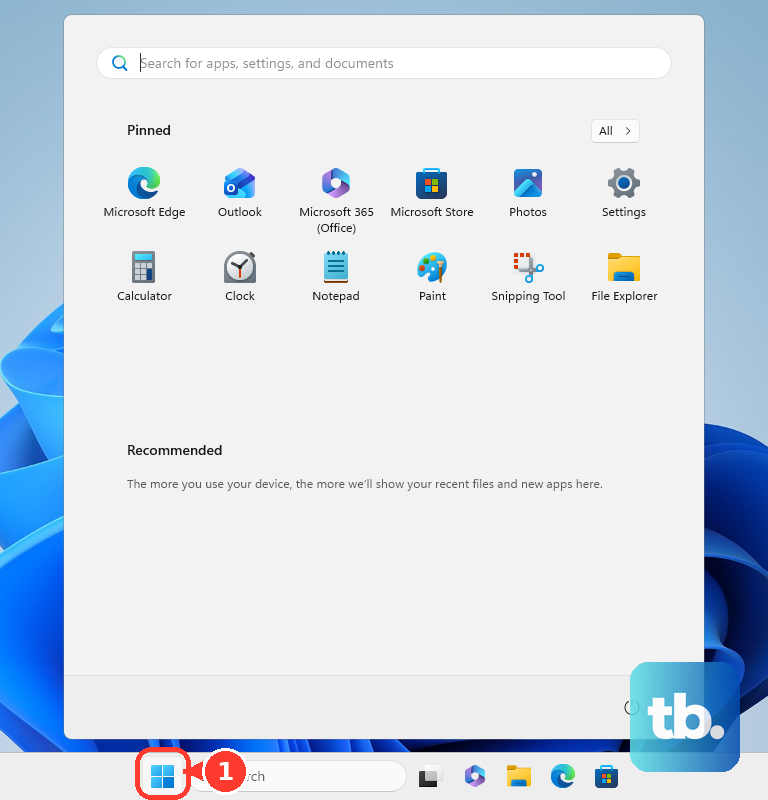
Select Start, then select All apps. Find the app you want to remove, press and hold it, or right-click it. Select Uninstall.
2. Uninstall apps from Windows Settings
Select Start, open Settings, then select Apps. Select Installed apps, find the app, select More, then select Uninstall. Use Settings when you want the full installed app list with search.
3. Use Control Panel for older desktop programs
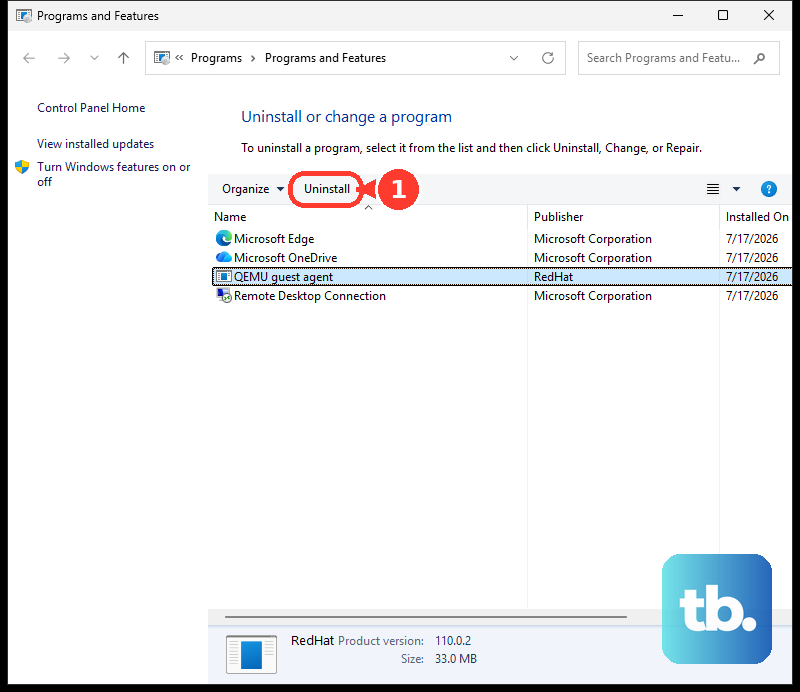
Select the search box on the taskbar, then type Control Panel and select it from the results. Select Programs, then select Programs and Features. Press and hold or right-click the program, select Uninstall or Uninstall/Change, and follow the directions on screen.
4. Decode older Add or Remove Programs instructions
Older Windows guides use the label Add or Remove Programs, and that name still works on Windows 10 and 11.
Select Start, type Programs in the search box, then select Add or remove programs in the results; it opens your installed app list in Settings, shown as Installed apps on Windows 11 and Apps & features on Windows 10.
When Settings cannot remove a desktop program, use Control Panel > Programs > Programs and Features, then choose Uninstall or Uninstall/Change.
5. Remove optional Windows features
Right-click Start, select Settings, then select System. Select Optional features, and under Installed features, search for the feature or scroll the list. Select the feature to expand it, then select Remove.
Microsoft also documents Settings > Apps > Optional features for supported Windows 11 builds.
6. Remove installed web apps from your browser
Installed websites behave like apps, so remove them from the browser that created them. In Microsoft Edge, open edge://apps > Details > Uninstall for the app, confirm whether to delete app history and data, then select Uninstall. In Chrome, open the web app and select More > Uninstall [app name] > Remove; Chrome also manages web apps through chrome://apps.
7. Fix an uninstall that gets blocked
This fixes programs that refuse to install, update, or uninstall through the normal Windows screens. On Windows 11, Microsoft’s current steps are built in.
- 1.Restart the PC: Start > Power > Restart.
- 2.Select Start > Settings > Apps > Installed apps, select the app, select Advanced options, then select Repair. If the problem continues, select Reset. Not all desktop apps offer these options.
- 3.Back in Installed apps, select the app, select Uninstall, and follow the on-screen instructions.
- 4.Follow any troubleshooting Windows recommends in the error message or notification.
- 5.If it still fails, contact the app publisher or consider Reset this PC with your files kept.
On Windows 10, and when an error message appears during an uninstall, Microsoft still points to the standalone Program Install and Uninstall troubleshooter: download it, select Run or Open when prompted, and follow its steps. If the program is not listed, it asks for that program’s product code.
8. Remove programs with Windows Package Manager
Open Terminal, Command Prompt, or PowerShell. Run winget uninstall followed by the app name, package ID, or product code.
Use winget uninstall --name <app name> to limit the search to the app name, and add --exact when you need an exact, case-sensitive match. Use winget uninstall --id <package ID> when you know the package ID.
Use winget uninstall --product-code <product code> when you have the product code. Use winget uninstall <app1> <app2> to remove more than one app in one command.
9. Remove work or school apps
This fixes removable apps installed through Company Portal on a managed work or school PC. Open Company Portal, go to Apps, then select the app you want to remove. Choose Uninstall.
Frequently Asked Questions
Why can’t I uninstall some programs from Settings?
Some desktop programs need the Control Panel uninstall path. Open Control Panel, select Programs, then Programs and Features, and choose Uninstall or Uninstall/Change.
Can I remove Windows features the same way as apps?
No. Use Settings, System, Optional features for installed optional features. For checkbox-based Windows features, search for Turn Windows features on or off, clear the feature checkbox, and restart if Windows asks.
What should I do when a program refuses to uninstall?
Use Microsoft’s Program Install and Uninstall troubleshooter. It handles blocked install, update, and uninstall problems, and it accepts a product code when the program is not listed.
Can I uninstall apps installed by my workplace or school?
Use Company Portal. Open Company Portal, go to Apps, select the app, and choose Uninstall. Uninstall shows up only for apps your admin made available and that you installed yourself: Microsoft Store apps always allow it, while Win32 apps allow it only when the admin turns on available uninstall, which is off by default.