Microsoft Edge acting broken does not always mean you need to uninstall it. On Windows, the fastest supported fix is a repair from Settings; on other devices, reinstalling through the official app store or Microsoft download page gets you a clean copy.
Start with the Windows repair step if you are on a PC. Then use the platform-specific reinstall steps below when Edge is missing, damaged, or still refuses to open.
1. Repair Edge from Windows Settings
Start here on Windows 10 and Windows 11 because Microsoft says the repair process reinstalls or repairs Edge without deleting browser data. Close Microsoft Edge for all users on the PC.
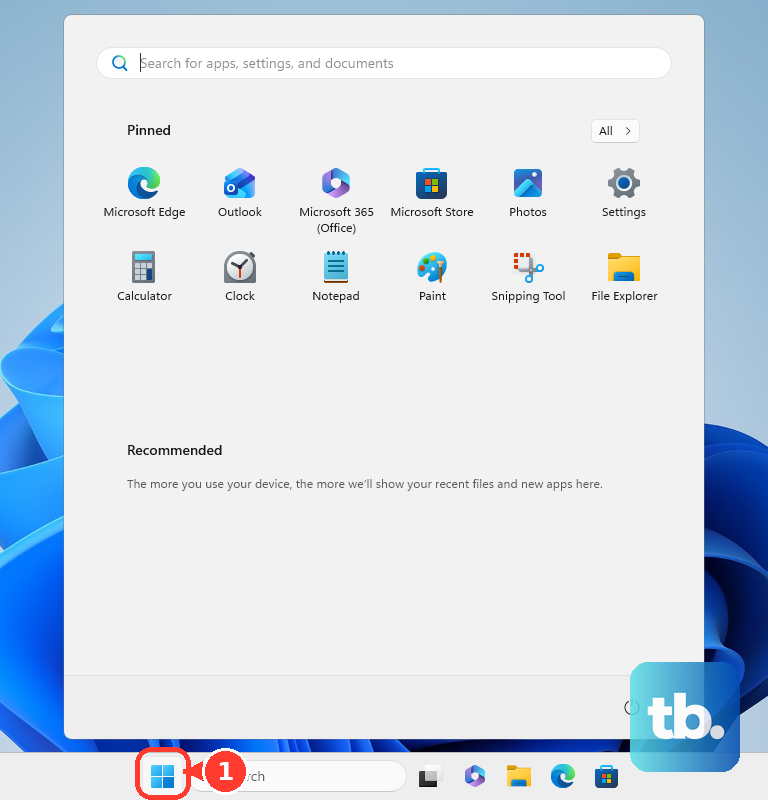
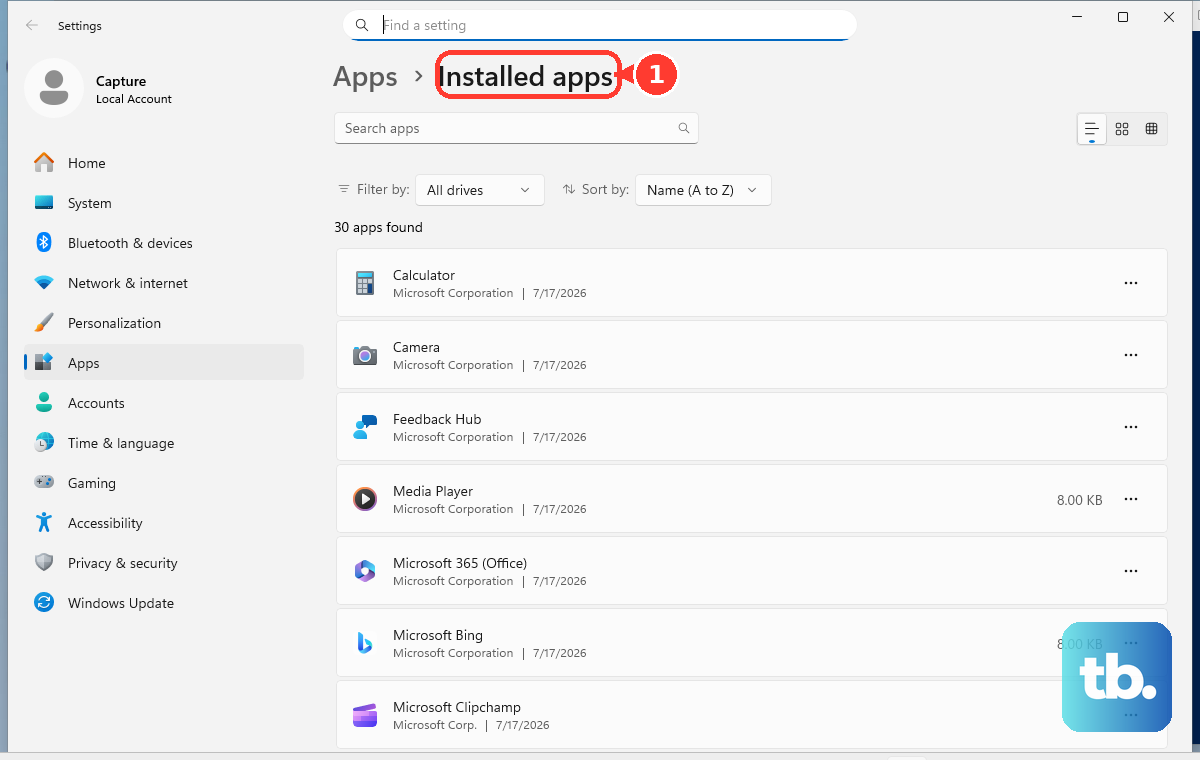
Open Start, select Settings, then select Apps. Select Installed apps, find Microsoft Edge, and select Modify.
At the User Account Control prompt, select Yes. Confirm the PC is connected to the internet, then select Repair.
When Modify is unavailable, Microsoft says Edge is being managed by an organization.
2. Download a fresh Edge installer
- 1.Open any working browser.
- 2.Go to www.microsoft.com/edge.
- 3.Select the download option for your device.
- 4.Run the downloaded installer.
- 5.When Windows asks Do you want to allow this app to make changes to your device?, select Yes.
If repair does not get Edge working, installing it again from Microsoft’s download page gives you a fresh copy. Microsoft’s Edge download page offers installers for Windows, macOS, and Linux, plus links to install Edge from the App Store on iOS and Google Play on Android.
3. Use Store or WinGet on Windows
The Microsoft Store gives Windows users another official install surface. Open Microsoft Store, search for Microsoft Edge Browser, then open the listing from Microsoft Corporation.
Select Get or Install. If Edge is already installed, the Store shows Open instead.
For a command-line install, open Windows Terminal, PowerShell, or Command Prompt, then run winget install --id Microsoft.Edge -e. Accept the source or package agreements when prompted.
4. Know the Windows uninstall rule
On standard Windows PCs outside the European Economic Area, Microsoft Edge is the default browser, a core Windows component, and not removable through the normal consumer uninstall flow. Use Repair, www.microsoft.com/edge, Microsoft Store, WinGet, or Windows Update repair instead.
In the European Economic Area, supported Windows 10 version 22H2 and Windows 11 version 23H2 or later PCs configured for that region can uninstall Edge from Settings, Apps, and Installed apps when Uninstall is available. Reinstall afterward from Microsoft Store or www.microsoft.com/edge.
5. Remove Edge on Mac and install it again
Mac gives you a normal app removal path first, then a fresh installer from Microsoft. Open Finder, go to Applications, control-click Microsoft Edge, and choose Move to Trash.
After that, choose Finder and select Empty Trash. Go to Microsoft’s Edge download page, select Download for macOS, then open the downloaded installer and follow the onscreen prompts.
6. Reinstall Edge on iPhone iPad and Android
On iPhone or iPad, delete Edge first. Touch and hold Microsoft Edge on the Home Screen, tap Remove App, then tap Delete App.
Open App Store and tap Search. Search for Microsoft Edge, then tap Get or the Redownload button.
You can also remove it from App Library by touching and holding Microsoft Edge, tapping Delete App, then tapping Delete.
On Android, use Google Play. Open Google Play Store, tap the Profile icon, then tap Manage apps & devices.
Tap Manage, select Microsoft Edge, and tap Uninstall. Search for Microsoft Edge in Google Play, then tap Install.
From a computer, go to play.google.com, search for Microsoft Edge, select Install, Installed, or Enable, sign in, choose your Android device, and select Install.
7. Install Edge again on Linux
Go to Microsoft’s Edge download page. Under Linux, choose Download for Linux (.deb) or the Linux package that matches your distribution.
Open the downloaded package with your distribution’s package installer, then install Microsoft Edge. Microsoft offers Edge downloads for Linux through its Edge download page.
After the first package install, you can reinstall through the configured Microsoft package repository on supported distributions.
8. Repair Windows 11 when Edge stays broken
Use this when Edge problems come with wider Windows damage, because it repairs more than the browser. The Fix problems using Windows Update option only appears on eligible Windows 11 devices running version 22H2 with the February 2024 update or later, so it is not part of Windows 10 and can be missing on some work or school managed PCs.
Open Start, select Settings, then select System. Select Recovery, and under Fix problems using Windows Update, select Reinstall now.
In the Fix problems using Windows Update window, choose whether to allow automatic restart. Select OK, then restart when Windows asks you to.
Microsoft says this reinstalls the same Windows version, repairs system files and components, and preserves apps, files, and settings.
9. Avoid old Edge reinstall hacks
Skip PowerShell re-register commands for Microsoft Edge Legacy, setup uninstall switches, registry edits, third-party uninstallers, and forced removal scripts. Microsoft Edge Legacy support ended on March 9, 2021, and those old methods are not current Chromium Edge reinstall steps.
The supported paths are Repair, Microsoft’s download page, Microsoft Store, WinGet, Windows Update repair, or the standard European Economic Area uninstall path where it appears in Windows.
Frequently Asked Questions
What should I try first before reinstalling Microsoft Edge?
On Windows, use Settings repair first because Microsoft says it repairs or reinstalls Edge without deleting browser data.
Can I reinstall Microsoft Edge from the Microsoft Store?
Yes. Open Microsoft Store, search for Microsoft Edge Browser, open the Microsoft Corporation listing, and select Get or Install when that option appears.
What does it mean if Modify is missing for Microsoft Edge?
Microsoft says Edge is likely installed and managed by an organization when Modify is unavailable in Windows Settings.
Is the old Microsoft Edge Legacy PowerShell fix still valid?
No. Microsoft Edge Legacy support ended on March 9, 2021, so use Repair, Microsoft’s download page, Store, WinGet, or Windows Update repair for current Edge.