

PC gaming lag shows up as choppy frame rates, delayed controls, sudden stutter, or high ping in an online match. The fastest fixes are the Windows settings, driver checks, background app cleanup, network controls, and overlay switches that directly affect performance. Start at the top and stop when the game feels normal again.
Turn on the Windows gaming basics
Open Start, then go to Settings, Gaming, and Game Mode.
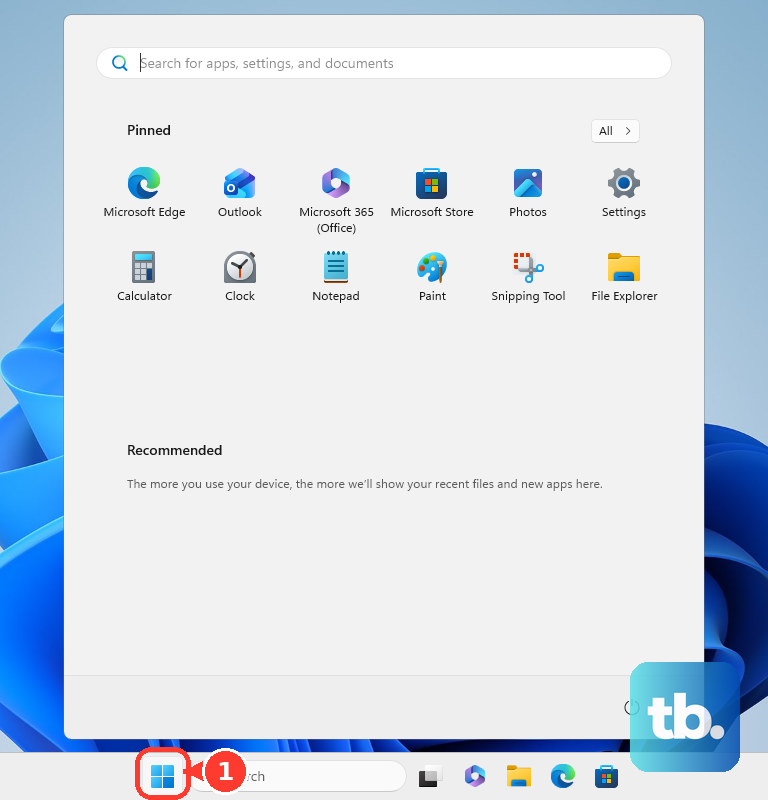
Switch Game Mode to On. Windows uses Game Mode to prioritize gaming and reduce background update interruptions while you play.
Open Start, then go to Settings, System, Power & battery, and Power mode.
Choose Best performance. On PCs with a custom Control Panel power plan, this setting can be hidden.
Close the game and launch it again so Windows applies the new performance state.
Tip: start here first because these switches take less than a minute and remove avoidable Windows-side interruptions.
Give the game the right graphics hardware
This applies to Windows 11 PCs with more than one GPU, including laptops with integrated graphics plus a discrete NVIDIA, AMD, or Intel Arc GPU. Use it when a demanding game feels slow even though the PC has stronger graphics hardware installed.
Go to Start, Settings, System, Display, and Graphics.
Under Custom options for apps, select the game.
Open Options, set Graphics preference to High performance, and choose Save.
Restart the game so Windows uses the selected GPU preference.
For DirectX 10 or DirectX 11 games running in windowed or borderless-windowed mode, go to Start, Settings, System, Display, Graphics, and Default settings. Turn Optimizations for windowed games to On, then restart the game.
Stop background apps from eating resources
The most common cause of sudden PC lag is another app using CPU, memory, disk, or network bandwidth while your game is running.
Press Ctrl + Shift + Esc to open Task Manager.
Open Processes, right-click an app you are not using, and choose End task.
Open Start, Settings, Apps, and Startup. Turn unwanted app toggles Off so they do not start every time you sign in.
For apps with background controls, open Settings, Apps, and Installed apps. Choose the app's More options, then open Advanced options or Manage background activity.
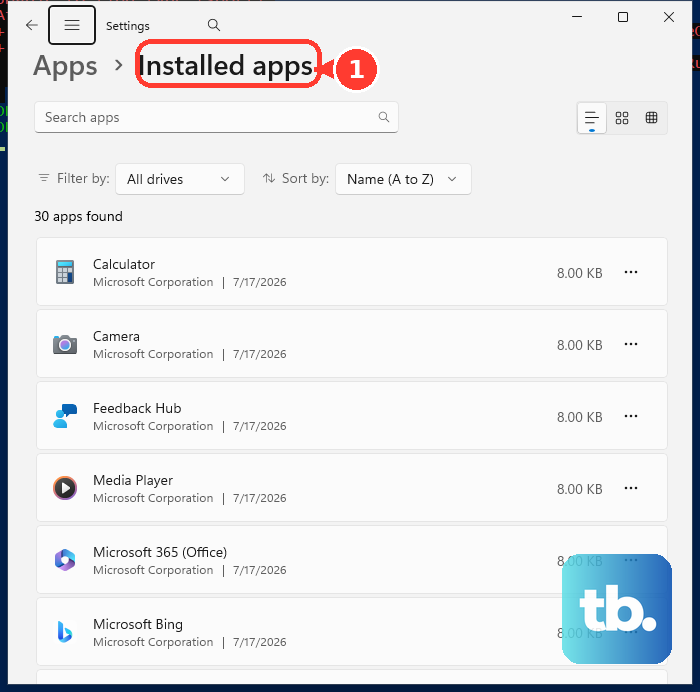
Set Let this app run in the background to Never or Power optimized.
If an unused launcher, vendor utility, overlay tool, or old app keeps returning, go to Settings, Apps, and Installed apps. Find the app, choose More, then select Uninstall.
Update Windows and your graphics drivers
Handle Windows and GPU updates before changing every in-game graphics option.
- 1.Open Start, Settings, and Windows Update, then choose Check for updates, install available updates, and restart when prompted.
- 2.Go to Windows Update, Advanced options, Optional updates, and Driver updates, then select available driver updates and choose Download & install.
- 3.For NVIDIA graphics, open the official NVIDIA Driver Downloads page or the NVIDIA App, then install the recommended Game Ready Driver.
- 4.For AMD graphics, open AMD Drivers and Support or AMD Software Adrenalin Edition, then install the recommended driver package.
- 5.For Intel hardware, run Intel Driver & Support Assistant or open Download Drivers & Software to check graphics, chipset, wireless, and other Intel updates.
Fix high ping and network lag
Network lag is different from low frame rate. If the game looks smooth but shots register late, players jump around, or ping spikes, focus on Wi-Fi, syncing, and downloads.
Move closer to your Wi-Fi router or access point and confirm strong signal bars from the taskbar network icon.
Restart your modem and Wi-Fi router when the connection has been unstable. Use Ethernet when it is available.
Right-click the OneDrive cloud icon on the taskbar, choose Pause syncing, then select 2 hours, 8 hours, or 24 hours. For a stronger temporary stop, choose Pause syncing, then Quit OneDrive; restart it later by pressing the Windows key, typing OneDrive, and selecting OneDrive.
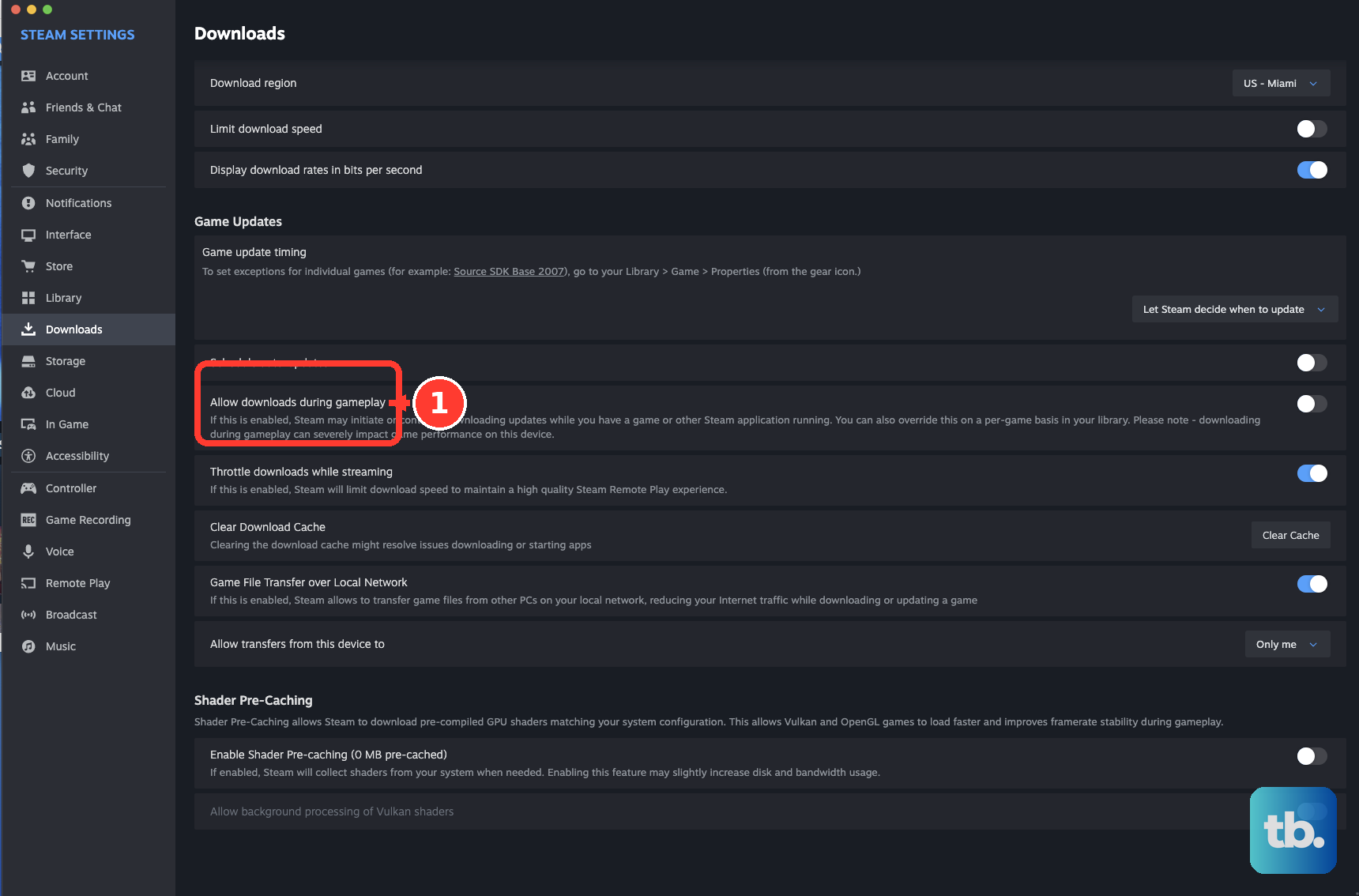
Open Steam, Settings, and Downloads. Keep Allow Downloads During Gameplay unchecked, and use Limit download speed when downloads are consuming the connection.
Turn off overlays and recording features
Open Steam, go to Settings, In Game, and turn Enable the Steam Overlay while in-game to Off.
For one Steam game only, open Library, right-click the game, choose Properties, then General, and turn Enable the Steam Overlay while in-game to Off.
Open Steam, Settings, and Game Recording. Select Off/Don't record when you do not need capture running.
In Discord, open the User Settings cog, go to Overlay, and turn Enable Overlay to Off. Discord recommends disabling the overlay when it causes lag, crashes, or other issues.
For NVIDIA, press Alt + R to toggle the statistics overlay off. You can also press Alt + Z, open Statistics, then Configure heads up display, and reduce or disable displayed metrics.
For AMD, press Ctrl + Shift + O to toggle Performance Overlay off. For Intel, open Intel Graphics Software, go to Performance and Metrics, and use the Metrics Overlay button to turn the overlay off. You can also press Alt + Shift + O to toggle it. On older systems still running Intel Arc Control, press Alt + I, open the Performance tab, and switch Telemetry overlay to Off.
Tip: if lag disappears after disabling overlays, turn them back on one at a time to find the exact conflict.
Clean up storage and browser load
Free space and close browser work before launching a demanding game.
- 1.Open Start, Settings, System, and Storage, then turn Storage Sense to On.
- 2.Open Cleanup recommendations, review the files Windows suggests, and choose Clean up.
- 3.Close unused Chrome tabs from the tab strip, or press Ctrl + W on tabs you do not need.
- 4.Use Chrome tab search with Ctrl + Shift + A when too many tabs are open, then close the browsing session before gaming.
- 5.For Microsoft Edge, go to Settings and more, Settings, and System and performance, then turn Startup boost to Off where that setting is available.
Use your gaming laptop performance mode
This applies when you play on a gaming laptop or branded gaming desktop with a vendor control app. Use these modes before demanding games because they change the system's cooling and performance behavior.
On ASUS ROG or TUF systems, open Armoury Crate and choose Performance or Turbo from the home page. Use Turbo for plugged-in high-performance gaming on models that offer it.
On Lenovo gaming systems, open Lenovo Vantage or Legion Space, then set Thermal Mode to Performance Mode.
On Alienware systems, open Alienware Command Center, go to Performance, then Thermal, and choose Performance Mode or Full Speed Mode.
On OMEN or Victus PCs, open OMEN Gaming Hub, then Performance Control, and choose Performance. On select HP models, press fn + p to open the Performance Control overlay.
Use game and GPU latency features
Use these settings after the Windows, driver, background app, network, overlay, storage, and laptop mode checks are done.
On supported NVIDIA systems, open the game's graphics or video settings and set NVIDIA Reflex Low Latency to On or On + Boost. In supported RTX games, enable NVIDIA DLSS from the game's options menu.
In NVIDIA App, open Graphics, select the detected game, and choose Optimize or adjust the recommended settings. Run the game once first when NVIDIA App needs detection data.
On AMD systems, open AMD Software Adrenalin Edition, then go to Gaming and Graphics or the game's profile. Turn Radeon Anti-Lag to Enabled, or use the HYPR-RX profile on supported Radeon systems.
On Intel Arc and recent Intel Xe graphics systems, open Intel Graphics Software, go to Graphics, and adjust Low Latency Mode, frame synchronization, or the game's profile settings. Older Intel graphics use Intel Graphics Command Center instead, and the available controls vary by hardware.
If this method fails, lower the game's quality preset, reduce or disable antialiasing or ambient occlusion, reduce render scale, or lower display resolution from the game's own graphics menu or your GPU app's recommendations.
Frequently Asked Questions
Why does my PC lag only in online games?
That points to network latency instead of raw frame rate. Check Wi-Fi signal strength, restart your modem and router, use Ethernet where available, pause OneDrive syncing, and stop Steam downloads during gameplay.
Should I use Game Mode on Windows for gaming?
Yes. Microsoft’s current guidance is to turn Game Mode on from Settings > Gaming > Game Mode so Windows can prioritize gaming and reduce background update interruptions.
Do overlays really cause gaming lag?
Yes. Steam, Discord, NVIDIA, AMD, and Intel overlays add capture, metrics, or overlay hooks, so turning them off is a solid troubleshooting step when one game stutters, crashes, or feels delayed.
What should I update first when games stutter?
Start with Windows Update, then check Optional updates > Driver updates. After that, use the official NVIDIA, AMD, or Intel driver tool for your graphics hardware.