

To print a test page on an HP printer from Windows 11, open Settings > Bluetooth & devices > Printers & scanners, select your HP printer, then choose Printer properties > General > Print Test Page. Load suitable paper and turn on your printer before starting. You can also print from a Mac or use the report controls for your HP model.
A computer test page checks the computer-to-printer printing path. For print-quality concerns, choose your model’s quality report; for connection details, choose its network report. Match your printer series before using a hardware shortcut, because the buttons and menus vary.
The short version
- Windows: Select Print Test Page on the General tab in your HP printer’s Printer properties.
- Mac: Select your printer in Print Center, then choose Printer > Print Test Page.
- Print quality: Use the HP app’s Print quality report on the supported models below.
- Printer controls: Follow the button sequence or touchscreen path for your exact printer series.
| Method | What it prints | Applies to |
|---|---|---|
| Windows Settings | Windows test page | Windows 11 with an installed HP printer |
| Classic Control Panel | Windows test page | Windows 11 or 10 with the classic printer view |
| PrintUIEntry command | Windows test page | Windows 11 or supported Windows Server versions |
| Administrative script | Local or server test page | Windows 11 or Server 2016 through 2025 with the script installed |
| Mac Print Center | Computer test page | Current Print Center with an added HP printer |
| HP app download | Access to supported diagnostic controls | Compatible device and printer |
| HP app DeskJet report | Print-quality report | DeskJet 2700, 4100, and 4800 |
| HP app newer DeskJet report | Print-quality report | DeskJet 2900, 4300, 5100, and 5800 |
| HP app Tango report | Print-quality report | Supported Tango printers |
| DeskJet test-page buttons | Hardware test page | DeskJet 2700, 4100, and 4800 |
| Older DeskJet test-page buttons | Hardware test page | DeskJet 3630, 3700, and 4720 |
| DeskJet report buttons | Status, information, and wireless reports | DeskJet 2700, 4100, and 4800 |
| Newer DeskJet report buttons | Status, information, and wireless reports | DeskJet 2900, 4300, 5100, and 5800 |
| DeskJet and ENVY report buttons | Information, status, and wireless reports | DeskJet and ENVY 6000 and 6400 |
| OfficeJet Pro touchscreen | Quality, status, and connection reports | OfficeJet Pro 9110, 9120, and 9130 |
| DeskJet and ENVY touchscreen | Status and network reports | DeskJet and ENVY 6100 and 6500 |
| Smart Tank support mode | Quality diagnostic page | Smart Tank 210, 520, 540, 580, 590, 5000, and 5100 |
| Smart Tank report buttons | Information, status, and network reports | Smart Tank 210, 580, 590, and 5100 |
| Smart Tank direct buttons | Quality, status, and wireless reports | Smart Tank 500, 510, and Plus 550 |
| Smart Tank touchscreen | Quality, status, network, and web reports | Smart Tank 530, 610, Plus 570, and 650 |
| LaserJet configuration buttons | Configuration and wireless reports | LaserJet M109 through M112 |
| LaserJet support mode | Information, configuration, and Wi-Fi reports | LaserJet MFP M238 through M249 |
| LaserJet copy-button shortcut | Configuration and wireless reports | LaserJet Pro MFP M28a/w, M29a/w, M30a/w, and M31w |
| HP Laser MFP menu | Configuration report | HP Laser MFP 300 and 30000 |
| Enterprise control panel | Configuration page | Supported LaserJet, OfficeJet, and PageWide Enterprise models |
| Enterprise browser interface | Configuration page | Supported Enterprise models accessible over the network |
| Linux CUPS | Queue test page | Configured HP queue with the web interface enabled |
| Linux HPLIP | HPLIP test page | Supported printers using Debian trixie’s packaged HPLIP |
| Desktop Chrome | Your selected test content | Windows, Linux, or Mac with an available HP printer |
| Chromebook | Your selected test content | Compatible network or USB HP printer |
| iPhone or iPad AirPrint | Your selected test content | AirPrint-enabled HP printer on the same network |
| Android print plugin | Your selected test content | Compatible device and printer with HP Print Service Plugin |
| HP app alignment | Calibration pattern and alignment | Compatible HP inkjets with alignment tools |
| Control-panel alignment | Calibration pattern and alignment | HP inkjets with the listed maintenance menu |
| HP app cleaning | Test page after cleaning | Smart Tank 210, 520, 540, 580, and 590 |
Print a test page from Windows
On Windows 11, open Start > Settings > Bluetooth & devices > Printers & scanners. Select your installed HP printer, then choose Printer properties. Open the General tab and select Print Test Page.
On Windows 11 or Windows 10 with the classic printer view available, search Windows for Devices and Printers and open the Control Panel result. Right-click your HP printer, choose Printer Properties, and select General > Print Test Page. If Windows 11 redirects you, use the Windows 11 Settings path above.
If your printer is not installed in Windows, you can use its matching hardware report instructions below to check printer operation directly. The Windows methods require an installed printer queue.
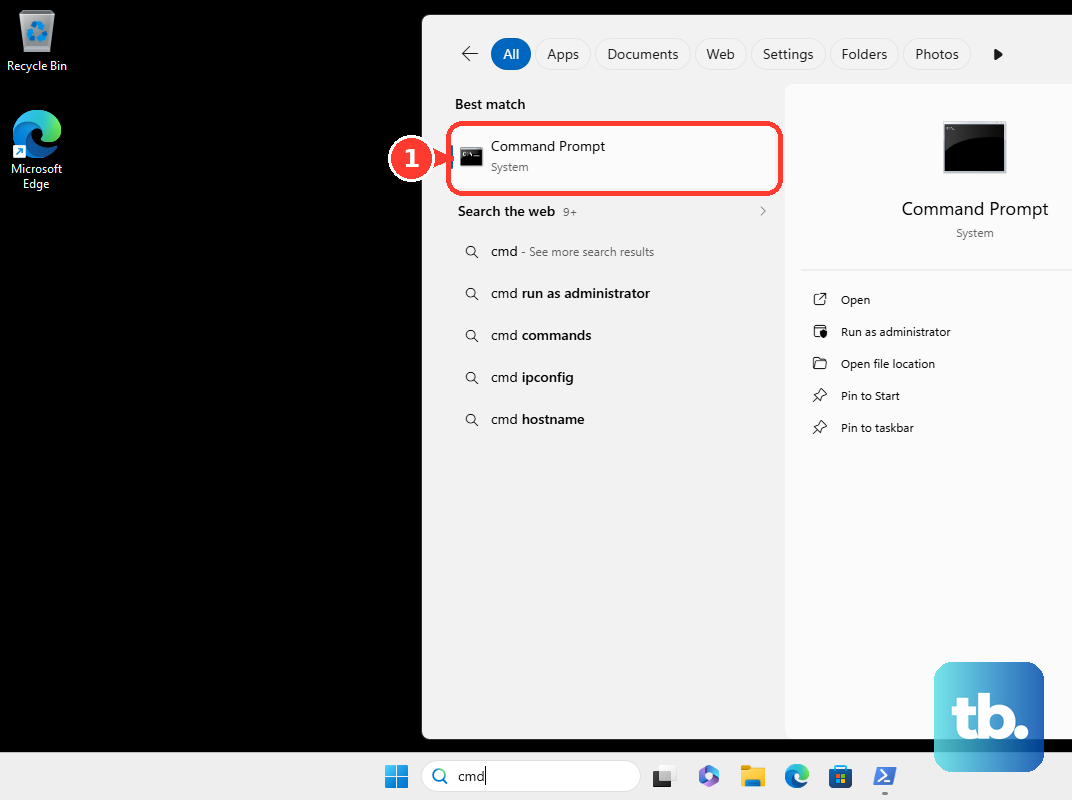
For a command-line test page on Windows 11 or a supported Windows Server version, open Command Prompt and run the following command. Replace the quoted placeholder with your installed HP printer queue’s actual name, and preserve the capitalization of PrintUIEntry.
rundll32 printui.dll,PrintUIEntry /k /n "HP printer queue name"On Windows 11 and Windows Server 2016 through 2025, you can also use the administrative script below when the script and its scripting components are installed. Replace the printer placeholder with the installed queue name and en-US with the appropriate language directory.
cscript "%WINDIR%\System32\Printing_Admin_Scripts\en-US\prnqctl.vbs" -e -p "HP printer queue name"To target a print server, append -s "server name", replacing the placeholder with that server’s name. Your account needs permission on the target computer.
Print from a Mac or the HP app
On a Mac with the current Print Center interface, open Applications > Utilities > Print Center. Select your HP printer in the sidebar, then choose Printer > Print Test Page. The app is named Print Centre in UK English.
Your printer must already be added to the Mac for this method. If it has not been added, use the matching printer-control instructions below to print an internal report.
For supported printers, the HP app provides print-quality reports. Get it from the official HP app download page and add your printer before opening its diagnostic controls. The app is offered for Windows 10 64-bit, Windows 11, macOS, Android, iOS, and iPadOS, with availability and features varying by device and printer.
On HP DeskJet 2700, 4100, and 4800 series printers, load plain white paper, open the HP app, and select the printer image. Under Diagnostics or Tools, choose Print quality tools or Printer Reports, depending on your interface. Select Print quality report.
For HP DeskJet 2900, 4300, 5100, and 5800 series printers, open the HP app and tap the printer image. Scroll to Diagnostics > Print quality tools > Print quality report.
On supported HP Tango printers, load white paper and select the printer image in the HP app. Find Diagnostics or Tools, choose Print quality tools or Printer Reports, then select Print quality report. For a listed DeskJet whose app controls differ, use its hardware report sequence below.
Use the buttons on a DeskJet or ENVY
For HP DeskJet 2700, 4100, and 4800 series printers, load paper and turn on the printer. Hold Power, then press Cancel. Release Cancel before releasing Power to print the hardware test page.
The same test-page sequence applies to HP DeskJet 3630, 3700, and 4720 series printers. Load white paper, hold Power, and press Cancel. Release Cancel, followed by Power.
On DeskJet 2700, 4100, and 4800 series printers, keep paper loaded and the printer on, then hold Cancel for three seconds for a status report. Press Information for an information page. Press Wireless and Information together for wireless test results and network configuration.
On DeskJet 2900, 4300, 5100, and 5800 series printers, load paper and turn on the printer, then press Information for printer information. Hold Cancel for three seconds for printer status. Press Wireless and Information together for wireless test results and network configuration.
On HP DeskJet and ENVY 6000 and 6400 families, load paper, turn on the printer, and press Information for an information page. For a status report, hold Information for three seconds, then press Resume and Cancel together. For wireless test results, hold Information for three seconds, then press Information and Resume together.
Choose a report on an HP touchscreen
On HP OfficeJet Pro 9110, 9120, and 9130 series printers, load paper and touch Menu from Home. Under Utilities, touch Tools > Reports > Status Reports. Choose Print Quality Diagnostic Report, then touch Print.
That menu also offers Printer Status Report, Network Configuration Report, Wi-Fi Network Test Results Report, and Web Access Test Report. Select the report you need, then touch Print.
For HP DeskJet and ENVY 6100 and 6500 families, touch Menu from Home. Under Utilities, open Tools > Reports > Status Reports. Select Printer Status Report or Network Configuration Report, then touch Print.
Print reports on a Smart Tank
On HP Smart Tank 210, 520, and 540 printers, hold Information for five seconds until the control-panel buttons illuminate. Hold Cancel for three seconds to print a quality diagnostic page. On Smart Tank 580, 590, 5000, and 5100 printers, enter the same mode but hold Color Copy for three seconds instead.
On Smart Tank 210, 580, 590, and 5100 families, press Information for printer information. For a status report, hold Information for five seconds, then press Resume. For network configuration, hold Information for five seconds, then press Information and Resume together.
For Smart Tank 500, 510, and Plus 550 families, load plain paper and press Resume and Color Copy together, holding both for three seconds, for a quality diagnostic page. Hold Cancel for a status report. On wireless models, press Information and Wireless together for wireless test results and network configuration.
For Smart Tank 530, 610, Plus 570, and 650 families, load plain paper and swipe left on the control panel. Touch Setup > Tools, then select Print Quality Report. You can also select Printer Status Report, Network Configuration Report, or Web Access Report from that menu.
Print LaserJet and Enterprise configuration pages
For HP LaserJet M109 through M112 printers, load paper, turn on the printer, and press Resume/Cancel to wake it. Hold Resume/Cancel until the Ready light blinks to print configuration information. On wireless models, hold Wireless until Ready blinks for a wireless test instead.
On HP LaserJet MFP M238 through M249 printers, load paper, turn on the printer, and press Information for an information report. For configuration information, hold Information for five seconds, then press Resume. For Wi-Fi test results, hold Information for five seconds, then press Information and Resume together.
On HP LaserJet Pro MFP M28a/w, M29a/w, M30a/w, and M31w printers, load paper and turn on the printer. Hold Start Copy and release it when Ready blinks to print configuration information, plus a network summary on wireless models. For a wireless test on a wireless model, hold Wireless for ten seconds and release it when Ready blinks.
For HP Laser MFP 300 and 30000 series printers, load paper, turn on the printer, and press Menu. Select System Setup and press OK, then select Report and press OK. Select Configuration and press OK, then select Yes and press OK.
On HP LaserJet Enterprise, OfficeJet Enterprise, and PageWide Enterprise printers with the matching report interface, open Reports > Configuration/Status Pages > Configuration Page > Print. On an LCD panel, navigate with the Arrow keys and press OK to select each item.
For supported models in those Enterprise families, you can also enter the printer’s IP address or hostname in a browser when you have network access to it. In the Embedded Web Server, open Information > Printable Reports and Pages. Select Configuration Page > Print.
Print from Linux or another device
On Linux with an HP queue configured in CUPS and its web interface enabled, open http://localhost:631 on the computer running CUPS. Open your HP printer’s page and choose Print Test Page from its maintenance menu.
For an HPLIP-supported HP printer using Debian trixie’s packaged HPLIP, run the following command. Replace the placeholder with your configured CUPS queue name, or run hp-testpage -i for interactive mode.
hp-testpage -p "printer_queue_name"To print your own test document, image, or webpage from desktop Chrome, open the content and press Ctrl + P on Windows or Linux, or Command + P on a Mac. Select your available HP printer as the destination and click Print. This prints the content you selected rather than an HP internal diagnostic report.
On a Chromebook with a compatible HP printer connected over the network or USB, open your test page, image, or document and press Ctrl + P. At Destination, open the arrow menu and select See more.... Choose your HP printer and select Print.
On an iPhone or iPad, use an AirPrint-enabled HP printer on the same network and open test content in an app that supports printing. Tap Share or Actions, select Print, then select No Printer Selected and choose your HP printer. Set the page range or copies and tap Print.
On a compatible Android device with HP Print Service Plugin installed, open your test document or image. Tap Menu > Print, or choose Share > HP Print Service Plugin. In preview, select HP [your printer model name] for network printing or DIRECT-xx-HP [your printer model name] for Wi-Fi Direct, then tap the Print icon.
Fix printing and print quality problems
If a computer test page fails, print your model’s internal report to check printer operation separately from the computer-to-printer path. If your concern is the appearance of the output, choose a quality report instead of a configuration or information page. Alignment and cleaning also perform maintenance, so use those tools when you need that maintenance.
To align a compatible HP inkjet through the HP app, load plain white paper and select the printer image. Under Diagnostics or Tools, select Print quality tools, then choose Align printheads. If your interface instead shows View all print quality tools, select it, choose OK, then select Align. Complete any pattern-selection or scan-back instructions and select Done where displayed.
On HP inkjets with the matching control-panel menu, load white paper and touch Settings > Printer Maintenance > Align Printhead > Continue. If the printed page requests scanning, complete that scan to finish alignment.
For Smart Tank 210, 520, 540, 580, and 590 printers, printhead cleaning consumes ink and prints a test page afterward. When cleaning is needed, load white paper, select your printer in the HP app, and open Print quality tools under Diagnostics or Tools. Select Clean printhead, or choose View all print quality tools > OK > Clean Printhead, depending on your interface.
Frequently Asked Questions
Should you use HP Print and Scan Doctor for a test print?
HP retired Print and Scan Doctor on May 27, 2025. For troubleshooting, HP directs you to Diagnose & Fix in the HP app.
Why do you still have HP Smart instead of the HP app?
HP Smart remains supported where the HP app is unavailable, including Windows 10 32-bit. Where HP offers the replacement, use the HP app.
Why might HP Utility be missing from your Mac?
HP says full-feature Mac drivers have been unavailable for most consumer printers since 2020. If only the HP app is offered for your printer, HP Utility is unavailable.
Does the Windows 10 test-page option mean Windows 10 still has standard support?
No, standard Windows 10 support ended October 14, 2025. The classic Control Panel test-page procedure still applies where that printer view is available, but it does not indicate continued operating-system support.