Pinned apps keep your everyday tools close, but the Start menu and taskbar use different controls. Windows 11 gives you direct ways to pin apps, folders, websites, and web apps without digging through old tile-based instructions. Start with the pin you want, then clean up the layout so the apps you use most stay easy to reach.
1. Pin an app to Start
Select Start or the Search box on the taskbar, then type the app name. Right-click the app and select Pin to Start.
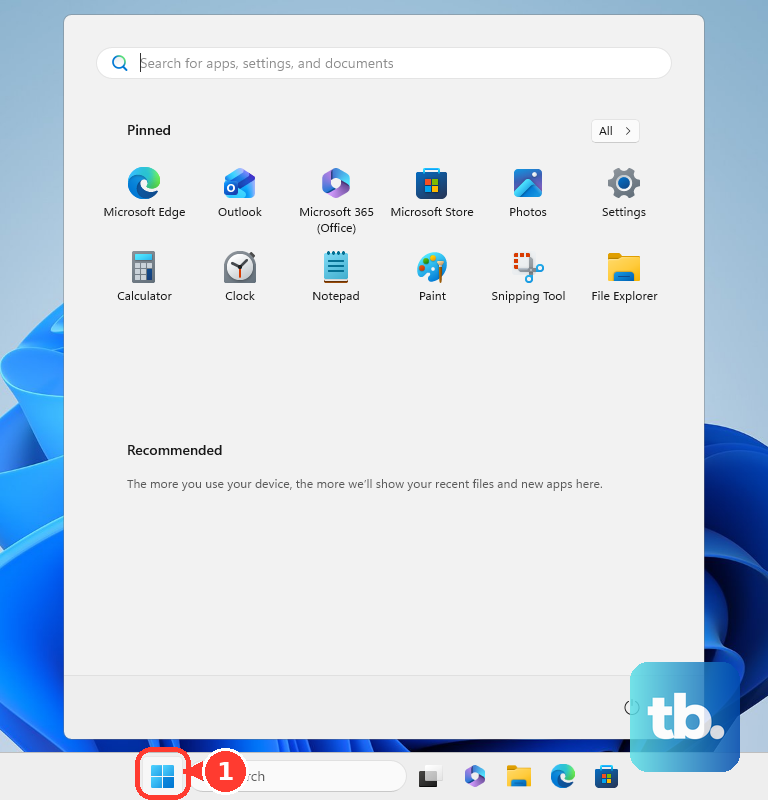
Use Start or Search when you want an app to appear in the pinned area of the Start menu. The app appears in Start with your other pinned items.
To pin a folder instead, open File Explorer. Right-click the folder, then select Pin to Start.
2. Add apps to the taskbar
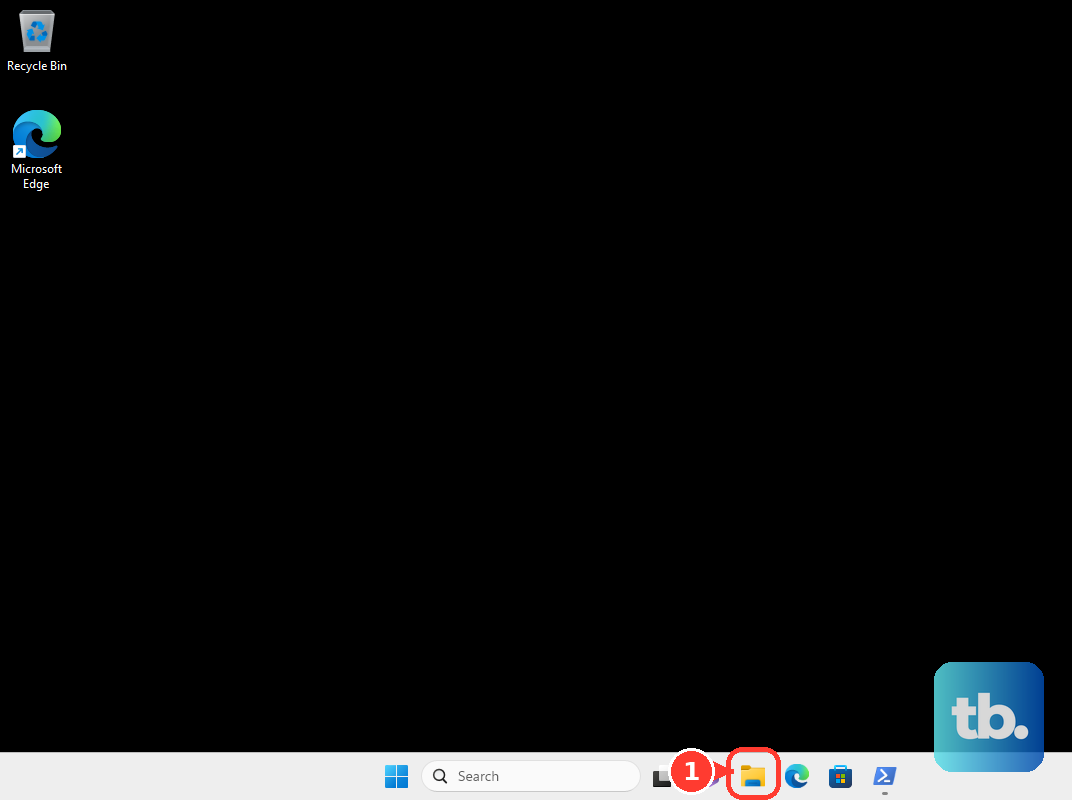
The taskbar is the right spot for apps you open all day, such as your browser, email, notes, or chat app. From Search: select the Search box on the taskbar, then type the app name. Right-click the app, then select Pin to taskbar.
From an open app: open the app. Right-click its icon on the taskbar, then select Pin to taskbar.
To change the order, drag the pinned app icon from its current position to a new position on the taskbar.
3. Remove pins you no longer use
Open Start. Right-click the pinned app, folder, shortcut, or website, then select Unpin from Start.
Unpinning removes the shortcut from Start or the taskbar. It does not uninstall the app.
For the taskbar, right-click the pinned app icon on the taskbar. Then select Unpin from taskbar.
4. Organize Start pins into folders
When Start gets crowded, group related pins into folders. Open Start, then drag one pinned item over another pinned item to create a folder. Drag more pins into that folder.
Open the folder and drag a pin out to remove it from the folder. When only one pin remains, Windows removes the folder. After creating the folder, use the rename option in the folder to give it a clearer name.
5. Pin websites and web apps
- 1.Open Microsoft Edge.
- 2.Go to the website.
- 3.Select Settings and more.
- 4.Select More tools.
- 5.Select Pin to Start.
For a quick website shortcut in Start, use Microsoft Edge. For a site that works as an app in Edge, go to the site. Select the App available icon in the address bar, or open Settings and more.
Select Apps, then select Install app. For a regular website in its own window, open Settings and more. Select Apps, then select Install site as an app.
In Chrome, go to the website and open More. Select Cast, save, and share, then select Install page as app....
To create Chrome shortcuts, open chrome://apps. Right-click the app and select Create shortcut. Choose where to create the shortcut, then select Create. After the app or shortcut exists in Windows, use the normal Start or taskbar pinning steps.
6. Adjust Start and taskbar views
Use Windows settings when the pins are correct but the layout still feels cluttered. Open Start, then select Show all in the pinned section to show all pinned apps by default. In All, choose Category, Grid, or List. Windows remembers the last selected view.
To change the folder shortcuts beside the power button, open Start. Right-click the bottom of the Start menu, then select Start settings. Select Folders, then toggle each folder On or Off.
To manage taskbar items, right-click the taskbar. Select Taskbar settings, then use Taskbar items to toggle Widgets and Task view. Use the Search dropdown to choose Search box, Search icon and label, Search icon only, or Hide.
Open Taskbar behaviors to change Taskbar alignment, Show badges on taskbar apps, Show flashing on taskbar apps, Share any window from my taskbar, and Show my taskbar on all displays. In the same area, change Automatically hide the taskbar, Optimize taskbar for touch interactions when this device is used as a tablet, and Select the far corner of the taskbar to show the desktop.
7. Use keyboard controls for taskbar pins
Pin from the Start pinned list: press the Windows key. Press Tab to reach the pinned list, then use the arrow keys to select the app. Press Shift+F10, select Pin to taskbar, then press Enter.
Pin from All apps: press the Windows key. Press Tab to reach All, then press Enter. Use the arrow keys to select the app, press Shift+F10, select More, select Pin to taskbar, then press Enter.
Unpin from the taskbar: press Windows key + T until the app is selected. Press Shift+F10, select Unpin from taskbar, then press Enter. Windows includes keyboard and screen reader paths for pinning and unpinning taskbar apps.
8. Skip outdated Windows pinning advice
Windows 11 uses pinned apps instead of Windows 10 tiles. Ignore old instructions for tile sizing, tile groups, full-screen Start workflows, moving the taskbar to the top or side, and small taskbar buttons. Combine-button controls are the exception: Windows 11 still keeps them under Taskbar behaviors as Combine taskbar buttons and hide labels.
Windows 10 support ended on October 14, 2025. On a work or school PC, your organization can control Start pins with policy and taskbar pins with a managed layout. Use the normal unpin and reorder steps first; organization-managed pins can return at the next sign-in when that layout is enforced.
Frequently Asked Questions
Does unpinning an app delete it from Windows?
No. Unpinning only removes the shortcut from Start or the taskbar. The app remains installed.
Can I pin a folder to Start in Windows 11?
Yes. Open File Explorer, right-click the folder, and select Pin to Start.
How do I pin an app that is already open?
Right-click the app icon on the taskbar and select Pin to taskbar.
Can I change the order of pinned apps?
Yes. Drag a Start pin or taskbar icon from its current position to a new position.
Why did pinned apps come back on my work computer?
Your organization can enforce Start or taskbar layouts on managed Windows devices, so those pins can return at sign-in.











