

To pin a folder to the Windows 11 taskbar, open the folder, right-click File Explorer’s taskbar button, then point to the folder in its Jump List and select the pushpin icon. This keeps the folder in a menu attached to File Explorer’s button. For a separate folder button, Start11 provides a third-party option. These steps use Windows 11 menus.
The short version
- Built-in route: Open your folder, then pin its entry in File Explorer’s taskbar Jump List.
- Keep Explorer handy: Right-click its taskbar button and select Pin to taskbar.
- Another folder shortcut: Select Pin to Quick access to reach the folder through File Explorer.
- Separate taskbar button: Start11 offers direct folder pins, with the steps below applying to its v3 beta interface.
| Option | What it provides | Where it applies |
|---|---|---|
| File Explorer Jump List | A folder pin in File Explorer’s taskbar menu | Windows 11, subject to organizational restrictions |
| File Explorer taskbar pin | A persistent button for the app | Windows 11, subject to organizational restrictions |
| Quick access | A folder entry inside File Explorer | Windows 11 |
| Recent items setting | Helps populate the Jump List before pinning | Windows 11 |
| Keyboard access | Opens the existing Jump List | Windows 11 with File Explorer pinned |
| Voice access | Operates the existing pinning controls | Windows 11 with Voice access configured and running |
| Start pin | A folder shortcut in Start | Windows 11 |
| Start folder buttons | Offered locations beside Start’s power button | Windows 11 |
| Administrative pinning policies | Permit or block pinning | Managed Windows 11 editions with Group Policy support |
| Administrative taskbar deployment | Deploys app pins, including File Explorer | Managed Windows 11 devices supporting the chosen policy mechanism |
| Start11 folder pin | A separate button that opens the folder | Start11 v3 beta steps below; folder pinning also exists in v2 |
| Start11 folder menu | A cascading menu of folder contents | Start11 v2 steps below; functionality also appears in v3 beta |
| Get Start11 | Purchase or trial options from Stardock | A release compatible with your Windows build |
Keep File Explorer on the taskbar
Open File Explorer by pressing Windows + E. Right-click its taskbar icon and select Pin to taskbar to keep the app available. This pins File Explorer itself; you will choose the folder separately.
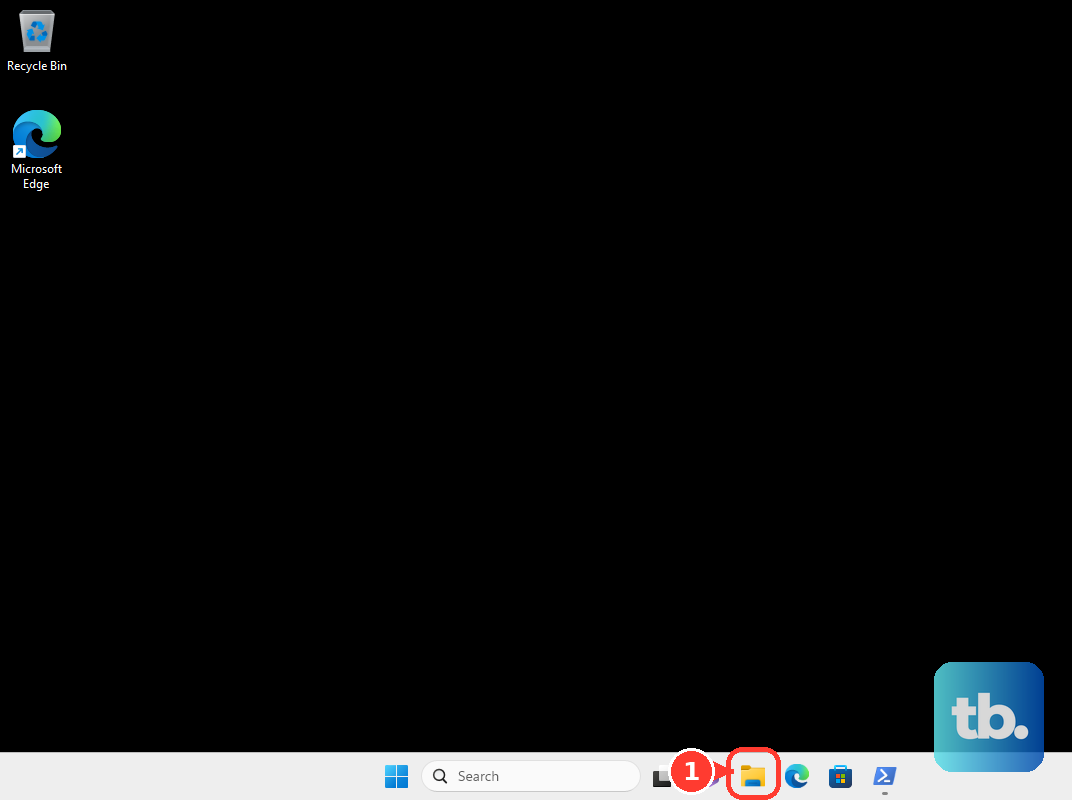
Alternatively, search for File Explorer from the taskbar. Right-click the app result and select Pin to taskbar. Either route gives you the File Explorer button used for the Jump List method.
Pin your folder in the taskbar Jump List
Inside File Explorer, open the folder you want to keep handy. Right-click File Explorer’s taskbar button to open its Jump List, then locate the folder in that menu. Point to the folder and select the pushpin icon beside it.
To open that folder later, right-click File Explorer’s taskbar button and select the folder. The folder stays inside this taskbar menu rather than appearing as a separate button. If its entry is missing, turn on recent items and check the menu again.
Make a missing folder appear in the menu
Open Settings > Personalization > Start. Turn on Show recently opened items in Jump Lists on Start or the taskbar. The wording can differ between installed Windows 11 builds; look for the setting about recently opened items in Jump Lists.
With that setting enabled, open your desired folder again. Right-click File Explorer’s taskbar button and look for its entry, then point to it and select the pushpin. Enabling recent items helps populate the menu, but you still need to pin the folder yourself.
If you still cannot find the folder in the Jump List, use Quick access instead. That route lets you select the folder directly in File Explorer and pin it there.
Check restrictions on a managed PC
On a managed work or school PC, your organization can block folder pins in Jump Lists. If you administer a Windows 11 device with Group Policy support, including Pro, Enterprise, or Education, open User Configuration > Administrative Templates > Start Menu and Taskbar > Do not allow pinning items in Jump Lists in Group Policy. Disabled or Not Configured permits pinning and unpinning; Enabled blocks both.
If you cannot pin File Explorer itself, the neighboring Do not allow pinning programs to the Taskbar policy controls application buttons. These are administrator controls for permitting or restricting pins. They do not create separate folder buttons.
Use Quick access for folders inside File Explorer
Press Windows + E and locate your folder. Right-click it, or press and hold it, then select Pin to Quick access. Choose this route if you prefer selecting folders inside File Explorer.
Afterward, open File Explorer from the taskbar and select the folder in Home or the navigation pane. The landing page is named Home starting with Windows 11 version 22H2. Your folder is reached through the pinned File Explorer app rather than a separate taskbar button.
Put folder shortcuts in Start
For a folder you would rather reach through Start, locate it in File Explorer. Right-click the folder and select Pin to Start. Select Start on the taskbar to access the folder shortcut.
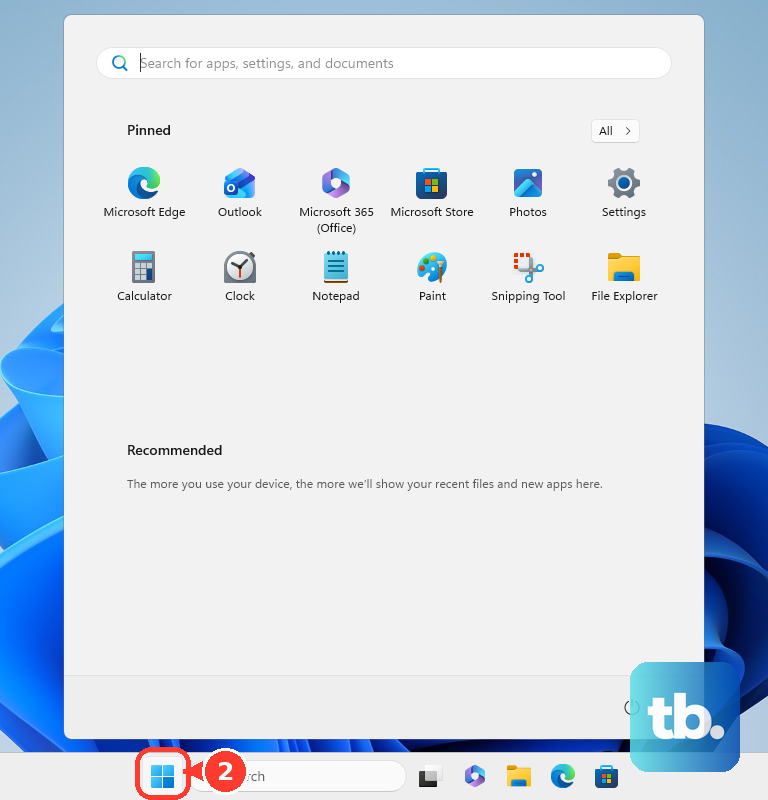
Standard locations also have an option beside Start’s power button. Open Settings > Personalization > Start > Folders, then turn on the folders you want to display. The offered locations include Documents, Downloads, Music, Pictures, Videos, Network, and Personal folder.
Open Start from the taskbar and select the corresponding folder button. These switches apply to the locations offered on the Folders page. For a different folder, use Pin to Start in File Explorer.
Create a separate folder button with Start11
Start11 offers folder pins that appear as separate taskbar buttons and open the selected folder in File Explorer. Get it from the official Start11 product page, where you can review purchase or trial options. Choose a release compatible with your installed Windows build.
In Start11’s v3 beta configuration, open Taskbar pins and select Pin Folder. Select your folder, then choose Yes at the Are you sure you want to pin this? confirmation. The new taskbar button opens that folder in File Explorer.
Folder pinning also exists in Start11 v2, but the exact sequence above applies to the v3 beta interface. In Stardock’s v3 beta support discussion, one user reported pinned folder buttons that failed to open both OneDrive and local folders, while other testers reported working pins. If your folder pin does not work, use File Explorer’s Jump List or Quick access as an alternative.
Show folder contents in a Start11 menu
Start11 v2 also offers a cascading folder menu for browsing a folder’s contents from the taskbar. On Windows 11 25H2, use Start11 v2 version 2.74 or later; Stardock says that release is needed for the Taskbar pins page to work correctly after a Windows change. In its configuration, open Taskbar pins, select Pin folder menu, then choose Browse for folder.... Select the folder whose contents you want in the menu. Folder-menu functionality also appears in Start11 v3 beta.
Frequently Asked Questions
Can you open a pinned folder’s taskbar menu with the keyboard?
With File Explorer pinned to the taskbar, press Windows + Alt + number, substituting File Explorer’s numbered position among the taskbar application buttons. Select your folder from the opened Jump List. This accesses an existing folder pin; it does not create one.
Can Voice access operate the folder pinning controls?
Yes, with Voice access available, configured, and running, you can operate the same menus using its mouse and control commands. With the pointer over the relevant item, say Right click, then say Show numbers to expose numbered controls. Say Click <number>, substituting the displayed number; command availability and supported languages vary.
How do you remove a folder from the Jump List or Quick access?
Unpinning removes the folder’s pin from the selected location. For a Jump List pin, right-click File Explorer’s taskbar button, point to the pinned folder, and select its pushpin icon again. For Quick access, right-click the folder’s Quick access entry and select Unpin from Quick access.
How do you remove folder shortcuts from Start?
Removing a Start pin takes that shortcut out of Start. Right-click the pinned folder and select Unpin from Start. Turning off a folder’s switch removes its button beside Start’s power button. To do that, open Settings > Personalization > Start > Folders and turn off its switch.
How do you remove File Explorer’s taskbar button?
Unpinning removes File Explorer’s pinned taskbar button. Right-click it and select Unpin from taskbar. On managed devices, policy-managed pins can return after you remove them.
Can you deploy File Explorer’s taskbar pin as an administrator?
On managed Windows 11 devices supporting your chosen policy mechanism, create a taskbar-layout XML containing the desired application pins, including File Explorer. In Intune, open Settings catalog > Start, choose Start Layout or Start Layout (User), and supply the XML content. Alternatively, in Group Policy, open Computer Configuration or User Configuration > Administrative Templates > Start Menu and Taskbar > Start Layout and supply the XML file path. Microsoft also supports StartLayout CSP and provisioning-package deployment for these app pins.