

To open the keyboard on Steam Deck, hold STEAM and press X. This shortcut works in Gaming Mode on both Steam Deck LCD and OLED running SteamOS. In Desktop Mode, keep Steam running, select the text field, then use the same shortcut.
The short version
- Main shortcut: Hold STEAM and press X to open the Steam keyboard.
- Desktop typing: Keep Steam running and select your text field before pressing STEAM + X.
- Automatic opening: Games with Valve’s text-input integration open the keyboard when you activate a text-entry field.
- Windows devices: If your Deck already runs Windows 11, use its built-in keyboard controls.
| Method or place | How to enter text | Requirement |
|---|---|---|
| SteamOS Gaming Mode | Hold STEAM and press X | Steam Deck LCD or OLED running SteamOS |
| SteamOS Desktop Mode | Select a text field, then press STEAM + X | Steam must be running |
| Supported games | Activate the game’s text-entry field | Game implements automatic text input |
| SteamOS Wi-Fi setup | Select your network and enter its password | First-time setup or Internet settings |
| Physical keyboard | Connect a keyboard to type directly | Alternative text input, particularly in Desktop Mode |
| Windows 11 Settings | Turn on On-Screen Keyboard under Accessibility > Keyboard | Deck already running Windows 11 |
| Windows 11 sign-in screen | Select Accessibility, then On-Screen Keyboard | Windows sign-in screen |
| Windows 11 hardware shortcut | Press Windows logo key + Ctrl + O | Connected keyboard |
| Windows 11 Start search | Search for and select On-Screen Keyboard | Available way to type the search text |
| Windows 11 touch keyboard | Set Touch keyboard to Always, then select its taskbar icon | Deck already running Windows 11 |
Open the keyboard in Gaming Mode
Hold down STEAM, then press X while you are still holding it. Use this combination when you need to open the keyboard manually in SteamOS Gaming Mode on either Steam Deck model.
Type in Desktop Mode apps and browsers
Open the STEAM menu, select Power, then select Switch to Desktop. Keep Steam running while you use desktop applications or a browser. Select the text field where you want to type, then press STEAM + X.
Fix keyboard problems in Desktop Mode
If the keyboard does not open, check that Steam is running. Select the intended text field again, then retry STEAM + X.
If the on-screen keyboard is insufficient for your desktop task, connect a physical keyboard to enter text directly. Connecting it gives you an alternative way to type; it does not open the Steam on-screen keyboard.
Let a supported game open the keyboard
Activate the game’s text-entry control, such as a character-name or save-name field. A game that implements Valve’s text-input integration opens the keyboard automatically for that input. The field’s label and location depend on the game.
If activating the field does not bring up the keyboard in SteamOS Gaming Mode, hold STEAM and press X. You can use this shortcut to open the keyboard manually when automatic opening does not occur.
Enter a Wi-Fi password
During first-time SteamOS setup, select your Wi-Fi network and use the on-screen keyboard to enter its password. To connect after setup, open Steam > Settings > Internet, then select your network. Enter the network password using the on-screen keyboard.
Open the keyboard on a Deck running Windows
If your Steam Deck LCD or OLED already runs Windows 11 instead of SteamOS, use Windows’ keyboard controls. These steps use Windows 11 menus. Select Start > Settings > Accessibility > Keyboard, then turn on On-Screen Keyboard.
Before signing in, select Accessibility in the lower-right corner of the Windows sign-in screen. Then select On-Screen Keyboard to open it there.
With a physical keyboard connected, press Windows logo key + Ctrl + O to open the Windows On-Screen Keyboard. Alternatively, if you already have a way to enter text, select Start, type On-Screen Keyboard, then select the On-Screen Keyboard search result.
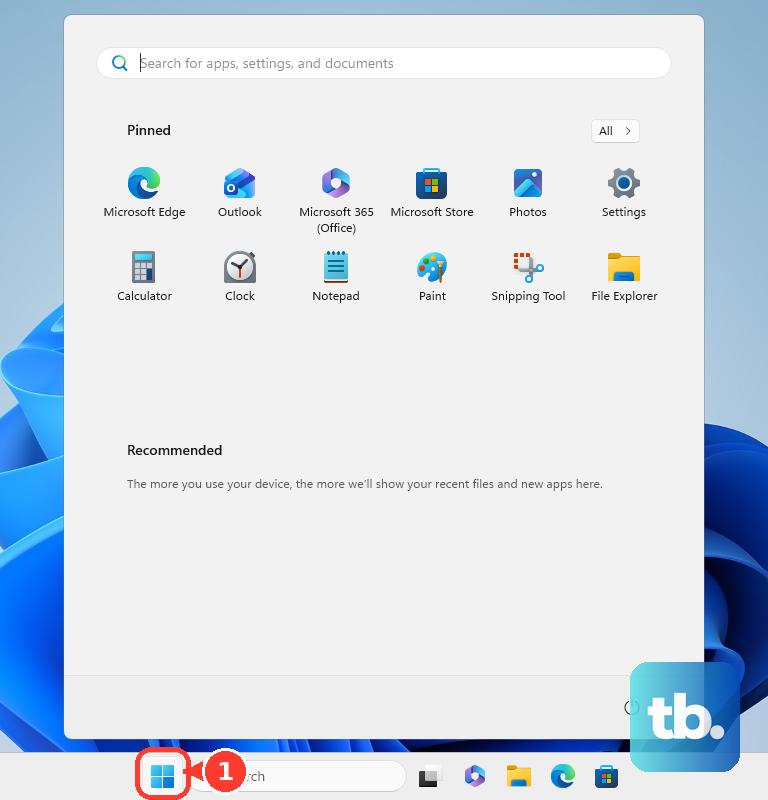
Put the Windows touch keyboard on the taskbar
Windows 11 also has a touch keyboard, which is separate from both its accessibility On-Screen Keyboard and Steam’s keyboard. To make it accessible from the taskbar, press and hold the taskbar, then select Taskbar settings.
Under Personalization > Taskbar > System tray icons, set Touch keyboard to Always. Select the Touch keyboard icon in the taskbar to open it.
Frequently Asked Questions
How can you see the Steam Deck button shortcuts?
Hold the STEAM button to see the available button shortcuts in Gaming Mode. You can check the shortcut controls on the Deck itself.
Is automatic keyboard opening a global setting for all games?
No, automatic opening depends on each game implementing Valve’s text-input integration. It is an application-dependent behavior, not a global automatic-keyboard toggle.
Can every Desktop Mode task be completed with the on-screen keyboard?
Valve says some Desktop Mode situations still require a physical keyboard. You may need one even when the Steam keyboard opens correctly.
Do you need to download a keyboard for these methods?
No download or installation is required for these built-in keyboard methods. You can use the Windows options if your Deck already runs Windows 11.
Does Valve provide support for Windows on Steam Deck?
Valve provides its Windows resources as-is and does not provide Windows-on-Steam-Hardware support. If your Deck runs Windows 11, its Windows keyboard controls are Microsoft features.