
Printer Properties is the Windows dialog you need when you want the main settings for an installed printer. Printing preferences, Device Manager properties, and server properties open different screens, so the fastest fix is using the right path from the start.
Start with Windows 11 Settings, then use the shortcuts below when you are printing from an app, working with a known printer name, or managing drivers, forms, and ports.
1. Start in Windows 11 Settings
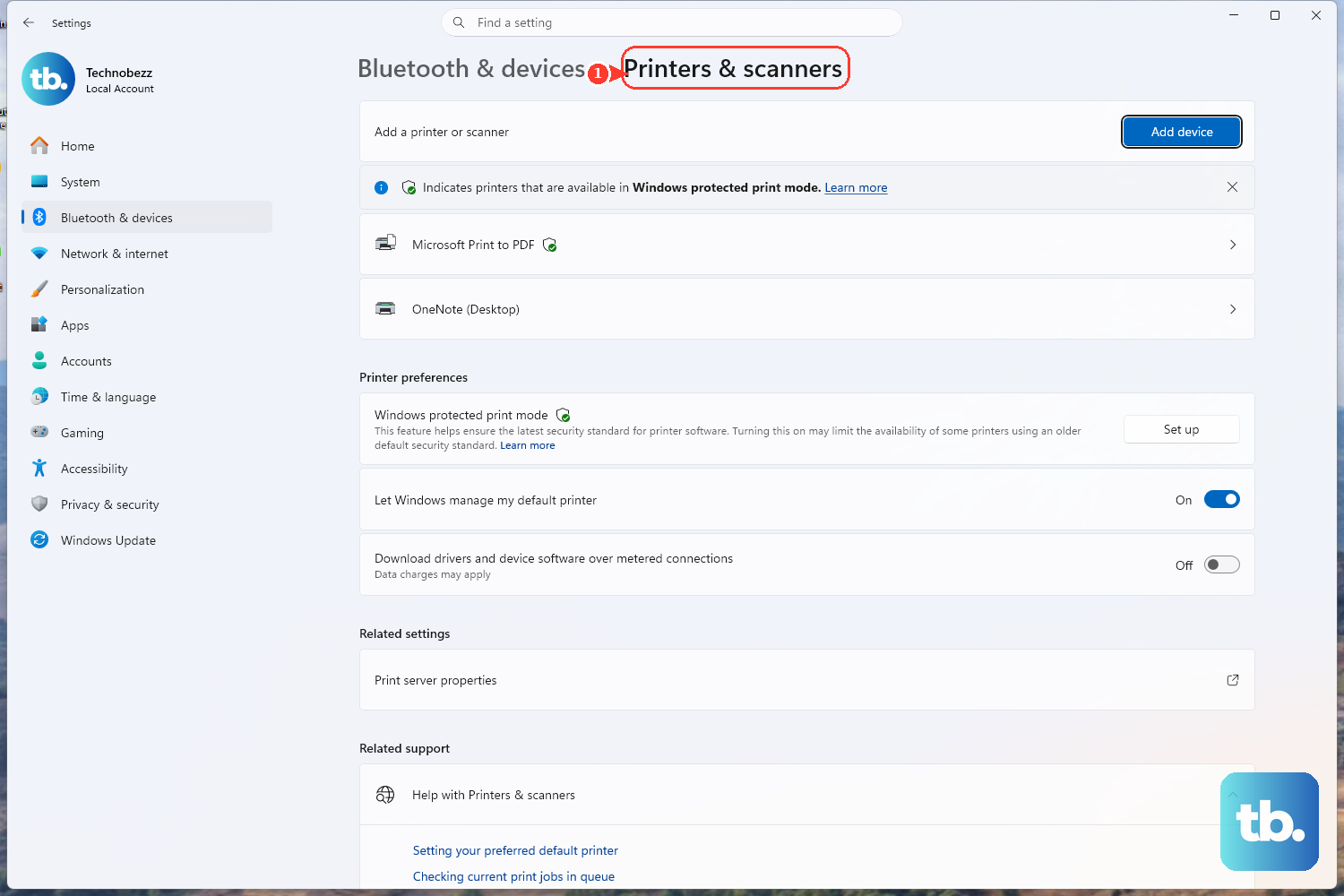
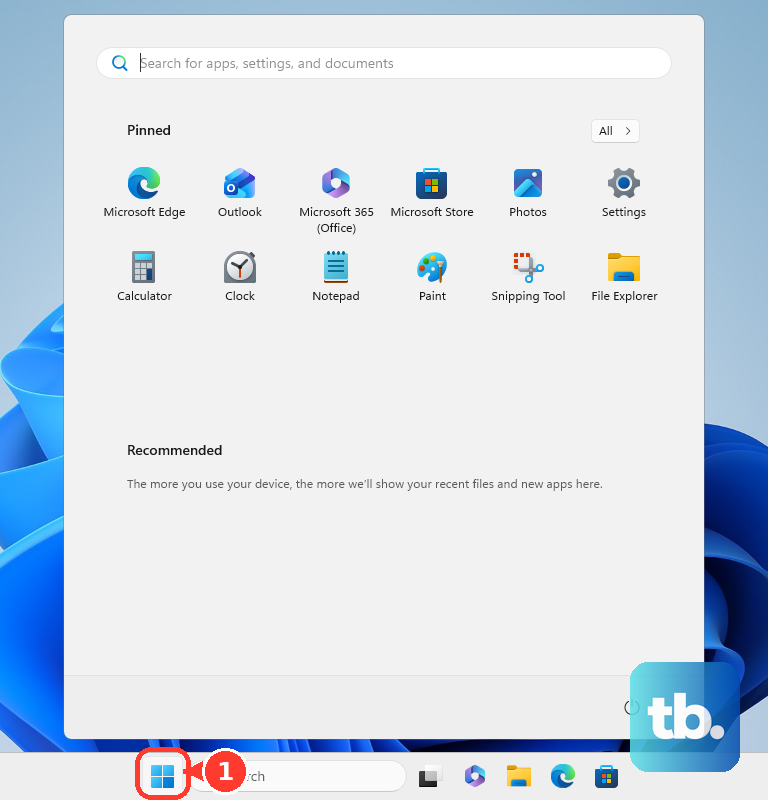
Use this first for any installed local, network, virtual, or Universal Print printer that appears in Windows 11. Select Start, open Settings, choose Bluetooth & devices, then select Printers & scanners.
Choose your printer, then select Printer Properties. That opens the regular Printer Properties dialog for the selected printer.
2. Jump Straight to Printers and Scanners
Settings search: Open Settings, search for printer properties or printers & scanners, open Printers & scanners, choose your printer, then select Printer Properties.
Run: Press Windows logo key + R, enter ms-settings:printers, select OK, choose your printer, then select Printer Properties.
AI-powered Settings search works only on supported devices and languages. The normal Settings search box works more broadly.
3. Pick Printing Preferences for Output Options
For print-output settings from the printer driver or print support app, open Start > Settings > Bluetooth & devices > Printers & scanners, choose your printer, then select Printing preferences.
Use Printer Properties for the broader printer dialog. Use Printing preferences for settings tied to how pages print.
4. Open Printer Settings from Word or Edge
When you are already printing, the app print screen is faster than leaving the document.
In Word: Open File > Print, choose the printer under Printer, then select Printer Properties. Microsoft verifies this path for Word for Microsoft 365, Word 2024, Word 2021, Word 2019, and Word 2016 on Windows.
In Microsoft Edge: Select Settings and more > Print, or press Ctrl+P. Select Print using system dialog, choose your printer in Select Printer, then select Preferences.
Edge shortcut: Press Ctrl+Shift+P, choose your printer in Select Printer, then select Preferences.
Chrome: Open the page, image, or file, then use File > Print or Ctrl+P. Google documents Chrome’s print settings surface, not a separate Windows Printer Properties button inside Chrome’s own dialog.
5. Use Printer Server Properties for Drivers Forms and Ports
Printer server properties is not the same as one printer’s Printer Properties. Use it for server-wide items such as drivers, forms, and ports.
Open Start > Settings > Bluetooth & devices > Printers & scanners. Under Related settings, select Printer server properties.
6. Run PrintUI for a Named Printer
Press Windows logo key + R, then enter rundll32 printui.dll,PrintUIEntry /p /n "Printer name". Replace Printer name with the installed printer name or shared printer path, then select OK.
This is the direct command-line route when you know the exact installed printer name or shared printer path. Microsoft documents this PrintUI command for Windows 11, Windows 10, Windows Server 2025, Windows Server 2022, Windows Server 2019, Windows Server 2016, and Azure Local 2311.2 and later.
7. Avoid Old Control Panel and Cloud Print Paths
Older tutorials point to Control Panel > Hardware and Sound > Devices and Printers, then Printer properties. Treat that as an old Control Panel route.
Microsoft’s current Windows 11 guidance uses Settings > Bluetooth & devices > Printers & scanners. Do not use Google Cloud Print steps. Google Cloud Print stopped working on December 31, 2020.
Do not use the Windows 10 Settings path as a Windows 11 fix. Microsoft consumer support for Windows 10 ended on October 14, 2025, and the Windows 11 route now starts at Bluetooth & devices.
8. Check Work or School Restrictions
On managed PCs, your organization can provision printers through Universal Print with Intune, control printer permissions with policy, or manage Chrome Enterprise and Education printers through the Google Admin console. Once the printer appears in Windows, open it through Settings > Bluetooth & devices > Printers & scanners.
If Printer Properties or specific tabs are blocked, the restriction comes from the organization’s printer policy or permissions.
Frequently Asked Questions
Is Printer Properties the same as Printing preferences?
No. Printing preferences opens printer-driver or print-support-app settings for print output. Printer Properties opens the broader properties dialog for the selected printer.
Why does Device Manager show different printer properties?
Device Manager opens device or driver Properties under Printers or Print queues. Use that for driver actions, not for the normal printing Printer Properties dialog.
Can PowerShell open the Printer Properties window?
PowerShell can retrieve printer properties with Get-PrinterProperty and change supported print configuration with Set-PrintConfiguration. Those commands do not open the GUI Printer Properties dialog. Use the PrintUI command to open that window.
Where is Print Server Properties in Windows 11?
Open Settings > Bluetooth & devices > Printers & scanners, then select Printer server properties under Related settings. It manages server-wide items such as drivers, forms, and ports.