


Open Start, type Windows PowerShell, select Windows PowerShell, then select Open. Windows PowerShell 5.1 is built into Windows 11 and Windows 10, so you can open it without installing a separate app.
For a keyboard route, press Windows + R, enter powershell, and press Enter. PowerShell can also open inside Windows Terminal, where the selected profile determines which shell you use.
The short version
- Start search: Search for
Windows PowerShelland select Open. - Keyboard route: Press Windows + R, enter
powershell, and press Enter. - Administrator access: Select Run as administrator from the PowerShell search result when your task requires elevated permissions.
- Terminal tabs: Use Windows Terminal’s dropdown to choose Windows PowerShell.
- Separate versions: Use
powershellfor Windows PowerShell 5.1 andpwshfor an installed, discoverable PowerShell 7.
| Method | What to do | When to use it |
|---|---|---|
| Windows PowerShell search | Find Windows PowerShell and select Open | Open the built-in shell |
| PowerShell 7 search | Search for PowerShell 7 and select the installed app | Open the separately installed version |
| Administrator launch | Select Run as administrator | Run tasks requiring elevated permissions |
| Run dialog | Press Windows + R and enter powershell | Launch using the keyboard |
| Command Prompt | Run powershell.exe | Open PowerShell from an existing command prompt |
| Start context menu | Press Windows + X and select Terminal | Open Terminal on Windows 11 |
| Terminal search | Search for Terminal and open Windows Terminal | Open an installed Terminal app |
| Terminal profile dropdown | Choose Windows PowerShell | Open a PowerShell tab in Terminal |
| Default PowerShell tab | Select + or press Ctrl + Shift + T | Open another tab when PowerShell is the default profile |
| Folder context menu | Select Open in Terminal | Launch from a Windows 11 folder with packaged Terminal |
| Pinned shortcut | Select the pinned PowerShell icon | Open PowerShell repeatedly |
| Desktop shortcut | Create a shortcut targeting powershell.exe | Launch from the desktop |
| Taskbar combinations | Hold Shift or Ctrl + Shift while clicking the icon | Open another instance or an administrator instance |
| Task Manager | Select Run new task and enter powershell | Open PowerShell when Start is not opening |
| Launch without profiles | Run powershell -NoProfile | Bypass a startup profile causing errors or immediate closing |
Open PowerShell from Start
Select Start and search for Windows PowerShell. Choose Windows PowerShell, then select Open to launch the built-in shell. You can also press Windows + S to open Windows Search directly.
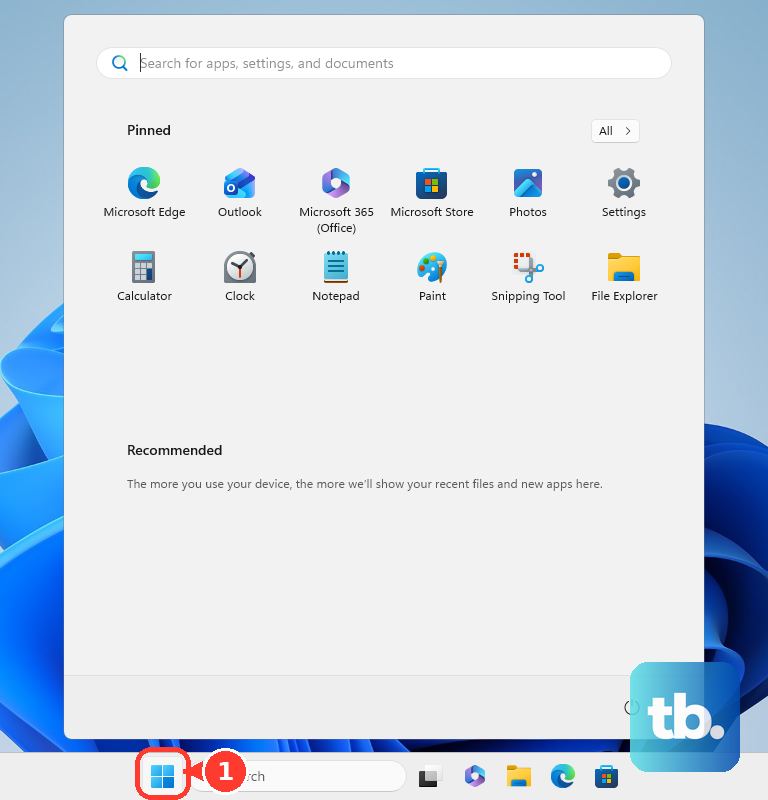
If you have PowerShell 7 installed, search for PowerShell 7 and select that application when you need it. Installing PowerShell 7 does not replace Windows PowerShell 5.1, so choose the search result for the version you want.
Run PowerShell as administrator
When a task calls for an administrator window, open Start, search for Windows PowerShell, and select Windows PowerShell. Choose Run as administrator instead of Open. An installed PowerShell 7 application also offers an administrator launch.
If User Account Control asks for approval, select Yes. Supply administrator credentials if requested to open the elevated session.
Use Run or an existing command prompt
Press Windows + R to open the Run dialog. Enter the following command, then press Enter to launch Windows PowerShell 5.1.
powershellFor PowerShell 7, enter the command below instead and press Enter. It works when PowerShell 7 is installed and available through PATH or its application alias. If the command cannot find your installation, open the installed application from Start.
pwshFrom an existing Command Prompt window, enter the following command and press Enter. Use pwsh.exe instead when you want an installed PowerShell 7 executable that the shell can find.
powershell.exeChoose PowerShell in Windows Terminal
On Windows 11 with Windows Terminal installed, right-click Start or press Windows + X, then select Terminal. Choose Terminal (Admin) when you need administrator access. Some builds label these entries Windows Terminal and Windows Terminal (Admin).
Inside Terminal, select the dropdown arrow beside + and choose Windows PowerShell or your installed PowerShell profile. Terminal is the host application, so its first tab can be Command Prompt or another shell.
You can also search Start for Terminal and open Windows Terminal. That route applies to Windows 11 and to Windows 10 with Terminal installed. To obtain Terminal on a compatible device, get Windows Terminal from Microsoft Store, then choose a PowerShell profile.
On Windows 11 or a compatible Windows 10 installation, open Terminal’s Settings > Startup > Default profile to make future default-profile launches open PowerShell. Choose Windows PowerShell or the installed PowerShell profile, then save the setting. With PowerShell set as the default profile, select + or press Ctrl + Shift + T for another PowerShell tab.
Open Terminal from a folder
On Windows 11 with packaged or preinstalled Windows Terminal, right-click a filesystem folder or an empty area inside it and select Open in Terminal. If Terminal opens another shell, use the dropdown beside + to choose Windows PowerShell or your installed PowerShell profile. Unpackaged and portable Terminal distributions do not provide this Explorer integration. If your installation does not provide folder integration, launch PowerShell from Start.
Keep a PowerShell shortcut handy
For frequent access, find the installed PowerShell application in Start and right-click it. Select Pin to Start, or select More > Pin to taskbar when that is the menu offered by your Start layout. Select the pinned icon whenever you want to open PowerShell.
A desktop shortcut is another option on Windows 11 and Windows 10. Right-click an empty desktop area, select New > Shortcut, and enter the following executable path as the target. Complete the shortcut wizard, then double-click the shortcut to launch Windows PowerShell.
%WINDIR%\System32\WindowsPowerShell\v1.0\powershell.exeWith PowerShell pinned to the taskbar, hold Shift while clicking its icon to open another instance. Hold Ctrl + Shift while clicking the icon for an administrator instance. These taskbar combinations work on Windows 11 and Windows 10.
Fix problems opening PowerShell
If Start is not opening, press Ctrl + Shift + Esc to open Task Manager. On Windows 11, select Run new task; on Windows 10’s older layout, select File > Run new task. Enter the following command, then select OK.
powershellFor an administrator launch through Task Manager, check Create this task with administrative privileges before selecting OK. You can substitute pwsh when PowerShell 7 is installed and discoverable. If that command cannot find PowerShell 7, use its installed Start application instead.
When PowerShell shows startup errors or immediately closes because of a user profile script, press Windows + R. Enter the following command and press Enter to start Windows PowerShell without loading those profile scripts.
powershell -NoProfileFor an installed, discoverable PowerShell 7, enter the command below instead and press Enter. This bypasses startup profiles for that launch when a profile is causing the opening failure.
pwsh -NoProfileFrequently Asked Questions
Why is there a Windows PowerShell x86 search result?
Windows PowerShell (x86) is the 32-bit host on 64-bit Windows installations that include it. You can use it for modules that require a 32-bit process.
Why does Run with PowerShell close the window afterward?
When you select Run with PowerShell, it starts a session, executes the selected .ps1 script, and closes the session when the script finishes. Use a regular PowerShell launch method when you need a persistent blank prompt.
Why does a portable PowerShell installation not appear in Start?
PowerShell 7 ZIP installations do not automatically create Start shortcuts or update PATH. Open the folder where you extracted the ZIP and run pwsh.exe there.
Can PowerShell open in the classic console instead of Terminal?
Yes, on Windows 11 builds that expose this path, open Start > Settings > System > Advanced, then under Terminal, choose Windows Console Host. Launch PowerShell normally afterward. Earlier Windows 11 builds place the host setting elsewhere.