The Steam Console is easy to miss because Steam does not place it in the normal client menus. If you need the hidden Console tab for Steam client commands, use one of the desktop methods below and then enter commands from the tab itself.
1. Start with the Steam desktop client
Go to https://store.steampowered.com/about/. Select Install Steam. Install the Steam desktop client on Windows, macOS, Linux, or a SteamOS desktop environment. Open Steam and sign in.
Tip: the Steam Console methods below need the desktop client because they rely on Steam handling steam:// links.
2. Open the Console tab from a browser
Open any desktop web browser, click the address bar, and enter steam://open/console or steam://nav/console. Approve the browser prompt to open Steam. Steam opens or comes to the front with the Console tab showing.
3. Launch it quickly with Windows Run
Press Win + R. Type steam://open/console. Press Enter or select OK. Steam opens or focuses and shows the Console tab.
4. Run the console link from a terminal
On Windows, open Command Prompt or PowerShell.
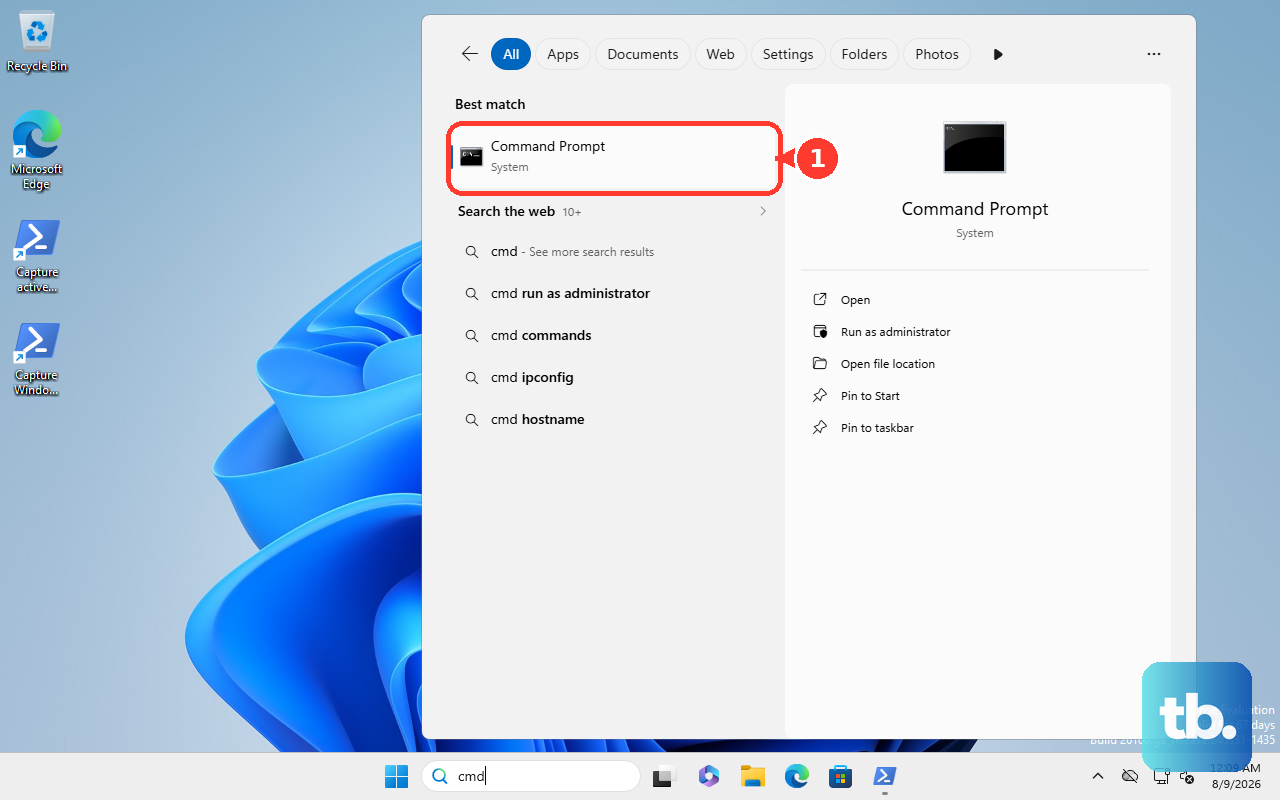
Run start steam://open/console. On macOS, open Terminal. Run open steam://open/console.
On Linux, open a terminal. Run xdg-open steam://open/console, or run steam steam://open/console when the steam command is available. Tip: this does the same job as the browser method from a command-line window.
5. Keep the Steam Console visible at startup
Fully exit Steam. Launch Steam with the startup option -console.
On Linux or macOS-like shells, run steam -console. On Windows, launch Steam.exe -console. The Steam client opens with the debug Console tab enabled.
6. Save the Console option in a Windows shortcut
Right-click your Steam shortcut. Select Properties. Select the Shortcut tab.
In Target, add a space and -console after the closing quote for Steam.exe. Use this format: "C:\Program Files (x86)\Steam\steam.exe" -console.
Select Apply. Launch Steam from that shortcut. Tip: this changes only that shortcut, so use the edited shortcut when you want Steam to start with the Console tab.
7. Enter commands inside the Steam Console
This fixes the last step: opening the tab only helps once you know where commands go.
- 1.Open the Console tab.
- 2.Click the input field at the bottom of the tab.
- 3.Type a Steam console command.
- 4.Press Enter.
- 5.Use find depot as a discovery example.
- 6.Use download_depot <appid> <depotid> [<target manifestid>] when you have the app, depot, and manifest information.
8. Pick the right Steam command tool
Use the hidden Steam client Console tab for Steam client commands. Use SteamCMD for Valve's command-line Steam client.
In SteamCMD, use commands such as login anonymous, login <username>, force_install_dir <path>, app_update <AppID> validate, and quit. Use a game's developer console for commands inside supported Valve, Source, GoldSrc, or Source 2 games.
For most Valve titles, open the game's main menu, select Options, select Keyboard, click Advanced, check Enable developer console (~), then select Apply. The ~ key opens the console on English/US keyboard configurations; on other layouts, bind another key to toggleconsole.
In Left 4 Dead and Left 4 Dead 2, select Options, then Keyboard/Mouse, and set Allow Developer Console to Enabled.
In Counter-Strike 2, select the gear icon (Settings menu), then under the Game tab in the Game section click the arrow next to Enable Developer Console (~) so that it says Yes.
For supported GoldSrc and Source games, open Library, right-click the game, select Properties, use General and Launch Options, enter -console, then start the game.
For Half-Life: Alyx, enter -console -vconsole in Launch Options instead, then launch the game; the console appears on your desktop screen, not in the headset display.
9. Avoid outdated Steam Console advice
This fixes confusion caused by old posts, typos, and Steam surfaces that are not the same console. Use steam://open/console or steam://nav/console for the Steam desktop client Console tab.
Do not use steam:://open/console; the verified form uses one colon after steam. Treat Steam console commands as client-build and entitlement dependent because many commands are undocumented and change.
Do not use Steam mobile, the Steam web account portal, voice assistants, or AI assistants to open the Steam client Console tab. On SteamOS, use the verified desktop methods in Desktop Mode.
Frequently Asked Questions
What is the Steam Console used for?
It is used for Steam client commands inside the desktop client's hidden Console tab, including discovery commands such as find depot and content commands such as download_depot when you have the required IDs.
Is SteamCMD the same as the Steam Console?
No. SteamCMD is Valve's separate command-line Steam client for tasks such as installing and updating dedicated servers and SteamPipe content.
Can I open the Steam Console on Steam Deck?
Yes, through SteamOS Desktop Mode using the verified desktop methods. Valve does not document Game Mode or Big Picture-only access.
Why do some Steam console commands not work?
Commands vary by Steam client build and entitlement, and many are undocumented. Use commands that match your client, app access, and available IDs.