
Windows 10 Settings is where you change everyday controls like Wi-Fi, display, apps, privacy, and updates. When you need to open settings Windows 10 quickly, use the fastest entry point first, then search for the exact control instead of digging through menus.
Here are the current Microsoft-documented ways to open Settings, move around it, and get to the pages people use most.
1. Open Settings from Start
Start here if you want the standard route. Select Start.
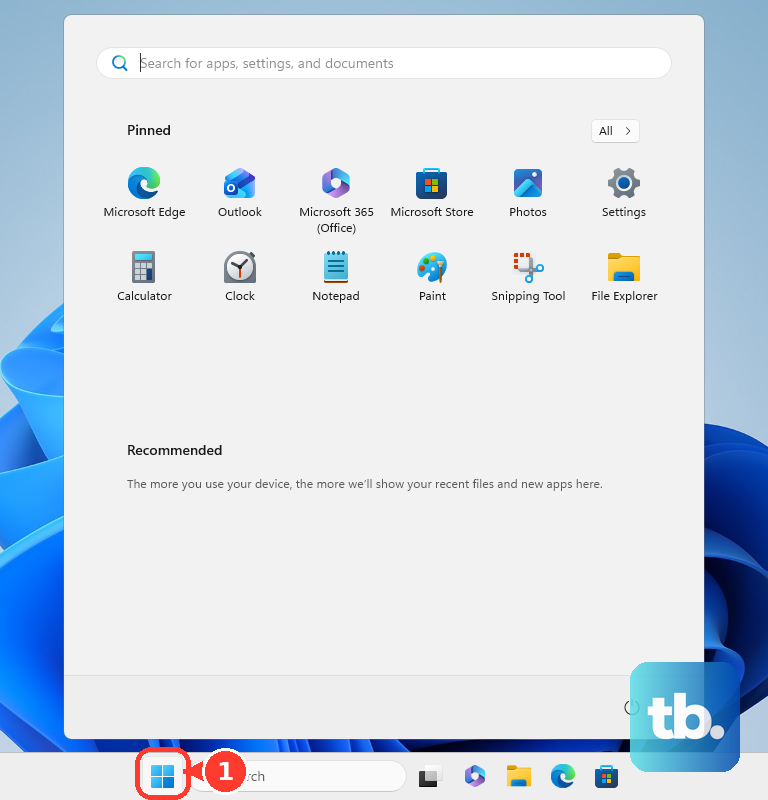
Select Settings. For Windows 10 privacy controls, go to Start > Settings > Privacy. That opens the local privacy area for the device.
2. Press the Windows I shortcut
Press Windows + I. Wait for the Settings app to open. This is the fastest way once you remember it. Use it from the desktop, from an open app, or when you do not want to open the Start menu first.
3. Right-click Start for Settings
The Power User menu gives you another direct path: right-click Start, then select Settings.
For taskbar options, right-click an empty area of the taskbar and select Taskbar settings.
To reach Start options, select Start, right-click the bottom of the Start menu, then select Start settings.
4. Search for the setting you need
If you already know the control you want, search beats browsing. Select Search on the taskbar, or press Windows + S. Type Settings, or type the name of a setting such as display, Wi-Fi, apps, privacy, or update.
Select the matching app or setting result. Press Enter to open the Best match.
5. Browse Windows 10 Settings categories
Open System for display, notifications, and related system controls. Choose Devices for connected hardware. Use Network & Internet for internet and network options. Go to Personalization for the look of Windows.
Select Apps for installed app controls. Open Accounts for account and backup-related settings. Choose Time & Language for region, language, and time settings. Use Gaming for gaming options.
Go to Ease of Access for accessibility settings. Select Search for Windows search settings. Open Privacy for privacy controls. Choose Update & Security for Windows Update and security-related settings.
Once Settings is open, choose the category that matches the change you want to make. Select a category, then select the page or control you need.
6. Find controls inside Settings
Settings has its own search box, which is useful when you are already inside the app.
Open Settings. Select the search box labeled Find a setting. Type the setting name. Select a result.
Keyboard users can press Ctrl + E to move focus to Find a setting. Use Up arrow or Down arrow to move through results. Press Enter.
To move around Settings without a mouse, press Tab to move focus. Use Up arrow or Down arrow between categories. Press Enter to open a category. Press Backspace to return to the main Settings window.
7. Launch Settings pages with Run
Press Windows + R. Type ms-settings:. Press Enter.
The Run box is handy when you want a specific Settings page and know the command. That opens Settings.
To jump straight to a page, use a supported command such as ms-settings:display, ms-settings:network-wifi, ms-settings:appsfeatures, or ms-settings:windowsupdate. Individual ms-settings: pages vary by Windows version, edition, hardware, and whether the feature exists on the device.
8. Change common Windows 10 options
To remove an app, go to Start > Settings > Apps > Apps & features. Select the app, then select Uninstall.
To change Action Center quick actions, go to Settings > System > Notifications & actions > Edit your quick actions. Select Add or unpin tiles. Select Done.
To open Action Center from the keyboard, press Windows + A.
To find settings inside an app, open the app. Look for a gear icon labeled Settings. In some apps, select More. Then select Settings.
9. Skip old Settings advice
Use Settings, Search, Windows + I, or ms-settings: for current Windows 10 Settings access.
Do not rely on Cortana voice commands to open Settings. Microsoft retired Cortana voice assistance in Windows as a standalone app in spring 2023.
On work or school PCs, an organization can hide or show specific Settings pages. When a page is missing on a managed device, contact your administrator.
Frequently Asked Questions
What is the fastest way to open Settings in Windows 10?
Press Windows + I. It opens the Settings app directly.
Can I open a specific Settings page from Run?
Yes. Press Windows + R, type a supported ms-settings command such as ms-settings:windowsupdate, and press Enter.
How do I search inside the Windows 10 Settings app?
Open Settings, select Find a setting, type the setting name, and choose a result. You can press Ctrl + E to move focus to the search box.
Why is a Settings page missing on my work or school PC?
Your organization can hide or show specific Settings pages on managed Windows devices. Contact your administrator when a page is missing.