

A USB drive should show up fast, but Windows can hide it, block it, ask for a BitLocker key, or show the disk without a drive letter. Start with the open-and-check steps, then move into repair, recovery, and formatting only when the files are already safe. These Windows 11 steps match the current Microsoft-supported paths for July 2026.
1. Open the USB Drive in File Explorer
Connect the USB drive to your PC, then select File Explorer on the taskbar. Select This PC, find the external drive, and double-click the drive icon.
The normal place to open a USB drive is File Explorer. If it opens, copy important files before using repair, partition, or format tools.
2. Turn On AutoPlay for Next Time
Set AutoPlay once when you want Windows to ask what to do after you plug in a removable drive. Go to Start > Settings > Bluetooth & devices > AutoPlay, turn AutoPlay on, then choose defaults for removable drives and memory cards.
After you insert the USB drive, choose the File Explorer open-folder action when Windows prompts you.
3. Check the Port, Cable, and USB C Setup
Unplug the USB drive and reconnect it. Next, connect it directly to the PC instead of through a hub, use the cable that came with the device, and plug in the device power supply when it has one.
Then try a port that supports the needed USB-C, Thunderbolt, or Alternate Mode feature, and disconnect unused USB devices. If the drive never appears, treat the connection as the first suspect.
For connection alerts, search Windows for USB settings, then turn connection notifications on.
4. Find the Drive in Disk Management
A USB drive can be visible to Windows even when it is missing from File Explorer. Right-click Start and select Disk Management.
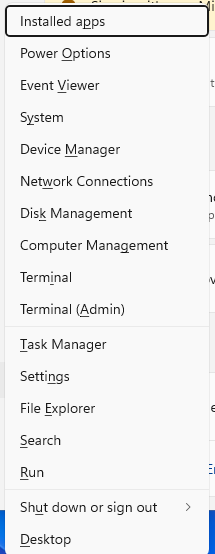
Offline disk: right-click the disk, then select Online. No drive letter: right-click the USB volume, select Change Drive Letter and Paths, choose Add or Change, pick a drive letter, then select OK.
Unallocated space: right-click the unallocated region, select New Simple Volume, select Next, choose a size or accept the default, assign a drive letter, choose the format option, then select Finish. Needs initialization: right-click the disk, select Initialize Disk, confirm the disk selection, accept the default partition style or change it as needed, then select OK.
Some USB disks cannot be initialized at all; those are only formatted and assigned a drive letter. Use the condition that matches what you see. Creating, initializing, partitioning, and formatting can erase data, so use those choices only after recovery is no longer the priority.
You can also inspect the drive from Start > Settings > System > Storage > Advanced storage settings > Disks & volumes > Properties.
5. Repair File System Errors Before Formatting
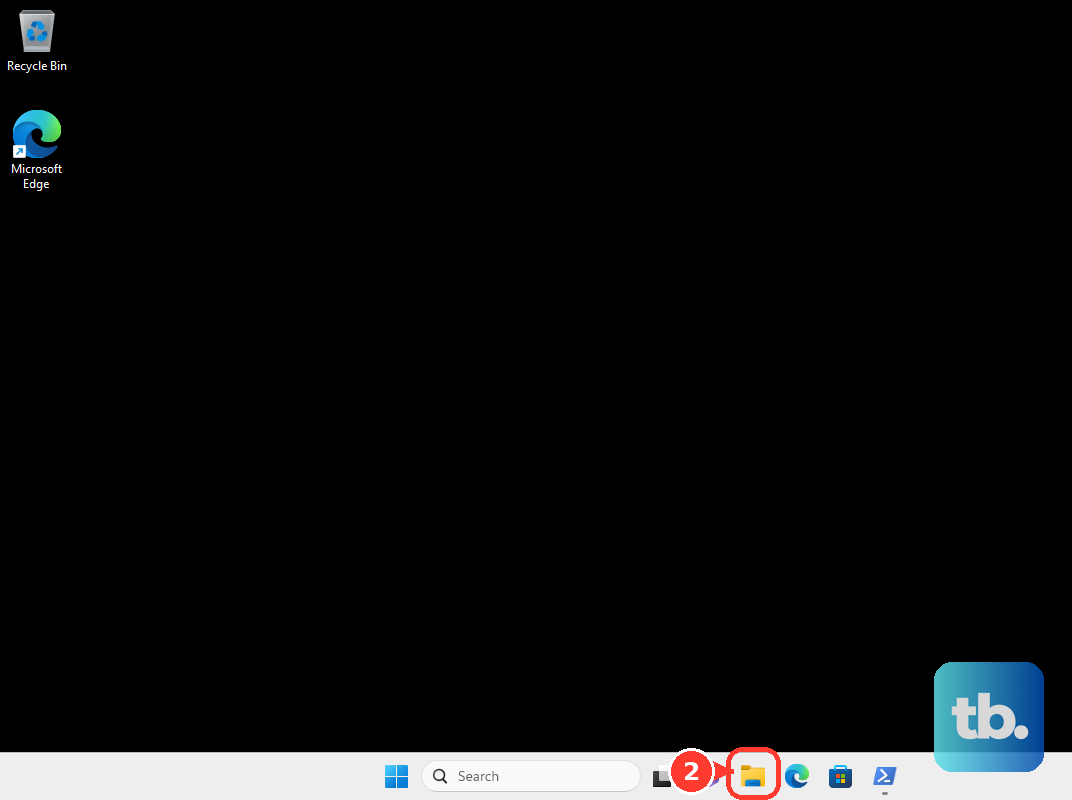
Open File Explorer, then select This PC. Right-click the USB drive and select Properties, open the Tools tab, and under Error checking, select Check. Follow the on-screen instructions.
Use Windows error checking when the USB drive has files you still want. Copy off whatever the drive already lets you read before you start: repairs on FAT file systems usually change the file allocation table and sometimes cause a loss of data, which is why chkdsk can stop and ask whether to convert lost chains to files.
For a command-line repair, open Command Prompt as administrator and run chkdsk E: /f, replacing E with the USB drive letter. To locate bad sectors and recover readable information, run chkdsk E: /r. The /r option includes the repair action from /f. Close open files on the drive before running chkdsk.
PowerShell gives you another current repair path. Open PowerShell as administrator, then run Repair-Volume -DriveLetter E -Scan to scan only, or Repair-Volume -DriveLetter E -OfflineScanAndFix to take the volume offline and fix errors. Replace E with the USB drive letter.
-Scan is the equivalent of chkdsk /scan, which is NTFS only, so it will not help on the FAT32 or exFAT formatting most USB sticks ship with. -OfflineScanAndFix is the equivalent of chkdsk /f and does work on those file systems.
6. Recover Lost Files to Another Drive
Use Microsoft’s Windows File Recovery when files were deleted or the drive needs recovery before formatting.
- 1.Install Windows File Recovery from the Microsoft Store.
- 2.Press the Windows key.
- 3.Enter Windows File Recovery.
- 4.Select Windows File Recovery.
- 5.Approve the User Account Control prompt.
- 6.Run winfr source-drive: destination-drive: [/mode] [/switches].
The source and destination drives must be different. For FAT or exFAT USB recovery, use Extensive mode.
Example: winfr E: C: /extensive /n *invoice*
7. Format the USB Drive After Recovery
Formatting erases data on the selected USB drive. Use it for a clean drive after recovery is finished.
For the File Explorer path, connect the drive, open File Explorer, right-click the USB drive, select Format, choose the file system, then select Start. For the Disk Management path, right-click Start, select Disk Management, right-click the USB volume, select Format, then select OK and OK again.
8. Unlock, Scan, or Reinstall the Device
BitLocker: open the locked drive in File Explorer and enter the password or recovery key. You can also open Control Panel > BitLocker Drive Encryption > Unlock drive, which needs Windows Pro, Enterprise, or Education. BitLocker Drive Encryption is not available on Windows Home, so use the File Explorer prompt there.
BitLocker recovery key: use Microsoft’s personal account recovery key page for a personal Microsoft account. Use the work or school recovery key page for an organization-managed account, or contact the organization’s IT support.
Microsoft Defender: in File Explorer, right-click the USB drive, folder, or file, select Show more options, then select Scan with Microsoft Defender. Device Manager status: select Start, search for Device Manager, open the relevant category such as Disk drives or Universal Serial Bus controllers, right-click the device, select Properties, then read Device status.
Driver repair: right-click Start, select Device Manager, right-click the USB device, then use Update driver or Uninstall device. To undo a bad driver, right-click the device, select Properties, open the Driver tab, then select Roll Back Driver when that button is available.
A locked USB drive, a malware warning, and a driver error need different tools. If this is a work or school PC, removable USB storage or write access can be blocked by policy. Contact IT when the same drive works on a personal PC but not on the managed device.
9. Eject the USB Drive Correctly
After the drive opens or repairs finish, eject it before unplugging so Windows can finish pending file operations.
In the taskbar system tray, right-click Safely Remove Hardware and Eject Media, select Eject for the USB device, then wait for Safe To Remove Hardware. If the icon is hidden, select Show hidden icons first.
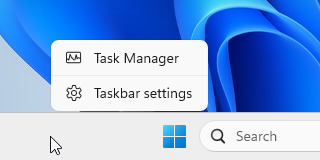
If the eject icon is missing, right-click the taskbar, select Taskbar settings, open Other system tray icons, then turn Safely Remove Hardware and Eject Media on.
Skip old repair advice that points to the File and Folder Troubleshooter, the MSDT Hardware and Devices troubleshooter, or Windows 7 and Windows 8 USB hotfixes. For current Windows 11 USB-drive problems, use File Explorer, Disk Management, Settings, chkdsk, Repair-Volume, Device Manager, Microsoft Defender, Windows File Recovery, and the hardware checks above.
Frequently Asked Questions
Why does my USB drive show in Disk Management but not File Explorer?
The USB volume is usually missing a drive letter. Open Disk Management, right-click the USB volume, select Change Drive Letter and Paths, then add or change the letter.
Should I format a USB drive that Windows cannot open?
Format it only after recovery is finished or the files no longer matter. Formatting erases data on the selected USB volume.
Can Windows recover files from a USB drive?
Yes. Windows File Recovery supports USB devices. Install it from the Microsoft Store, then recover to a different destination drive. FAT and exFAT USB recovery require Extensive mode.
How do I unlock a BitLocker USB drive without the password?
Use the BitLocker recovery key. For a personal Microsoft account, use Microsoft’s recovery key page. For a work or school account, use the organization recovery key page or contact IT.