

Typing 192.168.0.1 should open your router admin page, but a search page, privacy warning, blank screen, or rejected password blocks access. Start with the address and connection checks, then move through browser, network, password, and reset fixes.
1. Open 192.168.0.1 the right way
This fixes searches that happen when the router address is typed in the wrong place.
- 1.Connect your computer or phone to the router by Wi-Fi or Ethernet.
- 2.Open Chrome, Firefox, or Edge.
- 3.Click the browser address bar at the top of the window.
- 4.Type 192.168.0.1 and press Enter.
- 5.Use http://192.168.0.1 or https://192.168.0.1 when the plain address does not load.
- 6.For TP-Link routers, enter tplinkwifi.net in the browser address bar.
2. Make sure your device is on the router network
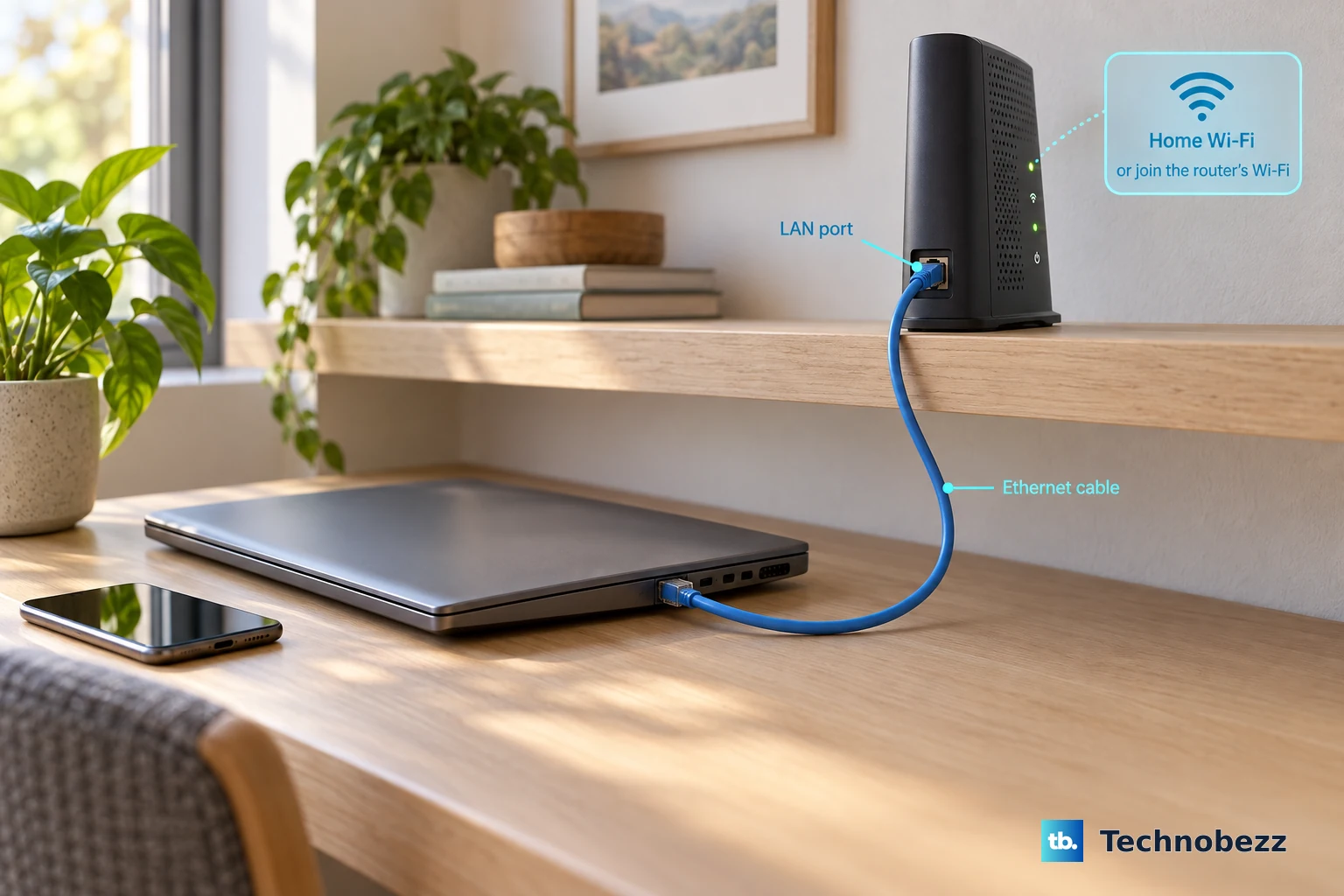
Your phone or computer has to be connected to that router’s own network before 192.168.0.1 opens. Use Ethernet to a router LAN port, or join the router’s Wi-Fi network.
For first-time TP-Link setup, use the default Wi-Fi name and password printed on the router label, then open 192.168.0.1 in the browser address bar.
3. Use the correct router address for your brand
This fixes routers that use a brand login domain instead of 192.168.0.1. For TP-Link Archer and Aginet routers, open https://tplinkwifi.net/, and for TP-Link Deco, open https://tplinkdeco.net/.
For TP-Link DSL, 4G, and 5G modem routers, open https://tplinkmodem.net/. For TP-Link Mobile Wi-Fi, open https://tplinkmifi.net, and for TP-Link range extenders, open https://tplinkrepeater.net/.
For TP-Link access points, open https://tplinkap.net/. For TP-Link powerline adapters, open https://tplinkplc.net/, and for D-Link routers, open http://dlinkrouter.local.
For NETGEAR routers, open www.routerlogin.net or www.routerlogin.com. For NETGEAR Orbi, open orbilogin.com.
4. Find the real gateway address
On Windows, open Settings > Network & internet. Select Wi-Fi and your connected network, or select Ethernet, then open connection properties and use Default Gateway.
On Mac, open Apple menu > System Settings > Wi-Fi > Details > TCP/IP and use the address listed as Router. On iPhone or iPad, open Settings > Wi-Fi, tap the connected network or Info, and use the address listed as Router.
On Android, open Settings > Network & internet > Internet, tap the connected Wi-Fi network or its Settings icon, and use Gateway. On Chromebook, select the time, select the Wi-Fi network, select Information, and use the gateway shown in network details.
After that, enter that gateway address in the browser address bar exactly like 192.168.0.1.
5. Clear browser blocks and cached login pages
This fixes browser state and local certificate screens that stop the router page from loading cleanly. Open the router page in Chrome, Firefox, or Edge.
When a TP-Link page at https://192.168.0.1 or tplinkwifi.net shows a privacy warning, click Advanced, then click Proceed to 192.168.0.1 (unsafe) or Proceed to tplinkwifi.net (unsafe).
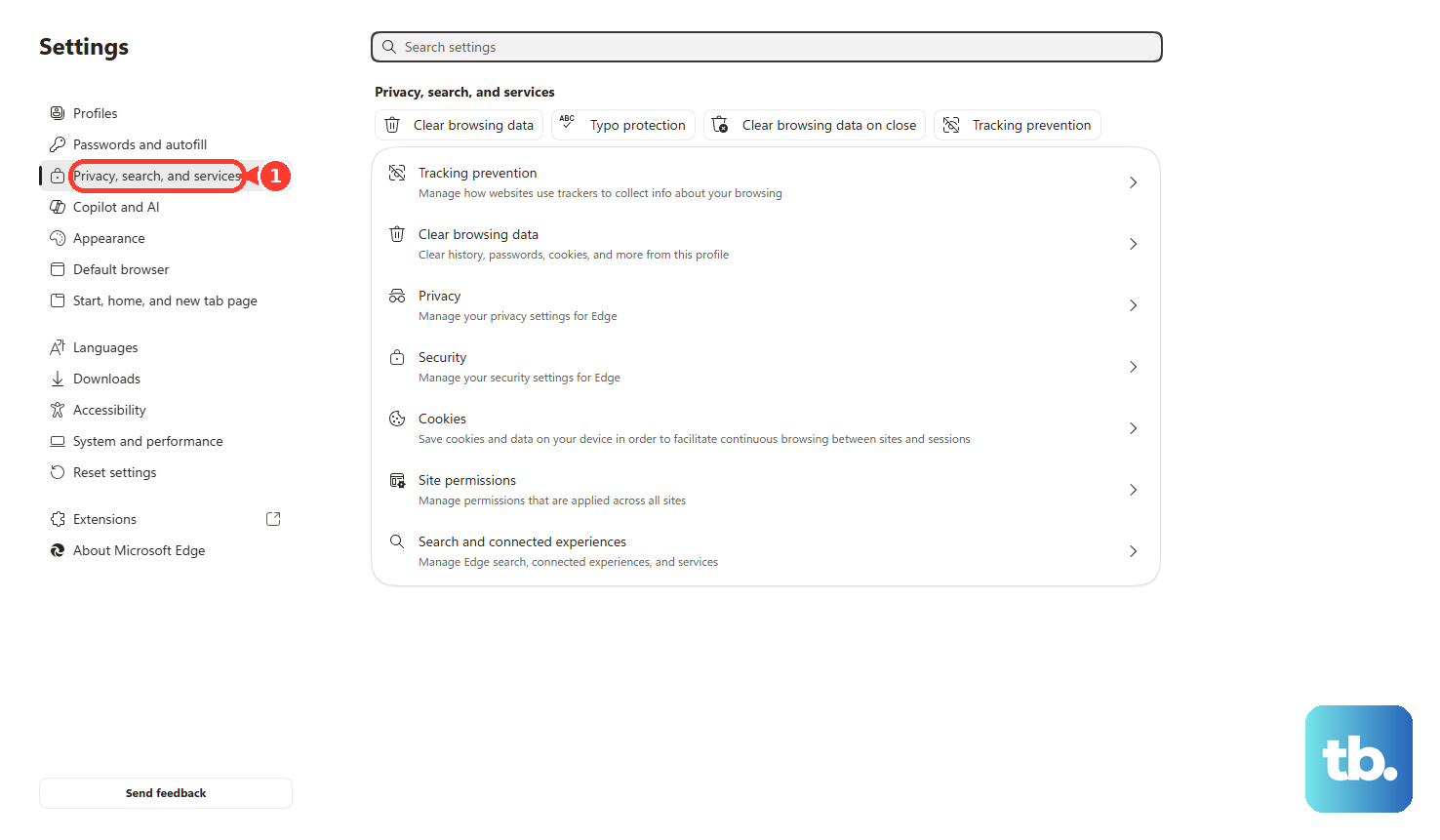
In Chrome, open More > Delete browsing data, choose Cookies and other site data, select a Time range, and delete the data. In Microsoft Edge, open Settings and more > Settings > Privacy, search, and services > Clear browsing data > Choose what to clear, select a Time range and data types, then click Clear now.
If the problem continues, try another browser, then try another phone, tablet, or computer connected to the same router network.
6. Remove VPN proxy and security blocks
On Windows 11, select the Network, Volume, Battery icon on the taskbar, select VPN, then disconnect the VPN. That panel only lists VPN profiles added in Windows, so a service with its own client, such as NordVPN or ExpressVPN, has to be disconnected from inside that app.
On Android, open Settings > Network & internet > VPN, tap Settings next to the VPN, then turn it off. On Windows, open Settings > Network & internet > Proxy and turn off manual proxy settings.
When a proxy is required, keep Don’t use the proxy server for local (intranet) addresses enabled. In Microsoft Edge, open edge://settings/privacy/security, find Security, turn off Use secure DNS to specify how to lookup the network address for websites, then restart Edge.
Secure DNS only changes how names are looked up, so this step is for a brand address like tplinkwifi.net or routerlogin.net that will not load, not for the numeric 192.168.0.1. Turn Secure DNS back on once the router page opens.
For a final check, temporarily disable firewall or antivirus software, reload 192.168.0.1, then turn protection back on after the test.
7. Repair the local network connection
A bad local IP address keeps a Windows PC from reaching the router even when Wi-Fi shows connected. Open Settings > Network & internet, choose your Wi-Fi or Ethernet connection, set IP assignment to Automatic (DHCP), and save.
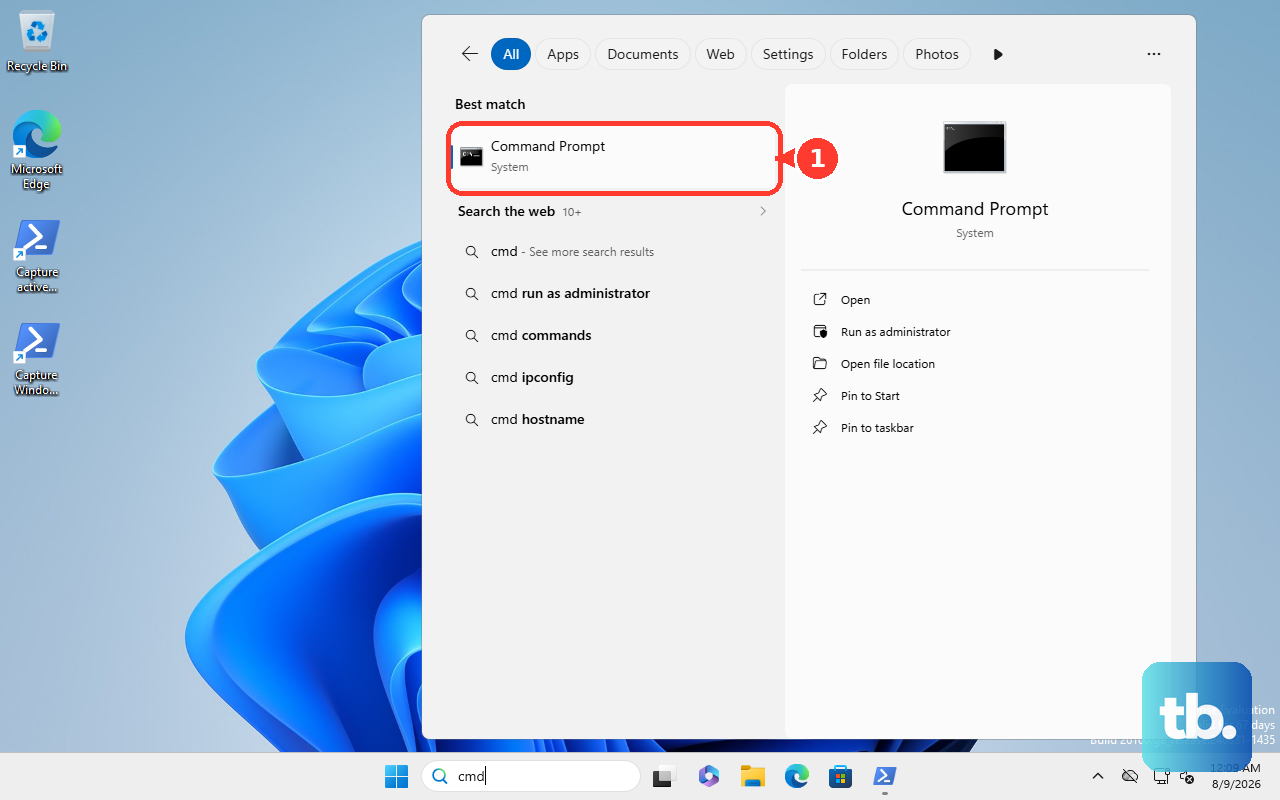
Then open Command Prompt as Administrator and run ipconfig /release, ipconfig /renew, and ipconfig /flushdns.
A 169.254.x.x address means Windows did not get an address from the router, so restart the router and reconnect.
8. Sign in with the right admin password
Use the local admin password you created when you set up the router. For first-time TP-Link setup, create a secure admin password when the router asks for one.
For older TP-Link models, try admin for the username and admin for the password. For the documented D-Link DIR-series login, use admin as the username and leave the password blank.
For NETGEAR still on factory defaults, use admin as the username with password on current models or 1234 on older ones. Newer NETGEAR routers make you create an admin password during first-time setup, so use that password instead, and check the bottom or back label for model-specific details.
For TP-Link Password Recovery already configured under Advanced > System/System Tools > Administration, open tplinkwifi.net, click Forgot Password?, and follow the email or security question steps. Email recovery needs the sending and receiving mailboxes and the SMTP Server saved ahead of time, and it is disabled when you sign in with a TP-Link ID, which leaves the security question method.
Security questions appear only on models that support them. For a TP-Link cloud account password, click Forgot password on the web management page or Forgot Password in the Tether app, enter the cloud email address, and use the reset email.
Admin passwords and Wi-Fi passwords are separate, so the password that connects you to Wi-Fi does not automatically open router settings.
9. Reset the router as the last step
A factory reset erases router settings, so use it after the address, browser, network, and password checks fail. For TP-Link, hold the physical Reset or WPS/Reset button for more than 10 seconds while the router is powered on, release it when the SYS LED changes from slow-flash to quick-flash, wait for reboot, then reconnect with the default label details.
For NETGEAR, confirm the Power light is on, hold the back Restore Factory Settings or Reset button for seven seconds, release it, then log in with admin and password.
Frequently Asked Questions
Why does 192.168.0.1 open a search results page?
The address was entered in a search box or the browser treated it as a search. Click the address bar at the top of Chrome, Firefox, or Edge, then enter 192.168.0.1 directly.
Is the privacy warning on 192.168.0.1 dangerous?
For TP-Link local router pages, the warning appears because the router uses a self-signed certificate. TP-Link documents clicking Advanced and proceeding to the local router address.
Can I use a phone app instead of 192.168.0.1?
Yes. TP-Link routers supported by Tether can use the TP-Link Tether app, NETGEAR routers supported by Nighthawk can use the Nighthawk app, and NETGEAR Orbi systems can use the Orbi app.
What should I do on a work or school managed device?
Managed devices can enforce VPN, proxy, firewall, Wi-Fi profile, or supervised-device restrictions. Use a personal device on the router Wi-Fi, or contact the organization that manages the device.