


To map a network drive in Windows 11, press Windows + E, select This PC > More > Map network drive, choose a drive letter, enter your shared folder’s path, and select Finish. Select Reconnect at sign-in before finishing if you want automatic reconnection. These steps use Windows 11 menus and work with accessible Windows, NAS, or other compatible SMB shares.
The short version
- Start in File Explorer: Open This PC and select Map network drive from More.
- Enter the shared folder: Choose an unused drive letter and enter the folder’s network path.
- Keep the connection: Select Reconnect at sign-in before finishing the mapping.
- Use the right account: Select Connect using different credentials when the share requires a different account.
| Method or option | When to use it |
|---|---|
| File Explorer through More | Map an accessible SMB shared folder |
| This PC context menu | Find the mapping command when it is missing from More |
| Connect using different credentials | Authenticate with another authorized account |
net use | Create or list connections in Command Prompt |
New-PSDrive | Create a persistent Windows drive through PowerShell |
New-SmbMapping | Create an SMB mapping with the SmbShare module |
| NTLM blocking | Require a compatible authentication method on Windows 11 24H2 or later |
| Startup folder | Run a mapping command at sign-in |
| Group Policy Preferences | Deploy mappings to domain-managed users |
| Mapping command policy | Let an administrator check why mapping commands are hidden |
| Network discovery | Locate devices on a trusted local network before mapping |
| Synology Assistant | Map a shared folder on compatible Synology storage |
| Synology Download Center | Get Synology Assistant for your NAS model |
| QNAP Qfinder Pro | Map a folder on a compatible QNAP NAS on the same LAN |
| QNAP Essentials utilities page | Get Qfinder Pro for Windows |
mount.exe | Map an NFS export with Client for NFS installed |
net use Z: /delete | Disconnect a mapping in your current session |
Remove-SmbMapping | Remove an SMB mapping and its saved profile entry |
Map the shared folder in File Explorer
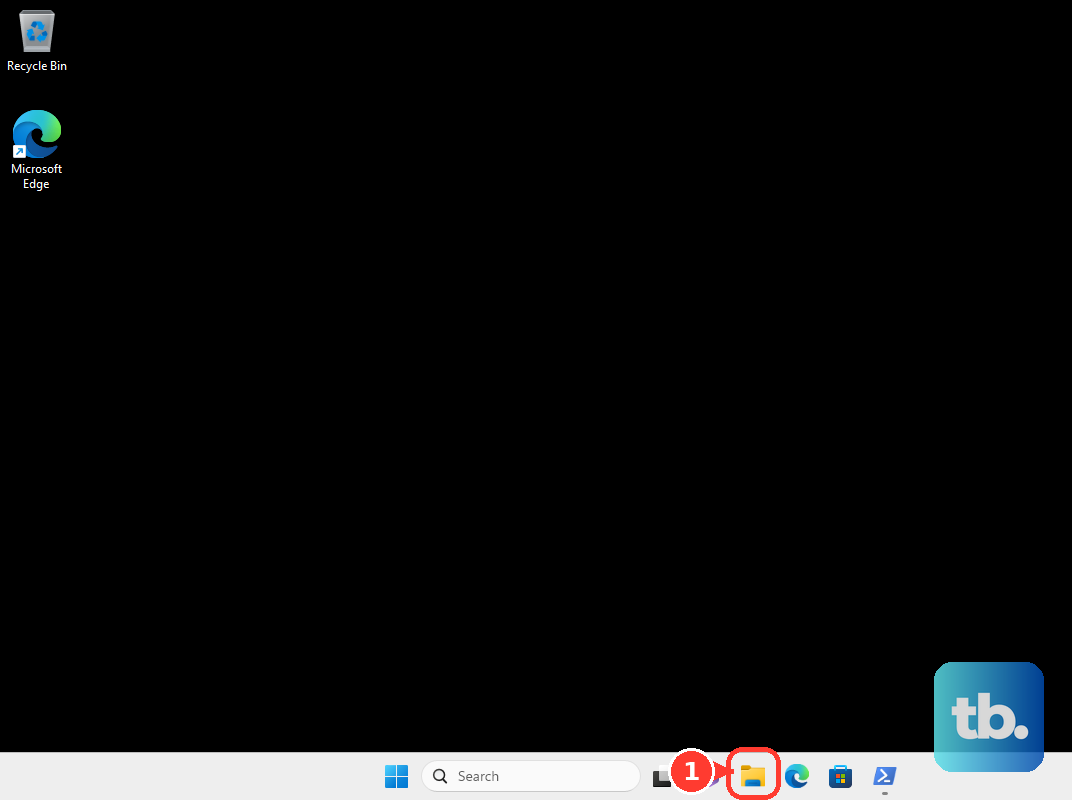
Press Windows + E to open File Explorer, then select This PC in the navigation pane. Open More and select Map network drive. If that command is missing from More, right-click This PC in the navigation pane and select Map network drive there.
In Drive, choose an unused letter. In Folder, enter the shared-folder path in the form \\server\share, replacing the server and share names with the ones for your folder. You can also select Browse to locate the shared folder.
Select Reconnect at sign-in if you want Windows to reconnect automatically when you sign in. Then select Finish to complete the mapping. This method applies to Windows 11 Home, Pro, Enterprise, and Education.
Find your share and choose its account
If the share requires credentials different from your signed-in Windows account, choose your drive letter and enter the shared-folder path in the mapping dialog. Select Connect using different credentials, then select Finish. Supply the account credentials authorized by that server or NAS.
If you need to browse for devices on a trusted local network, open Settings and search for manage advanced sharing settings. Select Manage advanced sharing settings, then under Private networks, turn on Network discovery. This helps you locate shares before choosing one to map.
Alternatively, open Network in File Explorer and select the discovery warning banner. Select Turn on network discovery and file sharing. These controls do not assign a drive letter, so return to This PC and complete the mapping steps afterward.
Map a drive with Command Prompt
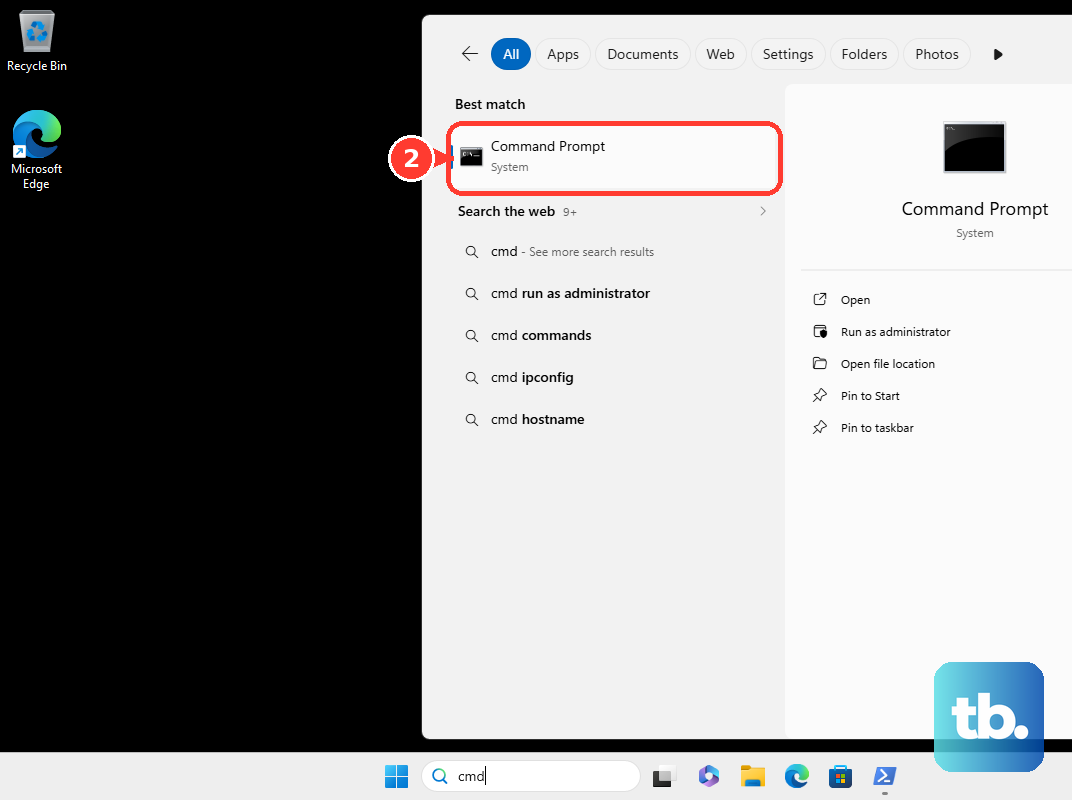
Open Command Prompt in your normal user session. Run the following command, replacing Z: with an unused drive letter and \\server\share with your shared-folder path.
net use Z: "\\server\share" /persistent:yesThe /persistent:yes option saves the connection for reconnection at sign-in. For a mapping that is not persistent, use /persistent:no instead.
For a share that requires another account, use the command below and replace SERVER\username with the appropriate account. The asterisk requests a password prompt, so enter the password when prompted.
net use Z: "\\server\share" * /user:SERVER\username /persistent:yesYou can review connections from the same user session after creating a mapping. Run the following command to list them.
net useOn Windows 11 24H2 and later, you can also block NTLM for an individual connection to a server that supports Kerberos authentication. This is an optional security setting for a compatible authenticated server, rather than a requirement for ordinary home NAS mapping. Use this variant when those conditions apply.
net use Z: \\server\share /persistent:yes /BLOCKNTLMUse PowerShell for a persistent mapping
With Windows 11’s built-in Windows PowerShell 5.1, you can create a mapped drive that is visible in File Explorer. Open Windows PowerShell in your normal user session and run this command, replacing Z and the shared-folder path with your own values.
New-PSDrive -Name Z -PSProvider FileSystem -Root '\\server\share' -Persist -Scope GlobalKeep -Persist to create a Windows drive visible in File Explorer. Without that option, the command creates a PowerShell-only drive. For a different account, run this version to request credentials.
New-PSDrive -Name Z -PSProvider FileSystem -Root '\\server\share' -Persist -Scope Global -Credential (Get-Credential)On Windows 11 with the SmbShare module, you can use New-SmbMapping to create an SMB-client mapping directly. Open Windows PowerShell in the user session that needs the drive, then run the following command with your letter and path.
New-SmbMapping -LocalPath 'Z:' -RemotePath '\\server\share' -Persistent $trueOn Windows 11 24H2 and later, this method also supports blocking NTLM for an individual connection. If your server supports Kerberos authentication, use the following variant.
New-SmbMapping -LocalPath 'Z:' -RemotePath '\\server\share' -Persistent $true -BlockNTLM $trueMap a NAS folder with its companion app
For compatible Synology storage, get Synology Assistant from the Synology Download Center. Choose your NAS product category and model, then find Synology Assistant under Desktop Utilities. Choose the Windows download supported for your model.
Open Synology Assistant and locate your storage system. Select it, click Map Drive, and complete the mapping wizard for the shared folder you want to use.
For a compatible QNAP NAS on the same LAN, get Qfinder Pro from the QNAP Essentials utilities page by locating Qfinder Pro and choosing its Windows download. Open Qfinder Pro, select the NAS, and choose Connect > Storage Plug & Connect. Enter the NAS credentials and click OK.
Select an existing shared folder, then click Map the Network Drive. Choose the drive letter you want to assign and click OK to finish.
If you need to create a shared folder first, click Create a Network Drive. Enter its name, select its location, and click OK, then map the folder using the steps above.
Run a mapping command at sign in
The command’s persistence option is usually enough to reconnect your drive. If you need the mapping command to run at sign-in, first confirm that your net use command works, save it in a .cmd file, and create a shortcut to that file.
Press Windows + R and enter the command below, then select OK. Put the shortcut in that folder so it runs when your user signs in. The share must be reachable when the command runs.
shell:startupManage mappings on work PCs
If mapping commands are hidden on a managed PC, your administrator can inspect the policy at User Configuration > Administrative Templates > Windows Components > File Explorer > Remove "Map Network Drive" and "Disconnect Network Drive". Enabling it hides the mapping and disconnection commands; disabling it or leaving it unconfigured permits the normal interface. This policy applies to Windows 11 Pro, Enterprise, Education, and IoT Enterprise, and controls access to the commands without creating a mapping.
If you administer domain-managed Windows 11 Pro, Enterprise, or Education PCs, you can deploy mappings through Group Policy Preferences. In Group Policy Management, edit the relevant user GPO and open User Configuration > Preferences > Windows Settings > Drive Maps. Right-click Drive Maps and select New > Mapped Drive.
Set Action to Update, enter the UNC share path in Location, and choose the drive letter. For saved reconnection, select Reconnect, then select OK. Link and apply the GPO to the intended users.
Map an NFS share
For an NFS export, use this method only on a Windows 11 installation offering and running Client for NFS. NFS authentication and export permissions must already be configured. Open Command Prompt and run the following command, replacing the server, exported path, and available drive letter.
mount.exe server:/export Z:You can also list mounted NFS file systems from Command Prompt. Run the command without arguments.
mount.exeDisconnect a mapped drive
The following command disconnects the mapping without deleting the remote folder. Close files using the mapped drive, then open Command Prompt in the user session where the mapping exists. Run this command, replacing Z: with the drive you intend to disconnect.
net use Z: /deleteKeep the specific drive letter in the command so you target the intended mapping. Avoid the wildcard form unless you intend to disconnect every applicable connection.
The PowerShell command below removes the SMB mapping and its saved profile entry, so that profile will not restore it. For a mapping belonging to your session on Windows 11 with the SmbShare module, close files using the drive, then run the following command with the appropriate letter.
Remove-SmbMapping -LocalPath 'Z:' -UpdateProfileAt the confirmation prompt, select Yes. This completes removal of the mapping and its saved profile entry.
In Qfinder Pro, unmapping removes the selected drive mapping. To do that, click Unmap the Network Drive, then click OK.
Frequently Asked Questions
Can Windows choose an available drive letter automatically?
Yes, with net use, replace the drive-letter argument with an asterisk to allocate an available letter. This is separate from the password-prompt asterisk used with another account.
Why does the PowerShell command include global scope?
Global scope prevents a mapping created within a script’s local scope from disappearing when that script ends. Keep -Scope Global alongside -Persist when using the New-PSDrive example in a script.
Can I use PowerShell 7 for the New-PSDrive method?
Yes, you can also use New-PSDrive with PowerShell 7 on Windows. The method is not limited to the built-in Windows PowerShell 5.1.
Should I create a VBScript file to map a network drive?
Use net use or PowerShell for a new mapping script. Microsoft has deprecated VBScript, although that does not mean every existing script has already stopped working.
Should I map a SharePoint Online library using an old browser procedure?
Microsoft recommends OneDrive synchronization instead of its older Internet Explorer-authenticated mapped-drive procedure. A synchronized library gives you access to files, but it is not an SMB drive-letter mapping.
Is built-in WebDAV mapping a good default for a new connection?
Microsoft has deprecated the WebClient service used by built-in WebDAV mapping. That older functionality depends on Windows retaining WebClient and on a compatible WebDAV server, so it is not a universal way to map websites or cloud-storage accounts.
How do Delete and Replace differ in Group Policy Drive Maps?
The Delete action removes a mapping. The Replace action deletes and recreates it, so it differs from the Update action used in the setup steps.