


To manage an Android system update notification, install the update or touch and hold the alert to change its available notification controls. Snoozing, silencing, and hiding change the reminder without completing the update. Protected system update notifications may not let you turn them off, and disabling automatic downloads does not necessarily stop reminders.
The short version
- Complete the update: Open the notification and follow its installation instructions, including a restart when required.
- Delay the reminder: Dismiss or snooze an eligible notification to clear it temporarily.
- Reduce interruptions: Use editable notification categories or Do Not Disturb to adjust sound and visibility.
- Know the limit: Protected update notifications can remain visible even when other alerts are silenced.
| Option | What it changes | Main limitation |
|---|---|---|
| Install and restart | Completes the pending update | Update menus vary by device |
| Dismiss | Clears an eligible notification | The reminder can return |
| Snooze | Delays an eligible reminder | The alert must offer snoozing |
| Sender or category settings | Controls eligible notifications | Protected categories may be locked |
| Silent notification setting | Removes an editable alert's sound | The reminder remains available |
| Banner setting | Stops an editable category's pop-ups | The category must expose the control |
| Volume controls | Reduces notification audio broadly | Affects other notifications too |
| Do Not Disturb | Filters eligible interruptions | Critical system alerts can still appear |
| Lock screen settings | Changes visibility or presentation | The update remains pending |
| Pixel screen wake setting | Stops notifications from waking the display | Notifications remain available |
| Status bar settings | Changes which notification icons appear | Does not remove the pending update |
| Galaxy installation schedule | Sets a later installation time | Your model must offer scheduling |
| Automatic update controls | Changes downloading or installation | Reminders can continue |
| Xperia restart cancellation | Delays a scheduled restart | Reminders continue until installation finishes |
| Xperia storage clearing | Temporarily removes the update icon | Restarting or checking for updates restores it |
| Galaxy Smart Switch | Installs an available update through a computer | Device and update availability vary |
| Pixel browser repair tool | Updates or repairs software through a computer | Requires a supported Pixel |
| Xperia Companion repair | Repairs software after persistent failures | Deletes internal-storage data |
Install the update or find it in Settings
Tap the system update notification, choose its update action, and follow the installation instructions. The action's label depends on your manufacturer. On Pixel phones and Pixel Tablet, restart after the background installation finishes to activate the update.
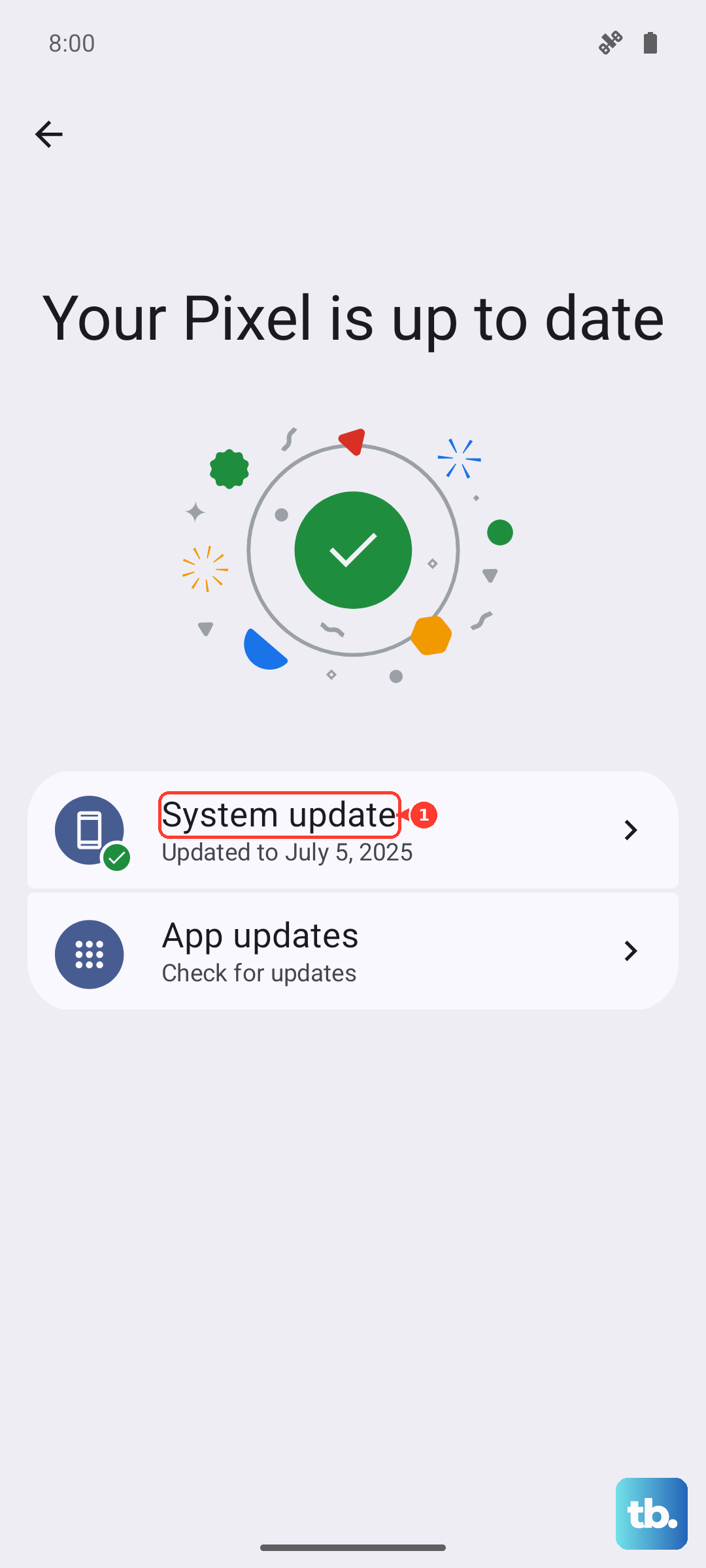
For Pixel, open Settings > System > Software updates to find an update after dismissing its notification. Some Pixels call the last option System update. On Pixel 6 and later, including Fold, hold Power + Volume up for a few seconds, then tap Restart when installation is ready.
On Galaxy, open Settings > Software update > Download and install, then follow the prompts. Model and carrier alternatives include System updates, Check for system updates, and Check for software updates. Tap Download now if offered, then finish the installation.
On Motorola's moto g 2026, open Settings > System updates > Check for updates and follow the installation instructions. Other Motorola models can use different paths. On devices using the HyperOS 3 interface, open Settings > About phone > Xiaomi HyperOS > Check for updates.
On Xperia, open the notification panel, select the system update, and follow the on-screen instructions to download and install it. You can also reach the updater through Settings > System > Software update on models such as Xperia 10 VI, or Settings > System > System updates on newer models such as Xperia 1 VIII, Xperia 1 VII, and Xperia 10 VII.
For security and Google Play system update prompts, open Settings > Security & privacy > System & updates on devices with these menus. Select Security update or Google Play system update, then follow the instructions for that update.
Dismiss or snooze the reminder
Swipe a dismissible update notification left or right, or tap Clear all. Unlock your phone first if the lock screen does not allow dismissal. A persistent update notification can remain in place or return later.
To delay an eligible notification, open Settings > Notifications and turn on Allow notification snoozing. Expand the notification using its down arrow, tap Snooze, and adjust the duration. Snoozing postpones the reminder without installing the update.
On Galaxy, open Settings > Notifications > Advanced settings > Show snooze button. Enable that setting, then use the notification's snooze button. If the update alert has no snooze control, check its sender settings next.
Adjust the update sender's notification settings
Touch and hold the update notification, then tap Settings to reach its sender's controls. Adjust All notifications or the available notification categories. A protected system update category can leave these controls unavailable.
You can also open Settings > Notifications > App notifications, choose Most recent or All apps, and select the sender. Choose the sender identified by your update notification, since the updater varies by device. Adjust whichever notification controls are available.
On Galaxy, first open Settings > Notifications > Advanced settings and enable Manage notification categories for each app. Return to Notifications, open App notifications, select the sender, and choose Notification categories. Enabling category controls does not unlock a protected category.
Silence sounds and hide banners
For an editable notification on moto g 2026 with Android 16, touch and hold the notification and select Silent. Alternatively, open Settings > Notifications > App notifications, select the app and notification type, then choose Silent. The reminder stays available without an audible alert.
In the same Motorola notification type settings, turn off Pop on screen to stop its pop-up banner. Both controls require an editable notification category. If your updater locks these settings, use the broader sound controls below.
On Android devices with Google's volume interface, press Volume up or Volume down, tap Menu, and lower Notification volume. For silent mode, press either Volume up or Volume down, tap Ring above the slider, then choose Mute. These controls affect notifications broadly, so other alerts will also become quieter.
For temporary quiet on devices with the current Modes menu, open Settings > Modes > Do Not Disturb and tap Turn on now. You can also open Quick Settings and tap Do Not Disturb. Google says critical system security notifications still show, so some alerts can remain visible.
On Galaxy, tap Do not disturb in Quick settings to enable it, then touch and hold the tile to open its settings. Open Hide notifications and choose controls such as Don't show pop-up notifications or Hide status bar icons. Samsung says critical phone activity and status notifications remain visible.
Change lock screen and status bar visibility
On a Pixel, touch and hold an empty home screen area, open Wallpaper & style, swipe right to Lock screen, then swipe up and select Notifications on lock screen. Adjust On, choose Compact View or Full list, or change Show silent notifications. These settings change lock screen presentation while leaving the update pending.
To stop Pixel notifications from waking the display, open Wallpaper & style > Lock screen > More lock screen settings. Turn off Wake screen for notifications. Notifications remain available without waking the screen.
On Galaxy, open Settings > Notifications > Lock screen notifications to adjust visibility and content. Choose Hide content, Show content, or Show alerting notifications only, depending on the controls your model offers. For status bar presentation, open Settings > Notifications > Advanced settings > Show notification icons and choose your preferred display.
On moto g 2026 with Android 16, open Settings > Notifications > Hide silent notifications in status bar. Enable it and restart to apply the change. Silent notifications remain in the pull-down panel.
Choose when updates download or install
If your Galaxy offers installation scheduling, open Settings > Software update > Download and install, then tap Download. After downloading, select Schedule install, choose the Auto install time, and tap OK. Availability varies by model and software version.
To control automatic Galaxy downloads, open Settings > Software update or System updates and adjust Auto download over Wi-Fi, if available. Turning this switch off does not guarantee that update reminders stop.
On Xiaomi 15 Ultra, open Settings > About phone > Xiaomi HyperOS, open the three-dot menu, and select Update settings. Configure Download automatically and Update automatically to change automatic downloading and overnight installation. Update reminders can still appear.
On Xperia models with automatic update controls, open Settings > System > Software update, or System updates on newer models such as Xperia 1 VIII, followed by the three-dot More menu, Settings, and Auto update system. Select your preferred option. To delay a scheduled restart, select Cancel in that notification. Reminders continue until installation is complete, even if you turn automatic updates off.
Temporarily remove the update icon on Xperia
On Xperia running Android 13 or higher, Sony lets you temporarily remove the system software update icon by clearing the updater's storage. Open Settings > Apps > See all apps, with your installed app count included in that label. Open the three-dot menu and select Show system.
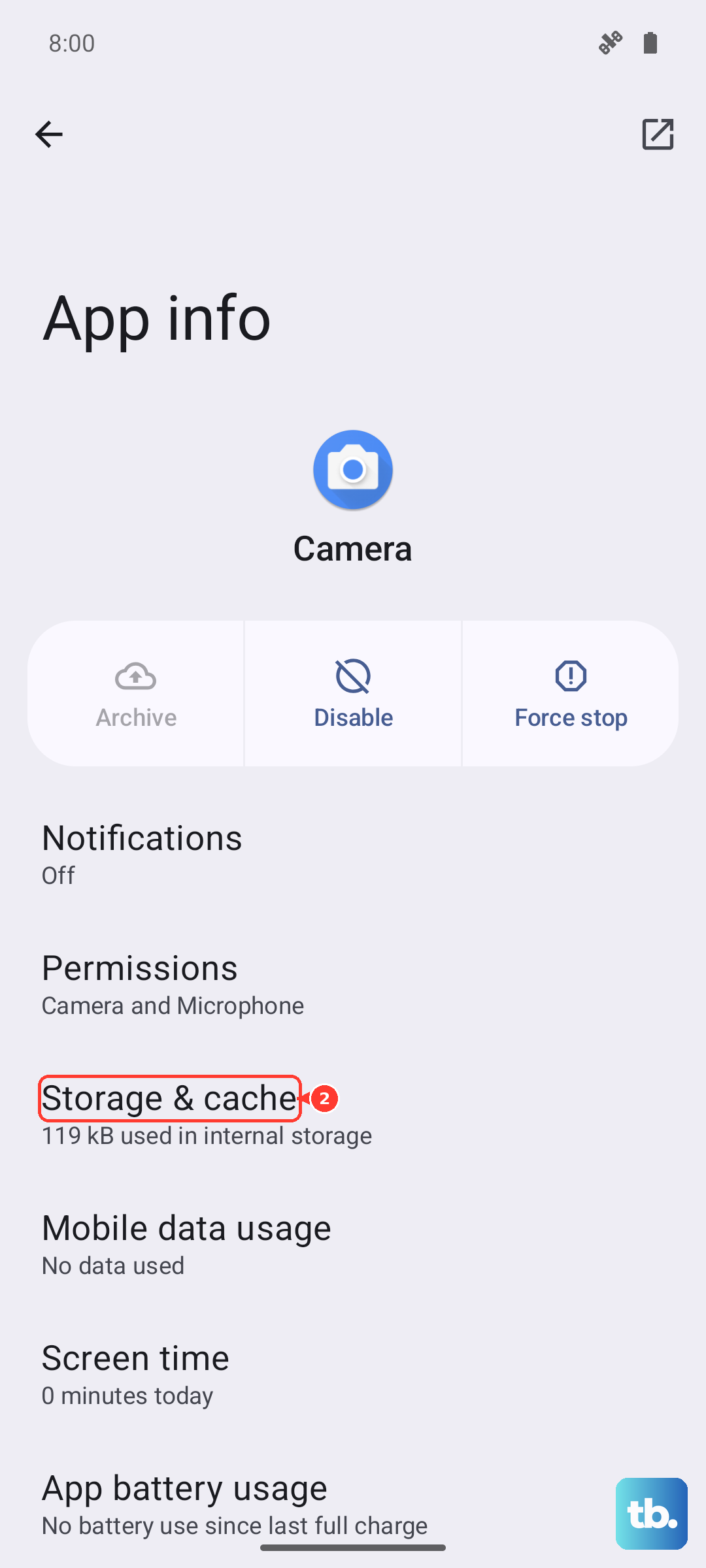
Select Software update, then open Storage and cache and tap CLEAR STORAGE. The notification returns after you restart the phone or manually check for updates. Use this procedure only for the supported Xperia devices; it is not a universal Android notification fix.
Fix failed installations with a computer
If your Galaxy update keeps failing, get Samsung Smart Switch for Windows or Mac, connect your compatible device by USB, and open the software. Select Update when Smart Switch offers an update, then follow its prompts. Update availability through Smart Switch varies by device.
For a supported Pixel, connect the phone to a computer by USB and open Google's Update and Software Repair tool. Follow the on-screen instructions. Use this tool for software problems that prevent you from completing an update.
For persistent Xperia update failures, get Xperia Companion and back up your internal storage because software repair deletes its data. Open Companion, select Manage your Xperia > Software repair, and follow the instructions. Sony supports software repair in Companion but no longer offers routine software updates through it. Use the phone's updater for routine installation.
Frequently Asked Questions
Is a Google Play system update the same as a Play Store app update?
No, Google Play system updates are separate from Play Store app updates. Xiaomi's System apps updater also handles built-in app updates, so its Show update notifications switch does not control Android or HyperOS operating system reminders.
Can notification history recover an update alert I dismissed?
On supported Galaxy devices, you can find dismissed alerts in notification history only if you enabled it beforehand. Open Settings > Notifications > Advanced settings > Notification history and enable its switch to save future notifications.
Can I make repeated notifications less noisy without muting everything?
If your Android device offers Notification cooldown, you can use it to reduce repeated notification sounds. Open Settings > Notifications > Notification cooldown and enable Use Notification cooldown. It affects notifications generally and does not specifically block update alerts.
Can I silence notifications automatically when I put my Pixel face down?
On Pixel models with Flip to Shhh, open Settings > System > Gestures > Flip to Shhh and enable it. Place your phone face down on a flat surface to activate Do Not Disturb. Its normal exceptions still apply.
Will opting out of Android Beta stop update notifications?
Opting out changes your beta enrollment and can generate a return-to-stable update notification. Installing that exit update normally wipes local data, although limited stable-release exit windows let you leave without wiping. Read the exit-update notice before proceeding.
Why does an alert still make a sound after I set the default notification sound to None?
A notification category can have its own sound, which you need to adjust separately if its controls are editable. On moto g 2026 with Android 16, Settings > Sound & vibration > Default notification sound > None changes only the default sound. Categories with their own sounds need individual changes.