Want Chrome to fill your screen, but can't find the right control? On Windows and Linux, press F11; on a Mac, press Control+Command+F. Here are the menu alternatives, tablet controls, and ways to get back out.
Use a keyboard shortcut on Windows, Linux, or Chromebook
A keyboard shortcut puts Chrome into full-screen mode.
Make Chrome the active window.
On Windows or Linux, press F11 to enter full screen.
Press F11 again to return to the regular window.
Alternatively, press and hold Esc to exit.
On a Chromebook, press the full-screen key in the keyboard's top row. Google also calls this the F4 key.
Try Chrome's menu without a keyboard
If your keyboard shortcut doesn't work, use Chrome's menu. This works on Windows, macOS, Linux, and ChromeOS.
Open Chrome's three-dot More menu.
Next to Zoom, select the Full screen icon. The nearby zoom controls change page size; the full-screen icon changes the browser's display mode.
Make Chrome full screen on a Mac
With Chrome active, press Control+Command+F to enter full screen.
Press Control+Command+F again to leave.
As an alternative on a Mac keyboard with an Fn key, press Fn+F to toggle full screen.
For a mouse alternative, click Chrome's green window button at the top left.
To use the button's menu instead, hover over the green window button.
Choose Full Screen > Entire Screen.
Click the green window button to exit full screen.
To hide Chrome's toolbar while already in full screen, open View in the Mac menu bar.
Deselect Always Show Toolbar in Full Screen.
Tip: Command+Shift+F toggles toolbar visibility on Mac; Control+Command+F toggles full-screen mode itself.
Expand Chrome on an Android tablet or iPad
Android tablet immersive mode hides browser controls; iPad window expansion gives the app the whole screen.
On an Android tablet with Chrome's immersive-mode control, start with Chrome occupying the tablet's full screen.
Tap More.
Next to the zoom level, tap Full screen.
Use a three-finger swipe to exit immersive mode.
Alternatively, press Esc on an attached keyboard to exit.
On an iPad running iPadOS 26 in Windowed Apps mode, tap Window Controls at the top of Chrome's window.
Tap Full Screen. This expands the app window without guaranteeing that Chrome's browser toolbar disappears.
Enlarge just the window or video
Need more room while keeping Chrome's controls visible? Maximize the window. On Windows, press Alt+Space to open the window menu.
Press X to maximize Chrome.
On Windows or Linux, double-click an empty area of the tab strip to switch between maximized and windowed modes.
On Mac, double-click an empty area of the tab strip to increase the window to full height.
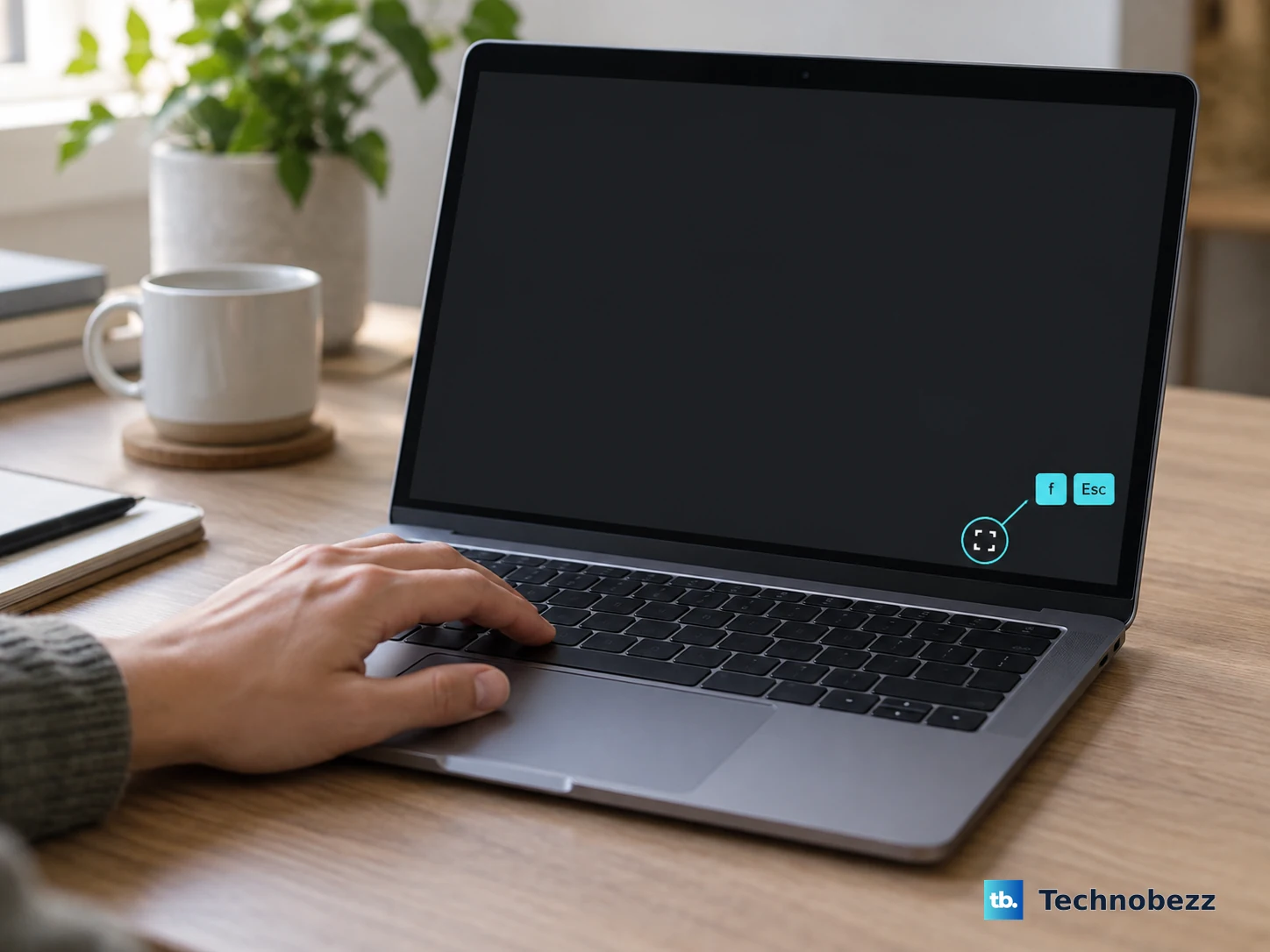
For a YouTube video, click the player's Full screen (f) button. This expands the video rather than keeping the entire webpage on screen.
Press F or Esc to leave the video's full-screen view.
If maximizing the window doesn't give you the view you want, try Chrome's full-screen control. Open More.
Select the Full screen icon next to Zoom.
Frequently Asked Questions
Can I use the Android tablet instructions on a phone or iPhone?
Those immersive-mode instructions apply only to Android tablets exposing that control. On Samsung Galaxy devices supporting pop-up view, tap Chrome's floating window, then tap Maximize window to restore the full-size app window. That changes the window size, not Chrome's toolbar visibility.
Do I need an extension or to reinstall Chrome?
No. Desktop Chrome's built-in controls handle full-screen mode without an extension or reinstallation.
Will installing a website as an app make it full screen?
Installation alone does not guarantee full-screen display. On Android, the web app's implementation determines its presentation. On desktop, launch the installed app and use the applicable desktop full-screen control. An ordinary website shortcut does not guarantee an immersive view.
Why is full screen blocked on my work Chromebook or Windows PC?
Administrators can block full-screen mode through the FullscreenAllowed policy in managed Chrome on Windows, Linux, and ChromeOS. Ask your administrator to check that policy. Allowing full screen permits you to enter it; it doesn't automatically make pages full screen.