You open Apple TV, enter your Apple Account, and the sign-in screen still blocks the show. The right fix depends on where you are watching: Apple TV hardware, the Apple TV app on another device, or tv.apple.com. Start with the path that matches your screen, then move to the account and app fixes only if sign-in still fails.
1. Choose the right Apple TV log in path first
Apple uses different sign-in flows depending on the device. Match the device first so you do not waste time in the wrong menu.
On Apple TV 4K or Apple TV HD, use Settings and sign in with another Apple device or your Apple Account password.
On a smart TV, streaming device, game console, cable box, or satellite box, open the Apple TV app and sign in with a QR code, link code, or remote.
On the web, go to tv.apple.com and choose Sign In.
On Android, Windows, or Mac, use the Apple TV app’s own Sign In option.
Use the Apple Account connected to your purchases or subscription. If you are signing up for Apple TV, Apple may ask you to confirm billing or create a new Apple Account.
2. Sign in on Apple TV 4K or Apple TV HD
- 1.Open Settings.
- 2.Choose Users and Accounts.
- 3.Select a Suggested User or choose Add New User.
- 4.Choose Use Another Apple Device.
- 5.Bring a signed-in iPhone or iPad close to the Apple TV.
- 6.Follow the instructions on both devices.
Bluetooth must be on for both devices. If Use Another Apple Device is missing or fails, update the Apple TV and the nearby iPhone or iPad, then repeat the same path.
For manual sign-in, open Settings, choose Users and Accounts, select a Suggested User or Add New User, then choose Sign in Manually. Enter your Apple Account email address or phone number, enter your password, then type the six-digit verification code if Apple asks for it.
3. Set up a new Apple TV without retyping everything
If you are setting up Apple TV 4K or Apple TV HD for the first time, use your iPhone when it is available.
On the setup screen, choose Set Up with iPhone.
Unlock your iPhone.
Hold the iPhone next to the Apple TV.
Follow the onscreen steps on the iPhone and Apple TV.
To set it up manually, choose Set Up Manually, connect to Wi-Fi (or plug in an Ethernet cable if your Apple TV has an Ethernet port), then sign in with your Apple Account. Apple TV 3rd generation can update built-in apps only; it cannot download new apps from the App Store.
4. Log in to the Apple TV app on a smart TV or streaming device
Open your device’s app store and search for Apple TV.
Download the Apple TV app.
Open Apple TV and follow setup, or open the sidebar and choose Settings.
Select Sign in.
Choose Sign In On Mobile Device.
Scan the QR code with your phone camera, or go to link.apple.com and enter the code shown on your TV.
Follow the instructions on your mobile device.
On devices that offer remote sign-in, choose Sign in with Remote, then enter your Apple Account email address or phone number and password with the remote.
5. Use Apple TV on Android, Windows, Mac, or the web
Android: Open the Apple TV app, tap Sign In in the top-right corner, choose Sign In in the settings menu, then follow the onscreen instructions to sign in or create a new Apple Account.
Windows: Open the Apple TV app, choose Sign In at the bottom of the sidebar, select Sign In under View My Account, enter your Apple Account email address or phone number and password, then choose Sign In.
Mac: Open the Apple TV app and click Apple Account in the bottom-left corner. You can also choose Account, then Sign In, and follow the onscreen instructions.
Web: Go to tv.apple.com, choose Sign In if it appears, and sign in with your Apple Account. Apple says web viewing may ask you to add or verify a credit card.
6. Fix verification code, password, and locked account blocks
A six-digit code prompt means Apple Account two-factor authentication is required for the sign-in. Enter the code shown on a trusted device, or choose Didn’t Get a Code? or Can’t get to your devices?, then receive the code by text message or phone call to your trusted phone number.
On a trusted iPhone or iPad, open Settings, tap [your name], choose Sign-In & Security, select Change Password, enter the device passcode, then follow the onscreen instructions.
On a trusted Mac, open System Settings, choose [your name], select Sign-In & Security, choose Change Password, enter the Mac login password, then follow the onscreen instructions.
On a borrowed iPhone or iPad, open the Apple Support app, go to Support Tools, choose Reset Password, select Help Someone Else, enter the Apple Account email address or phone number, then choose Continue.
From a browser, go to iforgot.apple.com, choose Reset Password or follow the prompts, enter the Apple Account email address or phone number, then continue through Apple’s recovery steps.
If your account is locked or not active, tap Request Access from the alert when that option appears, or use iforgot.apple.com. If the alert says your account was disabled for security reasons, reset your Apple Account password. If it says your Media & Purchases account has been disabled, tap Continue from the alert to request reactivation, or request reactivation through Apple Support.
If normal password reset and verification methods fail, start account recovery from iforgot.apple.com or from the sign-in prompt on an Apple device; recovery may take days or longer, and Apple Support cannot shorten the wait.
7. Clear spinning, network, app, and restriction problems
When the password is right but Apple TV still spins, refuses to connect, or blocks purchases, work through the device-side fixes.
For a spinning sign-in or server message, check Apple’s System Status page for your country or region. If there is no outage, connect to another internet network or try again later.
On Apple TV hardware, open Settings, choose System, select Software Updates, then choose Update Software. If an update appears, select Download and Install.
On a smart TV, streaming device, game console, cable box, or satellite box, open the Apple TV app sidebar, choose Settings, select Reset, then choose Reset. This erases Apple TV app data on that device, including accounts and configuration.
On Apple TV 4K, remove a profile from Settings, choose Profiles and Accounts, select the profile name, then choose Remove Profile.
If purchases, rentals, apps, content, or TV Provider settings are blocked on Apple TV 4K, open Settings, choose General, select Restrictions, enter the passcode, then set Restrictions to Off.
If restrictions are blocking the Apple TV app on a smart TV, streaming device, or game console, open the Apple TV app sidebar, choose Settings, select Restrictions, enter the passcode, then set Restrictions to Off.
Do not use app-specific passwords as an Apple TV sign-in fix. Apple’s current Apple TV sign-in paths use the normal Apple Account password with a separate six-digit verification code, QR or link-code sign-in, or another Apple device.
8. Add the right profile and skip managed school accounts
Apple TV 4K supports Apple Account profiles, but Managed Apple Accounts from schools or IT organizations are not supported on Apple TV 4K. Use a personal Apple Account for Apple TV sign-in, subscriptions, purchases, and profiles.
To add a profile from Settings, open Settings, choose Profiles and Accounts, select Add New Profile, then follow the onscreen sign-in instructions.
To add a profile from Control Center, press and hold the TV button on the remote, go to the profiles icon, choose Add Profile, then follow the onscreen sign-in instructions.
To add a profile from the Apple TV app, open Apple TV, open the sidebar, select the profile at the top of the sidebar, choose Add Profile, then follow the onscreen sign-in instructions.
9. Connect a TV provider separately
On Apple TV 4K or Apple TV HD, open Settings.
Go to Profiles and Accounts > TV Provider.
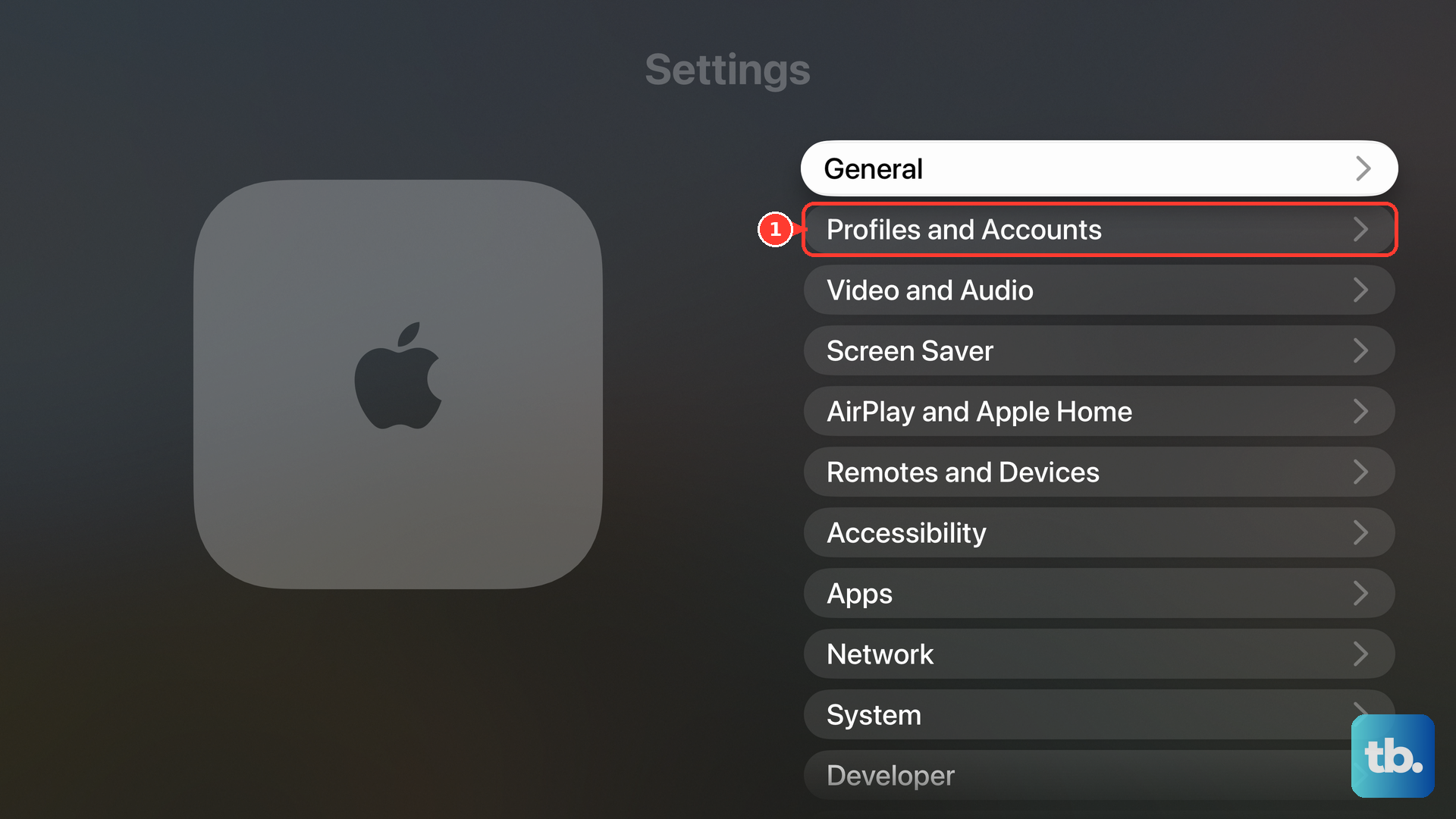
Select Sign In.
Enter the name of your TV provider or select it from the list.
Enter the TV provider email and password, then select Continue.
A TV provider login is separate from your Apple Account. Use it only for supported cable or satellite provider access and participating video apps.
During Apple TV setup, follow the onscreen prompts for single sign-on through a participating cable or satellite TV provider. When the Apple TV came from a pay TV or cable provider, set it up at home and connect to the provider’s internet service when required; it signs in automatically or prompts you to select your provider and sign in.
Frequently Asked Questions
Why does Apple TV ask for a six-digit code after my password?
Apple is using two-factor authentication for your Apple Account. Enter the code from a trusted device, or request a text message or phone call to your trusted phone number.
Can I sign in to Apple TV without typing my password on the remote?
Yes. On Apple TV 4K or Apple TV HD, use Use Another Apple Device from Settings. On many smart TVs and streaming devices, use the QR code or link code option.
What should I do if Apple TV keeps spinning during sign-in?
Check Apple’s System Status page for an outage in your country or region. If there is no outage, switch to another internet network or try again later.
Does resetting the Apple TV app delete my Apple Account?
No. It erases Apple TV app data on that device, including accounts and configuration, so you sign in again. It does not delete your Apple Account.
Can I use a work or school Apple Account on Apple TV 4K?
No. Apple says Managed Apple Accounts from schools or organizations are not supported on Apple TV 4K profiles. Use a personal Apple Account.