Your keyboard is not always the thing that needs locking. Sometimes the right move is to lock the screen, disconnect an external keyboard, hide a software keyboard, or turn off a key mode that changed how typing works.
Start with the closest match below, and you can lock or unlock the keyboard without using old third-party tools or risky driver tricks first.
1. Pick the lock that matches the problem
If you are stepping away from a computer, lock the whole device. That stops keyboard input from reaching apps until you sign in again.
If an external keyboard is the problem, disconnect it or remove it from Bluetooth.
If the on-screen keyboard keeps appearing, turn that keyboard off in accessibility or taskbar settings.
If only the function row, Caps Lock, Num Lock, or Scroll Lock feels wrong, fix that key mode instead of treating the whole keyboard as broken.
Save driver removal and managed-device policies for special cases. Those methods are real, but they are not the clean everyday answer for a home user who simply wants the keyboard to stop typing.
2. Lock the whole computer first
Windows 11: Press Windows logo key + L.
You can also select Start, choose the Power icon, then select Lock.
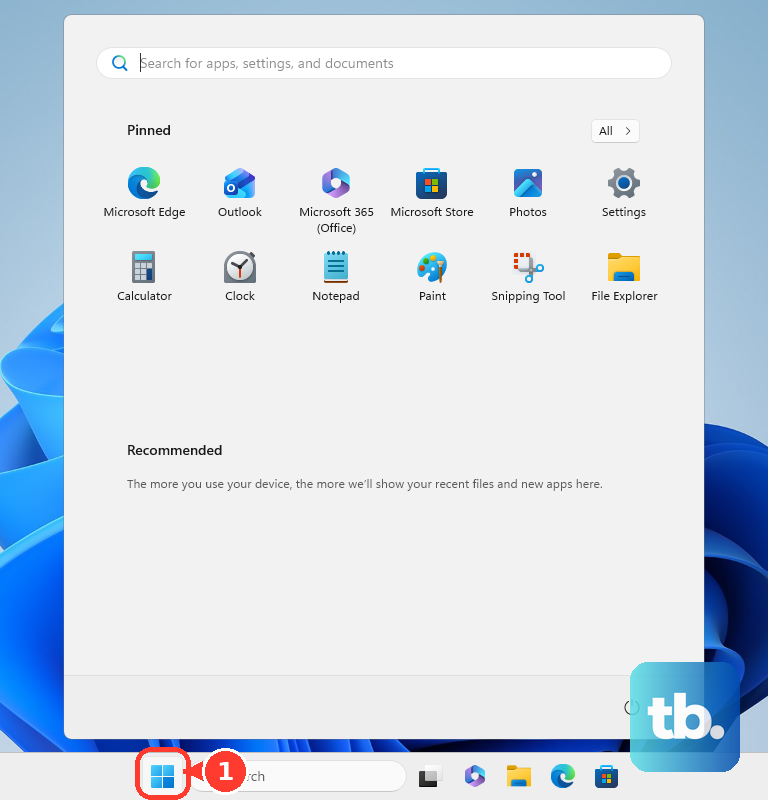
Unlock with Windows Hello, your PIN, Password, or Security key.
Mac: Open the Apple menu and choose Lock Screen.
Another option is to press Control-Command-Q.
You may press Touch ID.
Or press the Lock Screen button on a supported Magic Keyboard.
Unlock by pressing any key.
Then use your Password, Touch ID, or Apple Watch.
Chromebook: Press Search + L or Launcher + L.
Alternatively, select the Time at the bottom right, then choose Lock.
Unlock with your Password or configured PIN.
Ubuntu: Press Super + L.
On most PC keyboards, Super is the Windows key.
This is the fastest supported way to stop typing into open apps. It locks the session rather than the physical keyboard, which is the right result when you are leaving the device unattended.
3. Remove an external keyboard cleanly
For USB, Bluetooth, and Apple Magic Keyboard setups, disconnecting the keyboard is cleaner than changing system-level input settings.
Unlocking is just as clear: reconnect or pair the keyboard again.
Windows 11 Bluetooth: Go to Start, Settings, Bluetooth & devices, Devices, select the keyboard, choose Remove this device, then select Remove.
Windows 11 USB: Select Safely Remove Hardware and Eject Media, choose Eject for the keyboard or receiver, then unplug it after Windows says it is safe.
Chromebook Bluetooth: Select the Time, open Settings, choose Bluetooth, select the keyboard, then use Forget.
To stop all Bluetooth devices, open Bluetooth from quick settings and toggle it Off.
Ubuntu Bluetooth: Open Activities, type Bluetooth, open the Bluetooth panel, select the keyboard, then switch Connection off or choose Remove Device.
Apple Magic Keyboard: Slide the switch on the back edge off.
To reconnect it, slide the switch on so green is visible.
If the Mac does not recognize it, connect it with the included USB-C Charge Cable to pair it.
Then disconnect the cable for wireless use.
4. Hide the on-screen keyboard
When the software keyboard keeps opening, turn off that keyboard only. The physical keyboard stays available.
- 1.On Windows 11, right-click the Taskbar and choose Taskbar settings.
- 2.Go to Personalization, then Taskbar, then System tray icons.
- 3.Open Touch keyboard and choose Never.
To restore it, choose Always or When no keyboard attached.
On a Chromebook, select the Time, open Settings, go to Accessibility, then under Keyboard and text input, turn off On-screen keyboard.
Tablet-mode Chromebooks show the on-screen keyboard automatically when folded over the hinge.
On Ubuntu, open Activities, go to Accessibility, then Typing, and switch Screen Keyboard off.
Use the down button to hide it temporarily.
5. Fix keys that only look locked
A keyboard often feels locked because a mode key changed what the keys do. Check these before removing devices or changing drivers.
Chromebook Caps Lock: Press Search + Alt or Launcher + Alt.
On some keyboards, press Fn + Quick Insert.
Mac Num Lock: Press Shift-Clear on keyboards with Clear.
Mac Scroll Lock: Press Control-F14.
Hold Fn first when your keyboard requires it.
Dell Fn Lock: Hold Fn, then press Esc.
Repeat Fn + Esc to return the function keys to their normal state.
HP Fn mode: Press Fn + left Shift on supported HP models.
When the Fn key light is on, press Fn plus a function key to use the action printed on the key.
Lenovo Fn Lock: Press Fn + Esc on supported Lenovo laptops.
Lenovo also documents changing Hotkey Mode in BIOS/UEFI on supported systems.
Logitech Fn Lock: Press Fn + Esc on supported Logitech keyboards.
In Logi Options+, open keyboard Settings and choose whether to use F-keys as standard function keys without holding Fn.
These controls change Caps Lock, Num Lock, Scroll Lock, or function-row behavior. They do not disable the whole keyboard.
6. Filter accidental key presses
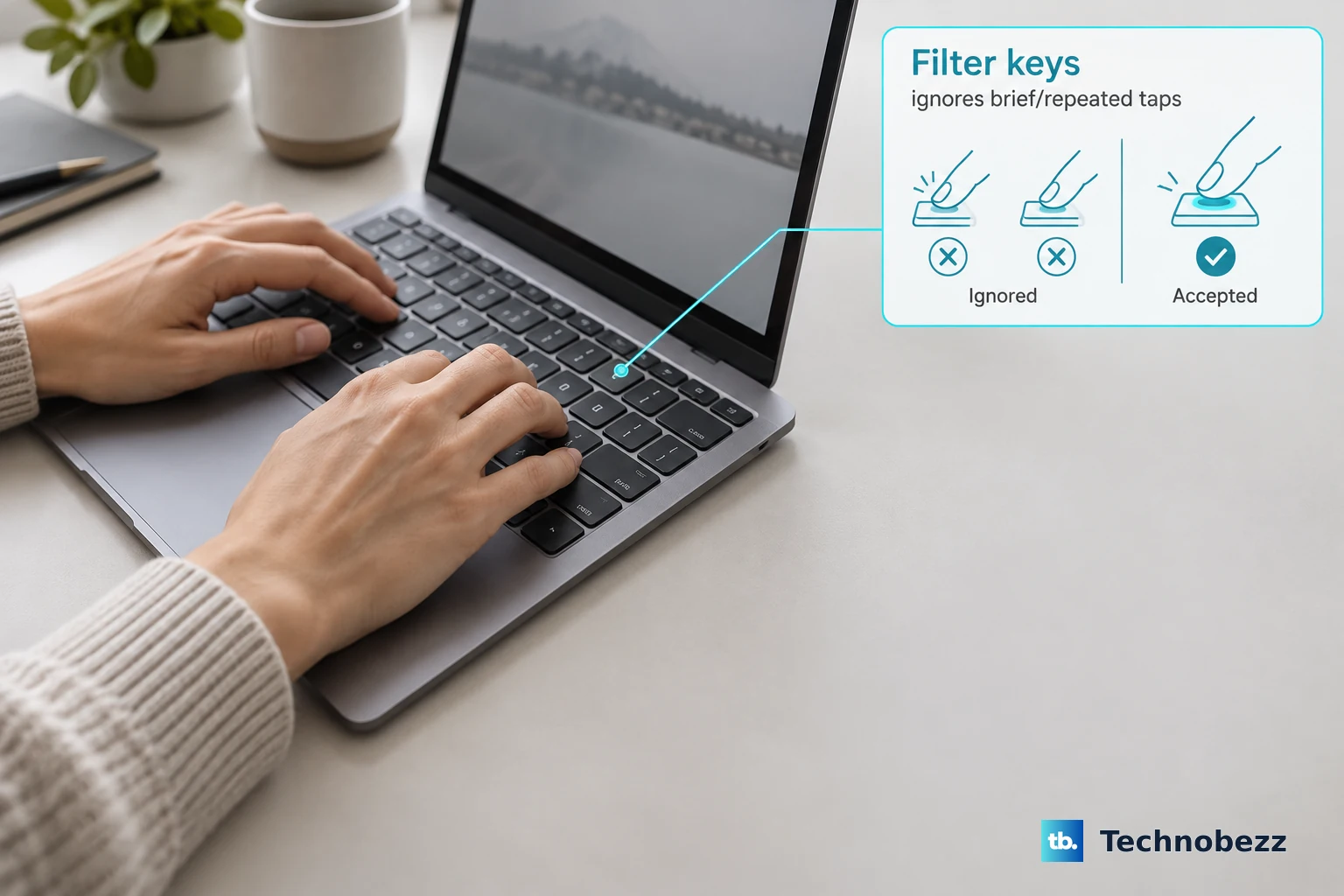
Use these when the keyboard works, but stray taps or repeated presses are causing the problem. This is an accessibility setting, not a full keyboard lock.
On Windows 11, open Settings, then go to Accessibility, Keyboard, and Filter keys.
Turn on Filter keys.
To switch it on or off with a shortcut, hold Right Shift for eight seconds.
On Ubuntu, open Activities, go to Accessibility, then Typing, and use Slow Keys.
To use the Ubuntu shortcut, turn on Enable by Keyboard.
Then hold Shift for eight seconds to enable or disable Slow Keys.
7. Disable selected Windows keys with PowerToys
PowerToys Keyboard Manager is the supported Windows route when you want to disable or remap specific keys and shortcuts instead of locking the whole keyboard.
Install Microsoft PowerToys using an official method: GitHub, the Microsoft Store, or WinGet.
Microsoft also lists community-driven Chocolatey and Scoop methods.
Open PowerToys, then open Keyboard Manager.
Choose Remap a key or Remap a shortcut.
Add a mapping that disables or remaps the target key or shortcut, then select OK.
To undo the change quickly, close PowerToys or disable Keyboard Manager in PowerToys settings.
PowerToys Keyboard Manager works on Windows 11 and on Windows 10 version 2004 build 19041 or newer on x64 or ARM64.
It does not work on the Windows log-in or password screen, and Microsoft recommends avoiding it in games.
8. Use phone and tablet locks
On iPhone, press the Side button to lock the device.
To unlock with a passcode, swipe up from the bottom of the Lock Screen on Face ID models, or press the Home button on other models, then enter the passcode.
To change passcode behavior, open Settings, then Face ID & Passcode or Touch ID & Passcode, and use Turn Passcode On, Change Passcode, or Turn Passcode Off.
The Require Passcode setting controls when a passcode is needed after the screen locks.
On Android, open Settings, then Security & privacy or Security, choose Device unlock or Screen lock, and set a PIN, Pattern, or Password.
After the screen locks or wakes, unlock with that credential, or use fingerprint or face unlock on supported devices.
For an iPad with a Smart Keyboard Folio or Smart Keyboard, tap the keyboard button in the lower-right corner, then tap the show keyboard button to show the software keyboard.
Tap the dismiss button to hide it.
For an iPad with a Magic Keyboard, tap a text field, then touch and hold the lower-right corner of the screen until the onscreen keyboard appears.
Tap the dismiss button to hide it.
9. Save driver and admin controls for last
Removing a keyboard device in Windows is a troubleshooting step for special cases, especially external or removable keyboards.
Search for and open Device Manager.
Expand Keyboards or the relevant device category.
Right-click the keyboard or device and choose Uninstall device.
Select Uninstall, then restart.
To restore it, reconnect the device or open Device Manager, choose Action, then select Scan for hardware changes.
Windows can reinstall the keyboard automatically, and built-in laptop keyboards are often rediscovered.
For work or school Windows devices, administrators can use Group Policy Object Editor, then go to Computer Configuration, Administrative Templates, System, Device Installation, and Device Installation Restrictions to configure device ID or device class rules.
That is a managed-device control, not a casual home keyboard lock.
Frequently Asked Questions
What is the fastest way to lock a keyboard?
Lock the whole device. Use Windows logo key + L on Windows, Control-Command-Q on Mac, Search + L or Launcher + L on Chromebook, and Super + L on Ubuntu.
Can I lock only the keyboard without locking the screen?
Built-in consumer settings focus on screen lock, external keyboard removal, on-screen keyboard controls, accessibility filtering, and selected-key remapping. Windows PowerToys can disable or remap chosen keys, but it is not a full keyboard lock.
Why does my keyboard seem locked but still types some keys?
A mode key is changing behavior. Check Caps Lock, Num Lock, Scroll Lock, and Fn Lock before changing drivers or device settings.
Will uninstalling the keyboard driver permanently lock a laptop keyboard?
No. Windows can reinstall keyboard hardware automatically, and built-in laptop keyboards are often rediscovered after restart or hardware scanning.