

To install the right SSD driver, connect a compatible SSD following your PC’s hardware instructions, start Windows, and let Windows install its matching built-in or preinstalled driver. If your storage needs a separate controller driver, install a compatible package from your PC manufacturer. The steps below use Windows 11 menus.
The short version
- Start with Windows: Windows automatically installs a matching built-in or preinstalled driver for compatible hardware.
- Check optional updates: Select and install applicable optional drivers through Windows Update.
- Match the hardware: Choose a package that matches your PC or controller, Windows version, and architecture.
- Missing installation disk: Supported RAID or VMD systems may need a controller driver loaded during Windows Setup.
| Route | When to use it | Main requirement |
|---|---|---|
| Automatic Windows installation | Connecting a compatible SSD | Matching built-in or preinstalled driver |
| Windows Update | Installing an offered driver update | Applicable optional driver entry |
| Dell downloads | Installing a Dell storage package | Matching PC model and Windows architecture |
| Lenovo downloads | Installing a Lenovo storage package | Compatible model-specific download |
| Intel RST installer | Installing a supported RST or VMD driver | Compatible platform and package |
| Dell SupportAssist | Installing an update offered by Dell | Supported Dell PC |
| HP Support Assistant | Installing an update offered by HP | Supported PC outside Windows S mode, without an ARM processor |
| ASUS update app | Installing an update offered by ASUS | Model with the app’s update feature |
| Device Manager automatic search | Searching for a matching driver | Correct SSD or controller selected |
| Device Manager folder installation | Installing an extracted driver | Compatible INF-based package |
| Intel driver loading during setup | Finding VMD storage on supported ASUS systems | Extracted model-specific driver on USB |
| Current Windows installation media | Installing Windows on specified newer ASUS platforms | Supported model and Windows 11 version 24H2 or later |
| AMD RAID driver loading | Finding an already configured RAID array | Supported array and platform-specific drivers |
| Driver rollback | Reversing a problematic update | Previous driver and administrator permissions |
Let Windows install the initial driver
Install or connect your SSD using your PC’s hardware instructions, then start Windows. Plug and Play installs the best-matching built-in or preinstalled driver for compatible hardware. You do not need to run a separate download wizard for that process.
For a compatible NVMe SSD exposed directly to Windows, use the supplied StorNVMe driver. Storage behind RAID or Intel Volume Management Device, also called VMD, may instead need a separate controller driver. Choose the package for that storage configuration rather than relying only on the SSD’s model name.
A manufacturer’s package can target either the SSD or its storage controller, so select the corresponding device when installing it manually. For Lenovo updates, also check whether the offered item is a driver or SSD firmware. Those are different updates.
Check Windows Update for a matching driver
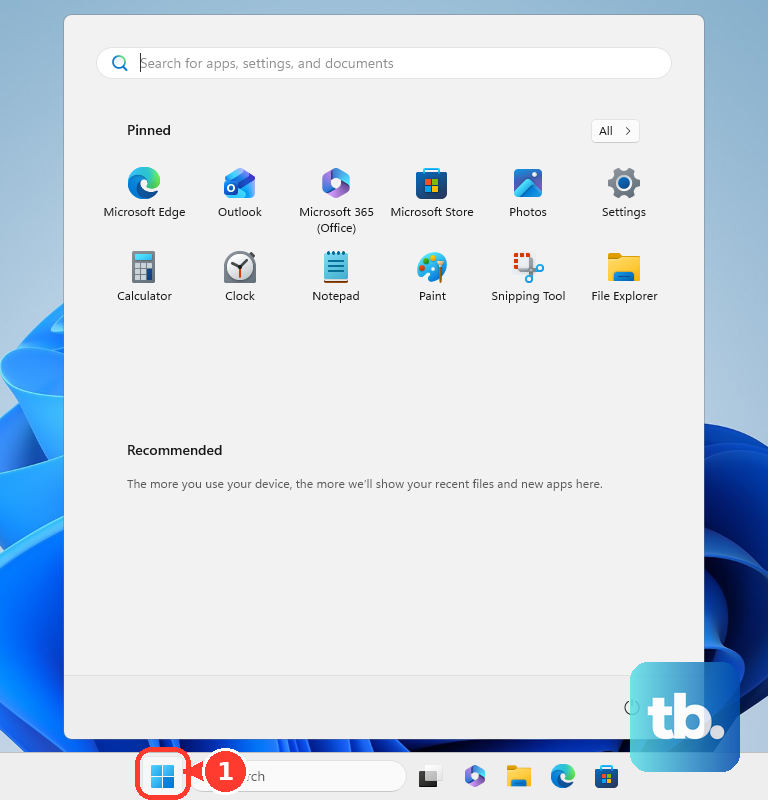
Windows installs recommended drivers automatically, but optional drivers need your selection. On Windows 11, open Start > Settings > Windows Update > Advanced options. Turn on Receive updates for other Microsoft products.
Under Additional options, select Optional updates. Choose the applicable driver entry, select Download and install, then restart after installation. The entry’s name depends on the hardware and package offered.
If Windows Update does not offer a suitable driver, check your PC manufacturer’s compatible downloads. Match the package to your hardware, Windows version, and architecture using its compatibility information. On a work-managed PC, an administrative policy can exclude driver updates from Windows Update, so you may need IT assistance.
Download the package for your exact PC
For a Dell PC, open Dell Drivers & Downloads. Select Detect This PC, or identify the computer using its Service Tag, Express Service Code, or model. Locate the applicable storage or controller package and check its compatibility information, including the model and Windows architecture, before selecting Download and running the installer.
On a Lenovo PC, open Lenovo PC Support and identify the computer by product name or serial number. Open Drivers & Software > Manual Update > Select Drivers. Download the compatible storage package and follow its installation instructions.
For Intel RST, use the system manufacturer’s package first when one is available. Otherwise, check the platform and operating-system requirements on the Intel RST download page before downloading. That package covers listed 12th through 15th generation platforms, so check your exact platform before choosing it.
On a supported Intel RST/VMD platform running Windows 11 x64, run the compatible SetupRST.exe package to install the storage driver. Intel warns against uninstalling the installed RST VMD driver. Follow the package’s instructions if you later need to troubleshoot that controller.
Use your PC maker’s update app
On a supported Dell PC, open SupportAssist > Home > Update software, then select Start. Install the applicable offered update and restart when requested. If you still have the retired Dell Update or Alienware Update app, use SupportAssist instead.
On a supported HP PC with HP Support Assistant 8 or later, open HP Support Assistant, then open My Dashboard. Find your PC and select Updates; after the analysis, select and install the applicable packages, then restart if requested. HP Support Assistant is unavailable in Windows S mode and does not support ARM processors, so check Windows Update on those Windows 11 configurations.
For an ASUS PC that includes the update feature, open MyASUS and select System Update. Choose the applicable offered package, select Update selected items, then review Update History. Availability depends on the model; if the app lacks System Update, use Windows Update or a compatible manufacturer package.
Install an extracted driver with Device Manager
To search for a driver, right-click Start and select Device Manager. Expand the relevant device category, right-click the SSD or storage controller targeted by the package, then select Update driver and choose the automatic search option. Restart if required, and use Windows Update if the search finds no suitable update.
For a manual installation, first download and extract an INF-based package matching your hardware, Windows version, and architecture. Right-click Start, open Device Manager, right-click the target device, and select Update driver, then select Browse my computer for drivers. Select Browse..., choose the extracted folder, select OK, and then select Next.
Use this folder-based route for compatible extracted drivers. If your manufacturer supplies an executable installer with package-specific instructions, follow those instructions instead. Select the target that the package identifies, since a storage-controller driver must be installed for its controller.
Load an Intel controller driver during Windows Setup
If Windows Setup cannot find storage on a supported ASUS Intel system using VMD, prepare the compatible model-specific driver on USB. For an Intel package that supports driver extraction, open an administrator PowerShell window in the folder containing SetupRST.exe. Run this command to extract the files:
./SetupRST.exe -extractdrivers SetupRST_extractedCopy the extracted files to USB, then return to the disk-selection screen in Windows Setup. Select Load driver > Browse, choose the RST folder, and select OK. Select Intel RST VMD Controller, then select Next; the controller name can vary with the package.
For the exact Lunar Lake Core Ultra and newer models covered by ASUS’s installation instructions, use Windows 11 version 24H2 or later installation media. ASUS says manual IRST loading is unnecessary for those platforms. Confirm that your exact model falls within that scope before choosing this route.
Load AMD RAID drivers for a configured array
Use AMD RAID drivers only for a supported RAID configuration with an appropriate platform package. On AMD’s driver download page, use the product selector to find the matching chipset or platform downloads, or use a compatible motherboard-vendor package. An AMD graphics driver is not an SSD driver.
With the supported RAID array already configured and its drivers on USB, select Load driver > Browse in Windows Setup. Navigate to the directory containing the saved AMD-RAID drivers and select OK. Load AMD-RAID Bottom Device from rcbottom.inf, followed by AMD-RAID Controller from rcraid.inf, selecting Next for each.
Load AMD-RAID Config Device from rccfg.inf when the platform’s instructions direct you to do so. Select the resulting virtual disk for installation. Do not format the individual drives that belong to the array.
Roll back a driver that causes problems
Rolling back replaces the current driver with an available previous driver. If an update causes problems, right-click Start, open Device Manager, and right-click the affected device. Select Properties > Driver > Roll Back Driver, choose the applicable reason, then select Yes. Restart if prompted.
This route requires administrator permissions and a previous driver to restore. If those requirements are not met, return to the manufacturer’s compatible package and installation instructions. Do not apply a generic device-uninstall procedure to a boot-critical RAID or VMD controller without the vendor’s instructions.
Frequently Asked Questions
Should you download Samsung NVMe Driver 3.3 for Windows 11?
For a directly exposed, compatible NVMe SSD on Windows 11, use Windows’ supplied StorNVMe driver. Samsung NVMe Driver 3.3 lists Windows 7, 8.1, and 10 with the 970 PRO, 970 EVO, 970 EVO Plus, 960 PRO, 960 EVO, and 950 PRO. Windows 11 and the newer 980 and 990 series are not listed.
Can you install the Solidigm driver without its management toolkit?
Yes, the Solidigm Synergy package provides separate driver and management toolkit components. On supported Windows 11 systems, including supported P41 Plus and P44 Pro configurations, extract the package and use its SetupSolidigm.exe installer to install only the driver component. Restart and check for Solidigm NVMe Storage Controller under Storage controllers. RAID and VMD configurations are excluded.
Does installing Intel Optane Memory and Storage Management install the RST driver?
Use the compatible SetupRST.exe package to install the Windows storage driver on supported Intel RST/VMD platforms. Intel Optane Memory and Storage Management is a separately offered app for managing supported volumes.
Will PnPUtil force Windows to use a different SSD driver?
PnPUtil will not force a lower-ranked package over the highest-ranked driver. Its installation command can add and install compatible extracted driver packages, but that does not guarantee Windows will replace its selected driver with the package you supply.