RSAT does not appear as one single app on Windows 11, and older download links can send you down the wrong path. Windows 11 installs RSAT as optional Windows features, with Settings as the fastest route and PowerShell or DISM as supported fallbacks. Follow the steps below to add the exact admin tool you need, find it after installation, and avoid legacy package methods.
1. Confirm your PC supports RSAT
Confirm that the PC is running Windows 11 Pro or Windows 11 Enterprise. Microsoft documents RSAT prerequisites for Windows 11 as Pro or Enterprise only.
Sign in with an administrator account.
Check whether the PC is Arm64-based. On Windows 11 version 25H2 Arm64 devices, RSAT Features on Demand are not supported, so add the tools from Control Panel, then Programs, then Programs and Features, then Turn Windows features on or off. Microsoft currently lists six Arm64 snap-ins there: Active Directory Domain Services and Lightweight Directory Services Tools, Active Directory Certificate Services Tools, Server Manager, Group Policy Management Tools, DNS Server Tools, and DHCP Server Tools.
Decide which RSAT tool you need, such as RSAT: Active Directory Domain Services and Lightweight Directory Services Tools.
2. Install RSAT from Optional features
Open Start.
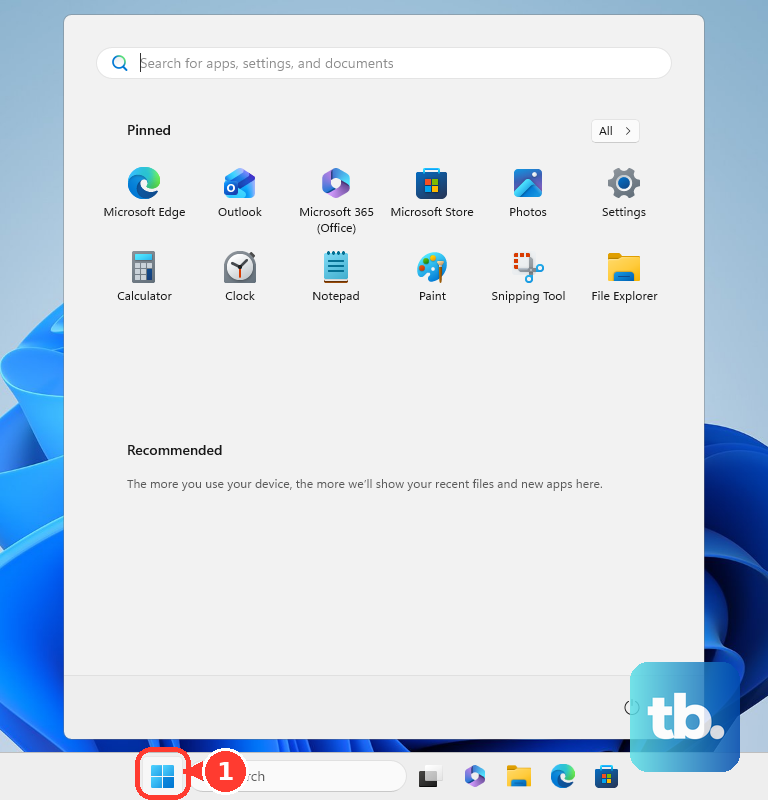
Open Settings.
Go to System, then Optional features.
Next to Add an optional feature, select View features.
Search for RSAT.
Select the checkbox for the RSAT tool you want.
Select Next, then Add.
Open the installed tool from Start, then Windows Tools, or from Server Manager, then Tools when that applies.
Tip: Some supported Windows 11 builds place Optional features under Settings, then Apps.
3. Jump to Optional features with Run
This fixes the problem when Optional features is hard to find in Settings.
Right-click Start.
Select Run.
In Open, enter ms-settings:optionalfeatures.
Select OK.
Select View features next to Add an optional feature.
Search for RSAT.
Select the tool checkbox.
Choose Next and Add.
4. Add RSAT with PowerShell
Open Windows PowerShell as Administrator.
Run Get-WindowsCapability -Online | Where-Object Name -like 'RSAT*' to list RSAT capabilities.
Copy the capability name for the RSAT tool you need.
Run Add-WindowsCapability -Online -Name <CapabilityName>.
For Active Directory tools, run Add-WindowsCapability -Online -Name Rsat.ActiveDirectory.DS-LDS.Tools~~~~0.0.1.0.
5. Use DISM when you prefer Terminal
DISM is another current Microsoft-supported way to add RSAT capabilities on a running Windows 11 PC.
Open Command Prompt or Windows Terminal as Administrator.
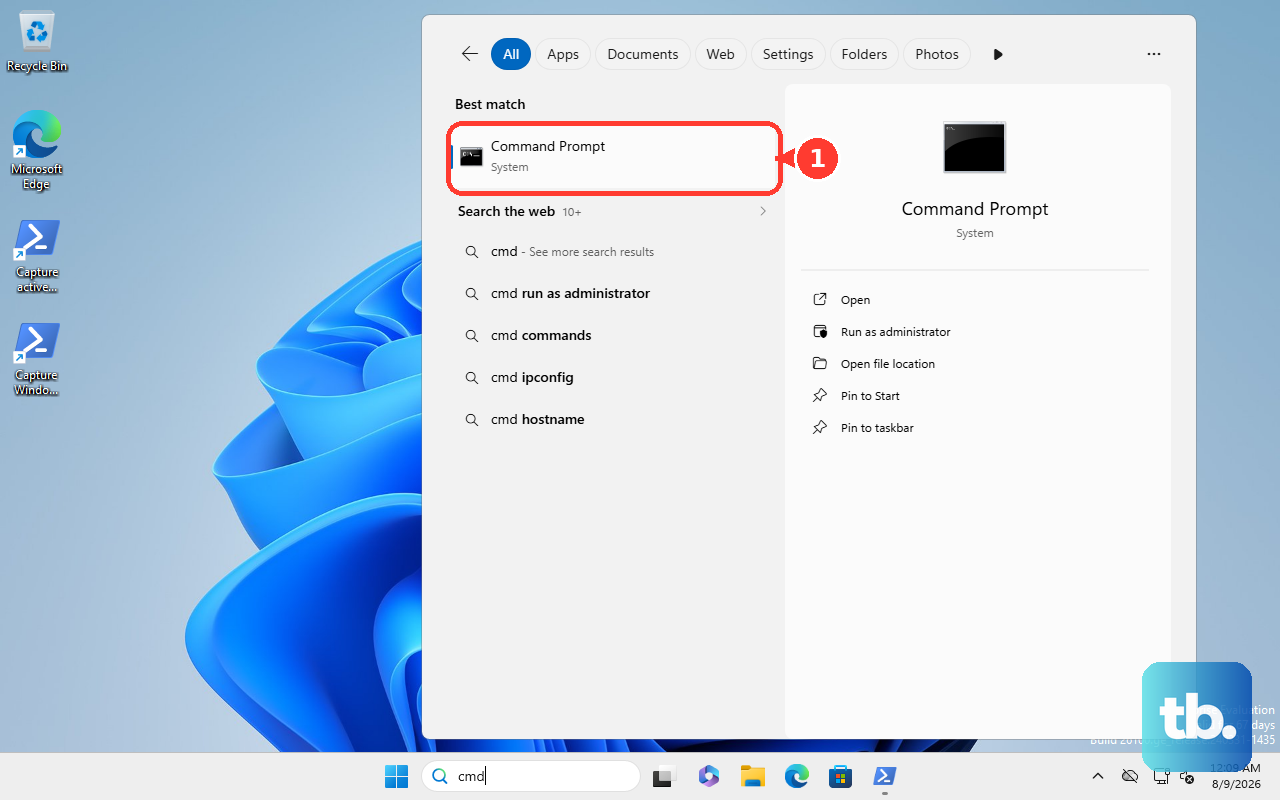
Run DISM /Online /Get-Capabilities to identify the RSAT capability name.
Install it with DISM /Online /Add-Capability /CapabilityName:<capability_name>.
For Active Directory tools, use DISM /Online /Add-Capability /CapabilityName:Rsat.ActiveDirectory.DS-LDS.Tools~~~~0.0.1.0.
6. Open the installed RSAT tools
Open Start.
Open Windows Tools.
Select the RSAT tool you installed.
For tools that appear in Server Manager, open Server Manager, then Tools.
Tip: RSAT is a collection of separate tools, so install the specific tool you need instead of looking for one RSAT app.
7. Fix a managed device block
This fixes cases where Windows cannot download optional feature files or the feature UI is hidden.
Check whether the PC is managed by work, school, WSUS, SCCM, or Intune.
Ask your administrator to allow Features on Demand installation or provide the correct source for Windows optional features.
For policy source settings, when Windows cannot download the optional feature files, use Computer Configuration, then Administrative Templates, then System, then Specify settings for optional component installation and component repair.
If the Optional features page itself is missing, ask your administrator to check User Configuration, then Administrative Templates, then Control Panel, then Programs, then Hide "Windows Features". Microsoft documents that when this policy is enabled, the settings page used to add optional features is hidden on the device.
Use the normal Settings, PowerShell, or DISM install steps again after the source or policy issue is corrected.
8. Remove RSAT cleanly
Open Start.
Open Settings.
Go to System, then Optional features.
Under Installed features, search for the RSAT tool or scroll to it.
Select the feature to expand it.
Select Remove.
Restart if Windows reports removal completed but the tool still appears.
Tip: You can also remove RSAT with Remove-WindowsCapability in PowerShell or DISM /Remove-Capability when RSAT was installed as a Windows capability.
9. Avoid outdated RSAT installers
Older guides may point you to the Microsoft Download Center RSAT package, modified MSU files, or raw CAB installs. For Windows 11, use Settings > System > Optional features, Add-WindowsCapability, or DISM /Add-Capability instead. The exception is Windows 11 version 25H2 on Arm64-based devices, where RSAT Features on Demand are not supported and Microsoft points you to Control Panel > Programs > Programs and Features > Turn Windows features on or off for the RSAT snap-ins that are available. Microsoft says cracking or hacking RSAT MSU packages for unsupported releases or editions violates the Windows end-user license agreement, and DISM /Add-Package for Features on Demand is deprecated.
Frequently Asked Questions
Can I install RSAT on Windows 11 Home?
No. Microsoft documents RSAT for Windows 11 Pro and Windows 11 Enterprise only.
Do I need to download an RSAT installer for Windows 11?
No. For Windows 11, install RSAT through Optional features or with Windows capability commands such as Add-WindowsCapability or DISM /Add-Capability.
Why is RSAT split into several items?
RSAT is a collection of separate administration tools. Pick the tool that matches the server role you manage, such as Active Directory Domain Services and Lightweight Directory Services Tools.
Where do RSAT tools appear after installation?
Installed RSAT tools open from Start > Windows Tools. Some tools are also available from Server Manager > Tools.
Can Windows 11 Arm64 install RSAT?
Yes, on Windows 11 version 25H2 Arm64-based devices, Microsoft lists available RSAT tools through Windows features, including Active Directory, Certificate Services, Server Manager, Group Policy, DNS, and DHCP tools.











