


To install Python on Windows 11, install Python Install Manager from Microsoft Store, then open a terminal and run python to install Python itself. You can also use the manager to choose a specific Python version and see which versions you have installed. These steps use Windows 11 menus.
The short version
- Recommended route: Install Python Install Manager from Microsoft Store.
- Finish the setup: Run
pythonin a terminal to install your first Python runtime automatically. - Check the result: Run
py listto see your installed Python versions. - Other installation options: Install the manager from a downloaded MSIX package or through WinGet.
- Command problems: Check the manager configuration and app execution aliases if Python commands do not work.
| Installation method | What it installs | When to choose it |
|---|---|---|
| Microsoft Store | Python Install Manager | Recommended starting point |
| Downloaded MSIX opened directly | Python Install Manager | Install through a graphical prompt |
| Downloaded MSIX through PowerShell | Python Install Manager | Install a downloaded package with a command |
| WinGet manager package | Python Install Manager | Get the manager from a terminal |
| WinGet version package | Python 3.14 | Install that specific Python branch |
Install Python Install Manager from Microsoft Store
Open the official Python Install Manager listing in Microsoft Store and select Install. Once installation finishes, continue with the first Python launch below. Installing the manager and installing a Python runtime are separate parts of the setup.
Install Python itself and check the result
Open a terminal, such as PowerShell or Command Prompt, after installing the manager. Run this command to install your first Python runtime automatically:
pythonThe manager installs Python when you launch it for the first time. To check which runtimes you have installed, run the following command in a terminal and look for your Python version in the result:
py listChoose a specific Python version
If you need a particular Python branch, you can request it explicitly instead of using the automatic first installation. With the manager installed, run this command for Python 3.15:
py install 3.15After installation finishes, check your installed versions again with py list. To see the available runtime tags before choosing a version or processor variant, run:
py list --onlineFor a compatible Arm64 PC, you can select an explicit Arm64 runtime tag. Run this command to install the Arm64 variant of Python 3.15:
py install 3.15-arm64Install the manager from a downloaded package
Open the official Python install manager download page and download Installer (MSIX). Double-click the downloaded package, then select Install. After installation, open a terminal and run python to install the Python runtime.
You can also install the downloaded MSIX package through Windows PowerShell. Replace the placeholder below with the package's path, keeping the quotation marks around it:
Add-AppxPackage "<path to MSIX>"If Windows limits installations to Microsoft Store, you can change the app-source setting when it is available and your organization does not control it. Open Start > Settings > Apps > Advanced app settings. Under Choose where to get apps, select Anywhere.
Changing that setting does not switch Windows out of S mode. If the setting is missing or controlled by your organization, use the Microsoft Store route to install the manager.
Install Python with WinGet
On a Windows 11 PC with WinGet, open PowerShell or Command Prompt. Run this command to install Python Install Manager:
winget install 9NQ7512CXL7TClose and reopen the terminal after installation. Then run python to start the automatic runtime installation, or run py install 3.15 if you need that branch.
Microsoft also documents a WinGet package for Python 3.14. If you specifically need that branch through a version-specific package, run:
winget install Python.Python.3.14This package installs the specified branch, which is not necessarily the newest Python branch. Close and reopen PowerShell, then check the installed version with:
python --versionFix Python commands that do not work
If the manager is installed but its commands are not working, start with its configuration checker. For Python install manager 26.4, run:
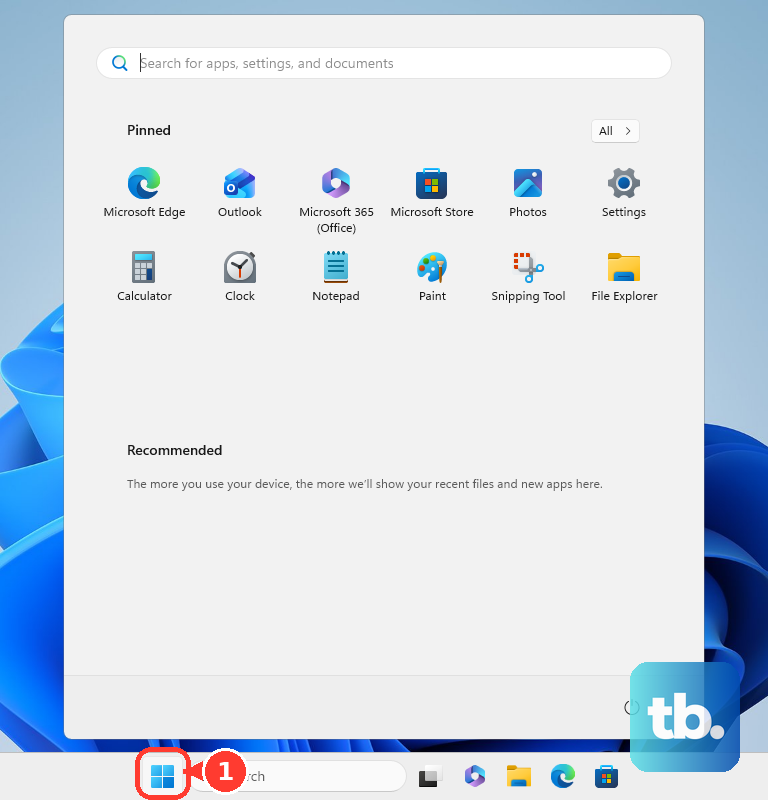
pymanager install --configureNext, open Start, find and open Manage app execution aliases, then enable Python (default). This is the manager's alias setting to check when the Python command is not available.
If Python is not installed, running python without arguments can open Microsoft Store when the built-in App Installer alias is enabled and no other Python command overrides it. In that case, complete the Python Install Manager installation from Microsoft Store, then launch Python again.
When another Python distribution should supply the command, open Manage app execution aliases from Start. Find the App Installer Python entries and switch them to Off to disable the conflicting Store shortcuts.
For manager aliases that need PATH configuration, open Edit environment variables for your account. Add %LocalAppData%\Python\bin to PATH; this directory applies to the Python install manager's aliases.
Fix a conflict with an older Python launcher
An older Python launcher can conflict with the manager's py command. Remove that launcher only when it is causing the conflict.
Uninstalling the older launcher removes that launcher from your PC. Open Start > Settings > Apps > Installed apps, find the older Python launcher, select More, then select Uninstall.
After removing the conflicting launcher, run py list to check the manager's installed runtimes. If its command setup still needs attention, run pymanager install --configure again.
Frequently Asked Questions
Does installing the Python extension in VS Code install Python?
Installing the Python extension alone does not install a Python runtime. With conda and the Python Environments extension installed, you can create a conda environment through VS Code and choose an available Python version.
Can you install Python on Windows 11 without an internet connection?
Yes, you can install a runtime offline if Python Install Manager is already installed. On an online PC, download the runtime and its offline index, then transfer that folder to the offline PC. Use the transferred index as the manager's installation source.
Does Thonny include Python?
Yes, Thonny 5.0.1 includes Python 3.14, so you do not need a separate interpreter download for that setup. You can choose a Windows installer for Intel/AMD or Arm hardware, and a portable Windows package is also offered.
Does uninstalling Python Install Manager remove Python too?
Removing the manager application alone leaves its Python runtimes installed. Removing all manager-controlled runtimes is a separate operation that also removes their associated caches and shortcuts.
Is Python installed in WSL a native Windows interpreter?
Python installed inside Ubuntu on WSL is a Linux interpreter. You use the python3 command inside Ubuntu for that environment.