

To install Netflix, open your device’s app store, search for Netflix, select its download or install button, then open the app and sign in. On supported TVs and streaming devices, Netflix may already be installed. You can also watch in a supported computer browser without installing an app.
The short version
- Phones and tablets: Download Netflix through your device’s App Store, Google Play, Galaxy Store, or Amazon Appstore.
- Computers: Use the Microsoft Store on Windows, Google Play on a compatible Chromebook, or a supported browser.
- TVs and streamers: Check for an existing Netflix app before downloading it from the device’s store.
- Compatibility: Your device model and operating system determine which installation route works.
| Device or method | Where to start | Requirement |
|---|---|---|
| iPhone or iPad | App Store | iOS or iPadOS 26 or later for the latest app |
| Android phone or tablet | Google Play Store | Compatible device with Android 9 or later for the latest app |
| Samsung Galaxy alternative | Galaxy Store | Compatible phone or tablet with Android 9 or later for the latest app |
| Amazon Fire tablet | Amazon Appstore | Compatible tablet with Fire OS 7 or later for the latest app |
| Windows computer | Microsoft Store | Windows 10 or later with Microsoft Edge installed |
| Chromebook app | Google Play Store | Android app support and permission to install |
| Browser viewing | Netflix’s website | Supported Windows, Mac, Chromebook, or iPad browser |
| Preinstalled TV app | Main menu or Netflix remote button | Supported device with Netflix installed |
| Samsung TV or projector | Apps | Samsung account and a model offering Netflix |
| LG webOS TV | APPS or LG Apps | LG Account and availability for your model and country |
| Google TV | Search or Apps | Netflix-compatible device |
| Android TV | Google Play Store | Netflix-compatible TV or box |
| Apple TV | App Store | Apple TV HD or later |
| Fire TV | Search | Supported player, stick, cube, or television |
| Roku direct installation | Store > Apps | Netflix-supported Roku player or TV |
| Roku mobile installation | Roku mobile app | Compatible device linked to your Roku account |
| PS5 or PS5 Pro | All Apps in media home | Netflix availability in your region |
| PS4 or PS4 Pro | TV & Video | Netflix availability in your region |
| Xbox | Store > Apps | Supported Xbox model and region |
Install Netflix on iPhone or Android
On an iPhone or iPad, open App Store and select Search. Search for Netflix, select Netflix, then tap Get or the cloud download icon. Once installation finishes, open Netflix and sign in. The latest app requires iOS or iPadOS 26 or later.
For a compatible Android phone or tablet, open Google Play Store, search for Netflix, and select the listing published by Netflix, Inc. Tap Install, then open Netflix from your home screen or apps list. The latest Android app requires Android 9 or later.
On a compatible Samsung Galaxy phone or tablet, you can also open Galaxy Store and search for Netflix. Select Netflix, tap Install, then open the app after installation. The latest app through this route also requires Android 9 or later.
To reach the official store listing for your device, open Netflix’s download page and follow the appropriate link. It links to the Apple, Google Play, Galaxy Store, Amazon Appstore, and Microsoft Store listings.
Download Netflix on an Amazon Fire tablet
On a compatible Fire tablet, open Appstore and select Search. Search for Netflix, tap Netflix, then tap Download. When installation finishes, tap Open, followed by Sign In. The latest Netflix app requires Fire OS 7 or later.
Set up Netflix on a computer
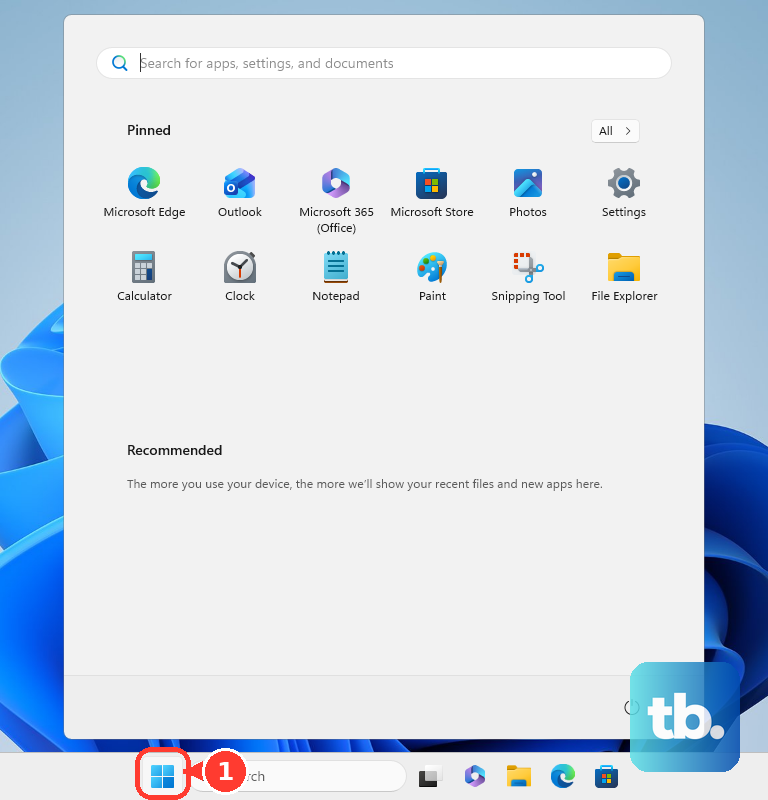
On Windows 10 or later, open Start and launch Microsoft Store. Select Search, enter Netflix, and press Enter. Select Netflix and then Install, supply your Microsoft account credentials if requested, and open Netflix from Start.
Microsoft Edge must also be installed for the Windows app. You can instead open Netflix’s website in a supported Windows browser and sign in without installing the Store app.
On a Chromebook that supports Android apps, open Google Play Store, search for Netflix, select Netflix, and select Install. If Google Play setup is needed, select the time, then open Settings > Apps > Manage Google Play preferences > More to continue setup. On a work or school Chromebook, your administrator can restrict app availability.
You can also watch through a supported Chromebook browser without installing the Android app. On a Mac, open Netflix’s website in a supported browser and sign in. On a supported iPad, you can watch in Safari 14 or later, separate from installing the iPad app.
Find or install Netflix on a smart TV
First, look for Netflix in the TV’s main menu, or press the Netflix button on its remote if it has one. Open the app and sign in when it is already installed. A preinstalled Netflix app does not need a separate download.
On a compatible Samsung Smart TV or projector, sign in to a Samsung account, then open Home > Apps > Search. Find and select Netflix, then select Install. To add a shortcut afterward, open Apps > Settings > Netflix and select Add to Home.
For an LG webOS TV offering Netflix in its app store, sign in to your LG Account and press Home. Select APPS or LG Apps, select the search icon, enter Netflix, and select Search. Choose Netflix > Install > Launch.
On a Netflix-compatible Google TV, select Search on the home screen and type Netflix, or press the Assistant button and say Netflix. Open the app page and select Install. You can also find Netflix by browsing the Apps tab.
On a Netflix-compatible Android TV, open Apps > Google Play Store > Search from the home screen. Find and select Netflix, then complete installation using the controls on its app page. A generic Android box is not automatically compatible with Netflix.
Add Netflix to a streaming device
On Apple TV HD, also called fourth generation, or a later model including Apple TV 4K, open App Store from the home screen. Search for Netflix and select Get, then open Netflix from the home screen and select Sign In. Second and third generation Apple TV models are unsupported, so use a supported newer device.
For a supported Fire TV player, Fire TV Stick, Fire TV Cube, or Fire TV television, select Search from the home screen. Enter Netflix, select the Netflix search result, and then select the app. Choose Free or Download, then select Open when it finishes.
On a supported Roku player or Roku TV, press Home and select Store > Apps. Locate Netflix, press OK, and select Add app. Enter your Roku PIN if requested. The Add Apps home-screen shortcut is another way into the store.
You can also add Netflix through the Roku mobile app. Search for Netflix or browse Store, then select Netflix > Add app for compatible devices linked to your Roku account. If the addition has not appeared on the Roku, open Settings > System > System update > Check now on that device.
Install Netflix on PlayStation or Xbox
On PS5 or PS5 Pro, open the media home menu and select All Apps. Choose Netflix, select Download, then open the installed app and sign in. Netflix must be available in your region.
For PS4 or PS4 Pro where Netflix is available, open TV & Video from the content area, select Netflix, and select Download. If TV & Video is missing, open Library > Applications. PlayStation 3 support ended March 2, 2026, so use a supported device instead of following old PS3 installation instructions.
On Xbox One, One S, One X, Series X, or Series S, open Store > Apps > Netflix from Home. Use Search all apps if needed, select Install, and choose Launch when the download finishes. This route applies in regions supporting Netflix and Xbox Live.
Finish signing in on your TV
Open Netflix and select Sign in. When the TV displays a QR code, scan it with your phone camera, open its link, and tap Sign in to TV. Sign in only through Netflix’s own app or website, and never share a code, password, or remote access with someone who contacts you.
For the browser route, visit Netflix’s TV sign-in page, or use Netflix’s Apple TV sign-in page for Apple TV. Check that the displayed codes match, then click Sign in to TV. The sign-in methods offered vary by device.
To enter your details with the remote, choose Use Remote. Enter your email address or primary phone number, select Next, then choose Send Sign-In Link or Use Password Instead. These sign-in options apply to supported TV apps, streaming devices, cable boxes, and consoles.
Fix a missing app or blocked installation
On Android or Chromebook, Google Play parental controls can hide Netflix. If you are the authorized parent, open Play Store, select the profile icon, then open Settings > Family > Parental controls. Turn off the restriction using its PIN, install Netflix, then restore the restriction.
If Netflix is missing from Google Play on an Android device, check its certification. Open Play Store, select the profile icon, and open Settings > About, then check the Play Protect certification status. Netflix directs you to a supported device when your device is uncertified.
On a Samsung Galaxy device, Netflix can already be installed but hidden from the launcher. If your device has this setting, open Apps > Menu > Settings > Hide apps on Home and Apps screens. Deselect Netflix to reveal it.
If you are the parent managing Apple family controls, open Settings > Family on your device and select your child’s name. In the current Family interface, open Apps & Websites > App Store > Installing Apps. Choose Allowed and enter the Screen Time passcode if requested. Older operating systems use different interfaces.
For an LG TV that cannot install Netflix, check your LG Account login, available storage, and service country. On webOS 26, open Settings > All Settings > System > Location > LG Services Country. On webOS 6.0 through 25, use All Settings > General > System > Location > LG Services Country. Set your actual country.
Unaccepted required agreements can also prevent LG app installation. Review them under All Settings > Support > Privacy & Terms > User Agreements. Netflix availability depends on your LG model and service country.
Frequently Asked Questions
Can you install Netflix on another device from your Android phone?
Yes, you can install it on eligible Android devices associated with the same Google account. Open Google Play Store, find Netflix, and open the arrow next to Install. Select the checkbox bearing the destination device’s name, then tap Install.
Can the Windows Netflix app download shows for offline viewing?
No, the current Windows app does not support downloads. Netflix says you cannot return to the old Windows app, so reverting to an older version is not a supported solution.
How do you watch Netflix on Meta Quest?
On Meta Quest 2, Quest Pro, Quest 3, or Quest 3S, open Apps > Meta Quest Browser. Go to netflix.com and select Sign In. Netflix supports Quest viewing through the browser rather than the old native Netflix app.
Can you use AirPlay to watch Netflix from an iPhone or iPad?
No, Netflix does not support AirPlay from iPhone or iPad. You can use a supported TV app, supported casting, or a compatible wired video connection instead. For wired viewing, your device must support video output, and you need compatible cabling; Lightning devices require a supported Apple Lightning Digital AV Adapter.