

Minecraft installs get confusing because Windows, Mac, Linux, Store purchases, Game Pass, and school editions all use different paths. The reliable route is to use an official download surface. Sign in with the right Microsoft account, then install the edition your account owns.
1. Start from the official Minecraft download page
The safest default is Minecraft.net because it links to the current launcher for Windows, macOS, and Linux. Open the official Minecraft download page, then choose Download the Launcher or pick your OS under Other versions & platforms.
On Windows, use Windows 10/11. Open Minecraft Launcher, sign in with your Microsoft account, and install the edition tied to that account.
2. Install Minecraft from Microsoft Store on Windows
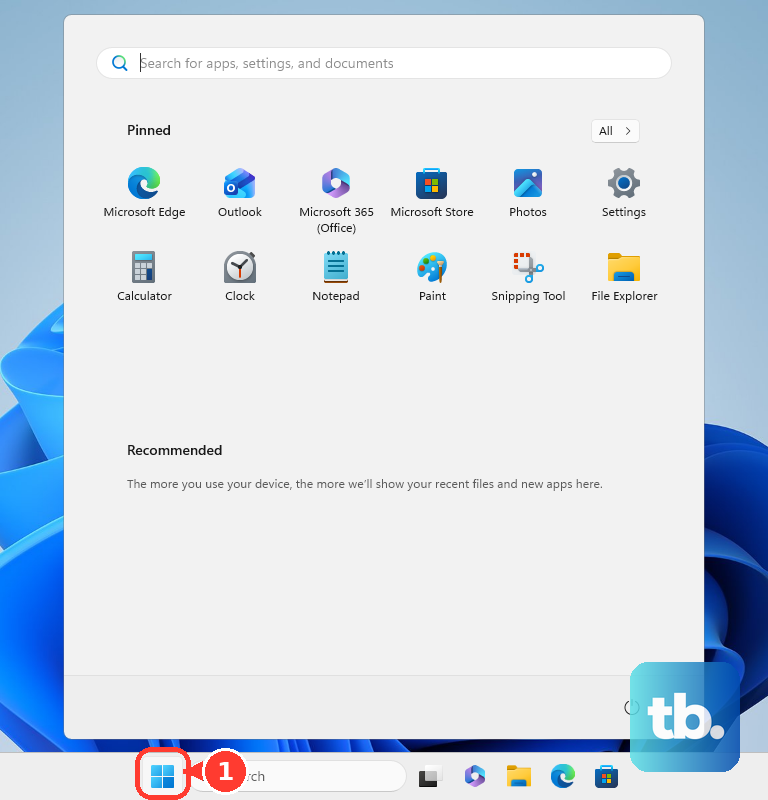
- 1.Select Start.
- 2.Open Microsoft Store.
- 3.Search for Minecraft: Java & Bedrock Edition for PC or Minecraft Launcher.
- 4.Select Get, Buy, or Install, depending on what your account shows.
- 5.Open Minecraft Launcher.
- 6.Sign in with your Microsoft account and install or play the edition available to you.
3. Use Xbox app or Game Pass on Windows
Open the Xbox app on Windows. Sign in with the Microsoft account that owns Minecraft or has an active PC Game Pass or Game Pass Ultimate subscription. Search for Minecraft: Java & Bedrock Edition for PC.
Select the game, then select Install. When the install finishes, open Minecraft Launcher. Use the same account in the Xbox app and Microsoft Store so the subscription or purchase appears.
4. Reinstall Minecraft you already own
If you bought Minecraft through Microsoft Store or Xbox, sign in with the same Microsoft account that made the purchase. Open Microsoft Store and go to Library or My Library. Find Minecraft or Minecraft Launcher, then select the Download icon or Install.
You can also open your Microsoft account Order history. Choose the game, then select Product key/Install or Install.
5. Buy or redeem Minecraft before installing
To buy the PC edition, open the official Minecraft store page for Minecraft: Java & Bedrock Edition for PC. Select the buy option, sign in or create a Microsoft account, and complete the purchase.
Download Minecraft Launcher and install it. Sign in with the same Microsoft account you used to buy the game.
To use a prepaid code, open the official Minecraft redeem page. Sign in with the Microsoft account that should own Minecraft, enter the code, and complete redemption.
Install through Minecraft.net, Microsoft Store, Xbox app, or Minecraft Launcher. Keep purchase, redemption, and launcher sign-in on one Microsoft account.
6. Install Minecraft on Mac or Linux
Mac and Linux PCs use Minecraft: Java Edition through the official Minecraft download page. On Mac, choose Mac under Other versions & platforms. Open the downloaded installer or package, install Minecraft Launcher, and sign in with a Microsoft account.
On Linux, choose DEBIAN + DEBIAN BASED, ARCH + ARCH BASED, or Other distributions. Install the matching launcher package, then open Minecraft Launcher. Select Minecraft: Java Edition.
7. Clear Windows install blocks
This fixes Store cache issues, app recommendation blocks, and Windows S mode limits. If Microsoft Store cannot find or install Minecraft, press Windows logo key + R. Enter wsreset.exe, then select OK. Search for Minecraft again after Microsoft Store reopens.
If Windows blocks the Minecraft.net installer on Windows 11, go to Start > Settings > Apps > Advanced app settings. Next to Choose where to get apps, choose Anywhere.
If Windows blocks the Minecraft.net installer on Windows 10, go to Start > Settings > Apps > Apps & features. Under Choose where to get apps, choose Allow apps from anywhere or Turn off app recommendations.
If your PC is in Windows 11 S mode and you need software outside Microsoft Store, go to Settings > System > Activation. Use the Switch to Windows 11 Pro section, then select Go to the Store. Select Get on the Switch out of S mode page.
If your PC is in Windows 10 S mode and you need software outside Microsoft Store, go to Settings > Update & Security > Activation. Use Switch to Windows 10 Home or Switch to Windows 10 Pro, then select Go to the Store. Select Get.
8. Try the demo or Minecraft Education
For the Java Edition demo, install Minecraft Launcher and open it. Sign in with a Microsoft account that does not own Minecraft, then select the Java Edition demo option shown in the launcher.
For Minecraft Education, open the official Minecraft Education download page. Choose the Windows download or Windows installer, then run the installer. Sign in with an eligible Minecraft Education account or license.
You can also open Microsoft Store and search for Minecraft Education. Select Get or Install, then sign in with an eligible school, work, or education account. The Java Edition demo lasts five in-game days, and Minecraft Education is separate from the consumer Java and Bedrock PC bundle.
9. Avoid outdated install advice
This prevents account problems, unsupported installs, and unsafe downloads. Do not use Mojang account migration as an install path. Migration ended on December 18, 2023, and current installs use a Microsoft account.
Do not install Android Minecraft through Windows Subsystem for Android or Amazon Appstore on Windows. Use Minecraft.net, Microsoft Store, Xbox app, or the official Minecraft Education download instead.
Do not use third-party download portals, cracked launchers, or unofficial installers. Stick with Minecraft.net, Microsoft Store, Xbox app, or official Minecraft Education pages.
Do not start with Windows legacy launcher tutorials for a normal Windows 10/11 install. Use the current Windows 10/11 launcher path from Minecraft.net.
Frequently Asked Questions
Do I need a Microsoft account to install Minecraft on PC?
Yes, for everything past the download itself. You can grab the Minecraft Launcher installer from Minecraft.net without signing in, but a Microsoft account is required once you open Minecraft Launcher and install or play the game: Minecraft: Java Edition on Windows, Mac, and Linux and Minecraft for Windows all require one, as do Microsoft Store and Xbox app purchases, code redemption, and the Java Edition demo.
Which Minecraft version should I install on a Windows PC?
Install Minecraft: Java & Bedrock Edition for PC or the current Minecraft Launcher. The PC bundle includes Minecraft Launcher, Minecraft for Windows, and Minecraft: Java Edition.
Can I install Minecraft on Mac or Linux?
Yes. The supported path is Java Edition through the official Minecraft download page. Minecraft for Windows is Windows-only.
Why does Minecraft not appear after I bought it?
You are signed into the wrong Microsoft account. Sign in with the account that purchased or redeemed Minecraft, then check Microsoft Store Library, My Library, or Microsoft account Order history.