Microsoft Edge Canary sounds simple until desktop downloads, Android listings, and old iPhone TestFlight instructions point in different directions. Use the official Microsoft Edge Insider page on desktop and Google Play on Android, then keep released Microsoft Edge installed for everyday browsing because Canary is the daily preview channel.
1. Check what Edge Canary is before installing
Microsoft Edge Canary is the daily preview channel for Edge. Microsoft lists Canary as a daily channel and shows business support as No, so treat it as a testing browser, not the browser you rely on for work logins, banking, or anything that needs steady behavior.
On desktop, Canary installs beside released Microsoft Edge. Microsoft says installing a preview channel does not uninstall released Edge, and more than one Edge channel can be installed at the same time.
2. Start from the official download source
For Windows, macOS, and Linux, open Microsoft's Edge Insider download page. Under Insider channels, choose Canary Channel for your operating system.
For Android, use Google Play and install Microsoft Edge Canary by Microsoft Corporation. Do not use Softonic, Uptodown, TechSpot, download mirrors, or old TestFlight instructions as your install path for Canary.
3. Install Canary on Windows
Open explore.microsoft.com/en-us/edge/download/insider. Under Insider channels, choose Canary Channel for Windows.
Accept the Microsoft Edge Software License Terms if prompted. Run the downloaded installer, then follow the installer prompts.
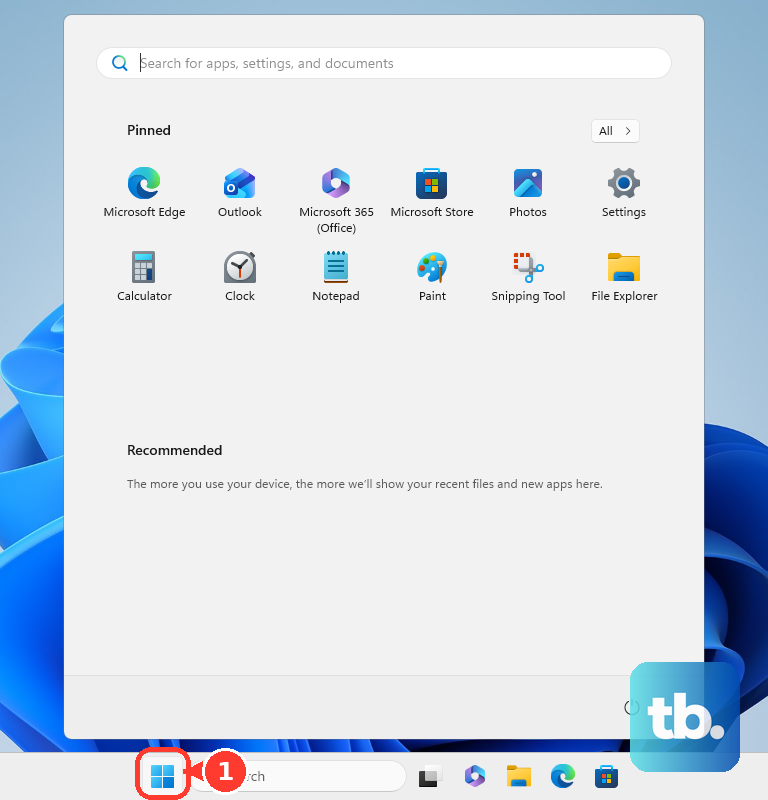
Open Start, select All apps, then open Microsoft Edge Canary. This applies to Windows 10, Windows 11, and supported Windows Server versions listed by Microsoft for Edge preview channels.
4. Set up Canary on Mac
Open Microsoft Edge Insider. Under Insider channels, choose Canary Channel for macOS.
Download the Mac package. Open the downloaded installer, then follow the on-screen prompts.
Open Finder, choose Applications, then open Microsoft Edge Canary. Microsoft's supported OS page says Edge 151 and newer require macOS 13 Ventura or later. Apple Silicon Macs are natively supported.
5. Add Canary on Linux or Android
On Linux, start with the same Microsoft Edge Insider page. Choose Canary Channel for Linux, then select the Linux package Microsoft offers for your distribution.
Open it with your system software installer or install it with your distribution package manager. Then launch Microsoft Edge Canary from the app launcher.
- 1.On Android, open Google Play Store.
- 2.Search for Microsoft Edge Canary.
- 3.Open Microsoft Edge Canary by Microsoft Corporation.
- 4.Tap Install.
- 5.Open it from Google Play Store or the Android app launcher.
The Android listing applies to Android phones and tablets running Android 10.0 or later with an ARM-based processor. Microsoft does not currently list Canary as an iOS Insider channel; the Insider page lists iOS options for Beta and Dev.
6. Choose what syncs in Canary
Open Microsoft Edge Canary. Select Settings and more (...), or press Alt+F, then open Settings.
Select Profiles. Choose Your profile, open Sync, and turn individual sync toggles on or off.
If Edge prompts you after signing in, choose Customize before turning on sync. Sync availability depends on account type, organization policy, and platform.
7. Keep Canary updated
Open Microsoft Edge Canary. Select Settings and more (...), choose Help and feedback, then open About Microsoft Edge.
Let Edge check for updates and install available updates. Select Restart if prompted.
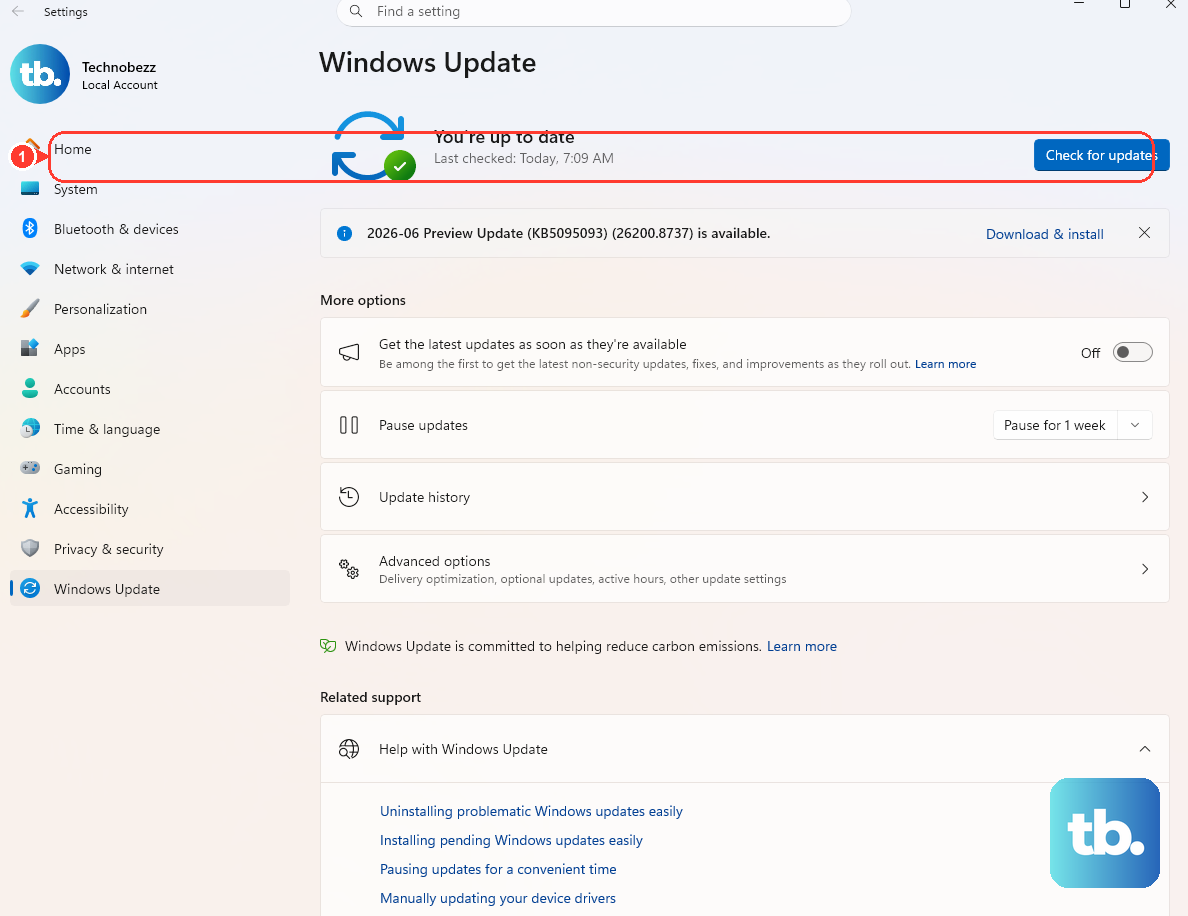
You can open the same update page directly at edge://settings/help. On Windows, use Start, Settings, Windows Update, then Check for updates, because Microsoft notes Edge updates are also delivered through Windows Update on Windows devices.
8. Remove Canary when testing is finished
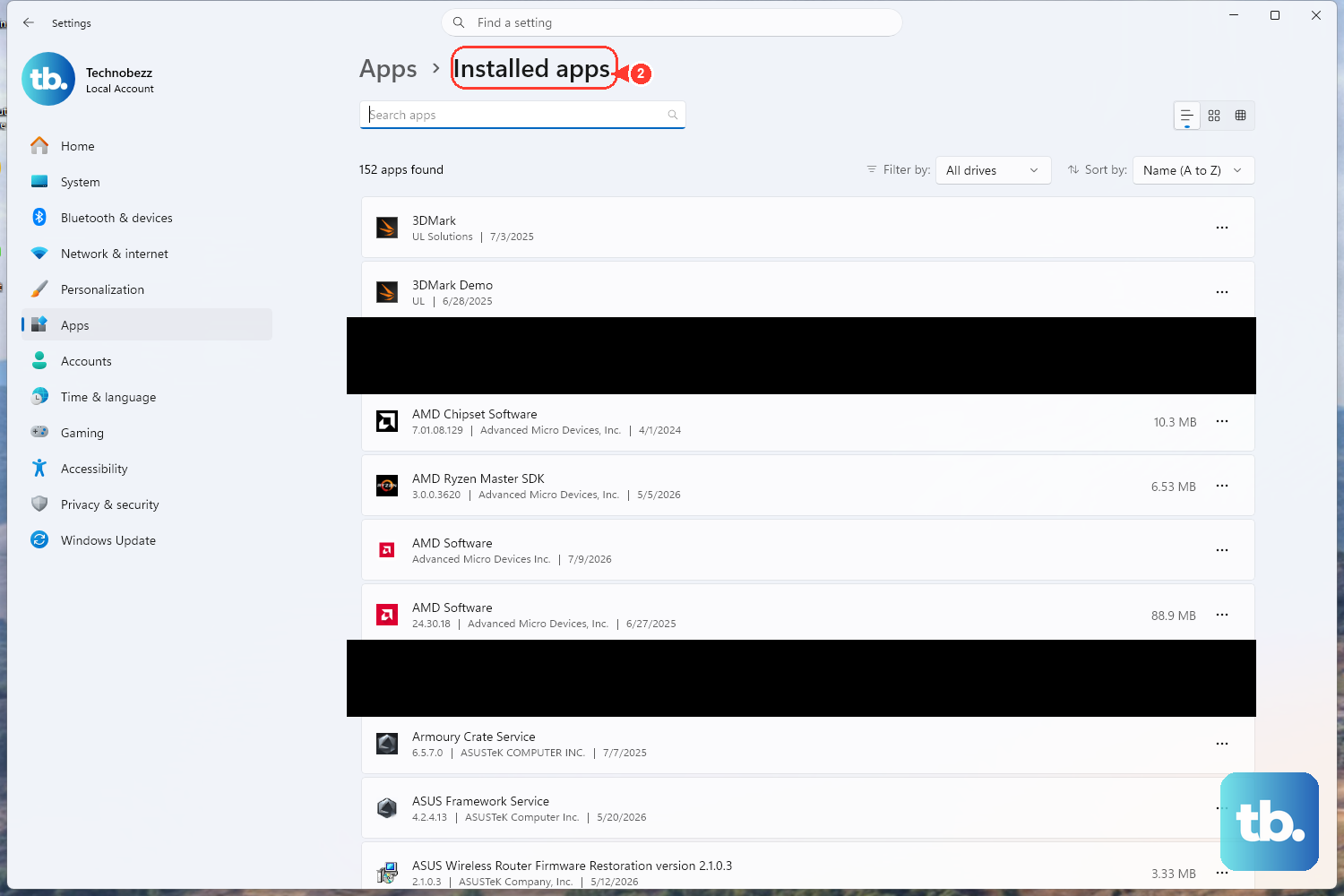
On Windows, open Start, choose All apps, find Microsoft Edge Canary, right-click or press and hold it, then choose Uninstall. You can also open Start, Settings, Apps, Installed apps, Microsoft Edge Canary, More (...), then Uninstall.
On macOS, quit Microsoft Edge Canary, open Finder, choose Applications, locate Microsoft Edge Canary, then choose File and Move to Trash, or drag it to Trash. Open Finder and choose Empty Trash to finish.
On Android, open Play Store, tap the profile icon, choose Manage apps & devices, open Manage, select Microsoft Edge Canary, then tap Uninstall.
9. Use admin paths only on managed devices
Work and school Windows devices can allow, block, install, or update Edge Canary through Microsoft Edge Update policies. The relevant policy path is Computer Configuration, Administrative Templates, Microsoft Edge Update, Applications, Microsoft Edge Canary.
Managed Windows and macOS devices can also use the Microsoft Intune settings catalog. In Microsoft Intune admin center, go to Devices, Manage devices, Configuration, Create, New policy, choose the platform, select Settings catalog, then add Microsoft Edge or Microsoft Edge Update settings and assign them to users or devices.
Frequently Asked Questions
Can I install Microsoft Edge Canary with WinGet?
Yes. On supported Windows systems with WinGet, open Terminal or PowerShell and run winget install -e --id Microsoft.Edge.Canary. Verify the package first with winget show --id Microsoft.Edge.Canary.
How do I uninstall Edge Canary with WinGet?
Open Terminal or PowerShell and run winget uninstall -e --id Microsoft.Edge.Canary.
Does Edge Canary replace my regular Microsoft Edge browser?
No. Microsoft says preview channels can be installed at the same time as released Microsoft Edge on desktop.
Is Microsoft Edge Canary available for iPhone or iPad?
Microsoft does not currently document an iOS Canary install surface. Microsoft’s current Insider page lists iOS options for Beta and Dev, not Canary.
Why is Edge Canary not installing on my work device?
Organization policy can block or control Edge Canary installation through Microsoft Edge Update policies or Microsoft Intune. Use the channel approved by your administrator.