Trying to inspect a webpage on your Mac but can't find the right command? Your browser already has the tools to examine its HTML and styling. Start with a Control-click, or enable Safari’s developer features first if its inspection command is missing.
Start with a Control-click
Use the context menu when you want to inspect a specific image, heading, or other webpage element. This works in Chrome and Edge, and in Safari after you enable developer features.
Hold Control and click the element you want to inspect, or right-click it with your mouse or trackpad.
Choose Inspect in Chrome or Edge. In Safari, choose Inspect Element; if that command is missing, enable the setting below.
In Chrome, the selected element opens in Elements. Examine its CSS under Styles.
Enable Safari’s missing inspection commands
Safari hides its inspection commands until you enable developer features.
Open Safari > Settings… > Advanced.
Select Show features for web developers. The Develop menu appears in the menu bar.
Return to your webpage.
Control-click the element you want to examine.
Choose Inspect Element to open Web Inspector.
For direct access with the webpage in front, press Option-Command-I or choose Develop > Show Web Inspector.
Select Elements if the inspector opens on another tab.
Use Firefox’s built-in Inspector
In Firefox, open Tools > Browser Tools > Web Developer Tools from the Mac menu bar, or press Command-Option-I.
Select Inspector to examine the page.
Click the element-picker button at the upper left of the toolbox.
Click the webpage element you want to inspect. For a faster start next time, Command-Option-C activates Pick an element from the page.
Open developer tools without right-clicking
Menu commands and shortcuts give you access to inspection tools without a right-click.
In Chrome, open the three-dot menu > More Tools > Developer Tools, or press Command-Option-I.
Select Elements if Chrome opens a different panel.
In Edge, choose Settings and more > More tools > Developer tools, or press Command-Option-I.
Switch to Elements in Edge to examine the page.
In Brave, press Command-Option-I to open developer tools.
In Opera, choose View > Show Developer Menu.
Then choose Developer > Developer Tools in Opera.
In Vivaldi, choose Tools > Developer Tools from the Vivaldi menu, or press Option-Command-I.
Pick an element visually in Safari
With Safari’s developer features enabled, use its selection tool to highlight the part of the page you want to examine.
- 1.Bring the webpage you want to inspect to the front.
- 2.Choose Develop > Start Element Selection.
- 3.Move over the page to highlight its elements.
- 4.Select the element you want to inspect.
Get F12 working with your browser
When your Mac uses F12 for a system control, the key doesn't reach the browser as F12.
Hold Fn or Globe while pressing F12 in a browser that supports it, such as Chrome, Edge, or Vivaldi.
For regular function-key use on macOS Ventura or later with a supported keyboard, open Apple menu > System Settings > Keyboard > Keyboard Shortcuts > Function Keys.
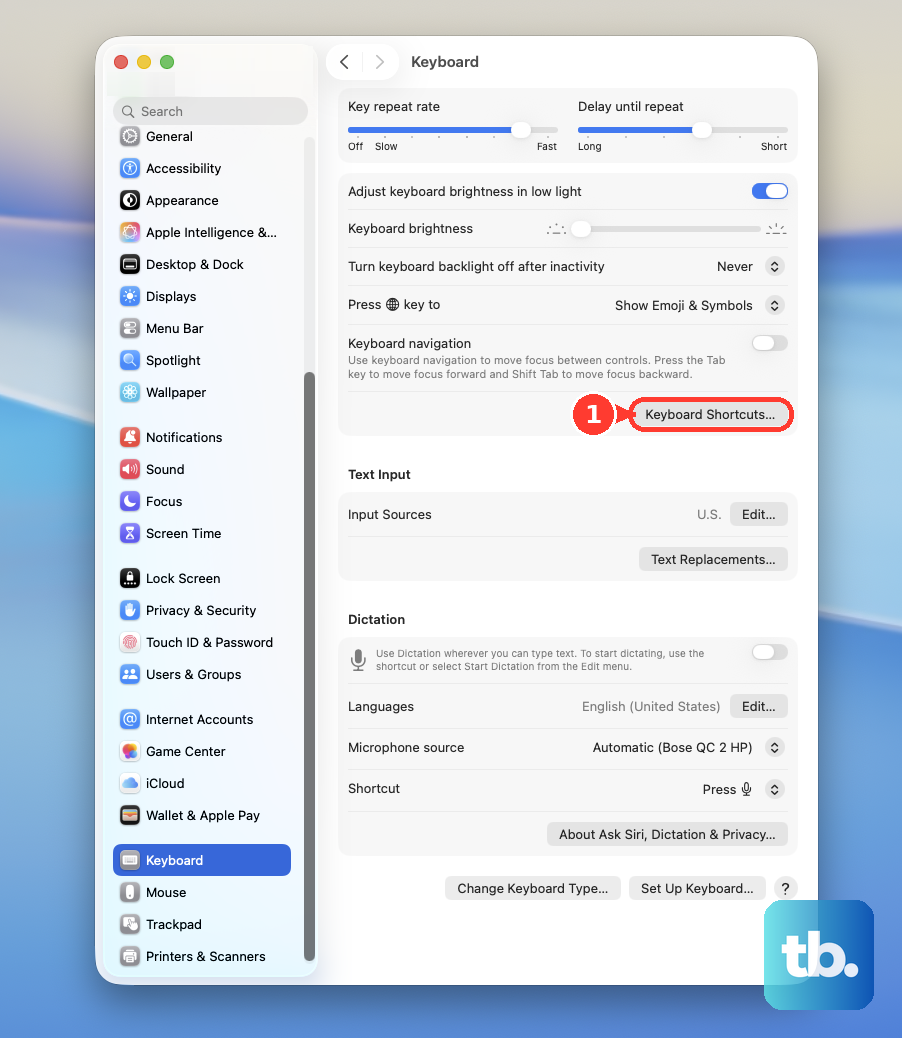
Enable Use F1, F2, etc. keys as standard function keys.
Edge also has its own F12 setting. Open edge://settings/system to access it.
Under Developer Tools, enable Use F12 key to open the Developer tools.
Frequently Asked Questions
Do I need to download anything or sign in to inspect an element?
No. Basic webpage inspection is built into these browsers and requires no separate download or account.
Is viewing page source the same as inspecting an element?
No. Page source alone does not provide the live page structure available in Elements. In Safari, choose Develop > Show Page Source to open Web Inspector on another tab. Select Elements to inspect the live page structure.
Can I inspect a native Mac app with these tools?
These tools do not expose arbitrary native Mac app interfaces. Safari supports inspection of Dock web apps and other app web content explicitly made inspectable.
Can I inspect an iPhone webpage from my Mac?
Yes. On the iPhone, open Settings > Apps > Safari > Advanced. Enable Web Inspector. Connect the iPhone to your Mac by cable. Accept the trust prompt if shown. With Safari’s developer features enabled on the Mac, choose Develop > [your device] > [the Safari webpage].