


To hide the Recycle Bin in Windows 11, open Settings > Personalization > Themes > Desktop icon settings, uncheck Recycle Bin, and select OK. These steps use Windows 11 menus. This setting hides the desktop icon while leaving your other desktop icons visible.
The short version
- Hide only the bin: Uncheck Recycle Bin in Desktop icon settings and select OK.
- Hide every icon: Right-click an empty desktop area, select View, and uncheck Show desktop icons.
- Bring it back: Return to Desktop icon settings, check Recycle Bin, and select OK.
- Other locations: Removing the desktop icon does not remove existing pins elsewhere.
| Option | What it hides | When to choose it |
|---|---|---|
| Desktop icon settings | Only the Recycle Bin desktop icon | Keep your other desktop icons visible |
| Show desktop icons | Every desktop icon | Clear the whole desktop |
| Run shortcut | The same desktop icon through Themes | Reach the setting with a command |
| Voice access | The Recycle Bin desktop icon | Operate the checkbox by voice |
| Unpin from Start | An existing Start pin | Remove a pinned shortcut |
| Unpin from taskbar | A custom taskbar launcher | Remove an existing custom shortcut |
| Unpin from Quick access | An existing Quick access pin | Remove that File Explorer shortcut |
| Navigation Pane | The entire File Explorer navigation pane | Hide everything in the side pane |
| Group Policy for Recycle Bin | Most Recycle Bin occurrences | Apply broader removal on a supported policy edition |
| Group Policy for desktop items | All desktop items | Apply a user or computer policy |
| MDM policy for Recycle Bin | Most Recycle Bin occurrences | Manage removal for a user |
| MDM policy for desktop items | All desktop items | Manage removal for a user or device |
| Registry policy mappings | Most Recycle Bin occurrences or all desktop items | Apply the administrative values directly |
Hide only the Recycle Bin desktop icon
Press Windows + I to open Settings. Select Personalization, choose Themes, then open Desktop icon settings. Uncheck Recycle Bin, then select OK. Leave the other checkboxes unchanged to keep your other desktop icons visible.
To restore the icon later, return to Settings > Personalization > Themes > Desktop icon settings. Check Recycle Bin, then select OK. If the icon stays hidden, check that Show desktop icons is also enabled using the desktop menu below.
Hide all desktop icons together
Right-click an empty area of the desktop, select View, and uncheck Show desktop icons. On a touch device, press and hold an empty desktop area to open the same menu. This hides every desktop icon, including the Recycle Bin, so choose it when you want the entire desktop clear.
To show the icons again, right-click an empty desktop area, select View, and check Show desktop icons. If the Recycle Bin stays hidden, return to Desktop icon settings, check Recycle Bin, and select OK.
Open the setting through Run
Press Windows + R to open Run. Enter the following command, then press Enter:
ms-settings:themesSelect Desktop icon settings, uncheck Recycle Bin, and select OK. This opens the same setting as the main method, so you can use either route to hide or restore the icon.
Use Voice access to change the checkbox
With Voice access already configured and listening, open Settings > Personalization > Themes > Desktop icon settings. Voice access requires Windows 11 version 22H2 or later, a supported language, and a microphone. The phrases here use English.
When Recycle Bin is checked, say Click Recycle Bin. Confirm that the checkbox is cleared, then say Click OK to save the change. The checkbox's starting state matters because clicking it changes whether it is checked.
Remove existing Start and taskbar shortcuts
A pinned shortcut is separate from the desktop icon. If you previously pinned the Recycle Bin to Start, open Start, locate that shortcut, right-click it, and select Unpin from Start.
For a custom Recycle Bin launcher on the taskbar, right-click its icon and select Unpin from taskbar when that command is offered. This method applies only to an existing custom launcher that offers the command. Each action removes only the selected pin, so use Desktop icon settings separately to hide the desktop icon.
Hide a Recycle Bin entry in File Explorer
Press Windows + E to open File Explorer. If you have a Recycle Bin entry pinned in Quick access, right-click it and select Unpin from Quick access. That command removes the pin only and does not suppress other Recycle Bin entries. An entry without Unpin from Quick access cannot be removed using this unpinning method.
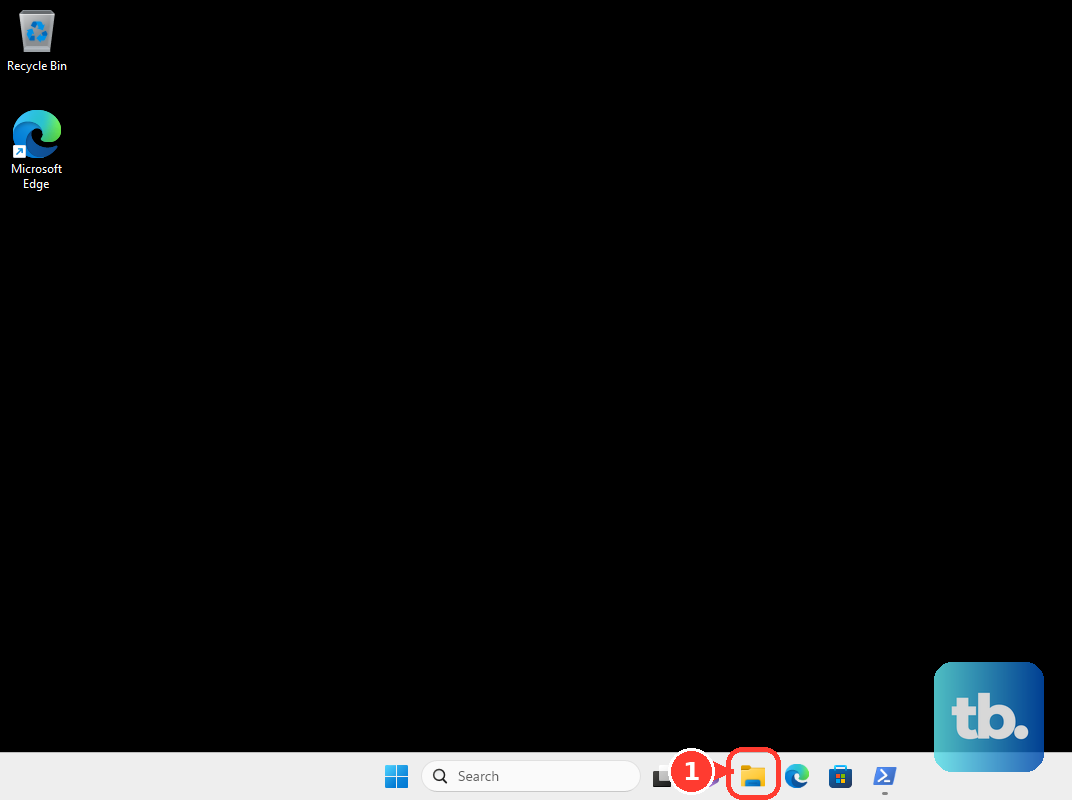
You can also hide the entire navigation pane by selecting View > Show and unchecking Navigation Pane. Any Recycle Bin entry inside that pane disappears along with the rest of the pane, while desktop and other File Explorer occurrences remain. Choose this option only if you also want the other items in the pane hidden.
Apply removal through Group Policy
For administrative control, you can use policies on Windows 11 Pro, Enterprise, Education, IoT Enterprise, and IoT Enterprise LTSC where the edition and version support them. If you use Windows 11 Home, use the desktop settings or menu methods above. The policies offer different scopes: one removes most Recycle Bin occurrences, while the other hides all desktop items.
Press Windows + R to open Run. Enter the following command, then press Enter:
gpedit.mscOpen User Configuration > Administrative Templates > Desktop > Remove Recycle Bin icon from desktop. Select Enabled, then select OK. Sign out and sign in to apply the change. Microsoft says this policy removes most Recycle Bin occurrences, including those on the desktop, in File Explorer, and in standard Open dialogs.
To hide all desktop items instead, open User Configuration > Administrative Templates > Desktop > Hide and disable all items on the desktop. Select Enabled, then select OK. For the machine-wide equivalent, open the same policy under Computer Configuration > Administrative Templates > Desktop. This broader policy affects all desktop items, so it is unsuitable if you want your other desktop icons visible.
Deploy removal through MDM
If you manage Windows 11 devices through mobile device management, you can deploy the same administrative controls using ADMX-backed string policies. These require a supported policy edition. For Recycle Bin removal, deploy the following policy in user scope:
./User/Vendor/MSFT/Policy/Config/ADMX_Desktop/NoRecycleBinIconUse the following XML payload as the policy's string value. After deployment, sign out and sign in:
<enabled/>This policy suppresses most Recycle Bin occurrences, including the desktop, File Explorer, and standard Open dialogs. It supports user scope only, so choose the desktop-items policy below if you need a device-scoped control and intend to hide all desktop items.
To hide all desktop items for a user, deploy the following ADMX-backed string policy. Use the same XML payload shown above:
./User/Vendor/MSFT/Policy/Config/ADMX_Desktop/NoDesktopFor device scope, deploy the following path instead. Use the same XML payload to enable it:
./Device/Vendor/MSFT/Policy/Config/ADMX_Desktop/NoDesktopApply administrative values in Registry Editor
The registry mappings provide another way to apply the administrative policies on supported policy editions. For Windows 11 Home, use Desktop icon settings or Show desktop icons instead. Choose the Recycle Bin mapping for broader Recycle Bin removal, or the desktop-items mapping to hide everything on the desktop.
In Registry Editor, open the following key for the current user. Set the DWORD named {645FF040-5081-101B-9F08-00AA002F954E} to 1, then sign out and sign in:
HKEY_CURRENT_USER\Software\Microsoft\Windows\CurrentVersion\Policies\NonEnumThis value applies the Recycle Bin removal policy, which suppresses most occurrences beyond the desktop icon. If you only want to change the desktop icon, use the checkbox method at the top instead.
To hide all desktop items for the current user, open the following key. Set the DWORD named NoDesktop to 1:
HKEY_CURRENT_USER\Software\Microsoft\Windows\CurrentVersion\Policies\ExplorerFor the machine-wide equivalent, use the same path under HKEY_LOCAL_MACHINE instead of HKEY_CURRENT_USER. Set the same NoDesktop DWORD to 1. This mapping affects all desktop items, so use it only when that broader result is what you want.
Frequently Asked Questions
Does hiding the Recycle Bin delete its contents?
Hiding the icon does not empty the Recycle Bin. You do not need to empty it before changing its visibility.
Does hiding the Recycle Bin keep other people from accessing its contents?
Hiding the Recycle Bin does not protect its contents from access. Even the administrative removal policy leaves other access possible, so hiding it is not a privacy control.
Do you need to install an app to hide the Recycle Bin?
No download or installation is required. Windows 11 includes the controls needed to hide the desktop icon.
Can you hide the icon by disabling recycling?
Disabling or bypassing recycling does not hide the Recycle Bin icon. Use the icon visibility setting to remove it from your desktop.