

YouTube videos stop working when the page stalls, the connection drops below the selected quality, the app gets stuck, or the browser blocks playback. Start with the fastest fixes, then use the section that matches your phone, computer, TV, or account. Everything below uses current official guidance verified in July 2026, with old Flash and HTML5 opt-in tricks left out.
1. Reload YouTube First
Start with the error on the screen.
- 1.When YouTube shows Reload, Error loading the page, please try again, or Something went wrong, select Reload.
- 2.In a browser, use the refresh button and try the video again.
- 3.Close the YouTube app or browser tab.
- 4.Open YouTube again.
- 5.On desktop, close extra tabs, other browsers, and unused programs while streaming.
- 6.Replay the video.
Still stuck? Restart the phone, tablet, computer, smart TV, streaming device, or game console, then open YouTube and play the same video again.
2. Stabilize the Internet Connection
Endless buffering and quality drops point straight at bandwidth. YouTube lists 20 Mbps for 4K, 5 Mbps for 1080p, 2.5 Mbps for 720p, 1.1 Mbps for 480p, and 0.7 Mbps for 360p. Run a speed test.
In the YouTube player, select Settings, choose Quality, then pick 480p or 360p. On a phone, switch from mobile data to Wi-Fi, or from Wi-Fi to mobile data, then replay the video.
For home Wi-Fi, power-cycle the network. Turn off your device, unplug the modem, and unplug the separate wireless router. Wait about one minute.
Plug the modem back in and wait for the lights to stop blinking. Then plug the router back in. Turn your device on and reload YouTube.
3. Update the App and Device
An outdated app, browser, operating system, or TV firmware breaks playback paths that YouTube expects to be current. Update the app first, then check the device software.
Android: Open Google Play Store. Tap your profile picture, then choose Manage apps & device. Under Updates available tap See details.
Find YouTube. Tap Update or Update all.
iPhone or iPad: Open App Store. Tap the My Account button or your profile picture, then tap App Updates. Tap Update next to YouTube or Update All.
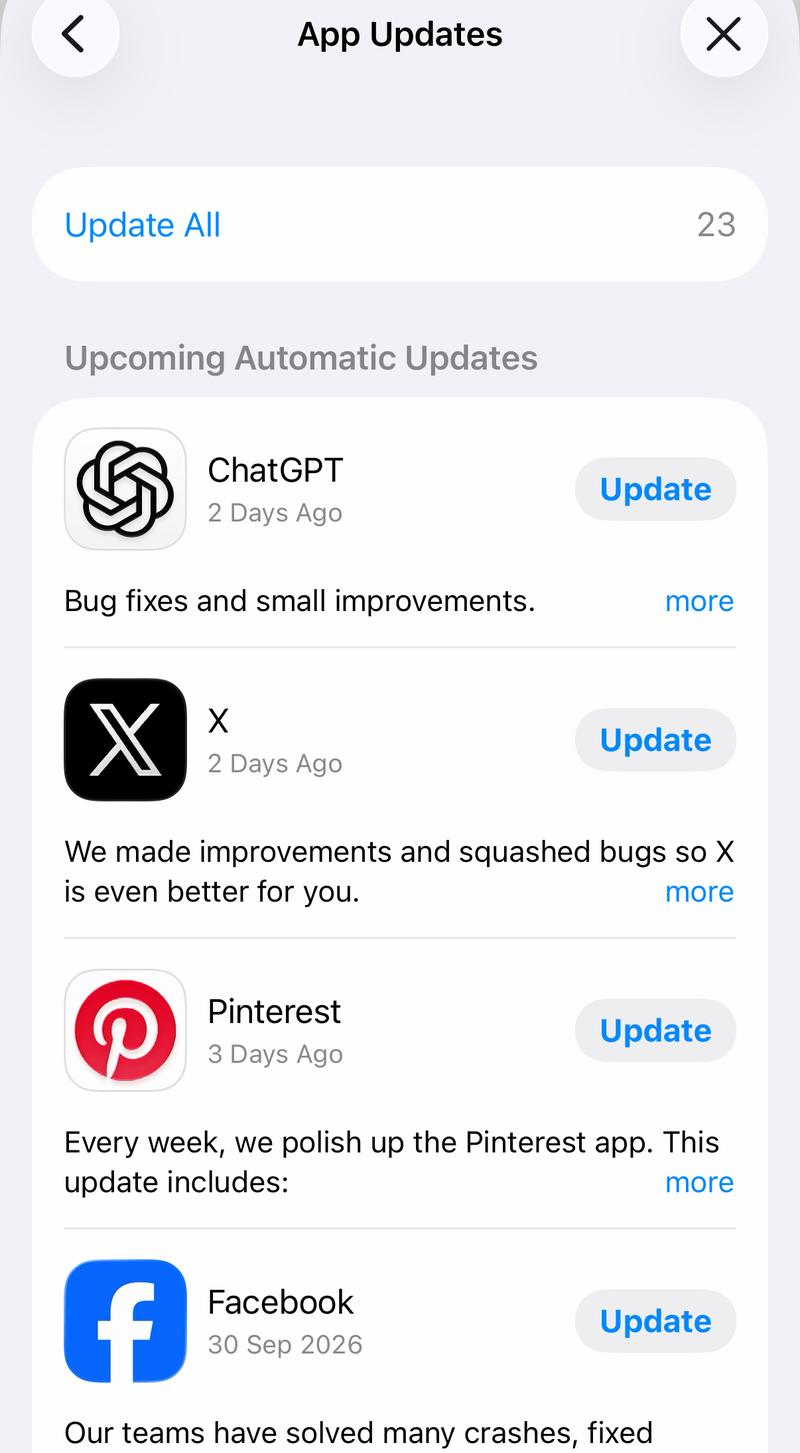
Apple TV: Open App Store. Search for YouTube, select the app, and choose Update. No Update button means the app is current.
Android TV: Press Home on the remote. Open Apps, then choose Google Play Store. Open Settings, select Auto-Update Apps, and choose Auto-update apps at any time.
Google TV: Search for Google Play Store and open it. Go to your profile picture or initial, choose Manage apps & games, and open Updates. Select Update all.
For automatic updates, open Google Play Store. Choose Settings, then select Auto-update apps.
On the web, use the newest Google Chrome, Firefox, or Safari. Update Windows, macOS, iPhone, iPad, Android, TV firmware, or console system software from the device’s system update menu.
4. Clear Cache or Reinstall YouTube
On Android, open Settings. Go to Apps or Apps & notifications, choose See all apps, and tap YouTube. Open Storage & cache, then tap Clear cache. Replay the video.
When the Android app still fails, open Settings. Choose Apps or Apps & Notifications, tap YouTube, and choose Disable or Uninstall. Reinstall or re-enable it from Google Play.
Open Manage apps & device, then open Manage. Choose Install or Enable. Preinstalled YouTube apps on some devices only show Disable.
On iPhone or iPad, touch and hold YouTube. Tap Remove App, choose Delete App, and confirm with Delete. Open App Store, search for YouTube, and reinstall it.
Bad cached data can make the app load but refuse to play, so cache clearing and reinstalling are the cleanest app-level repairs.
5. Repair Playback in Your Browser
Browser playback usually comes down to updates, JavaScript, site data, extensions, or graphics acceleration.
Chrome: Open More. Choose Update Google Chrome, then select Relaunch. Turn JavaScript on from More, Settings, Privacy and security, Site settings, Javascript, and Sites can use Javascript.
Clear data from More, Delete browsing data. Select Cached images and files and Cookies and other site data. Choose Delete data.
Chrome extensions: Open More. Choose New Incognito Window, then load YouTube. When YouTube works there, open a normal Chrome window.
Go to More, Extensions, Manage extensions. Turn extensions off, then reload YouTube. Turn them back on one at a time. When playback breaks again, select Remove for that extension.
Safari on iPhone or iPad: Try cellular or a different Wi-Fi network. Check VPN settings or turn VPN off when content is blocked. Restart the device.
Clear data from Settings, Apps, Safari, Clear History and Website Data, and Clear History. Turn JavaScript on from Settings, Apps, Safari, Advanced, and JavaScript.
Safari on Mac: Open the Safari menu. Choose Settings or Preferences, then open Extensions. Deselect each extension. Clear history from Safari, History, and Clear History.
Firefox: Reload YouTube. Open the Firefox menu, choose Add-ons and themes or Extensions and themes, and open Extensions. Turn extensions off.
For video glitches, open Settings, General, Performance. Turn off Use recommended performance settings, then turn off Use hardware acceleration when available. Quit and restart Firefox.
Edge: For black, green, blank, or stuttering playback, open edge://settings/system. Turn on Use graphics acceleration when available, then restart Edge. Open edge://gpu and check Video Decode. When H.264 playback still fails, update the GPU driver from the device manufacturer, or toggle graphics acceleration off and on, then restart Edge.
6. Unlock Sign In and Restricted Mode
Some videos and features require a signed-in account. Select Sign in, enter your Google Account credentials, and replay the video.
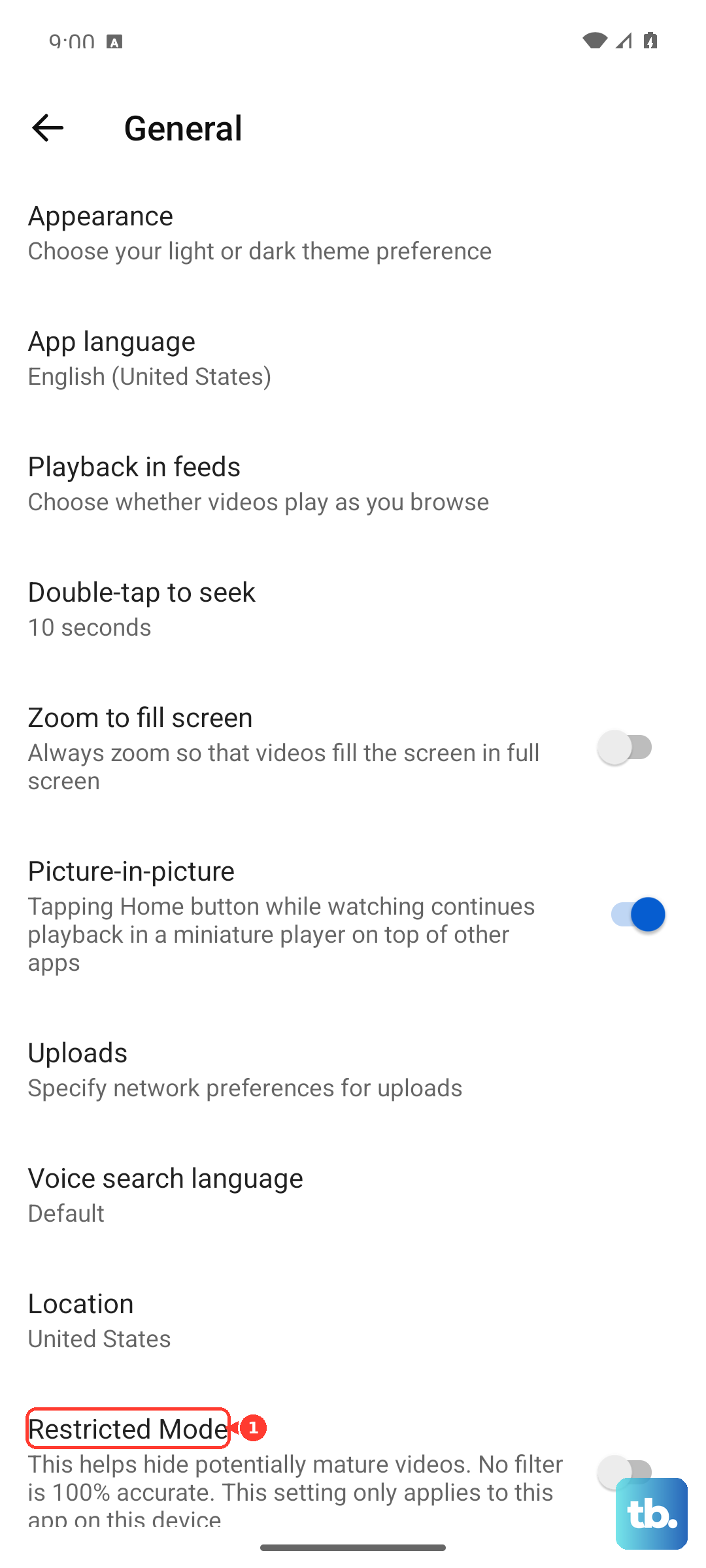
Restricted Mode blocks videos through YouTube settings or a managed account, device, browser, DNS, carrier, Family Link, or supervised-account restriction. On a computer, sign in, select your profile photo, choose Restricted Mode, and turn Activate Restricted Mode off.
When that switch is locked, open YouTube’s content restrictions page and review the account, DNS, network, or administrator checkmarks. A moderate or strict DNS restriction means your mobile provider, network provider, or administrator has to change it.
7. Switch to Another YouTube Surface
When one surface fails, move to another one. Open the YouTube app, visit youtube.com in a browser, or try Google Chrome on desktop. On a TV, install the official YouTube app from the device’s app store.
YouTube supports installs through app stores on Android TV, Google TV, Apple TV, Chromecast with Google TV, Fire TV, LG TV, PlayStation, Roku, Samsung TV, and Xbox. Casting gives you another way in.
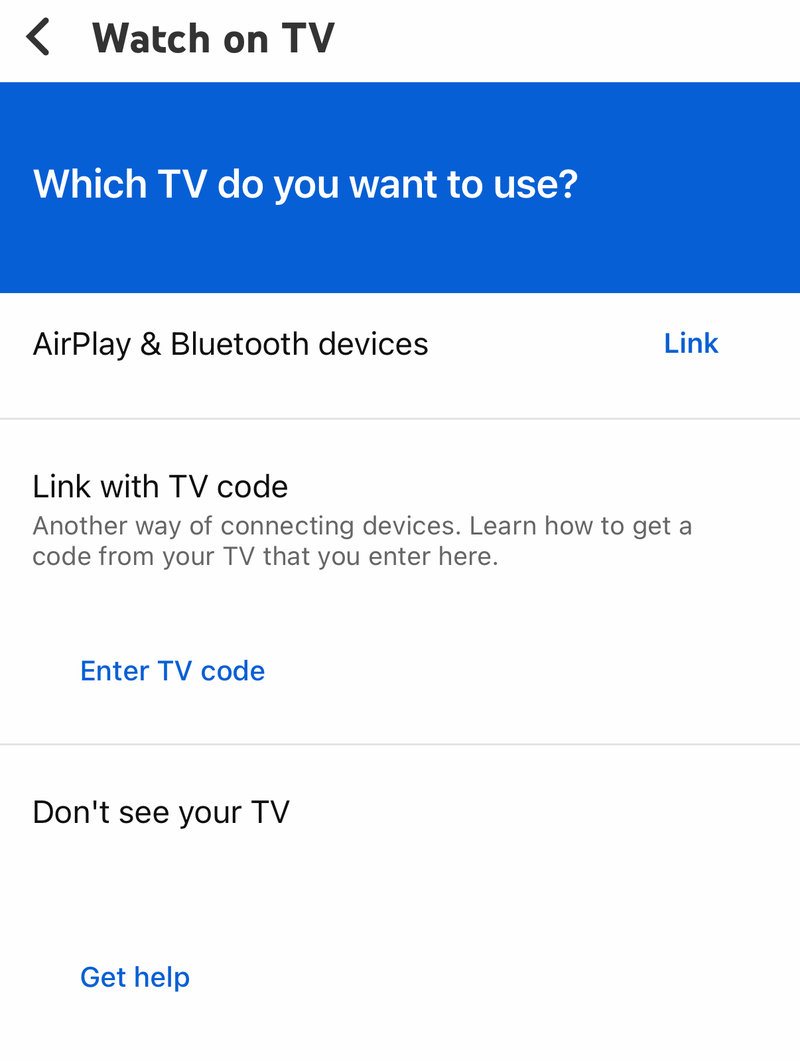
Put the phone or tablet and TV on the same Wi-Fi network. Open the YouTube app on the TV, then open the YouTube app on the phone or tablet. Select a video, tap Cast, and choose the TV or streaming device.
For different Wi-Fi networks, open YouTube on the TV. Go to Settings, choose Link with TV code, and open the YouTube mobile app. Tap Cast, choose Link with TV code, enter the blue code, and tap LINK.
8. Stop Using Old Flash Fixes
Skip old YouTube fixes that tell you to install Adobe Flash Player, force Flash playback, or use old HTML5 opt-in pages. Adobe ended Flash Player support on December 31, 2020, and current YouTube troubleshooting uses supported browsers, current apps, app updates, cache clearing, and device updates instead.
For work, school, library, supervised, and carrier-managed devices, check YouTube’s content restrictions page, then contact the person or organization that manages the device or network. A locked policy is not a setting you can override from YouTube.
Frequently Asked Questions
Why does YouTube show a black or green screen?
In Microsoft Edge, open edge://settings/system, turn on Use graphics acceleration when available, restart Edge, then check edge://gpu for Video Decode. If H.264 still fails, update the GPU driver from the device manufacturer.
How do I fix YouTube on an Assistant speaker or Smart Display?
Open the Google Home app, tap the speaker or Smart Display, go to Settings, Notifications & digital wellbeing, YouTube Settings, then change Restricted Mode for yourself or for all users if you manage the device.
Why are my purchased YouTube movies missing?
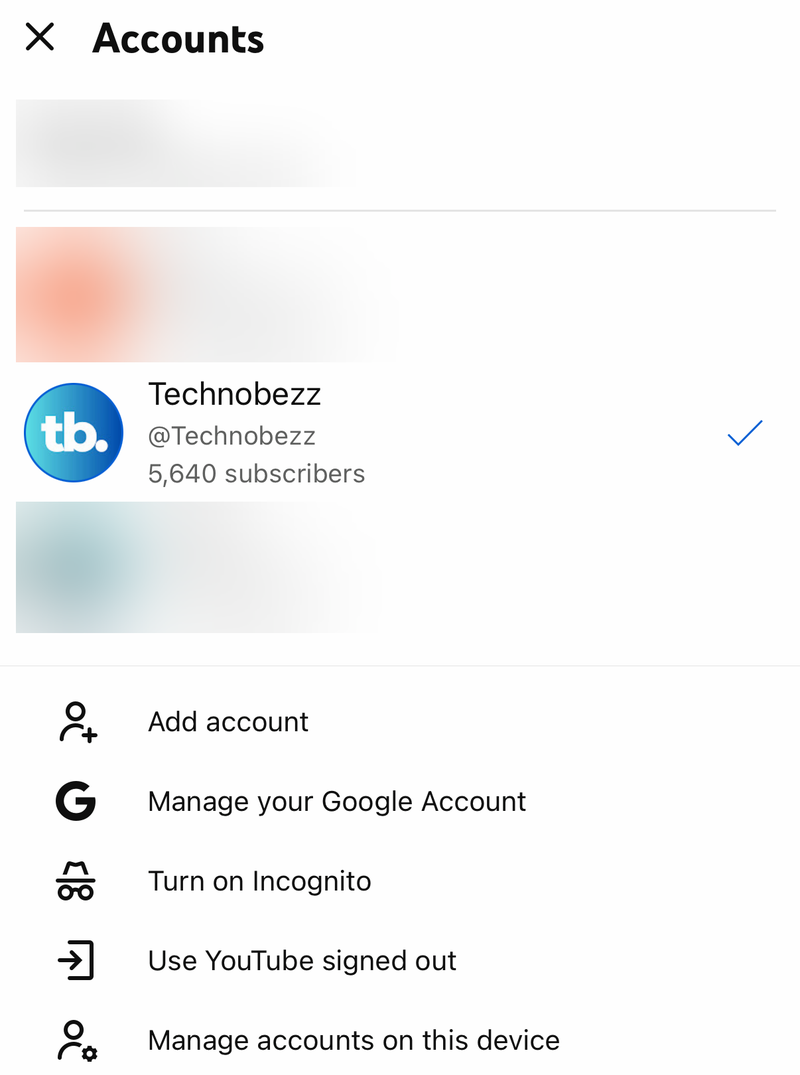
Open your profile picture, use the arrow next to your name, and switch to the personal account or channel that bought the movie or show. Brand Account users may not see purchases in Library.
Can I pair YouTube with a TV code from a computer?
No. YouTube’s TV code pairing works from the YouTube mobile app. On the TV, open Settings and Link with TV code, then enter that blue code from Cast and Link with TV code on the phone or tablet.