The YouTube message “There was a problem with the server 400” appears when YouTube fails to load a video through the app, browser, account session, local data, or connection. Start with the quick reload and network checks, then move into cache, updates, cookies, and TV resets when the error keeps returning.
Reload YouTube First
On the YouTube error page, select Reload in the message.
In a browser, select the browser refresh button.
In Chrome or Firefox on Windows, press F5 or Ctrl + R.
In Firefox on Mac, press Command + R.
For a hard reload in Chrome, press Shift + F5 or Ctrl + Shift + R.
For a hard reload in Edge, press Ctrl + Shift + R.
For a hard reload in Firefox, press Ctrl + F5, Ctrl + Shift + R, or Command + Shift + R.
If the 400 error stays on screen after reloading, wait a little and open YouTube again.
Check The Connection Before Changing Settings
A stalled connection makes YouTube show a server error even when the app is fine. Restart your modem or router with its power button, or unplug it, wait, reconnect it, and replay the video.
On Android, switch networks before replaying the video. If you are on mobile data, connect to Wi-Fi; if you are on Wi-Fi, connect to your mobile network.
Run an internet speed test when videos load slowly or fail at higher quality. YouTube lists 20 Mbps for 4K, 5 Mbps for 1080p, 2.5 Mbps for 720p, 1.1 Mbps for 480p, and 0.7 Mbps for 360p as recommended sustained speeds.
In the YouTube player, open Settings, choose Quality, and select a lower available resolution when the connection is below the speed YouTube recommends.
If this method fails, restart the YouTube app and the device next.
Restart The App And Device
This fixes a stuck YouTube app, frozen playback session, or temporary device glitch.
On Android, open Recents.
Swipe YouTube away.
Reopen YouTube.
On iPhone X and later, swipe up from the bottom of the Home Screen and pause.
Swipe to YouTube.
Swipe up on the app preview.
Reopen YouTube.
On iPhone SE, iPhone 8, and earlier, double-click Home.
Swipe to YouTube.
Swipe up on the app preview.
Reopen YouTube.
On a TV, press the remote’s Home button.
Reopen YouTube.
Restart your phone, tablet, computer, TV, console, or streaming device.
Return to YouTube and replay the video.
For a TV or streaming device, disconnect the power.
Wait at least 30 seconds.
Reconnect power.
Open YouTube again.
Clear Broken Cache And Site Data
The most common cause here is corrupted local YouTube data that keeps loading the same failed session.
On Android, open Settings, go to Apps or Applications, choose YouTube, open Storage, tap Clear cache, and replay the video.
If the Android error returns, go back to YouTube storage and choose Clear storage or Clear data. This removes app data and settings, so reopen YouTube and sign in again.
In Chrome on desktop, open More, choose Delete browsing data, select Cookies and other site data and Cached images and files, choose a Time range, and select Delete data.
For YouTube-only data in Chrome, open More, Settings, Privacy and security, Third-party cookies, then See all site data and permissions. Search for YouTube or Google site data, select Delete, and confirm Delete.
On iPhone Safari, open Settings, Apps, Safari, Clear History and Website Data, choose a timeframe, and tap Clear History. To keep history, use Settings, Apps, Safari, Advanced, Website Data, Remove All Website Data, then Remove Now.
In Firefox, open the menu button, choose Settings, then Privacy & Security. Under cookies, site data, or browsing data, choose Clear Data or Clear browsing data, select Cookies and site data and Temporary cached files and pages, set When to Everything, then choose Clear.
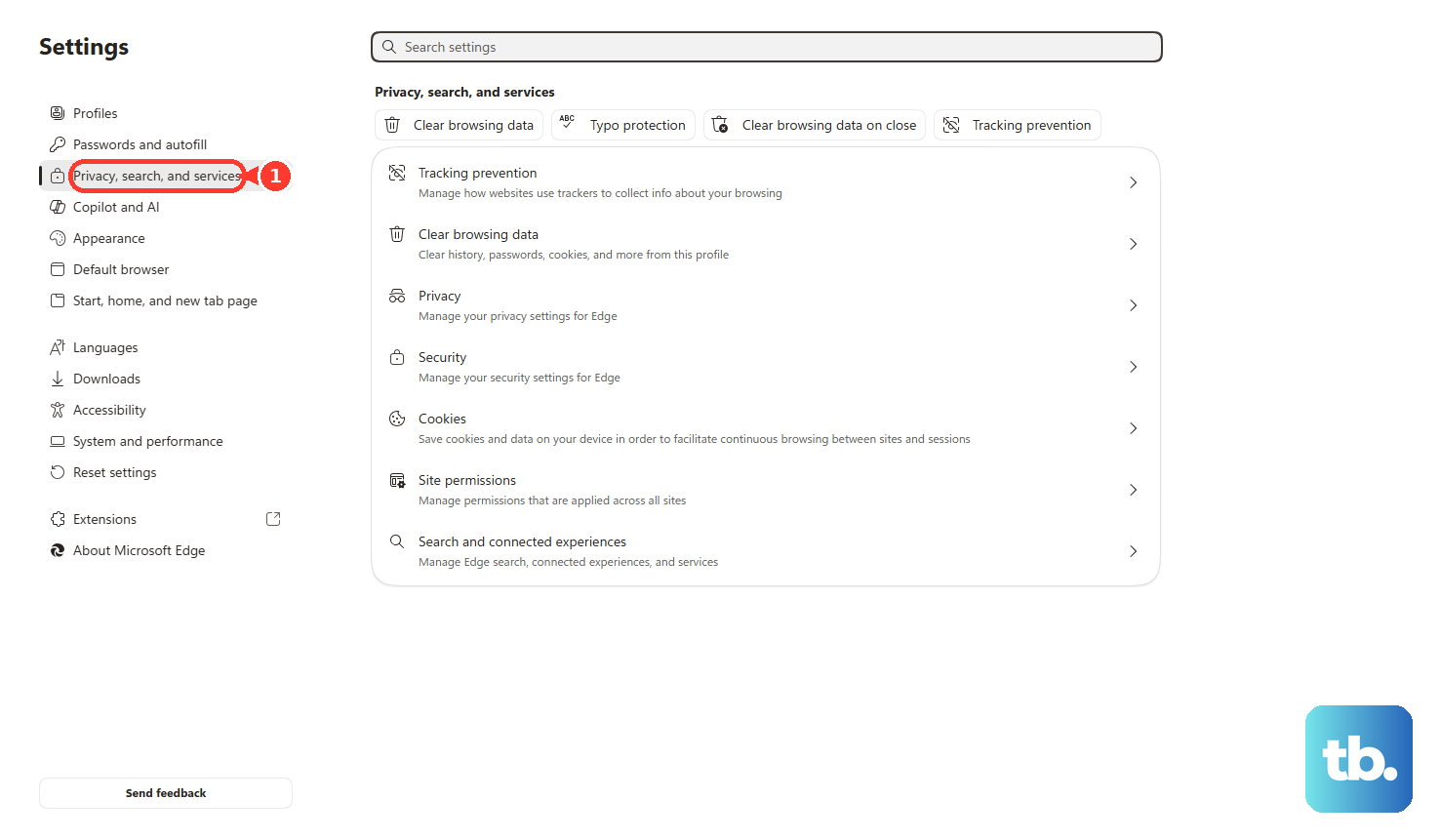
In Microsoft Edge, open Settings and more, Settings, Privacy, search, and services, then choose Choose what to clear next to Clear browsing data now. Select Cookies and other site data and Cached images and files, then choose Clear now.
Update Or Reinstall YouTube
Use this when the YouTube app keeps showing server 400 after a restart and cache cleanup.
- 1.On Android, open Google Play Store, tap your profile picture, choose Manage apps & device, open Updates available, find YouTube, and tap Update.
- 2.On iPhone or iPad, open App Store, tap your profile picture, scroll to pending updates or Upcoming Automatic Updates, then tap Update next to YouTube.
- 3.On Apple TV, open App Store, search for YouTube, select it, and choose Update. If Update is not shown, the app is already up to date.
- 4.On other smart TVs and streaming devices, open the device’s app store, search for YouTube, and install any available update.
- 5.If updating does not help, uninstall or delete YouTube, then reinstall it from Google Play or App Store. On preinstalled Android builds, use Disable when Uninstall is not available. Disabling hides YouTube until you turn it back on, so re-enable it in Google Play Store, your profile picture, Manage apps & device, Manage, select YouTube, then tap Enable.
Fix Sign In And Cookie Problems
The most common cause is a broken or blocked YouTube session, especially when cookies are disabled or sign-in state fails.
On a computer, go to YouTube, click Sign in in the top right, and sign in with your Google Account.
On iPhone or iPad, open YouTube, tap Account, tap Sign in, then select an existing account or sign in with your account.
On a smart TV, streaming device, or game console, open YouTube and choose Sign in with your phone, then scan the QR code. You can also go to yt.be/activate on a phone, tablet, or computer and enter the code, or choose Sign in with your remote and enter your Google Account information with the on-screen keyboard.
In Chrome, open More, Settings, Privacy and security, then Third-party cookies. Allow third-party cookies, or add YouTube and Google under Sites allowed to use third-party cookies.
In Edge, open Settings and more, Settings, Privacy, search, and services, then Cookies. Add the YouTube or Google site URL under Allowed to save cookies, or stop blocking third-party cookies.
In Safari on iPhone, open Settings, Apps, Safari, Advanced, then turn off Block All Cookies. On Mac, open Safari, Settings, Advanced, then deselect Block all cookies.
Turn Off Extensions That Interfere
Browser extensions, including ad blockers, affect YouTube playback and trigger errors that look like server problems. Test YouTube in a private window to separate extension, cache, and session issues.
In Chrome, open More, choose New Incognito window, or press Ctrl + Shift + N on Windows or Command + Shift + N on Mac, then open youtube.com. Chrome blocks third-party cookies by default in Incognito, so allow them temporarily when YouTube sign-in or features fail there.
To turn off extensions in Chrome, open More, Extensions, Manage extensions, then switch off the extension toggle or choose Remove and confirm Remove.
In Edge, open New InPrivate window and try YouTube there. To disable an extension, open Extensions, Manage extensions, then turn off the toggle or choose More actions, Remove from Microsoft Edge, and Remove.
In Firefox, open a Private Window and test YouTube. Then open the menu button, choose Add-ons and themes or Extensions and themes, select Extensions, and use the blue toggle to turn off the suspect extension.
If this method fails, update your browser and system software next because YouTube supports current browser versions.
Update Your Browser And Device Software
In Chrome desktop, open More, Help, About Google Chrome, then choose Relaunch after the update installs. On Android, update Chrome from Play Store, Manage apps & device, Updates available, Chrome, then Update; on iPhone or iPad, use App Store, your profile icon, Available Updates, Chrome, then Update.
In Microsoft Edge, open Settings and more, Help and feedback, About Microsoft Edge, then select Download and install when it appears and restart Edge when prompted. You can also update Windows from Start, Settings, Windows Update, Check for updates, then Download & install.
In Firefox desktop, open the menu button, choose Help, then About Firefox. Firefox checks for updates and downloads one when available, then asks you to restart.
For Safari, update Apple system software. On iPhone or iPad, open Settings, General, Software Update, then Download and Install; on Mac, open the Apple menu, System Settings, General, Software Update, then click Update, Upgrade, or Restart Now.
Reset A TV App Or Managed Device
The most common cause on TVs is a stuck TV app session rather than a problem with your whole Google Account.
Open the YouTube app on your smart TV, streaming device, or game console, go to Settings, and choose Reset app. This signs you out if you were signed in, so sign back in afterward.
If the TV app still fails, use another playback route. Play YouTube on another device and cast to the TV with Chromecast, or connect a laptop to the TV with an HDMI cable.
You can also link a phone or tablet with a TV code. On the TV, open YouTube, Settings, then Link with TV code; on the phone or tablet, open YouTube, tap Cast, choose Link with TV code, enter the blue TV code, and tap LINK.
On a work or school Chromebook, managed browser, or managed device, cookie settings can be locked. Contact the administrator and ask them to allow the required YouTube or Google cookies.
Skip YouTube Go, sideloaded APKs, rooting, and unofficial YouTube clients. Use the official YouTube app from Google Play, the App Store, or your TV’s app store.
Frequently Asked Questions
Why does YouTube say there was a problem with the server 400?
It appears when YouTube fails to load through the app, browser, account session, local cache, cookies, or connection. Start with reload, network restart, and app restart before clearing data.
Will clearing YouTube data sign me out?
On Android, clearing storage or data removes app data and settings, so sign in again after reopening YouTube. Clearing cache is the lighter first step.
What internet speed does YouTube recommend?
YouTube lists 20 Mbps for 4K, 5 Mbps for 1080p, 2.5 Mbps for 720p, 1.1 Mbps for 480p, and 0.7 Mbps for 360p as recommended sustained speeds.
Should I use an APK or unofficial YouTube app to fix server 400?
No. Use the official YouTube app from Google Play, the App Store, or your TV’s app store, then update or reinstall it.











