YouTube Picture in Picture is supposed to keep your video playing in a small floating window while you use another app or browser tab. When it refuses to open, the fix is usually one of four things: the video type, a phone-level PiP switch, a YouTube playback setting, or the browser’s own PiP control. Start with eligibility, then move through the device-specific fixes below.
1. Check the video type first
Non-music long-form videos and Shorts use PiP for all users on iPhone, iPad, and Android. Music content needs YouTube Premium for PiP, and that includes official music videos, Art Tracks, children's songs, and user-generated song covers. For music videos, sign in with the YouTube Premium account before testing PiP again.
Before changing settings, confirm that the video is allowed to use PiP. If PiP works on a regular video but not on a music video, the phone is not the problem. The content requires Premium.
2. Enable YouTube PiP on Android
Android needs both the system permission and the YouTube app switch turned on. Open Android Settings, tap Apps, choose YouTube, then open Advanced, then Picture-in-picture. Turn on Allow picture-in-picture.
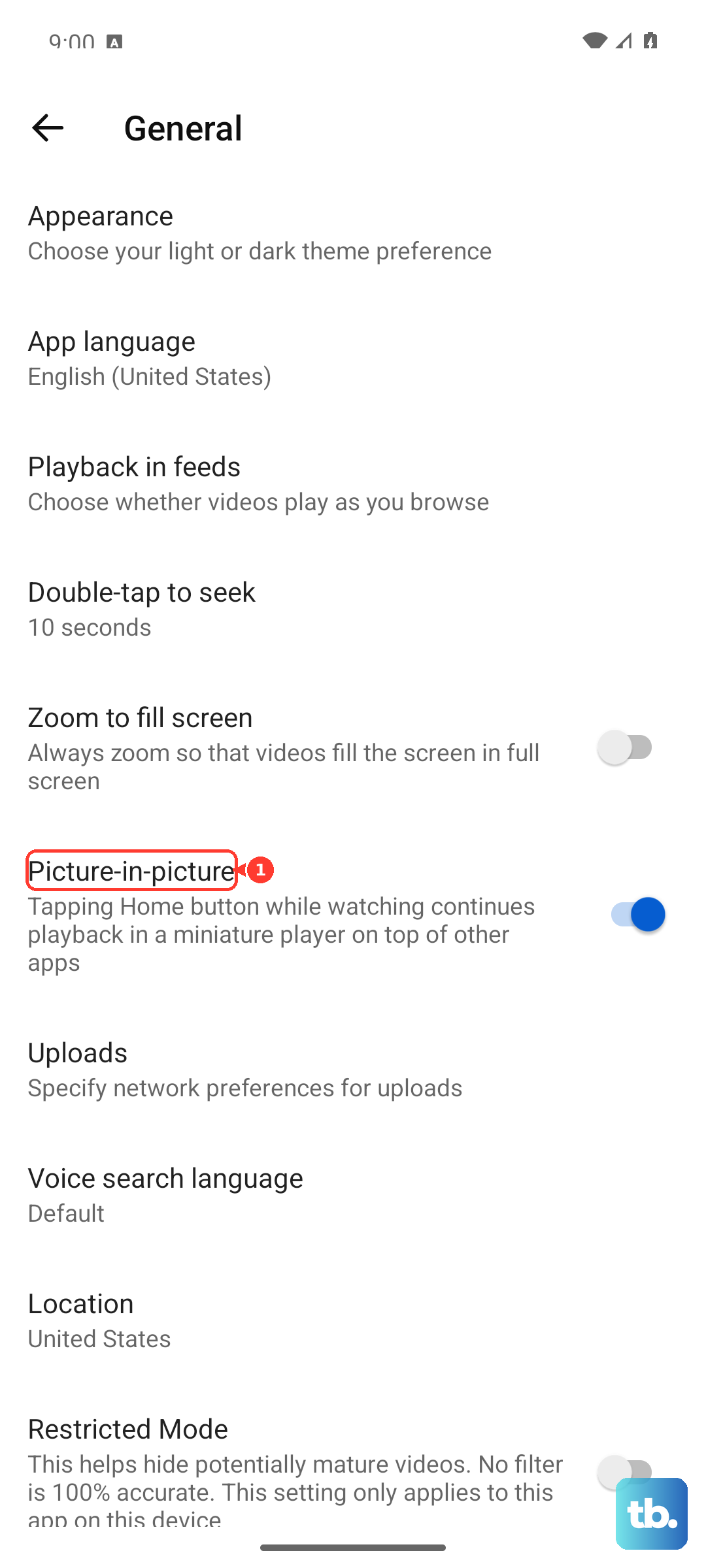
Now turn on the matching YouTube setting. Open the YouTube app, tap your profile picture, open Settings, and tap Playback. Turn on Picture-in-Picture.
Play a video in YouTube, then exit the app while the video is still playing. The video shrinks into a floating window you can drag around the screen.
3. Switch on PiP for iPhone and iPad
On iPhone and iPad, YouTube PiP requires iOS or iPadOS 15.0 or later and two settings.
First: open Settings, tap General, open Picture in Picture, and turn on Start PiP Automatically. Next: open YouTube, tap your profile picture, open Settings, tap Playback, and turn on Picture-in-Picture.
Play a video, then leave YouTube while it is playing. After the PiP window opens, pinch to resize it, drag it to another corner, move it off the left or right edge to hide it, tap Close to close it, or tap Restore Full Screen to return to the video.
4. Fix music PiP with Premium Background Play
Open the YouTube app and open Settings. Go to Background Play under Background & Downloads, then choose Always on or Headphones or external speakers.
If music PiP fails on a Premium account, check Background Play. Keep Background Play away from Off when you expect Premium music content to continue in PiP.
5. Update or redownload YouTube
An outdated or broken YouTube app stops PiP even when the settings are correct.
On Android: open the Google Play Store, tap your profile picture, choose Manage apps & device, open Updates available, find YouTube, and tap Update. You can also tap Update all.
On iPhone or iPad: open the App Store, tap your profile picture, scroll to pending updates, and tap Update next to YouTube.
If the update does not fix it, redownload the official app only. Use the Google Play Store on Android or the App Store on iPhone and iPad. Do not use third-party APK download sites as a YouTube fix.
6. Reset the app when YouTube misbehaves
- 1.Close YouTube and reopen it.
- 2.Restart the phone or tablet.
- 3.On Android, open Settings, tap Apps, choose See all apps, open YouTube, tap Force stop, then tap OK.
- 4.On Android, open Storage & cache and tap Clear cache. Use Clear storage only after cache clearing fails because it resets app data.
- 5.On Android, check for a system update through Settings, System, Advanced, then System update.
- 6.On iPhone or iPad, delete YouTube and redownload it from the App Store.
If YouTube freezes, closes, or ignores the PiP setting, reset the app before changing anything else. Android menu labels vary by manufacturer, but the YouTube app page is the place to force stop, clear cache, and manage storage.
7. Use the desktop browser PiP control
On a computer, YouTube PiP comes from the browser. Use the control built into your browser instead of the mobile YouTube settings.
Chrome: play a YouTube video, select Media control at the top right, then choose Enter picture-in-picture.
Safari on Mac: play the video, click the Page menu button in the Smart Search field, then choose Enter Picture in Picture.
Firefox: play the video and click the Picture-in-Picture toggle over the video, use the PiP icon in the address bar, or right-click the video and choose the Picture-in-Picture option. On YouTube, use Shift plus right-click or double right-click to reach the native menu.
Edge: play a YouTube video with audio unmuted, select the Media Control Center icon near the address bar, then choose the Picture-in-picture icon. You can also right-click the YouTube video twice and select picture in picture.
If Firefox’s hover button is missing, open the Firefox menu, go to Settings, General, Tabs and browsing, Browsing, then Media, and enable Use Picture-in-Picture (older Firefox versions label this Enable picture-in-picture video controls).
8. Tell Miniplayer apart from real PiP
YouTube Miniplayer keeps playback inside YouTube. It does not float over other apps like system or browser Picture in Picture.
In the mobile app, tap Back or swipe down while watching a video to open Miniplayer inside YouTube. On desktop, right-click a video and choose Miniplayer. Miniplayer is not available for Shorts or videos marked as made for kids.
9. Skip outdated PiP fixes
Older tutorials send you to Settings, General, then Picture-in-Picture inside YouTube. Current YouTube Help places the switch under Settings, Playback, then Picture-in-Picture.
Ignore advice that says YouTube Premium is required for all mobile PiP. Premium is required for music content PiP, not for non-music long-form videos and Shorts.
Skip Chrome and Edge flag fixes such as chrome flags or edge flags. Current consumer controls are Chrome Media control and Edge Media Control Center.
On work or school managed Android devices, update YouTube through the Google Play Store when available. If your organization controls app updates, ask IT to keep the approved YouTube app current through managed Google Play.
Frequently Asked Questions
Why does YouTube PiP work for some videos but not music videos?
Non-music long-form videos and Shorts use PiP for all users on iOS and Android. Music content such as official music videos, Art Tracks, children's songs, and song covers needs YouTube Premium.
Does YouTube Miniplayer fix Picture in Picture?
No. Miniplayer only keeps the video playing inside YouTube. True Picture in Picture floats over other apps or outside the browser tab.
What iPhone setting is required for YouTube PiP?
Open Settings > General > Picture in Picture and turn on Start PiP Automatically. Then enable Picture-in-Picture inside YouTube under Settings > Playback.
Why is the Firefox Picture in Picture button missing on YouTube?
The hover control may be disabled. In Firefox, go to Settings > General > Tabs and browsing > Browsing > Media and enable picture-in-picture video controls.