Windows Media Player won't open, a video refuses to play, or the picture runs without sound. Start with a quick restart, then follow the fix that matches your symptoms. The modern Media Player app and Windows Media Player Legacy have different repair controls, so each set of steps below identifies the player it applies to.
Close the player and restart Windows
In the modern player, select Close (X).
Reopen the app from Start.
If it still doesn't work, save your work.
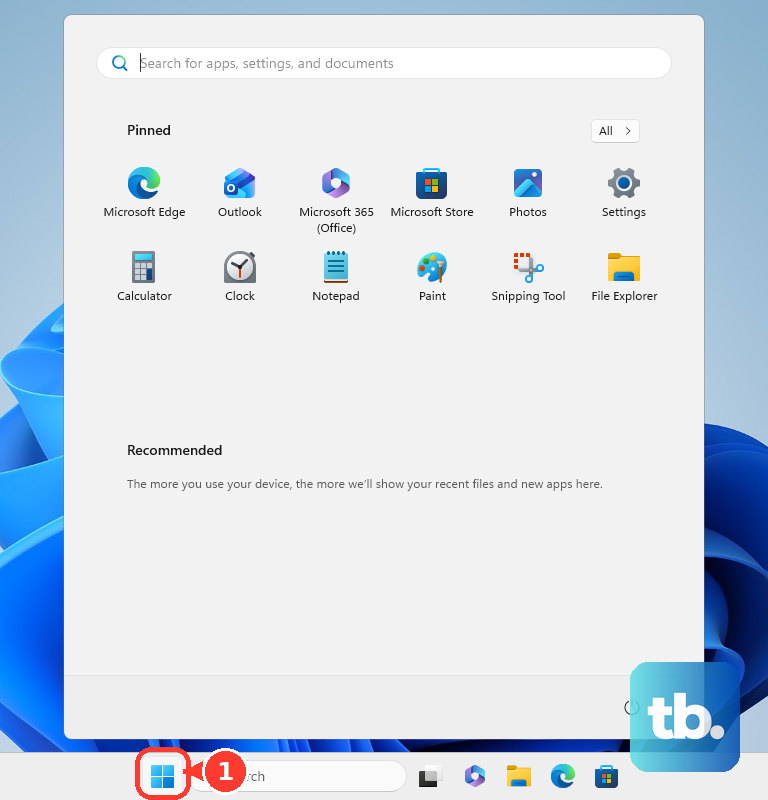
Select Start > Power > Restart, or Update and restart if updates are pending. Restarting Windows applies to both players.
If restarting doesn't help, check the file-opening fixes next. For an app that won't launch at all, skip to the update steps.
Fix files that open incorrectly or won't play
An incorrect file association sends a double-clicked file to the wrong app even when your intended player works.
Open Settings > Apps > Default apps.
Search for the file's extension.
Select the matching result.
Choose the player you want to use.
If a file opens in Legacy but won't play, compare its format with Microsoft's supported-file list. That list covers Windows Media Player 12 and Legacy, not the modern app. A supported container such as MP4 or AVI still needs codecs to decode the audio and video inside it.
Once you know the file's encoding, search Microsoft Store for the matching Microsoft extension. Microsoft lists MPEG-2, HEVC, VP9, AV1, and Web Media extensions.
Install the extension that matches the encoding and supports your device and player.
To inspect Legacy's installed codecs, select Organize > Layout > Show menu bar.
Select Help > About Windows Media Player > Technical Support Information. The codec and component report opens in your browser.
Bring Windows and the player up to date
Windows updates service Legacy; the modern player also receives updates through Microsoft Store.
- 1.On Windows 11, open Start > Settings > Windows Update > Check for updates. On Windows 10, use Settings > Update & Security > Windows Update > Check for updates.
- 2.Install available updates and restart your PC. Windows 10 update availability depends on your support entitlement.
- 3.For the modern player, open Microsoft Store and select Check for Updates. If your Store shows Library > Get updates, use those controls.
- 4.Reopen the player from Start and test playback.
Track down sound and playback failures
If the picture plays without sound, check the player's volume and mute controls first.
Check your speakers' power, cables, and physical mute controls.
Disconnect headphones if they are redirecting sound away from your speakers.
On Windows 11, open Settings > System > Sound > Volume mixer > Apps. On Windows 10, right-click the taskbar volume icon and select Open Volume mixer.
Unmute the player's entry.
Raise its volume slider.
In the Windows 11 mixer, set the player's Output device to your intended speakers or headphones.
For an unresolved sound failure, open Get Help.
Search for audio troubleshooter. For video problems, search for Video playback troubleshooter; for a broader player problem, search for Windows Media Player troubleshooter.
Follow the diagnostic prompts, including consent to diagnostics when requested.
Microsoft directs current player troubleshooting to Get Help on the newer Windows 11 releases, where the older inbox MSDT troubleshooters have been redirected and removed. Windows 10 and Windows 11 version 22H2 or earlier are not affected and still run the built-in troubleshooter: open Settings > System > Troubleshoot > Other troubleshooters, then select Run next to Windows Media Player. The Download codecs automatically instructions belong to Windows Media Player 11; use the matching Microsoft Store extension for current codec installation.
If these checks don't resolve the problem, repair the modern app next. For Legacy, continue to the library or optional-feature fixes below.
Repair or reset the modern app
These controls address problems with the modern packaged player.
Open Start > Settings > Apps > Installed apps. On Windows 10, open Settings > Apps > Apps & features.
Find the entry named Media Player or Windows Media Player.
On Windows 11, open its More (…) menu. On Windows 10, select the app.
Select Advanced options.
Select Repair if it is available.
Test the player after the repair finishes.
If it still fails, return to Advanced options.
Select Reset.
Read the confirmation before proceeding. Reset clears the app's settings and app data.
Confirm the reset to proceed.
If these controls are missing, use the reinstall steps for your player below.
Rebuild the Windows Media Player Legacy library
For Legacy library problems, press Ctrl+M to reveal the menu, then select Tools > Advanced > Restore Media Library. These menus belong to Legacy.
If restoring the library doesn't help, close Legacy before rebuilding its database.
Open the database folder by pressing Windows+R, entering %LOCALAPPDATA%\Microsoft\Media Player\, and selecting OK.
Delete the files inside that specific folder, keeping the folder itself. Reopen Legacy afterward to rebuild its database. The separate Clear History control only clears playback history.
Reinstall the modern player
Use this after repair and reset fail, provided the player appears in your Store library and offers Uninstall.
- 1.Open Settings > Apps > Installed apps and find Media Player or Windows Media Player.
- 2.Select More (…) > Uninstall. Alternatively, find the app in Start, right-click it, and select Uninstall.
- 3.Open Microsoft Store > Library, find the player, and select Install.
- 4.If Store won't open or blocks installation, press Windows+R, enter
wsreset.exe, and select OK. Wait for the command window to close and Store to open, then retry installation. - 5.Launch the reinstalled player from Start and test playback.
Restore missing Windows media features
Use these steps to restore Windows Media Player Legacy or install missing media components on a Windows N edition. The Media Feature Pack applies only to Windows N.
To add Legacy on a Windows 11 edition that offers it, open Settings > System > Optional features > View features. Earlier builds place Optional features under Apps.
Select Windows Media Player Legacy.
Select Next.
Select Add.
If Legacy is already installed and needs reinstalling, find it under Optional features > Installed features.
Expand its entry.
Select Remove.
Restart if requested.
Add Windows Media Player Legacy again using the steps above.
On Windows 10, or if that optional-feature entry is missing, use Microsoft's other documented route: open Control Panel > Programs > Turn Windows features on or off, clear Media Features, select OK, and restart. Then recheck Media Features, select OK, and restart again.
For Windows 11 N, the location depends on your build: open Settings > System > Optional features on the latest Windows 11, or Settings > Apps > Optional features where your PC shows it there. Then select View features. On Windows 10 N, open Settings > Apps > Apps & features > Optional features > Add a feature to install the pack.
Select Media Feature Pack.
Complete its installation.
Restart after installing the pack, even if Windows doesn't prompt you.
On a work or school PC with hidden optional-feature controls, ask your IT administrator to restore access or install the required feature.
Repair system files if the problem goes deeper
Use this escalation after the player-specific fixes when broader Windows corruption is affecting playback. Search for Command Prompt and select Run as administrator.
Run DISM.exe /Online /Cleanup-image /Restorehealth and wait for it to complete successfully.
Run sfc /scannow next and wait for the system-file scan to finish.
For a problem that remains unresolved, open Contact Microsoft Support, describe the failure, and select Get Help. Select Contact Support if offered. Support availability depends on your product and entitlement.
Frequently Asked Questions
Why does an MP4 file play video but have no sound?
MP4's audio and video use separate codecs. AC-3 audio support is absent by default starting with Windows 11 24H2, although some manufacturer installations and upgraded PCs retain it. An MP4 containing AC-3 audio therefore needs that decoding support even when its video plays.
Will an MPEG-2 extension make DVDs play?
Installing an MPEG-2 extension does not guarantee DVD-Video disc playback. DVD playback is not included with Windows Media Player.
What should I try if playback broke immediately after a driver update?
With administrator rights, open Device Manager and find the affected audio or graphics device. Open Properties > Driver > Roll Back Driver. Give a reason, select Yes, and restart if requested. Rollback requires an available previous driver.
What should I try if only streaming media fails?
Open Get Help, search for connect to network and internet, then select Run network diagnostics and follow the prompts. These diagnostics address streaming and network-media failures; they do not repair a damaged local file.











