
Your playlist is ready, but “Windows Media Player cannot burn some of the files” has stopped the burn. Start with the affected tracks and disc settings, then tackle player repairs if the error sticks around. These steps cover Windows Media Player Legacy on Windows 11 and Windows Media Player 12 on Windows 10, with Windows 11 update instructions marked separately.
Remove the files blocking the burn
Start with the offending items in your Burn list. Right-click an affected entry and choose Remove from list.
Your original file stays on your computer. This only removes its entry from the list, so there's no need to delete the song to retry the burn.
Click Start burn to burn the remaining entries. If you need the removed tracks on the finished disc, work through the file checks below before adding them back.
Match the disc format to your music player
In Player Library, click Burn. Open Burn options. Select Audio CD for a conventional music CD player, or Data CD or DVD for file storage. Playing a data disc requires equipment that supports its files and disc format.
Check your list against the disc's capacity. An audio CD holds approximately 80 minutes; a data CD holds approximately 700 MB, and a standard DVD holds approximately 4.7 GB. Remove excess entries from the Burn list using Remove from list and save them for another disc. Tip: Judge an audio CD by playing time and a data disc by file size.
Check whether the track contains usable audio
A file-format or codec problem prevents the player from decoding an affected track for an audio-CD burn. Try playing the affected file in Windows Media Player. Resolve playback failures before retrying the burn, but remember that successful playback does not guarantee every format will burn as an audio CD.
If you copied a .cda file from an audio CD, return to the original disc. A copied .cda entry is only a track reference; it does not contain the song's audio. Rip the audio from the original CD. Add the resulting audio files to your Burn list.
To inspect installed codecs, open Organize > Layout > Show menu bar. Choose Help > About Windows Media Player > Technical Support Information. Your browser opens a report containing installed codec information.
Obtain any required codec from its publisher. Microsoft cautions against installing indiscriminate codec packs.
Try a fresh disc in the right recorder
Insert an unused blank disc compatible with your CD/DVD recorder. A read-only optical drive cannot burn, and a previously finalized recordable disc cannot accept another burn.
If the player shows multiple optical drives, select the intended recorder. Both internal and compatible external recorders work for this. Click Start burn.
If the burn fails, try a compatible blank from another brand or batch. If that also fails, continue with player diagnostics below, or jump to drive troubleshooting if Windows does not recognize your recorder.
Run the current player diagnostics
Open Get Help. Search for Windows Media Player troubleshooter. Follow the diagnostic prompts. Microsoft offers this for general player troubleshooting without promising a fix for every burning error.
On Windows 11, open Start > Settings > Windows Update. Click Check for updates. Install applicable updates. Restart your PC after installation.
Tip: Use Get Help on current Windows 11 installations instead of the retired MSDT player troubleshooters found in older Control Panel instructions.
Restore a damaged media library
Save library repairs for suspected library corruption after checking your files, disc format, and blank media. Press Ctrl+M inside Windows Media Player to display its menu bar. Choose Tools > Advanced > Restore Media Library.
If restoring the library fails and you still suspect database corruption, close Windows Media Player before rebuilding its database. Press Windows+R to open Run. Enter %LOCALAPPDATA%\Microsoft\Media Player\ and press Enter.
Delete the files inside that folder, keeping the folder itself. The player's library information will need rebuilding. Reopen Windows Media Player.
If the library repair fails and the recorder is missing or shows a device error, try the drive troubleshooting below. Rebuilding the media library does not repair drive-recognition problems.
Reconnect a burner Windows does not recognize
Use device troubleshooting when your optical drive is missing or shows an error in Device Manager. For errors affecting selected tracks, start with the file checks above.
Open Device Manager. Expand DVD/CD-ROM drives. Right-click your burner and select Uninstall device.
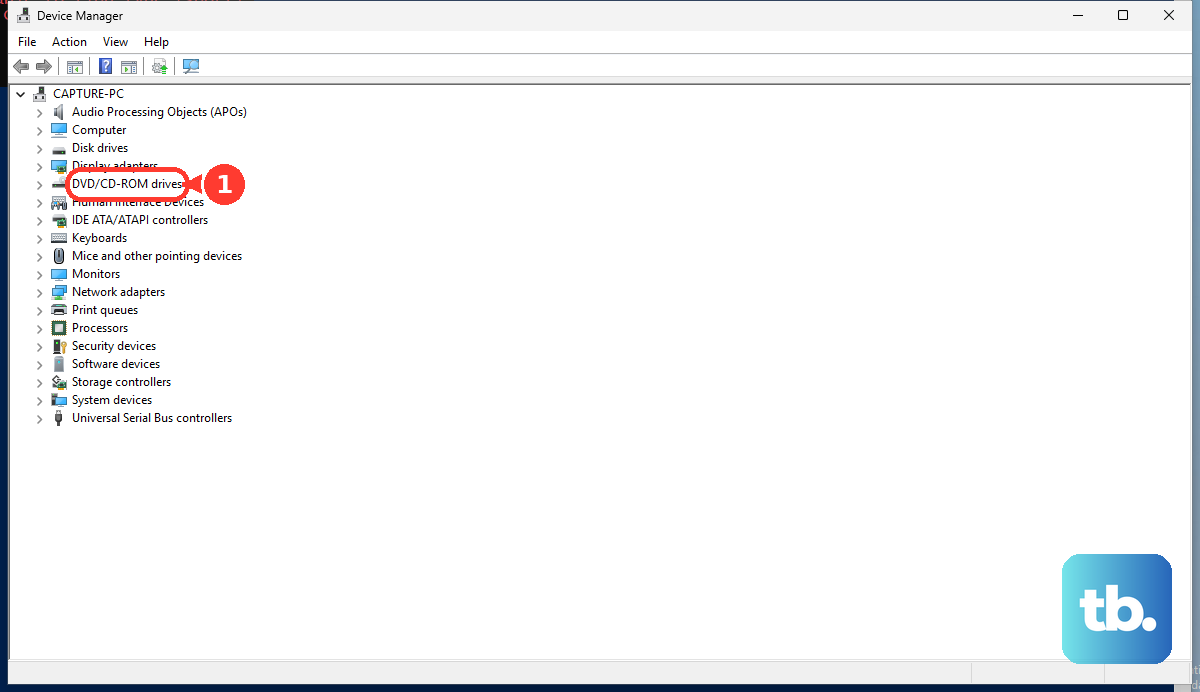
Click Uninstall to confirm. Restart your computer.
If the drive remains undetected, follow your PC or drive manufacturer's model-specific instructions to check that it is enabled in BIOS/UEFI. The entry keys and menus depend on your model. Use the manufacturer's instructions to check for current chipset or drive drivers.
Frequently Asked Questions
Can File Explorer create a conventional audio CD?
No. File Explorer burns data discs. Playing music from one requires equipment that supports the stored files and disc format.
How do I install Windows Media Player Legacy on Windows 11?
On editions offering the optional feature, open Settings > System > Optional Features > View features. Select Windows Media Player Legacy, then choose Next > Add.
What if media components are missing on Windows 11 N?
Install the Media Feature Pack. Open Optional features in Settings, select View features beside Add an optional feature, and choose Media Feature Pack. Complete installation and restart, even if Windows does not request it. This prerequisite applies to Windows 11 N, not standard editions.
What if my work computer blocks CD or DVD writing?
Ask your IT administrator to review CD and DVD: Deny write access and All Removable Storage classes: Deny all access. Managed restrictions must be corrected at their administrative source.