The “Windows cannot access the specified device path or file” error stops you from opening a file, launching a program, or installing an app. Start with a restart, then check the file's location before moving on to permissions and repairs. The steps below focus on Windows 11 and help you choose the fix that matches what's failing.
Restart Windows and try again
Save your open work.
Select Start > Power > Restart.
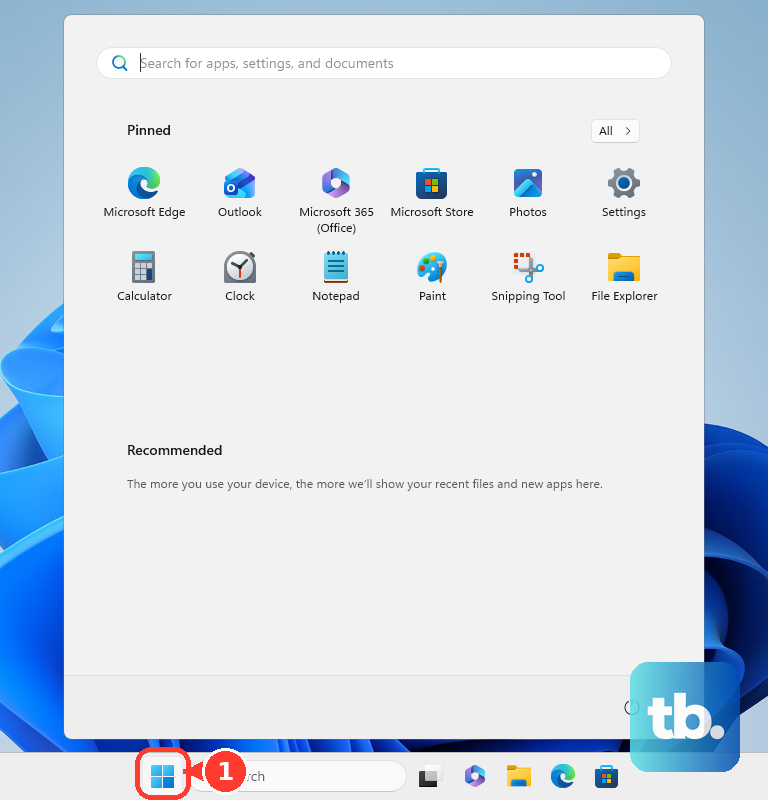
Retry the file, program, or installation after Windows restarts.
Tip: Note exactly which file fails and whether you opened it through a shortcut so you know what to check next.
Reconnect the drive or download the OneDrive file
If the file lives on unavailable storage, reconnect that location first. For external storage, connect the device directly to a compatible USB port on your PC.
Retry opening the file after Windows recognizes the device.
If the device stays unavailable, try another compatible port.
Use the device manufacturer's cable, bypassing an incompatible hub or dock.
For a network file, make sure the computer hosting it is powered on and accessible.
Press Windows+E to open File Explorer.

Open This PC > More > Map network drive.
Choose a letter under Drive.
Enter the network location in Folder.
Select Finish. If you lack access permissions, ask the share owner or administrator for access.
For an online-only OneDrive file, connect to the internet.
Sign in to OneDrive.
In File Explorer, right-click the file and select Always keep on this device.
Wait for the download to finish before reopening the file or disconnecting.
If reconnecting or downloading doesn't help, check the actual file next to see whether your shortcut points to something that has moved or been deleted.
Replace a broken shortcut or restore the missing file
A shortcut fails when its target file is no longer at the location it points to.
Locate the actual program executable before replacing its shortcut. Creating another shortcut won't recover a missing executable.
For an executable you've located, right-click the desktop and select New > Shortcut.
Under Type the location of the item, use Browse to select that executable.
Select Next.
Enter a name for the shortcut.
Select Finish.
Test the new shortcut.
If a personal file was deleted instead, open Recycle Bin.
Right-click the missing item and select Restore to return it to its original location.
Retry opening it from that location.
Deleted online-only OneDrive files need the website's recycle bin. Sign in to the OneDrive website with the account that held the file.
Open Recycle bin.
Select the missing item.
Choose Restore.
Unblock a trusted download and extract ZIP files
Windows uses Attachment Manager to block certain downloaded files. Only remove a block after confirming the file's source and safety.
In File Explorer, right-click the affected file and open Properties > General. Select Unblock if that control is present.
Select Apply > OK. Retry opening the file. If there's no Unblock control, continue to the next applicable fix.
For a program distributed in a ZIP archive, right-click the archive and select Extract All..., then complete the extraction. Open the extracted folder. Launch the intended file there, keeping its companion files together.
Check your account's file permissions
Correcting permissions restores access when your account lacks the rights needed to use a file or folder.
Right-click the affected item and open Properties > Security.
Inspect your account's permissions, including inherited restrictions and explicit Deny entries.
If you're the authorized owner or administrator, use Edit to grant the necessary access, such as Read & execute for an executable. Limit the change to the affected item, not the entire Windows or WindowsApps directory.
Retry the affected file.
For a shared folder, have its owner or administrator check Properties > Sharing on the computer hosting it.
Have the owner or administrator also check Properties > Security. Share permissions and file-system permissions control access separately.
If organizational application controls are blocking the file on a work or school PC, give your administrator the blocked file's details for an approved policy correction.
Find out whether Windows Security blocked it
Open Windows Security > Protection history and expand the event matching the affected file. Administrator privileges are required to inspect threat details. Restore or allow a detection only after confirming that it's a false positive and the file is safe.
For a Threat quarantined event, choose Restore. If Defender detects the confirmed safe file again, use Actions > Allow on device.
For an already removed false positive, choose Actions > Allow. Obtain the file again from its official source. For a Smart App Control block, obtain a properly signed version from the developer; Smart App Control has no individual-app allowlist.
If you suspect malware has damaged or interfered with files, open Windows Security > Virus & threat protection > Scan options. Select Full scan, then Scan now. If cleanup leaves the file missing or the app damaged, restore the file or repair the app.
Repair an app with missing or damaged files
If only one installed app fails, try its repair options before reinstalling it.
- 1.Open Start > Settings > Apps > Installed apps, then open the affected app's options.
- 2.Select Advanced options > Repair if available. For a desktop program without that option, open Control Panel > Programs > Programs and Features, right-click the program, and choose Repair, or Change if repair isn't listed. Follow its maintenance wizard.
- 3.Retry the app after the repair finishes.
- 4.If repair fails and Advanced options offers Reset, read the reset notice before confirming. Reset can remove app data and sign-in state.
- 5.If the app still fails, back up application-specific data, then select Uninstall from its entry under Installed apps and complete the uninstaller.
- 6.Reinstall the app from Microsoft Store or the publisher's official product page, then test it again.
Repair Windows components when several tools fail
DISM followed by SFC repairs damaged Windows components and system files, a relevant check when multiple built-in tools fail.
Search for Command Prompt.
Select Run as administrator.
Run DISM.exe /Online /Cleanup-Image /RestoreHealth.
Wait for DISM to finish.
Run sfc /scannow.
Wait until verification completes.
Follow the reported result, including restarting Windows if required.
Choose a recovery option for a persistent problem
If the error began after a system change, System Restore reverses subsequent application and system changes while retaining personal files. It requires an existing restore point. Press Windows+R, enter rstrui.exe, and press Enter.
Select Next and choose a suitable restore point. Use Scan for affected programs to review the impact. Select Next > Finish to proceed.
For continuing Windows component problems, eligible Windows 11 installations offer Start > Settings > System > Recovery > Fix problems using Windows Update > Reinstall now. This reinstalls the current Windows version while preserving apps, files, and settings. Review the restart option and select OK; keep the PC connected to power and the internet until completion, then restart.
Reserve a Windows reset for a last resort, after backing up important data. Open Settings > System > Recovery > Reset PC, choose Keep my files or Remove everything, then Cloud download or Local reinstall, and complete the prompts. Even Keep my files removes installed apps and resets settings.
Frequently Asked Questions
Will running the program as administrator fix this error?
Use it to test whether a trusted desktop program lacks launch permissions. Right-click its desktop shortcut and choose Run as administrator, then approve the prompt or supply administrator credentials. This does not recover a missing file or override every security policy.
What if only documents fail to open?
If the associated application is missing or broken, right-click the document and select Open with > Choose another app to choose a compatible installed app. For a persistent change, open Settings > Apps > Default apps, search the file extension, select its result, and choose the app. This does not repair executable-file associations.
Can I recover a missing file after emptying the Recycle Bin?
Yes, if an existing File History backup contains it. In File Explorer, right-click the folder that held the file and choose Restore previous versions. Under Previous Versions, select a backup and inspect it using Open > Open in File History. Use Restore, or Restore > Restore to... to recover it elsewhere.
What if a Samsung PC suddenly loses access to the C drive?
Microsoft documents a Samsung Galaxy Connect or Samsung Continuity Service fault affecting specified Samsung devices on Windows 11 24H2 and 25H2. For that fault, follow the complete Microsoft and Samsung recovery procedure in KB5084914 or ask Samsung Support to restore the drive's permissions. The procedure includes restoring TrustedInstaller ownership and removing temporary access entries; stopping after granting temporary access leaves the repair incomplete.