

WhatsApp stickers can get stuck as blank tiles, fail to send from the picker, or disappear after a restore. Start with the fastest app and sticker-pack fixes, then move to updates, storage, network settings, and reinstalling only when the simple repairs do not bring them back.
Try the sticker panel again
This fixes a sticker picker that opened badly or a sticker that failed to send. Open any WhatsApp chat, then tap the Sticker icon, the square icon with a folded corner and smiley face.
Tap Stickers and select a sticker again. On WhatsApp Web or Desktop, click the Sticker icon, open Stickers, and choose a sticker. On Web or Desktop, press Ctrl + Alt + S on Windows or Web, or Cmd + Ctrl + S on Mac, to open the sticker panel.
Close WhatsApp and reopen it
Swipe up from the bottom of your Android screen, hold, then let go. Swipe up on WhatsApp to close it. On iPhone X or later, swipe up from the bottom of the Home Screen and pause.
Find WhatsApp in the app switcher, then swipe up on the app preview. Open WhatsApp again and test the same sticker pack.
On Android, open Settings, go to Apps or Applications, tap WhatsApp, then tap Force stop. Reopen WhatsApp. Use Force stop only on Android, since iPhone does not offer it as a normal app control.
Redownload the broken sticker pack
When one sticker pack is blank or incomplete, remove that pack instead of reinstalling the whole app. Open a chat, tap Sticker, tap +, then open My stickers or Your stickers.
Select the affected sticker pack, tap Remove, then confirm with Remove. Return to the sticker store or sticker list and tap Download next to the pack.
After the download finishes, go back to your chat and send one sticker from that pack. This targets a damaged pack while leaving the rest of WhatsApp alone.
Update WhatsApp from the app store
Use this when stickers keep failing after a restart, or when WhatsApp cannot download or display sticker media correctly. Update WhatsApp before reinstalling it. On Android, open the Google Play Store, find WhatsApp Messenger, then tap Update.
On iPhone, open the App Store, then tap the My Account button or your photo. Go to App Updates and tap Update next to WhatsApp Messenger, or tap Update All.
If WhatsApp will not update on Android, open Settings, go to Apps, and tap Google Play Store. Open Storage and cache, then tap Clear cache.
Tap Clear storage, then choose Delete; clearing Play Store storage may remove parental controls and password protection, so re-enable those settings if you use them. Restart the phone and try updating WhatsApp Messenger again.
Check your internet connection
This fixes sticker search, sticker downloads, and sticker packs that hang because media cannot download. On iPhone, open Settings, then tap Wi-Fi. Turn on Wi-Fi, tap your network name, then go back to Settings and make sure Airplane Mode is off.
On Android, turn Mobile data on, turn Flight mode on and off, then turn Data saver off. Test WhatsApp on Wi-Fi and mobile data.
If you use a VPN or security app and stickers still will not load, uninstall it. Restart the device, then test WhatsApp again.
As a last resort on iPhone, open Settings, go to General, tap Transfer or Reset [device], then tap Reset. Choose Reset Network Settings. This removes saved Wi-Fi passwords and VPN or APN settings.
Free up storage for WhatsApp stickers
Low storage can stop WhatsApp and the phone from downloading or rendering sticker media. In WhatsApp, open Settings, tap Storage and data, then tap Manage storage.
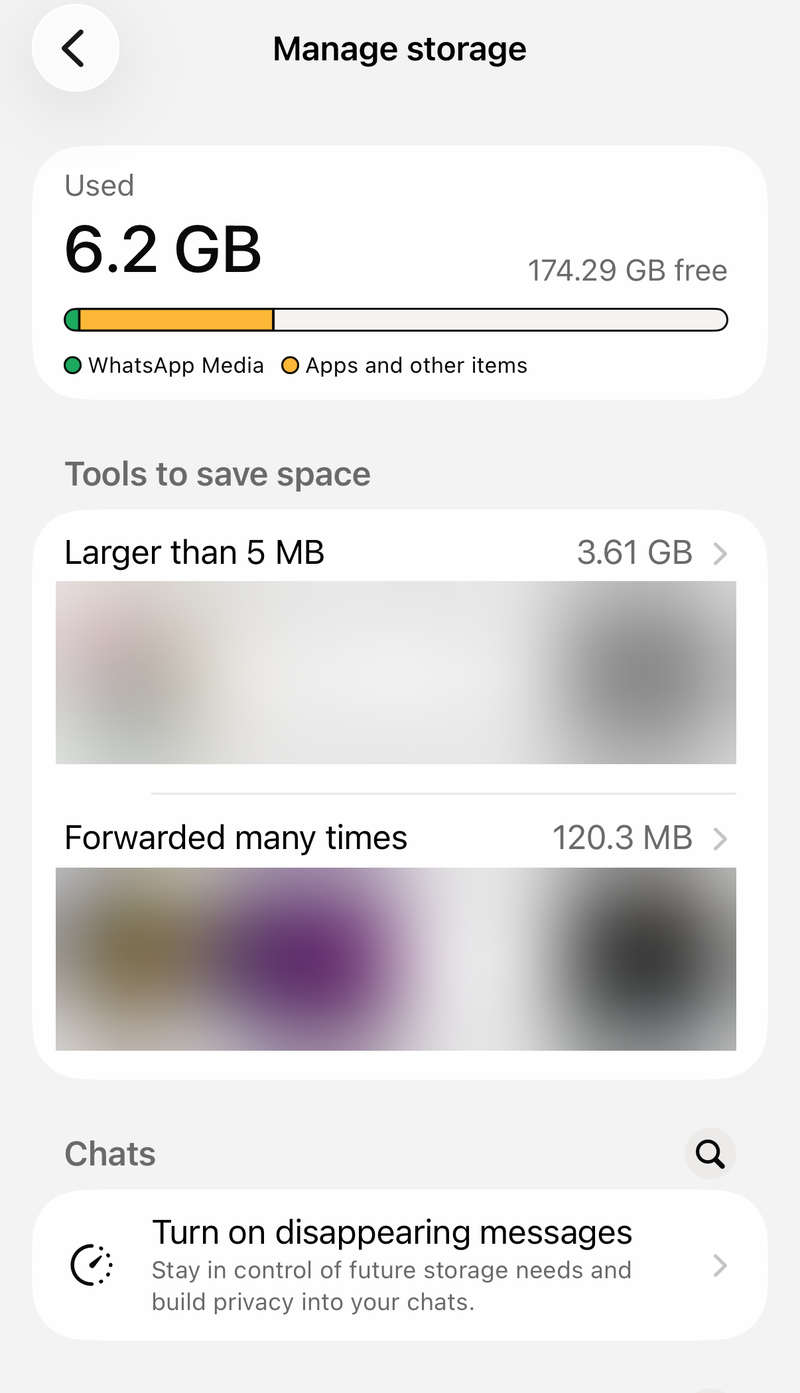
Open a chat or category, select media you no longer need, and delete it. On iPhone, WhatsApp storage tools can clear Videos and GIFs, Photos, Stickers, Documents, and Audio.
Check the phone storage next. On Android, open Settings and go to Storage; on iPhone, open Settings, go to General, then tap [Device] Storage.
Delete unused apps or clear app cache where your phone offers that control, then reopen WhatsApp and try the sticker pack again.
Clear WhatsApp cache on Android
Open Settings on your Android phone, go to Apps or Applications, then tap WhatsApp. Open Storage or Storage & cache and tap Clear cache. Reopen WhatsApp. Clear cache removes temporary files without deleting your WhatsApp account data.
Restart the phone and update the system
This fixes stubborn sticker loading problems caused by a frozen phone, a stuck background process, or an older system version. On Android, press the power button for about 30 seconds, or until the phone restarts. If Android shows a prompt, tap Restart.
On iPhone X or later, press and hold either volume button and the side button until the power-off slider appears. Drag the slider and wait 30 seconds, then press and hold the side button until the Apple logo appears.
If your iPhone is unresponsive, press and quickly release Volume Up, then press and quickly release Volume Down. Press and hold the side button until the Apple logo appears.
After the restart, update Android from Settings, System, Software update. If needed, tap About phone or About tablet first.
On iPhone or iPad, open Settings, then tap General. Tap Software Update.
Reinstall WhatsApp after backing up
Reinstalling is the final consumer fix because it can remove local data when the backup is missing or damaged. Before deleting WhatsApp, open WhatsApp Settings, go to Chats, then tap Chat backup.
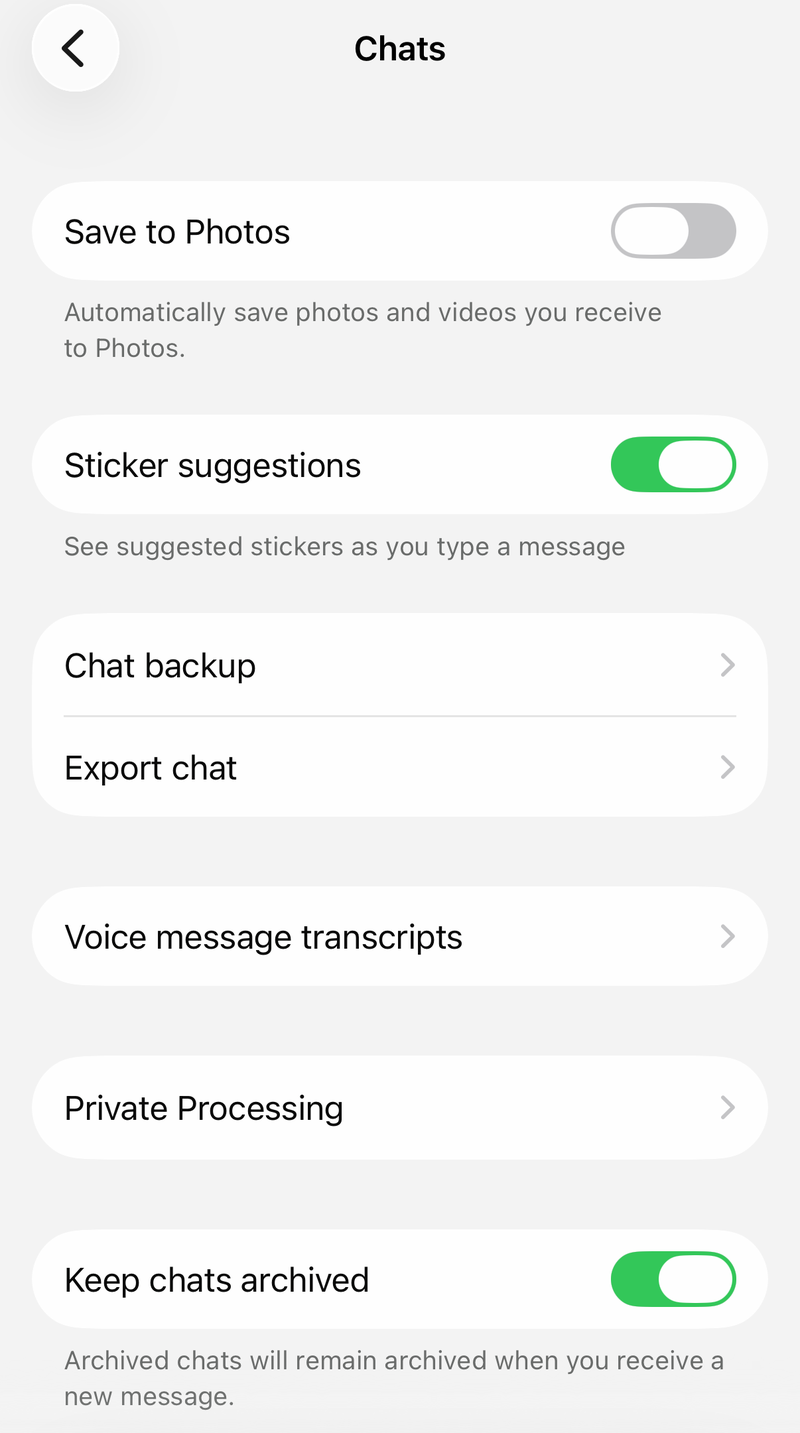
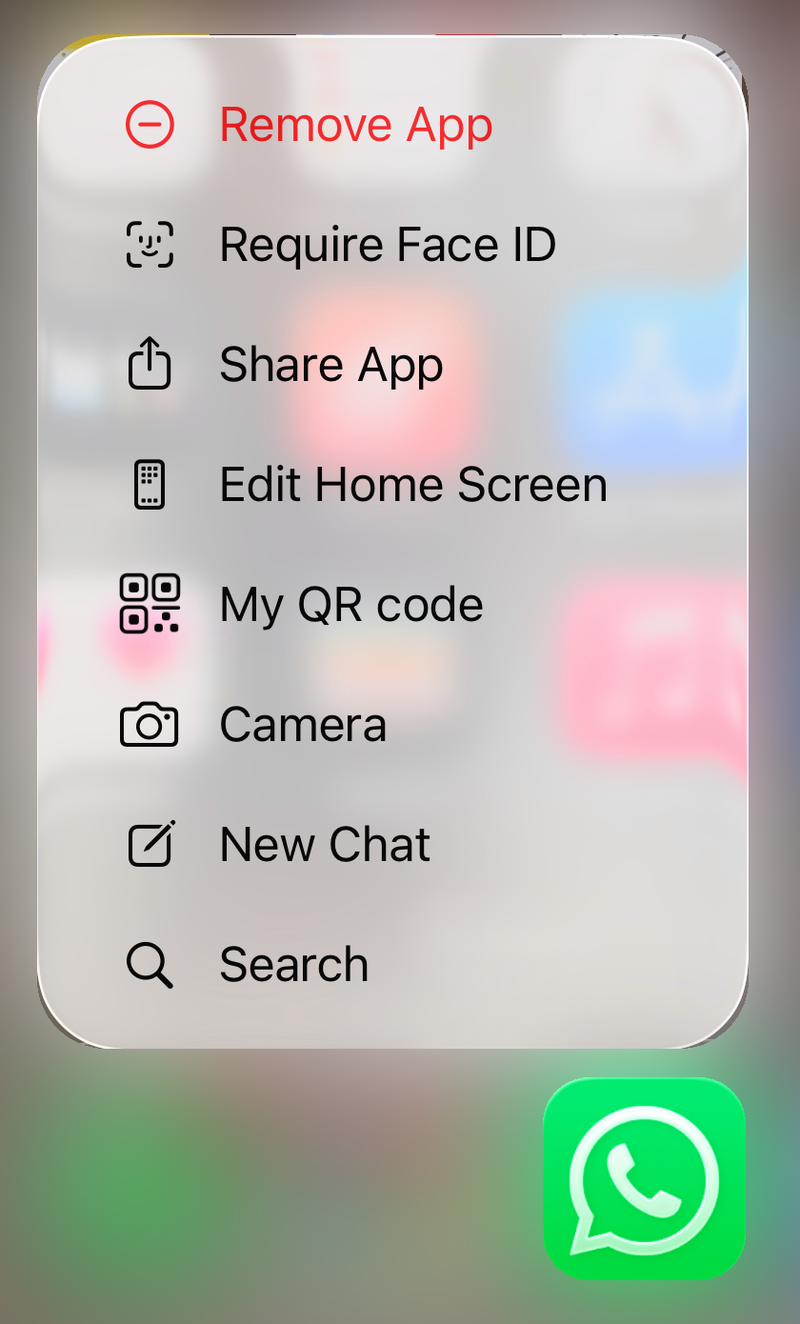
On iPhone, touch and hold WhatsApp, tap Remove App, tap Delete App, then confirm with Delete. Redownload WhatsApp from the App Store, verify your phone number and Apple ID, then tap Restore Chat History.
On Android, open the Google Play Store, tap your profile icon, go to Manage apps & devices, open Manage, select WhatsApp, and tap Uninstall. Install WhatsApp again from Google Play and restore when prompted.
Blank stickers after a restore may indicate a corrupt backup. Reinstall and restore from the available cloud backup again, or re-add and re-download your sticker packs manually.
Frequently Asked Questions
What should I do if WhatsApp stickers do not load only on my computer?
On WhatsApp Web, refresh the page, clear browser cache and cookies, then log out and back in. To relink, open WhatsApp on your phone, go to More options or Settings, open Linked devices, tap the device, tap Log out, then use Link a device again.
Why are my WhatsApp stickers blank after restoring a backup?
Blank stickers after a restore may indicate a corrupt-backup problem. Reinstall WhatsApp and restore from the available cloud backup again, or manually re-add and re-download the affected sticker packs.
Will clearing WhatsApp cache delete my chats?
On Android, Clear cache removes temporary files without deleting your WhatsApp account data.
Should I copy WhatsApp sticker files from Android storage folders?
No. Use WhatsApp’s sticker pack controls and built-in Create tool instead of old file-copy workarounds.
Can I create a replacement personal sticker in WhatsApp?
Yes. Open a chat, tap Emoji, go to Stickers, tap Create, then choose Use a photo or Generate with AI where that option is available.