
Fix Warframe network not responding by restarting your modem, router, and gaming device, pausing downloads and streaming, and testing Ethernet. Check for a reported Warframe server problem before changing firewall or router settings. If the warning continues, run Warframe's network diagnostic to help narrow down the cause.
Digital Extremes describes this warning as a slow or unstable connection between your device and Warframe servers. Port changes mainly address matchmaking and connections between players, while file repairs address download or startup problems. Use those fixes when you also have the matching symptoms.
The short version
- Start simple: Check for server announcements, then restart your network equipment and gaming device.
- Test the connection: Pause competing traffic and compare Wi-Fi with Ethernet or another trusted network.
- Follow the diagnosis: Use Analyze Network before changing port mapping or forwarding rules.
- Keep changes targeted: Check PC firewall exceptions before trying advanced Windows or router repairs.
| Fix | When to use it | Main limitation |
|---|---|---|
| Wait for server recovery | Digital Extremes reports disruption | Retry after the service recovers |
| Restart network equipment | First local connection check | Follow the full startup sequence |
| Pause traffic and improve Wi-Fi | Busy connection or wireless interference | Check other devices sharing the network |
| Test Ethernet or another connection | Original connection remains unreliable | Helps isolate Wi-Fi, router, or ISP trouble |
| Check firewall and VPN settings | PC filtering or update failures | Restore security after temporary tests |
| Repair device network settings | Device connection problems persist | Some resets remove saved configuration |
| Correct NAT or port conflicts | Diagnostic reports peer connectivity trouble | Primarily addresses matchmaking |
| Repair downloaded files | Update or startup failures accompany the warning | Does not repair server instability |
| Contact support or your ISP | Targeted fixes do not resolve the problem | Include diagnostic results and symptoms |
Check for server problems first
Check the official Warframe forums for server and update announcements, especially when the warning begins immediately after an update. If Digital Extremes reports a disruption or unusually heavy update traffic, wait and retry after recovery. Leave local connection settings alone until the reported problem clears.
Compare Warframe with other online games or streaming on your connection. If those also fail, work through the local network checks below and contact your ISP if the instability continues. When only Warframe is affected, focus on its symptoms and network diagnostic result.
Restart your network and reduce traffic
Check that your network cables are connected correctly and that your modem, router, and any switches are powered on. Turn off your PC or console, then power off the modem, router, and other network devices for 30 seconds. Start the modem, wait another 30 seconds, then start the router and remaining network devices.
Start your gaming device and launch Warframe again. Before retesting, pause uploads, downloads, and streaming on every device sharing the connection. If the warning disappears with competing traffic paused, keep that traffic reduced while playing.
Compare Wi-Fi with a wired connection
Temporarily connect your PC or console to the router using Ethernet, using a supported adapter if needed. If Warframe works over Ethernet, concentrate on the wireless connection before changing game ports. If the warning remains, compare another internet connection after the checks below.
On PS5, open Settings > Network > Settings > Set Up Internet Connection, select Set Up Wired LAN, then choose Connect. On PS4, open Settings > Network > Set Up Internet Connection, select Use a LAN Cable, then choose Easy. Retest Warframe after configuring the wired connection.
For Wi-Fi, move the router closer and reduce obstructions and interference from walls, appliances, nearby routers, and wireless devices. Follow your router manual to change its wireless channel or channel width if placement changes are not enough. Digital Extremes identifies 20 MHz channel width as less prone to interference than 40 MHz.
Try another trusted internet connection, such as a phone hotspot, to help isolate your original router or ISP, particularly when chat also fails. With a separate modem and router, temporarily connect the gaming device directly to the modem using Ethernet and retest. If bypassing the router resolves the issue, contact the router manufacturer; if other online services remain unreliable, ask your ISP to investigate.
Check PC firewall and VPN settings
On Windows, add security exceptions for Launcher.exe and Warframe.x64.exe. Open Windows Security > Firewall & network protection > Allow an app through firewall, then select Change settings. Enable the appropriate Warframe entries, or select Allow another app to add those executables, then select OK.
Check your third-party antivirus or firewall for exceptions for the same files. You can temporarily disable a third-party firewall to check whether it is interfering, then re-enable it immediately afterward. If that resolves the failure, adjust its exceptions before continuing to play.
Disconnect an existing VPN and retry, especially when downloading or updating also fails. To review a Windows proxy, open Control Panel > Internet Options > Connections > LAN Settings. Clear Use automatic configuration script and Use a proxy server for your LAN when those settings are unnecessary, then retest.
Repair your device connection settings
Use Windows connection diagnostics when your device has trouble beyond Warframe. On Windows 11, run the Network and Internet troubleshooter in Get Help. On Windows 10, open Settings > Network and Internet > Status > Network troubleshooter, then follow its recommendations.
For a faulty saved Wi-Fi connection, open Settings > Network & internet > Wi-Fi > Manage known networks. Select your network, choose Forget, then reconnect using its password. Retest Warframe before proceeding.
A DNS cache flush can help with DNS trouble, but it is not a guaranteed fix for this warning. Open Command Prompt using Run as administrator, then run this command:
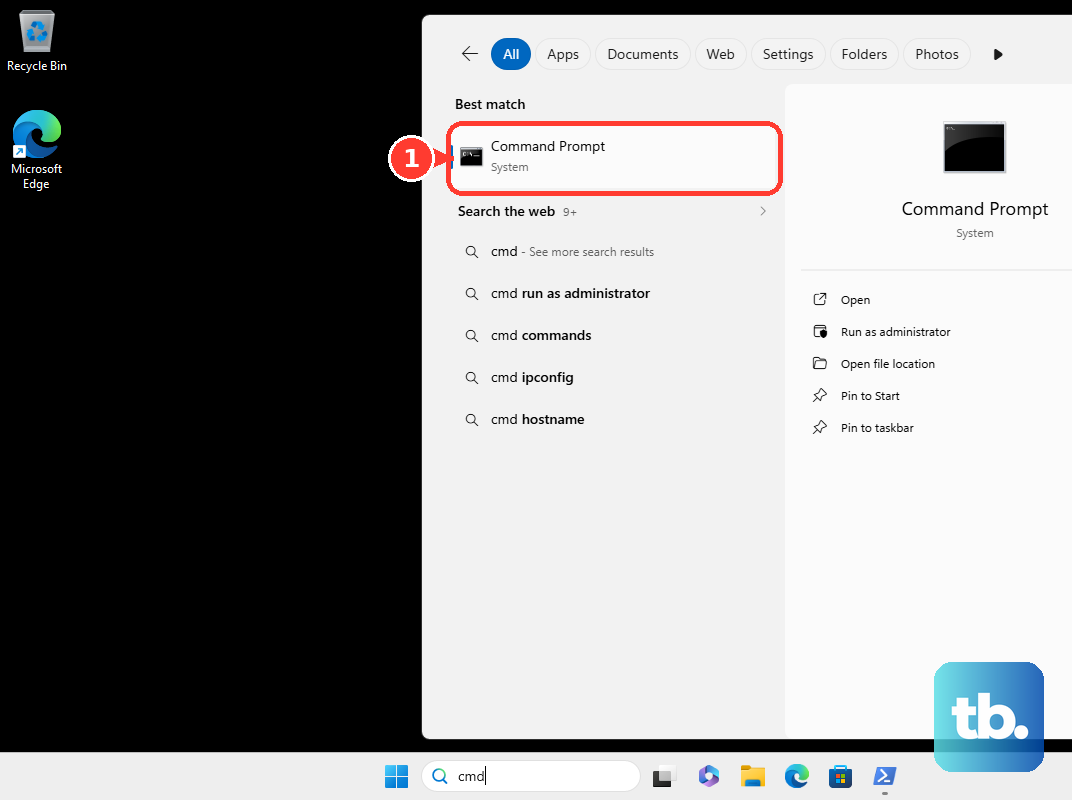
ipconfig /flushdnsRetest Warframe after the command finishes. If the warning persists and test-ipv6.com confirms that your connection uses IPv6, Digital Extremes recommends a temporary PC IPv6 test. Press Windows + R and enter this command to open your network connections:
ncpa.cplRight-click the active connection, select Properties, clear Internet Protocol Version 6 (TCP/IPv6), select OK, and restart. Retest Warframe, then restore the IPv6 checkbox.
On PS5, check whether your router uses an IPv6-only configuration. PlayStation says PS5 supports IPv6 but cannot use an IPv6-only network. For that setup, ask the router manufacturer how to enable IPv4.
On PS4, open Settings > Network > Test Internet Connection and follow the troubleshooting for the reported error. On Nintendo Switch systems, open System Settings > Internet > Test Connection and examine the connection result and NAT Type. Use the result to identify connection trouble before changing Warframe settings.
For Android connection trouble, swipe down, open the Internet panel, and choose another network. On supported Android devices with a problematic custom DNS provider, open Settings > Network & internet > Private DNS, select Automatic, then select Save. Retest before clearing app data.
On iPhone or iPad, open Settings > Wi-Fi, enable Wi-Fi, and select your network. Ensure Airplane Mode is off, then retry Warframe.
Save an iPhone or iPad network reset for persistent connection trouble. Open Settings > General > Transfer or Reset iPhone or Transfer or Reset iPad > Reset > Reset Network Settings. This removes saved Wi-Fi passwords and other network configuration.
Use the network diagnostic for NAT problems
Open Warframe's main menu, using Esc on PC, select OPTIONS, and run Analyze Network from the in-game settings. Record the result before changing settings. NAT and port fixes are most relevant when you also have trouble with matchmaking, friends, voice, or connections between players.
On PC, open OPTIONS > SYSTEM, enable UPnP and/or NAT-PMP, then select Confirm. Enable the corresponding feature on your router using its manufacturer's instructions. Consoles do not have these in-game automatic port-mapping toggles, so make the applicable change on the router.
If the diagnostic reports ports in use or NAT-PMP In Use By Another Program, close unnecessary background applications, especially torrent clients. When multiple Warframe devices share your network, open OPTIONS > SYSTEM > Network Ports [UDP] on the second device and select a different available pair. Match any manual forwarding rules to each device's selected pair. Digital Extremes says this workaround should not be necessary on Xbox One.
Use manual forwarding as an advanced fallback for unresolved peer connectivity problems. Follow your router manual to forward the ports for your platform to the gaming device's local IP, matching its actual Network Ports [UDP] pair. Digital Extremes publishes these platform-specific requirements:
- PC uses TCP 6695 to 6709 and UDP 4950, 4955, 443, and 80. Steam has its own list: TCP 6695 to 6709, 27015, and 27036, plus UDP 4950, 4955, 27015, and 27031 to 27036.
- PS4 and PS5 use TCP 3478 to 3480 and 6695 to 6709, plus UDP 3074, 3478 to 3479, 4950, and 4955.
- Xbox One and Series X use TCP 3074 and 6695 to 6709, plus UDP 88, 500, 3074, 3544, 4500, 4950, and 4955.
- Nintendo Switch uses TCP 6667, 6695 to 6709, 12400, 28910, 29900 to 29901, and 29920, plus UDP 1024 to 65535.
The Switch UDP range is exceptionally broad, so reserve it for this advanced fallback. Digital Extremes does not separately list forwarding requirements for Xbox Series S, Switch 2, or mobile. Ask support for platform-specific direction instead of assuming another device's list applies.
When using manual forwarding, disable router UPnP and, on PC, disable Warframe's UPnP and NAT-PMP, then restart. If forwarding still fails, check the router's WAN IP for another upstream NAT device. Forwarding may also be needed on that device; for ISP-controlled carrier-grade NAT, contact your ISP about obtaining a public IP.
Repair files only for update or startup failures
Use file repair when the warning accompanies a failed update or trouble launching Warframe. On PC, open the Warframe launcher, select the gear in the upper-right corner, and choose Verify. Wait for completion, then select Optimize. These repairs address downloaded files rather than an unstable server connection.
On Xbox, fully close Warframe and launch it again. At the launcher, hold LB + RB + Y together until VERIFYING DOWNLOAD CACHE appears, then let it finish. Use this check for accompanying startup trouble.
For an original Nintendo Switch, Switch Lite, or Switch OLED, open System Settings > Data Management > Manage Software > Warframe > Check for Corrupt Data. Follow the Redownload instructions if corruption is found, then retest Warframe.
On Pixel Android, force-stop the game through Settings > Apps > See all apps > Warframe > Force stop > OK, then reopen it. For continued app trouble, open Storage & cache and select Clear cache. Reserve Clear storage for persistent app problems because it removes local app data. Other Android manufacturers can use different menu labels.
Send useful details to support
Contact your ISP when other online games or streaming also fail, or when Warframe works on another connection but remains unreliable on your home network. Explain which connection checks succeeded and which failed. For a persistent Warframe-specific failure, include your platform, symptoms, and network diagnostic result in a Warframe support request.
On PC, reproduce the problem, run Analyze Network, then open the launcher's upper-right gear and select Get Logs. Attach the files from the desktop Warframe Logs folder when selecting Submit a request on Warframe's support site.
Capture the warning with F6 in-game and retrieve the image from %USERPROFILE%\Pictures\Warframe. On another device, take a screenshot of the warning to include with your request.
Frequently Asked Questions
Can Warframe Companion disconnect the full game?
Yes, accepting a Companion prompt can terminate the full game's connection. Close your Companion session before playing on PC or console, and avoid accepting a prompt to terminate the game connection during a mission.
Should you change your DNS server to fix this warning?
Try another DNS resolver only when you suspect DNS trouble; it is not an established fix for every Warframe network warning. Google Public DNS uses 8.8.8.8 and 8.8.4.4. Record your existing configuration before changing it so you can restore it after testing.
What should you do when UPnP is enabled but Warframe still reports Strict NAT?
Contact your router manufacturer for its firmware-update procedure and install an official update if one is available. Configure UPnP again afterward and rerun Analyze Network.
How do you collect Warframe Mobile logs when you cannot log in?
On Android, triple-tap the launcher's upper-left corner in landscape orientation to collect logs. On iOS, double-tap the upper-left corner in landscape orientation. Attach logs.zip and your device model to the support ticket, plus your Android version for an Android device.
What should you try for a failed Warframe update on PS4?
Close Warframe, open Notifications > Downloads, select the failed Warframe update, and delete it so the correct update can download again. Open Settings > System Software Update and follow any installation prompts, because Digital Extremes says a pending console update can prevent a Warframe update.